

Overview
Shopify Actions enable your AI agent to provide comprehensive e-commerce support directly within the chat interface. These actions give your agent access to your store’s product catalog, cart, order information, and customer data, allowing it to assist shoppers throughout their entire journey, from discovering products to placing an order and following up afterwards.Prerequisite: Before using Shopify Actions, you must set up the Shopify integration with your Chatbase account.
Available Shopify Actions
Signed-in and guest customers
Some actions read or change a specific customer’s data, so they only work when the shopper is signed in to your Shopify store. Others work for anyone in the chat. Check this before you enable an action on a channel where shoppers are never signed in, such as Instagram or WhatsApp.How guests verify an order. For authenticated customers, order lookup is automatic: no email address, phone number, or order number is required, and orders are retrieved directly from the signed-in account. Guest customers can look up orders using either:
- Checkout email + order number
- Phone number + order number
How to create a Shopify action
Every Shopify action is created the same way. The action sections below list only what differs: which template to pick, the default settings, and any extra configuration the action needs.1
Navigate to Actions
Go to your Chatbase dashboard and select the agent connected to your Shopify store. Click Build > Actions in the left sidebar.
2
Create the Action
Click Create action, then on the Shopify card select the action named in its section below.
3
Configure General Settings
Action Name and When to use come pre-filled with working defaults. Leave them as-is unless you need to make a specific change; each action’s defaults are listed in its section below.To restrict the action to procedure steps only, turn on Only use in procedures. When it’s on, the When to use field is hidden, because the agent no longer decides when to call the action.Click Save and continue.
4
Configure the action's own settings
A few actions add steps here. Retrieve and display products adds a Products step for syncing your catalog. Create order, Create exchange (new order), and Create return or exchange (same order) add a Behavior step that controls how the order or return is built and recorded in Shopify, and Create exchange (new order) adds an optional Collect additional details step. Every other action skips straight to channels.
5
Choose Channels
Use Channels to control where the action is available. This step is optional: toggle the action on or off for each configured channel, then click Save. Some channels may be incompatible with the action and won’t be available for selection.
6
Enable and Test
Ensure the action is toggled to Enabled, then test it with the check listed in the action’s section below.
Actions
1. Retrieve and display products
Search and display products from your Shopify catalog. Customers can browse by category, search for specific items, and add products directly to their cart. Shoppers can also search by image: when they send a photo as an attachment, the agent finds matching products from your catalog, even when the product name doesn’t appear in the image.Best for:
Helping customers discover products, answering questions about inventory, comparing items, and facilitating add-to-cart actions.
- “Show me red dresses under $50”
- “What laptops do you have in stock?”
- “How much is this?” (with a photo attached)
Settings
Template: Retrieve and display products. The action opens as Shopify get products. Action Name: Get_Products. When to use: If the user ask about products, use this tool. Summarize the tool’s result in your response, ensuring no images are included within the text response.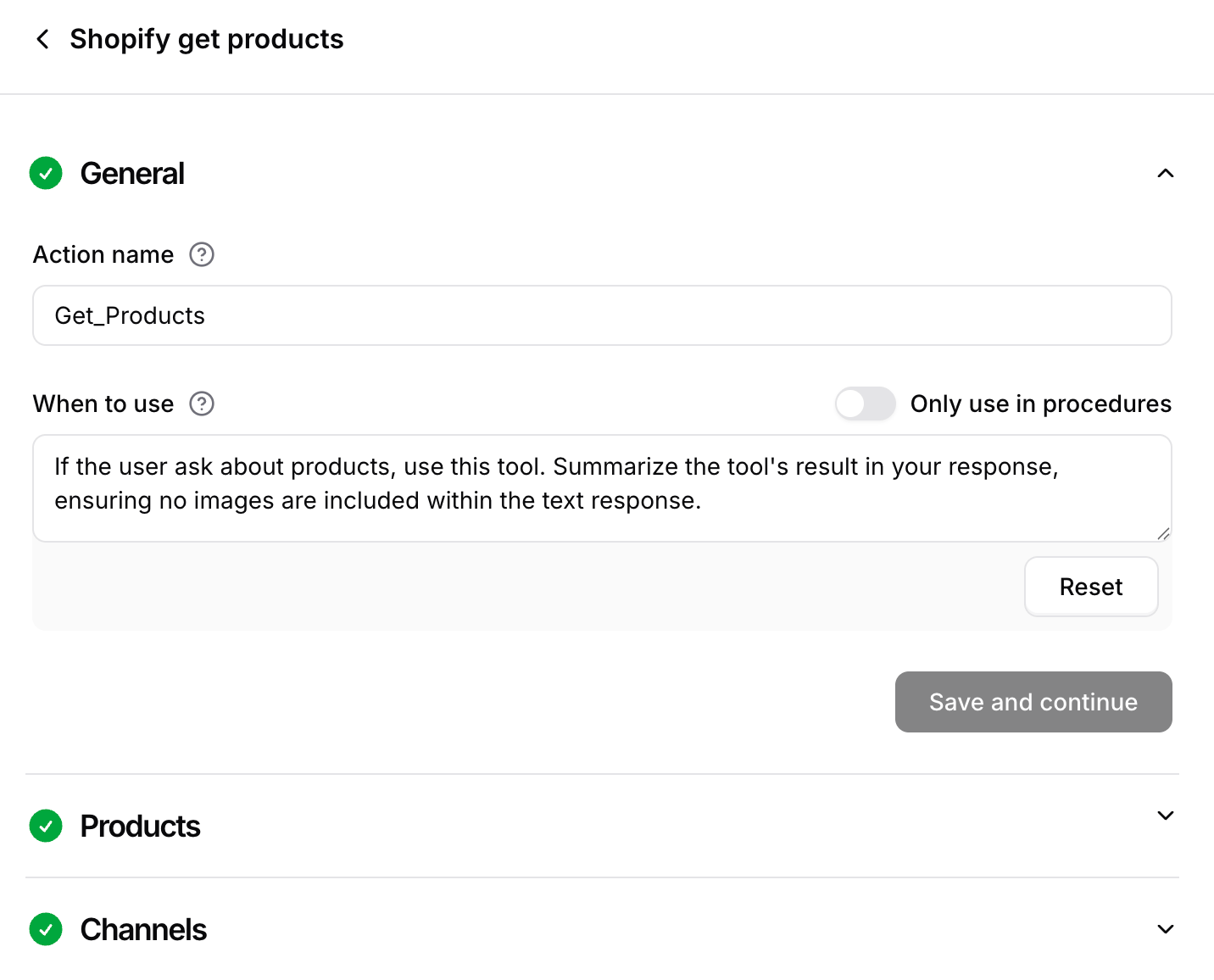
Sync your products
In the Products section, click Sync products to import your catalog. The initial sync may take some time depending on the size of your store. Once it finishes, the section shows how many products were synced. After the first sync, your products stay up to date automatically. If you ever need to, click Re-sync products to fetch the in-stock products again. Click Continue.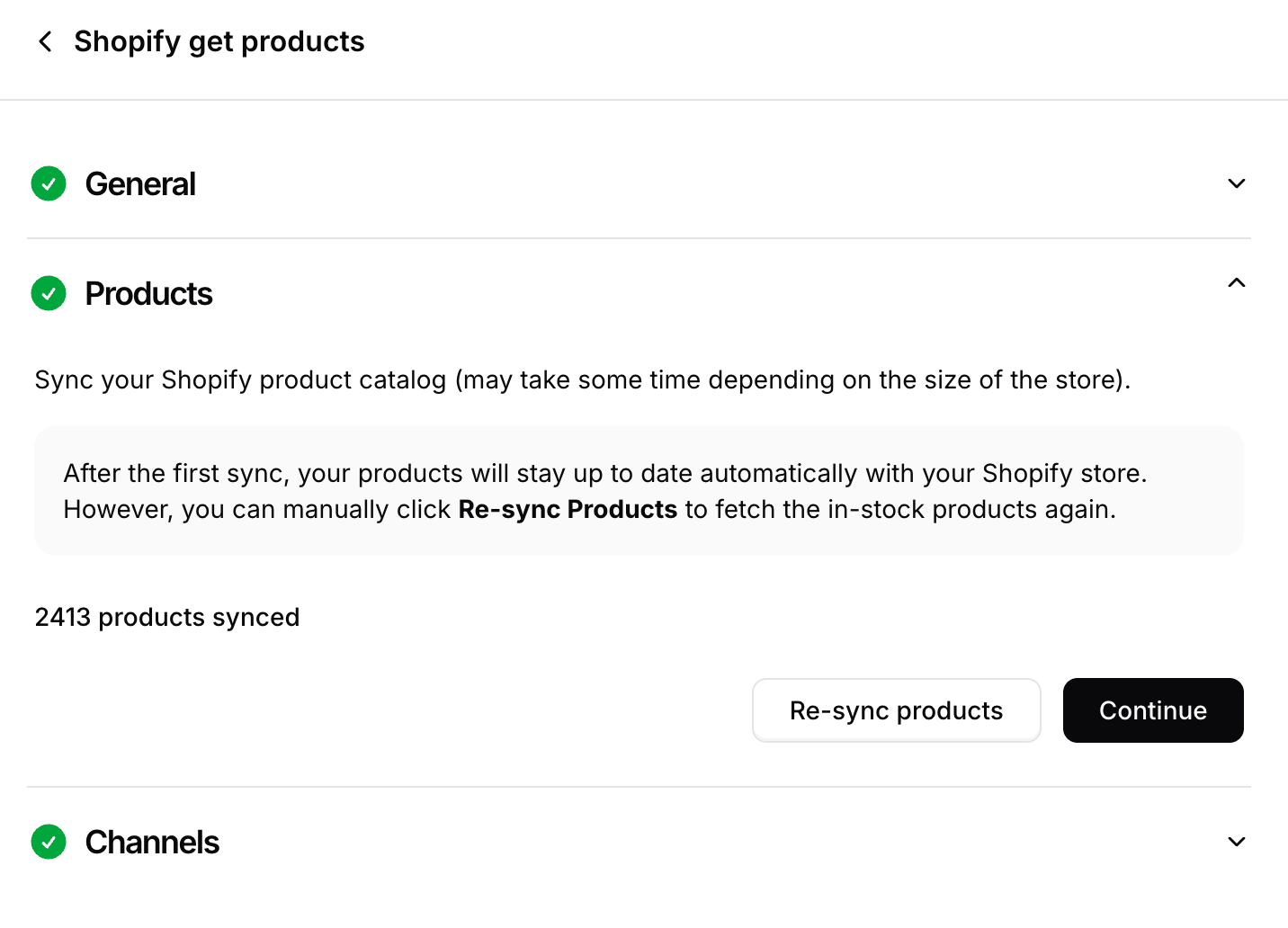
Test the action by asking your agent product-related questions to verify it returns accurate results.
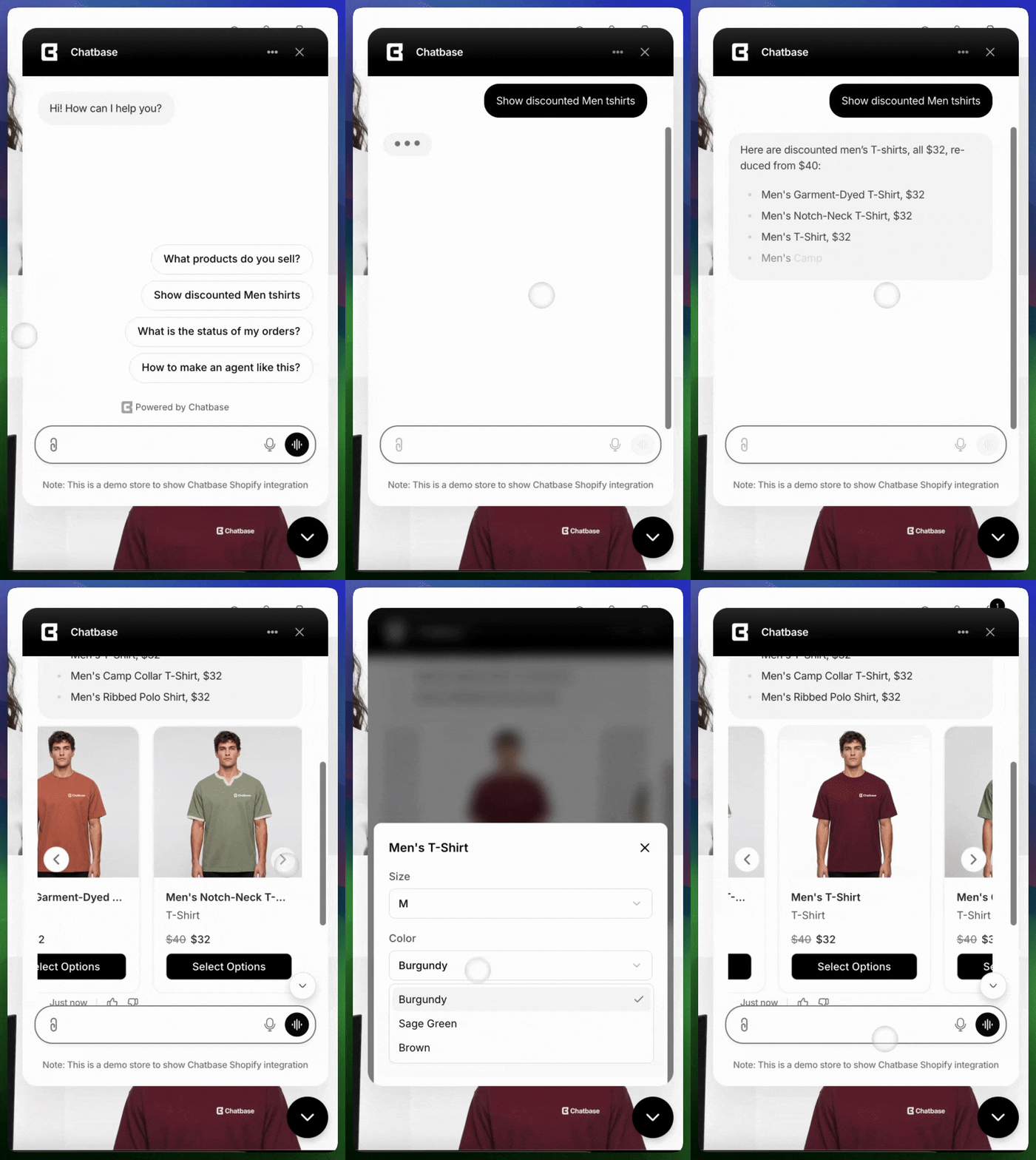
Shopify action buttons, such as Add to cart and Select options, are automatically translated based on your localization settings.
Exclude out-of-stock products
You can exclude out-of-stock Shopify products from the products available to the Retrieve and display products action. By default, out-of-stock products are included, allowing your agent to recognize products that belong to your store but are currently unavailable. If your store has a large number of out-of-stock products, you can choose to exclude them. To exclude out-of-stock products:1
Enable Exclude out-of-stock products
Under Products, enable the Exclude out-of-stock products toggle.
2
Re-sync your products
Click Re-sync products to apply the change.
Search by image
Shoppers don’t need to know a product’s name to find it. When a customer sends a photo as an attachment, for example a screenshot from social media, the agent identifies the matching products from your catalog and displays them with the usual Add to cart buttons. This works because Chatbase trains on your product images as part of the product sync, not just on titles and descriptions. No extra setup is needed: once your products are synced, image search is available on every channel that supports attachments.Test it by sending your agent a photo of one of your products, with or without text, and check that it returns the right item.
WhatsApp Catalog
When the Retrieve and display products action runs on a WhatsApp channel, it can send products as native WhatsApp product cards with cart support instead of plain text. This requires connecting your Shopify catalog to WhatsApp through Meta.WhatsApp Catalog setup guide
Follow the step-by-step guide to connect your Shopify product catalog to WhatsApp.
Keeping Your Theme’s Cart Icon in Sync
By default, when a customer adds a product to their cart through the chat bubble, your theme’s cart icon doesn’t update until the page is reloaded. The item is added, but the cart count still shows 0 until the customer refreshes. Chatbase dispatches custom DOM events whenever the agent changes the cart, so your theme can update its cart UI in real time. With a listener for these events in place, adding one product makes the cart count show 1 right away, with no refresh. The following events are fired:Multiple event names are dispatched to ensure compatibility across different Shopify themes. You only need to listen to one of them.
How Product Sync Works
To sync your catalog, open the Products section of the action and click Sync products. Chatbase will then retrieve all products from your Shopify store, including their images, which the agent uses to recognize products in photos shoppers send; this may take some time depending on the size of the store. After the initial import, Chatbase automatically listens for changes: whenever a product is added, updated, or deleted in your store, the data syncs in real time. This ensures your agent always has access to up-to-date product information. If you ever need to, click Re-sync products to fetch the in-stock products again. When you delete the action, Chatbase automatically removes its stored product data and stops syncing future updates.Note that once this action is in use, your agent already has your product data through the sync, so you can exclude product pages from your website training source.
2. Update cart
Let shoppers manage their cart through the conversation: add products, remove them, or change quantities before checkout.Best for:
Adjusting quantities, removing items the shopper no longer wants, and adding recommended products without leaving the chat.
- “Add two of these to my cart”
- “Remove the blue one from my cart”
- “Change the quantity of the sneakers to 3”
Settings
Template: Shopify update cart. Action Name: Update_Cart. When to use: Call this tool when the user wants to add a product to their cart, change the quantity of an existing line, or remove a line from the cart. After updating the cart, ask the user if they want to add more products or proceed with creating the order?Test the action by asking your agent to add a product to the cart, change its quantity, and remove it again. Cart updates don’t work in the Playground, so test from a live channel such as the Chat bubble.
3. Get cart
Display the current contents of a customer’s shopping cart, including items, quantities, prices, and totals.Best for:
Showing customers what’s in their cart, displaying cart totals, and helping customers review items before checkout.
- “What’s in my cart?”
- “Show me my cart total”
- “How many items are in my cart?”
Settings
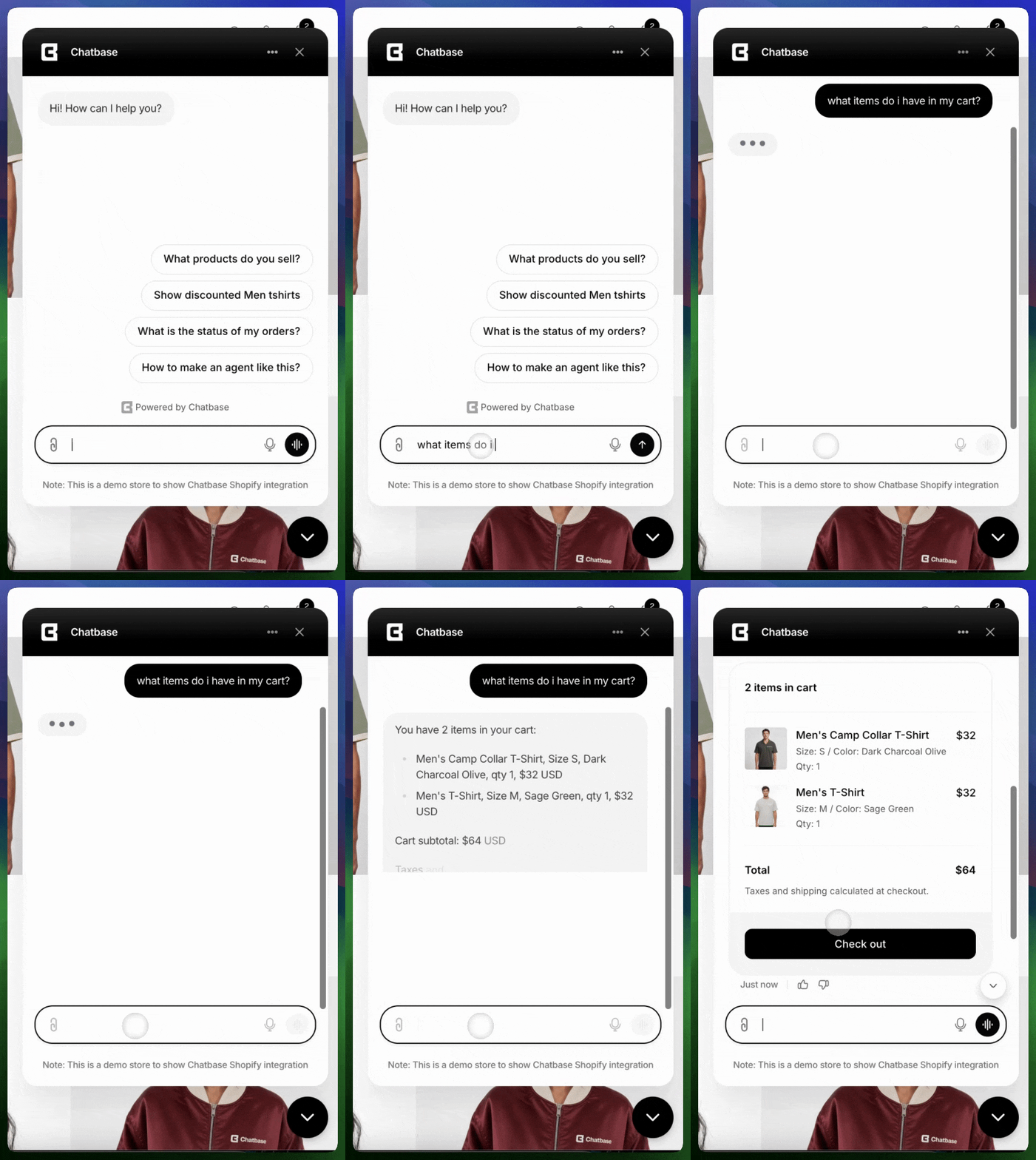
Template: Shopify get cart. Action Name: Get_Cart. When to use: Call this tool when asked about the cart, including the items in the cart, the total price, the quantity of items.Test the action by asking your agent to show cart contents.
4. Create order
Let your agent place a Shopify order for the shopper directly from the conversation. The order can be built from the shopper’s cart or from specific items the agent (or a procedure) provides, and paid for with a Shopify checkout link, cash on delivery, or as a free order. Orders can be placed from any channel your agent is on: Chat bubble, Help page, Instagram, Messenger, and WhatsApp.Best for:
Completing a purchase without leaving the chat, “buy it now” flows, cash-on-delivery stores, and sending free replacement or gift orders.
- “I’m ready to check out”
- “Place the order for what’s in my cart”
Settings
Template: Shopify create order. Action Name: Create_Order. When to use: Call this tool when the user wants to place an order. If orders should only ever be placed as a step inside a procedure, and never on the agent’s own initiative, turn on Only use in procedures.Behavior
The Behavior section controls how the order is built, how it is paid for, and how it is recorded in Shopify. Order items: where the items in the order come from.
Order payment: how the shopper pays.
Shipping address phone number: whether the agent collects a phone number for the shipping address.
Order tags: tags added to every order this action creates, so you can find them in Shopify admin. Defaults to
chatbase. Add or remove tags as needed.
Order note: a note attached to the order in Shopify. Defaults to Placed via Chatbase AI agent ( {{paymentModeLabel}} ), where {{paymentModeLabel}} is replaced with the payment method used for the order. Click Add variable to insert other variables, or Reset to restore the default.
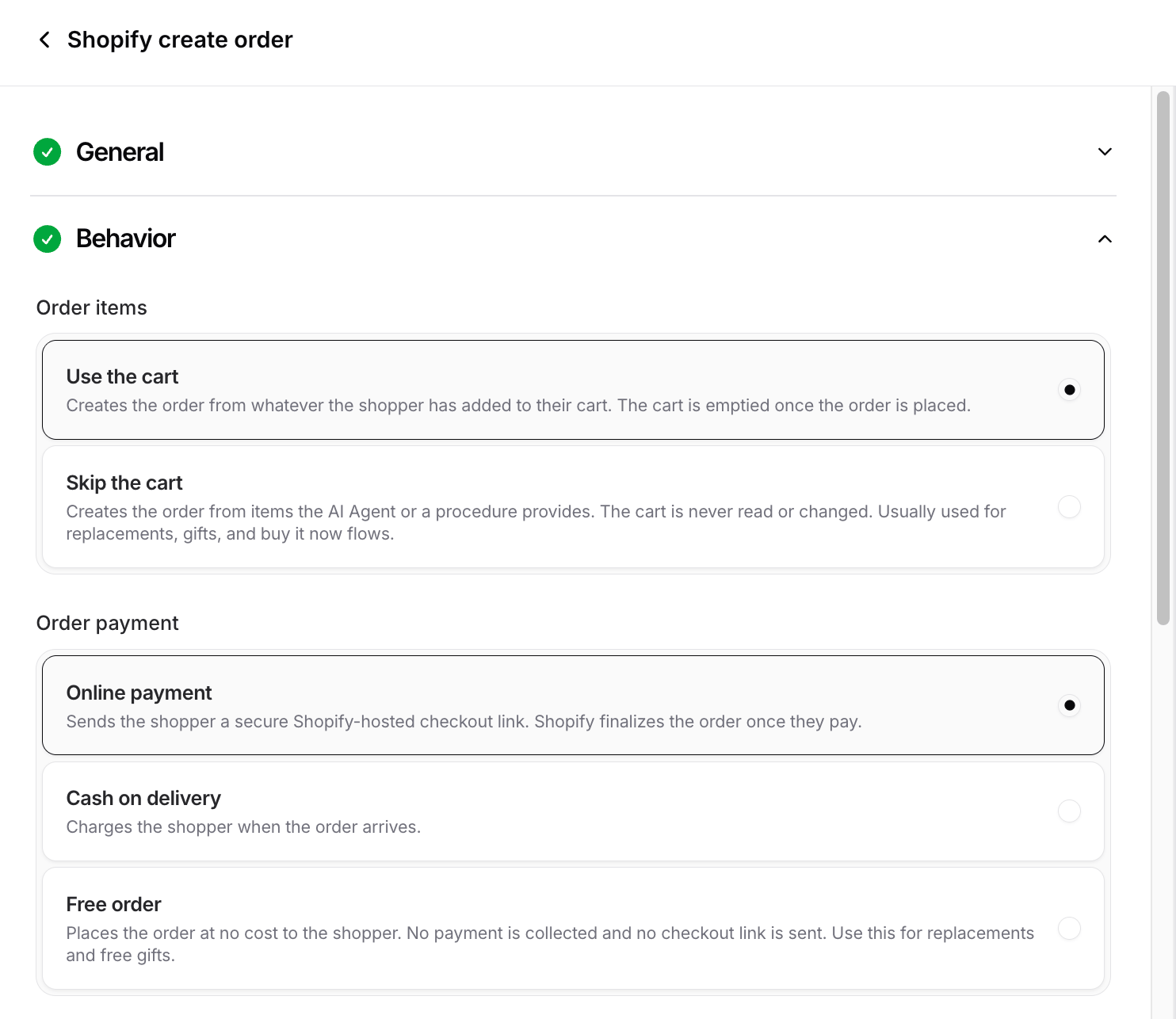
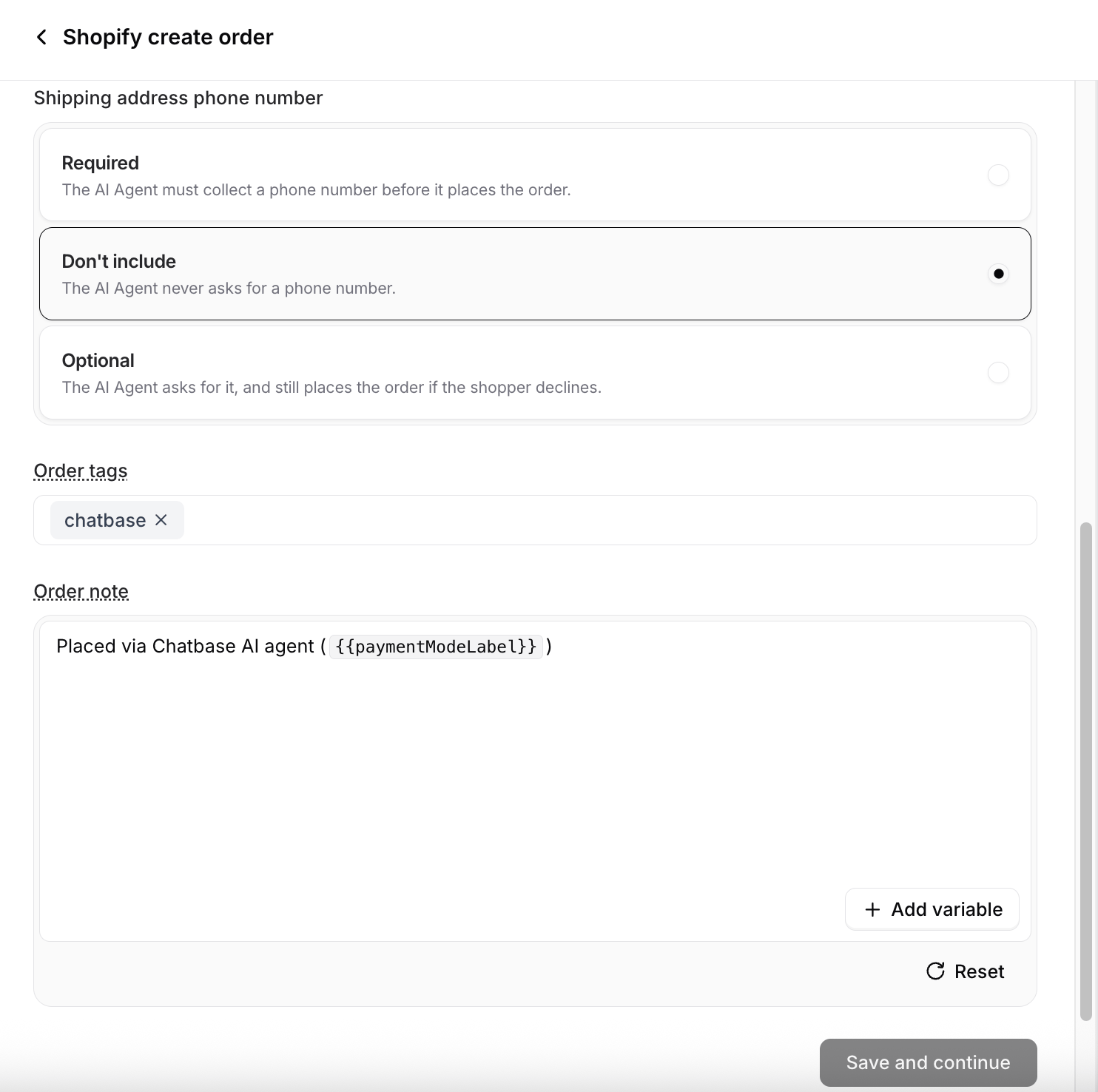
Test the action by adding an item to the cart and asking your agent to place the order. With Online payment selected, the agent should reply with a Shopify checkout link.
When testing from the Playground with Online payment, the AI agent isn’t aware whether the payment was completed. On supported channels, the agent knows once the shopper pays. Updating the cart doesn’t work in the Playground either, so test Use the cart orders from a live channel such as the Chat bubble.
5. Create exchange (new order)
Handle exchange requests against a past order. The agent creates an exchange draft order that credits the returned items toward their replacements, then opens a Chatbase Helpdesk ticket so a human agent can approve or reject it before the order is placed. Approval is always required: nothing reaches Shopify until someone works the ticket. This action only swaps items for replacements. It can’t take a plain return, so if the customer wants their money back rather than a different product, use Create return or exchange (same order) instead.Best for:
Size and color swaps, replacing a wrong or defective item, and any exchange where you want a person to approve before the replacement ships.
- “I’d like to exchange these for a size 10”
- “Can I swap this for the black version?”
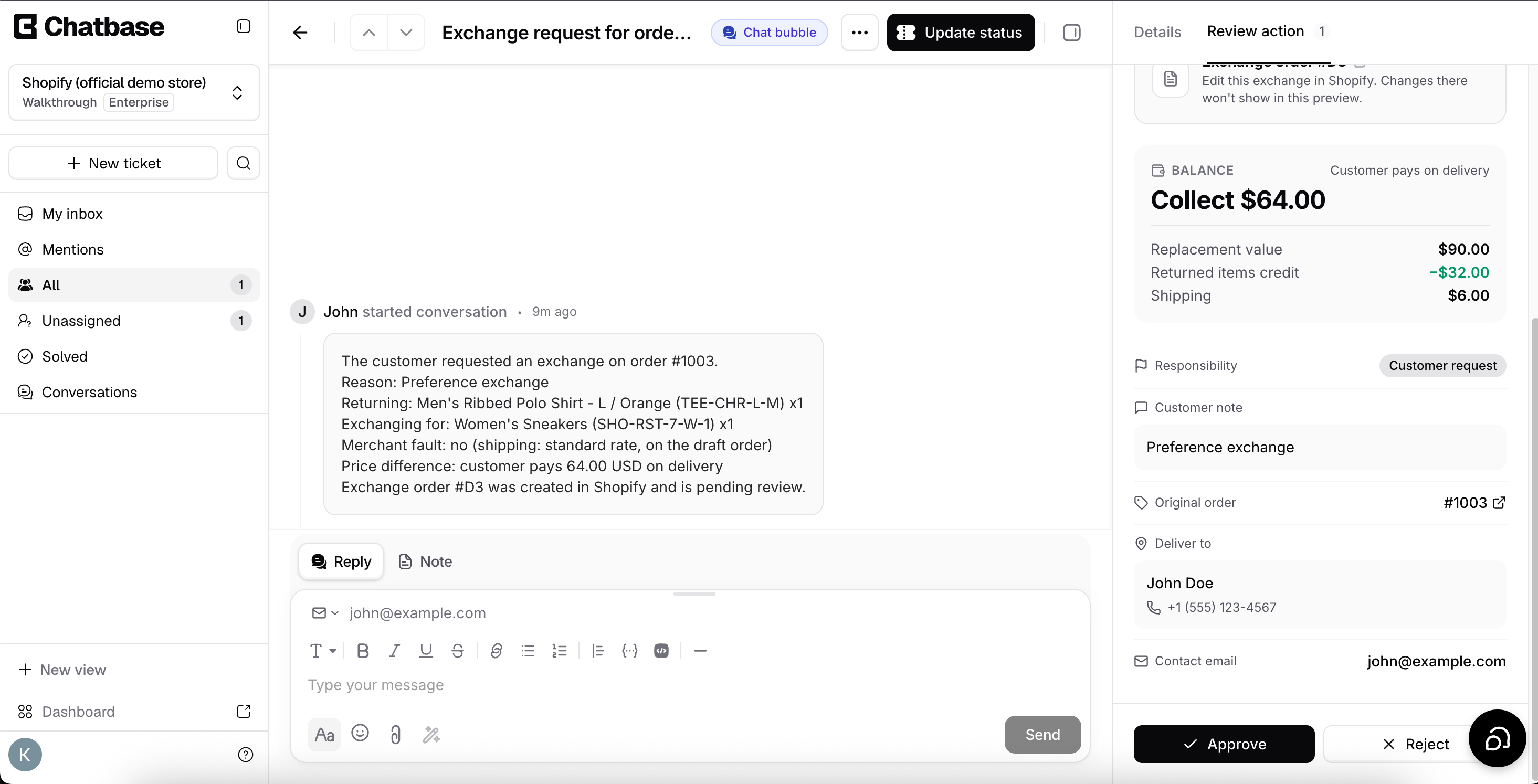
The exchange order isn’t placed until a human agent approves it. The Chatbase Helpdesk ticket shows a summary of what is being returned and what it is being exchanged for; the human agent approves or rejects it with a single click, and approving pushes the exchange to Shopify. See the Helpdesk overview for how tickets are handled.
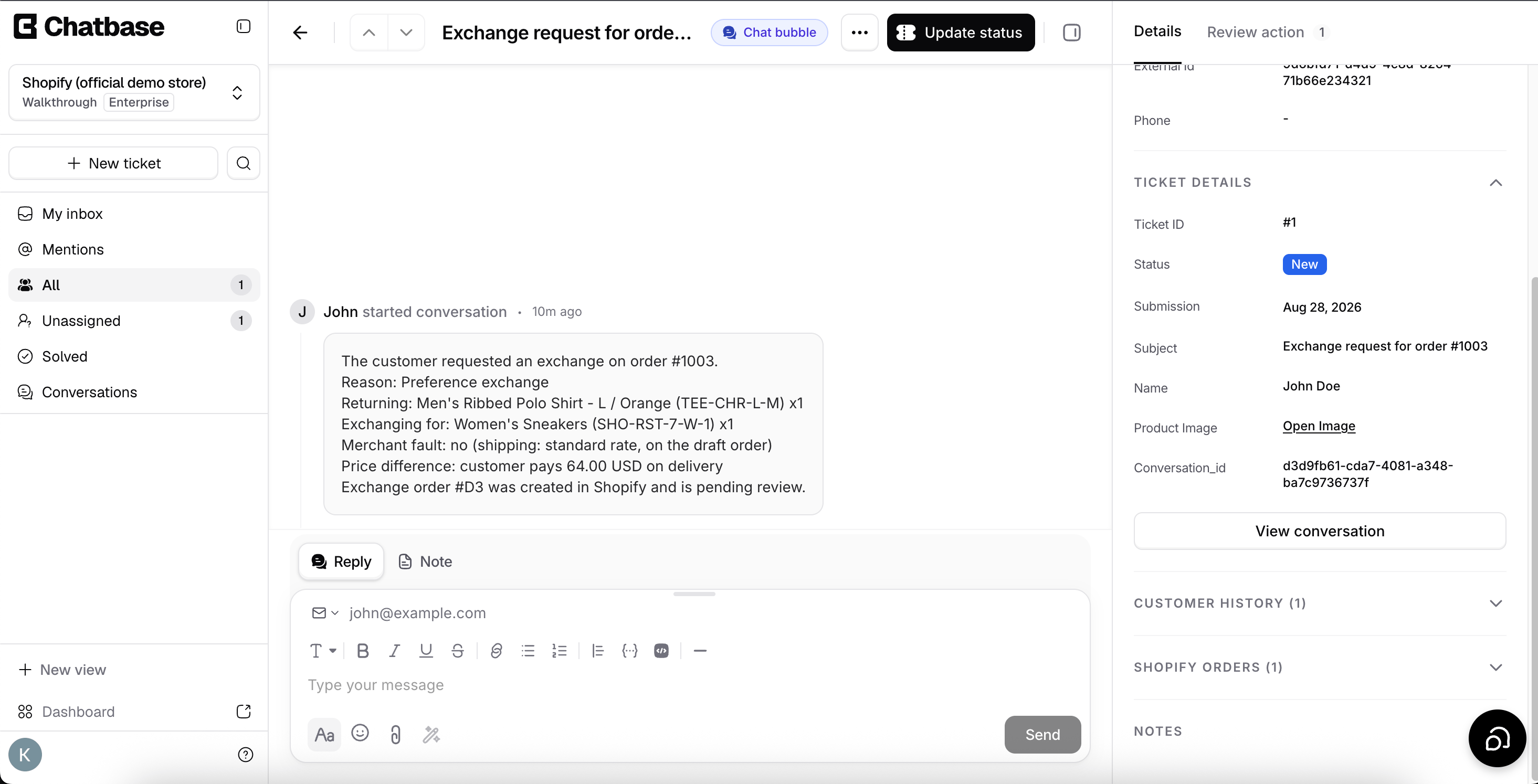
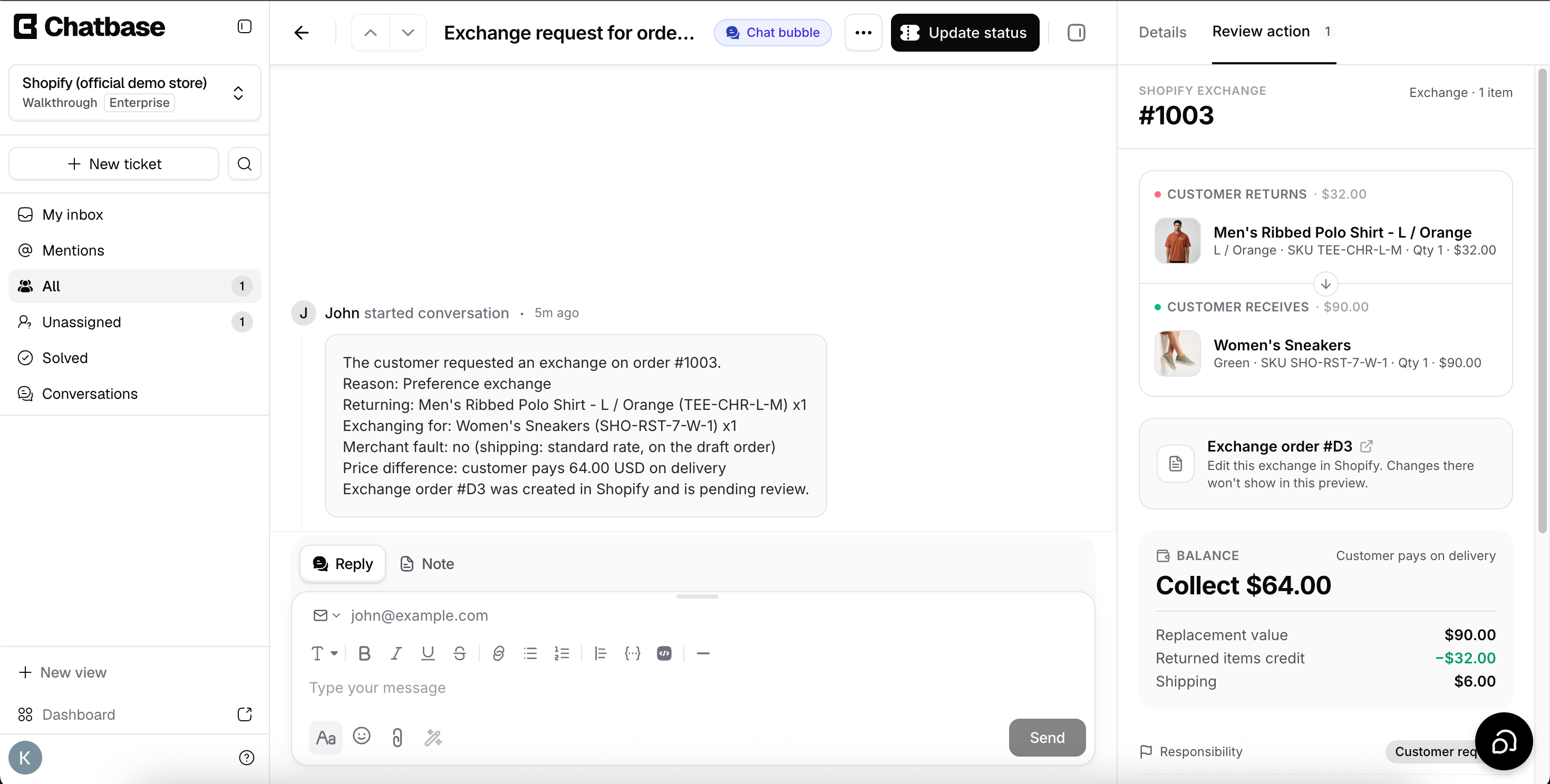
Settings
Template: Create exchange (new order). The action opens as Shopify create exchange. Action Name: Create_Exchange. When to use: Call this tool when the user wants to do a product exchange.Behavior
The Behavior section controls how the exchange draft order is recorded in Shopify. Order tags: tags added to the exchange order, so you can find it in Shopify admin. Defaults tochatbase. Add or remove tags as needed.
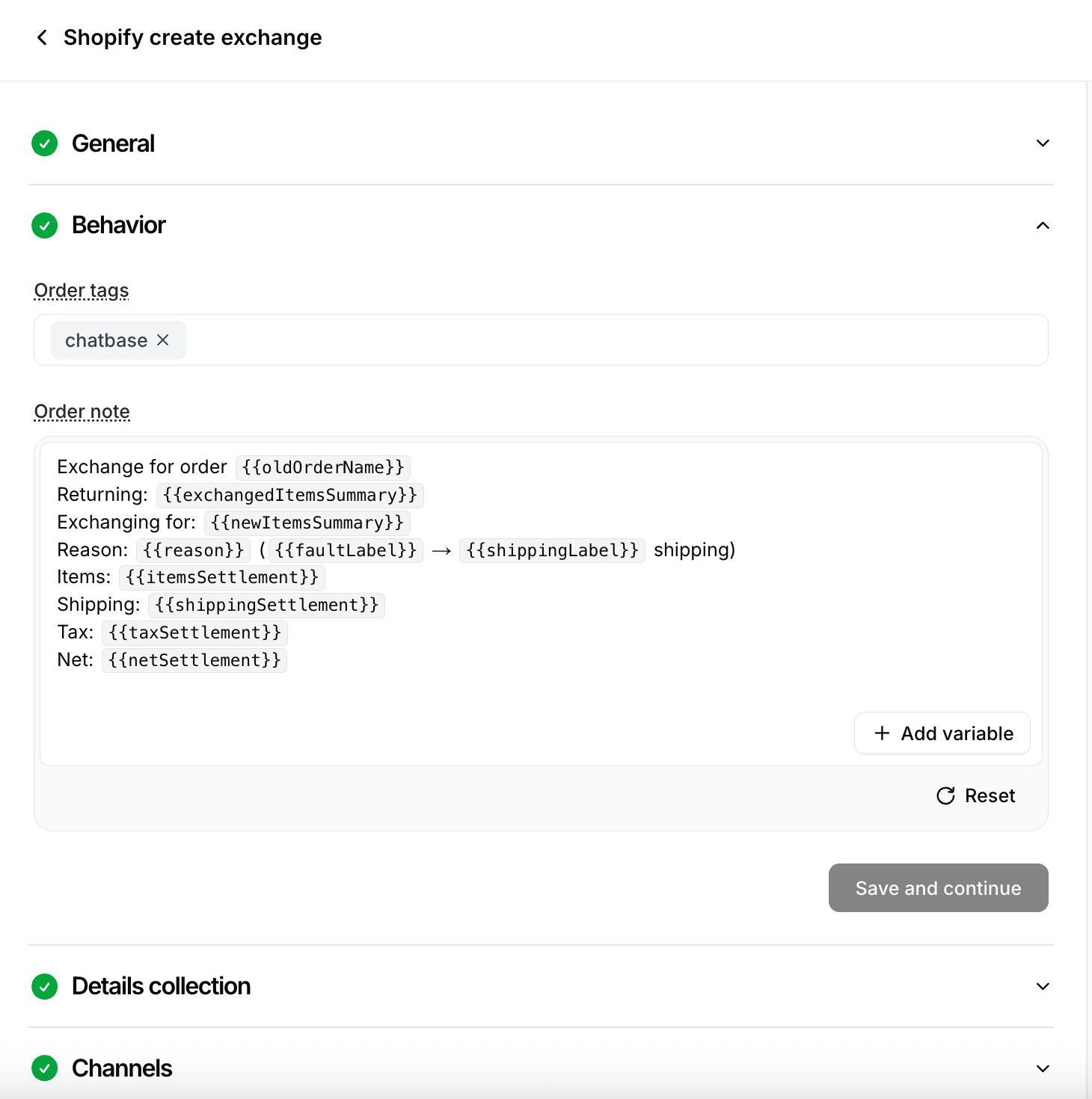
Order note: a note attached to the exchange order that summarizes what is being returned, what it is exchanged for, and the resulting balance. The default is:
For example, the default Reason line renders as
Reason: Wrong size (merchant fault → free shipping).
Collect additional details (optional)
Under Collect additional details, define the fields the AI gathers in conversation before it opens the exchange ticket in the Chatbase Helpdesk, for example an image of the product that needs to be replaced. Click Add data input and give each field a Name, a Type (for example, image), and a Description that tells the agent what to ask for. Leave Required checked to make the agent collect the field before it opens the exchange, or uncheck it to let the agent open the exchange without that field. Click Save and continue, or Skip if you don’t need any extra details.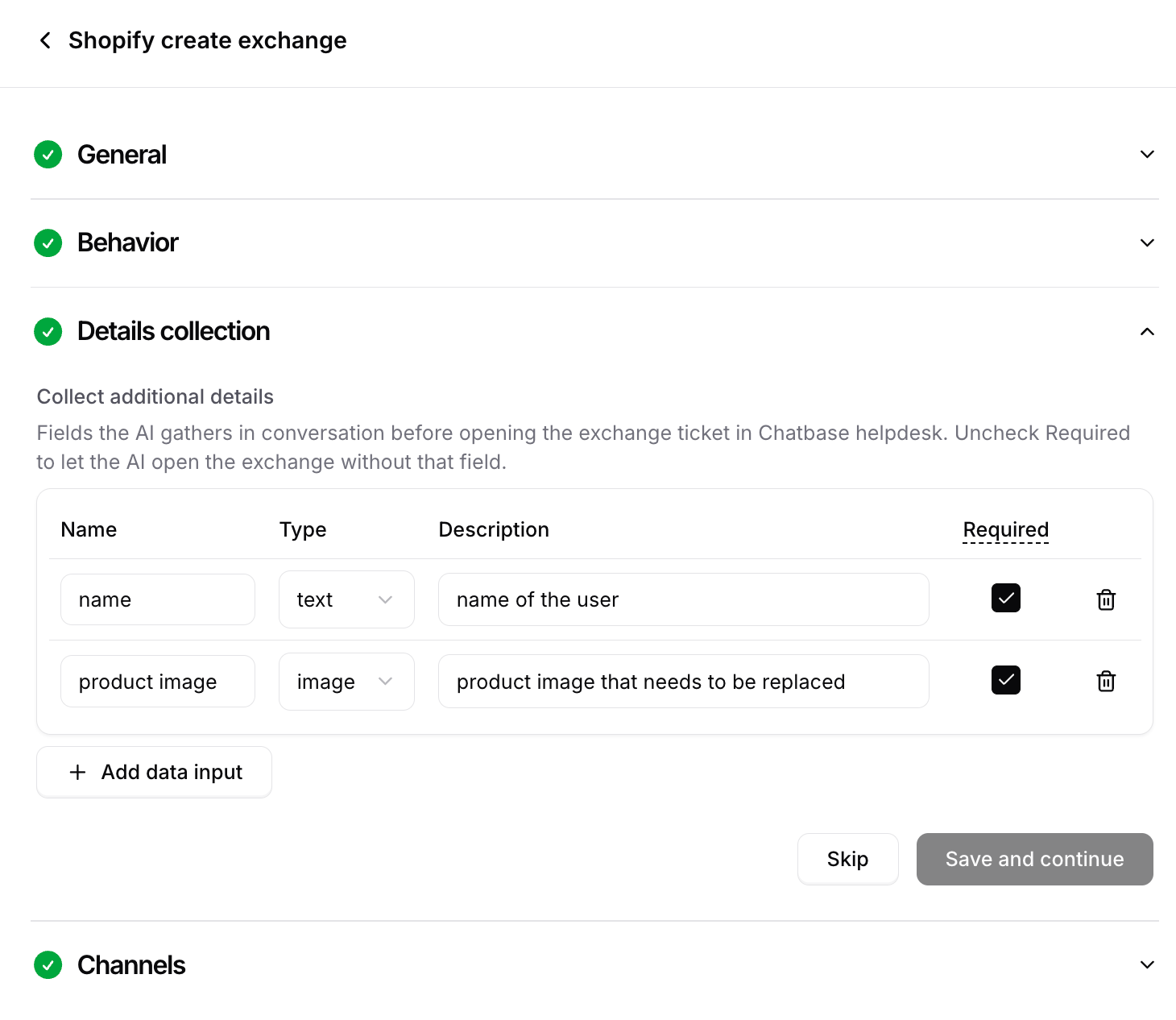
Test the action by asking your agent to exchange an item from a past order. A ticket should appear in your Helpdesk for approval, and the exchange order is placed only after an agent approves it.
6. Create return or exchange (same order)
Handle a return against a past order without creating a new one. The agent opens the return directly on the customer’s existing Shopify order: returned items are refunded, or swapped for replacements if you allow exchanges, by editing the original order. No new order or draft is created. This is the only Shopify action that can take a plain return. Create exchange (new order) only swaps items for replacements, so every refund request goes through this action.Best for:
Self-service refunds, and size or color swaps you’re happy for the agent to complete on its own, inside a return window you set.
This action runs automatically. The agent opens the return in Shopify during the conversation, with no Helpdesk ticket and no approval step. An option to send returns to a Chatbase Helpdesk ticket for approval, the way Create exchange (new order) works today, is coming soon.
- “I want to return these shoes”
- “Can I send this back for a refund?”
- “I’d like to swap this for a size 10”, when Allow exchanges is on
Enable both if you want approval-gated exchanges for some cases and self-service returns for others, then use a procedure to decide which one the agent reaches for.
Settings
Template: Create return or exchange (same order). The action opens as Shopify create return. Action Name: Create_Return. When to use: Call this tool when the customer wants to return, send back, or swap item(s) from a past order.Behavior
The Behavior section sets the rules the agent follows when it opens the return. Return window (days): how long after delivery an item can still be returned. Defaults to30. Leave the field empty for no time limit.
Allow exchanges: off by default. Turn it on to let the agent swap returned items for other products in the same return, with Shopify settling any price difference. With it off, the action only refunds the returned items.
Test the action by asking your agent to return an item from a past, delivered order. The return should appear on that same order in Shopify admin, with no new order or draft created. Also try an order older than your return window and confirm the agent declines it.
7. Retrieve and display orders
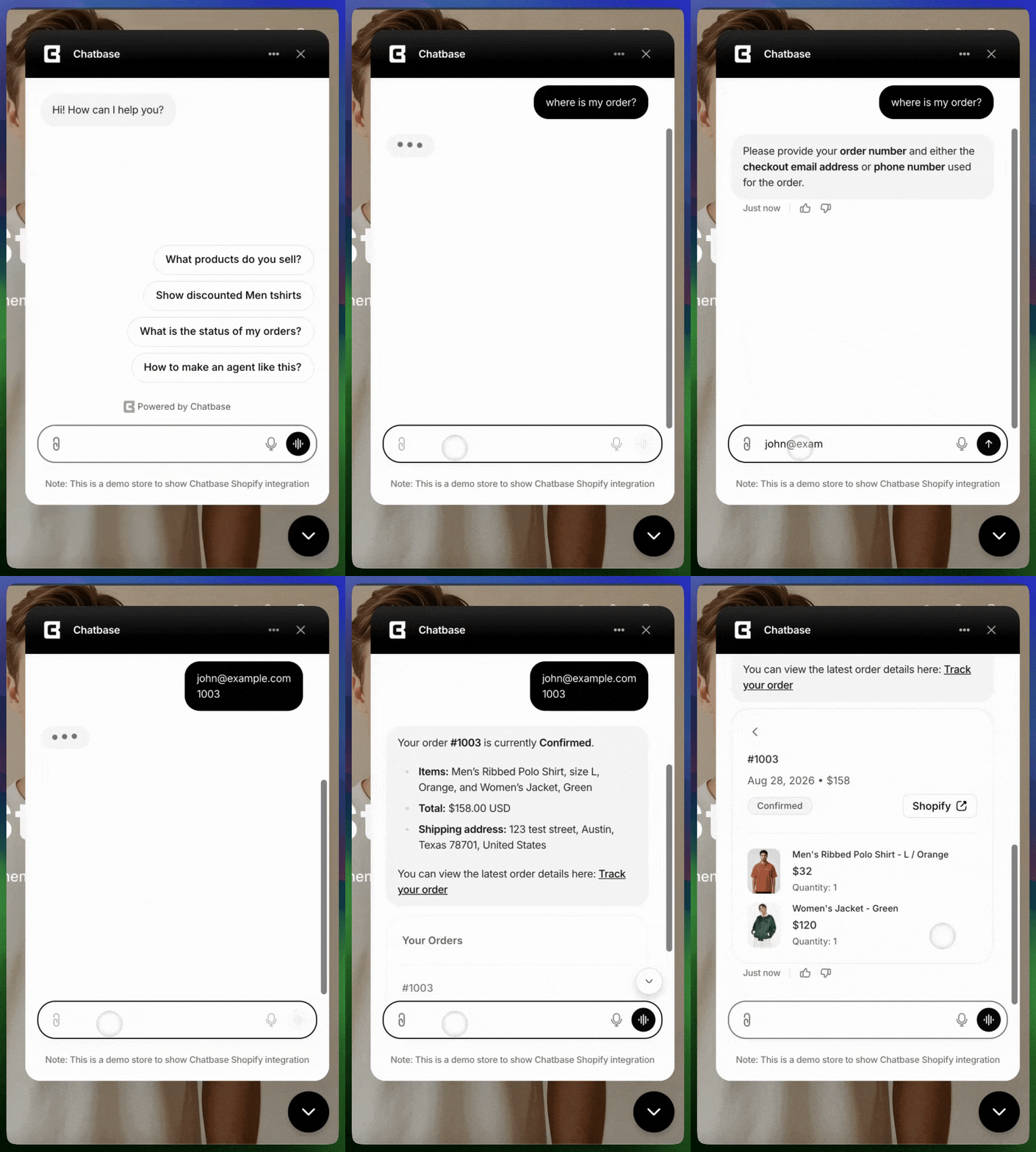
Retrieve order information for customers. Customers can check order status, view their purchase history, and get details about specific orders using various filters.Best for:
Answering order status inquiries, providing tracking information, displaying purchase history, and helping customers find specific order details.
- “Where is my order?”
- “Show me my recent orders”
- “What’s the status of order #1234?”
Order status: The AI agent pulls order status directly from Shopify, so it reflects the latest information Shopify has available on the order status page. Shipped orders appear as “On its way”. To display delivery confirmation, ensure your store uses a trackable carrier (USPS, UPS, FedEx, etc.) or a third-party app that provides delivery updates to Shopify.
Settings
Template: Retrieve and display orders. The action opens as Shopify get orders. Action Name: Get_Orders. When to use: If the user ask about orders, use this tool. Summarize the tool’s result in your response, ensuring no images are included within the text response.Test the action by asking your agent about order status to verify it retrieves the correct information.
8. Tag an order
Record the outcome of a conversation directly on the customer’s order in Shopify. The agent adds tags you choose to the signed-in customer’s own orders, so the result of the chat is visible on the order itself in Shopify admin.Best for:
Marking orders as, for example, “damaged”, “missing item”, or “address confirmed” straight from the chat, so your team and your Shopify workflows can act on them.
- Flagging an order when the customer reports a damaged or missing item
- Recording that the customer confirmed their delivery details
- Marking an order for follow-up by your team
Settings
Template: Shopify tag order. Action Name: tag_shopify_order. Allowed tags: the tags the agent is allowed to apply to an order. Defaults tochatbase. Add the tags you want the agent to choose from, for example damaged, or return-requested, and remove any you don’t want used. The agent only applies tags from this list.
When to use: Call this tool when something the customer says about an order should be recorded on the order.
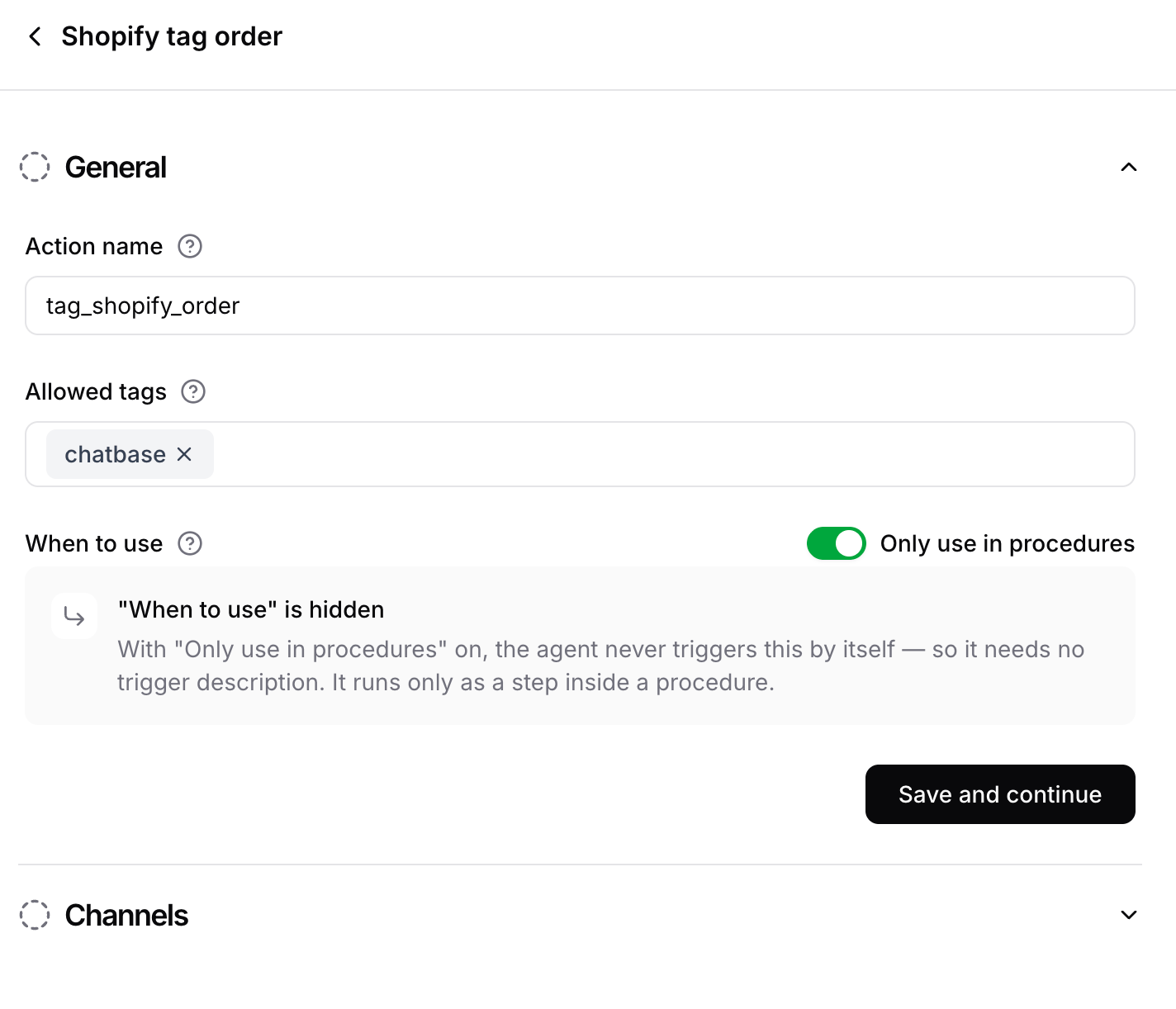
Test the action by signing in to your store, telling the agent something about one of your orders, and confirming the tag appears on that order in Shopify admin. This action requires an authenticated customer, so it can’t be tested in the Action Preview.
9. Check account and send activation email
Check whether the customer is signed in to your Shopify store and, if their account was never activated, email them a link to activate it. This helps shoppers get signed in before using actions that need an authenticated customer, such as updating their profile or billing address.Best for:
Guiding guests toward a signed-in session, recovering customers who never activated their account, and unblocking account requests that require authentication.
- “How do I log in to my account?”
- “I never got an activation email”
Settings
Template: Check account & send activation email. The action opens as Shopify account access. Action Name: check_account_access. When to use: Call this tool when the customer cannot sign in to their store account, or never received the email to activate it. If it succeeds, tell the user that if the account exists, we sent an email.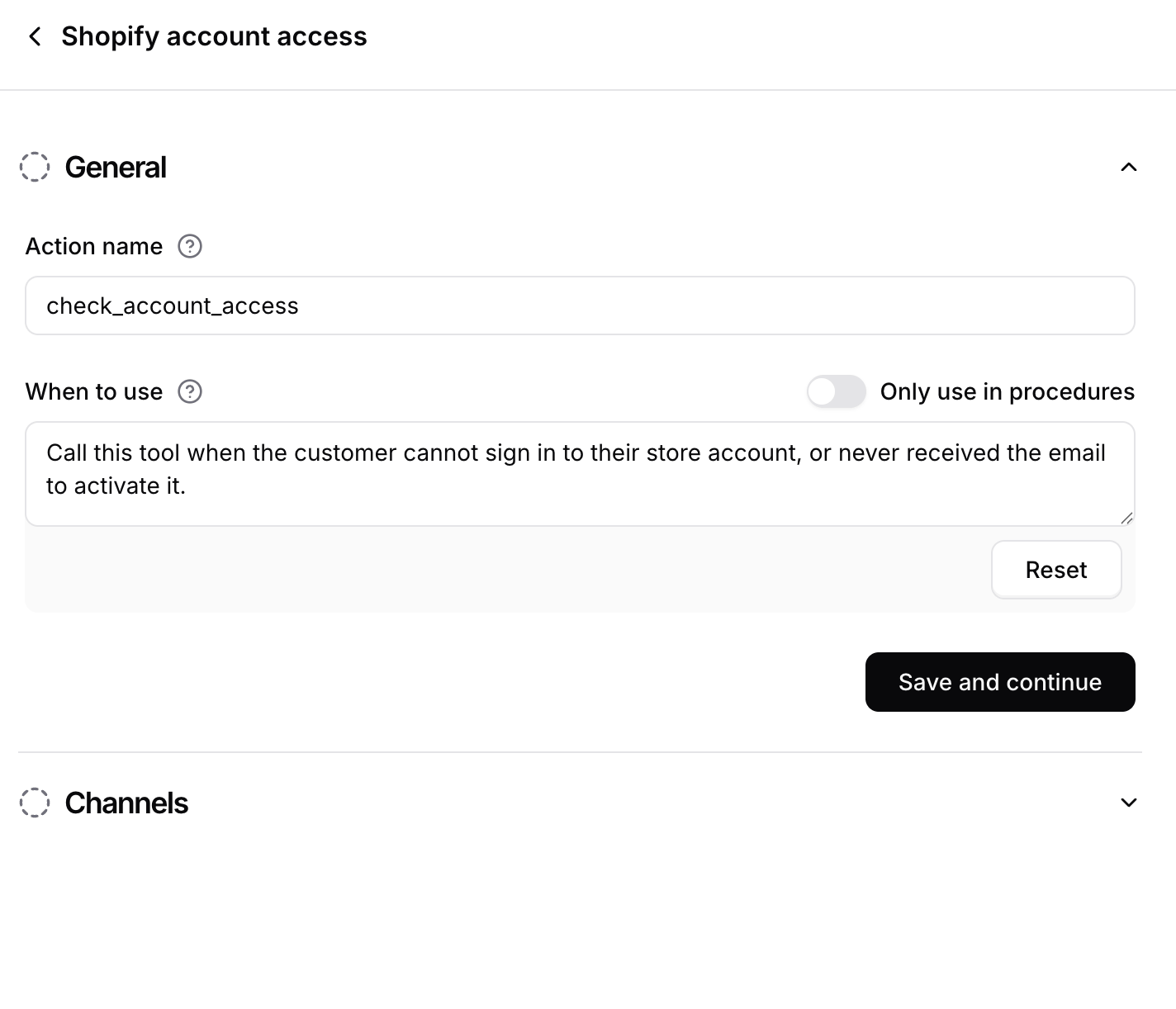
Test the action by telling your agent you can’t sign in to your account. The agent should confirm that an activation email has been sent if the account exists.
10. Update customer profile
Enable signed-in customers to modify their account profile information through the agent.Best for:
Account management, updating contact information, and helping customers keep their profile current.
- “Update my email address”
- “Change my phone number”
- “Update my account information”
Settings
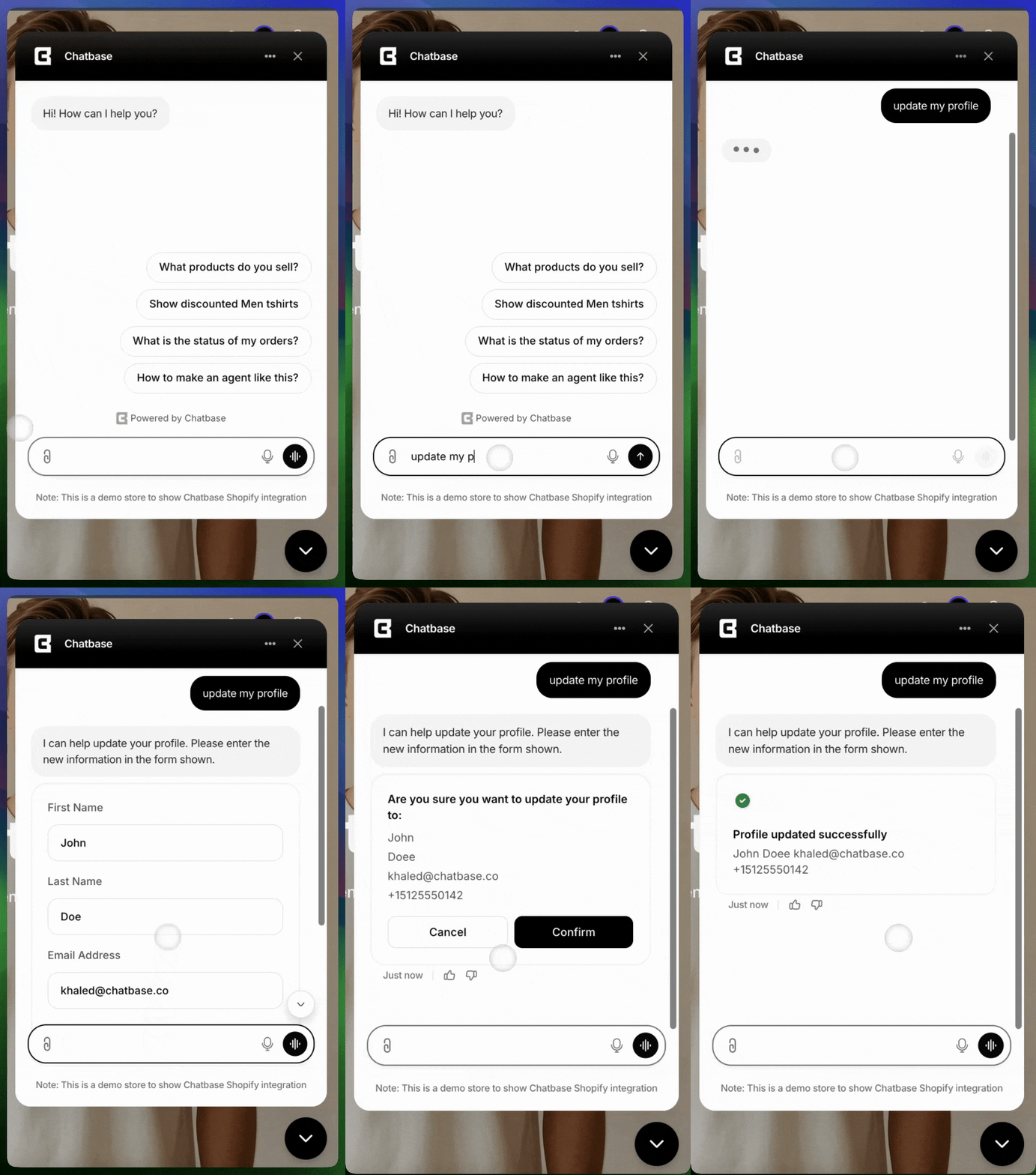
Template: Update shopify customer profile. The action opens as Shopify update profile. Action Name: Update_Profile. When to use: Call this tool when asked about changing customer profile, including first name, last name, email, or phone number.Test the action by asking your agent to update profile information. This action requires an authenticated customer, so it can’t be tested in the Action Preview.
11. Update customer billing address
Allow customers to add new billing addresses or update existing ones directly through the chat interface.Best for:
Self-service address updates, helping customers correct billing information, and streamlining account management.
- “Update my billing address”
- “Change my payment address”
- “I moved and need to update my address”
- “I want to add a new address and set it as default”
This action changes the address on the customer’s account. It does not change the shipping address on an order that has already been placed. See Limitations.
Settings
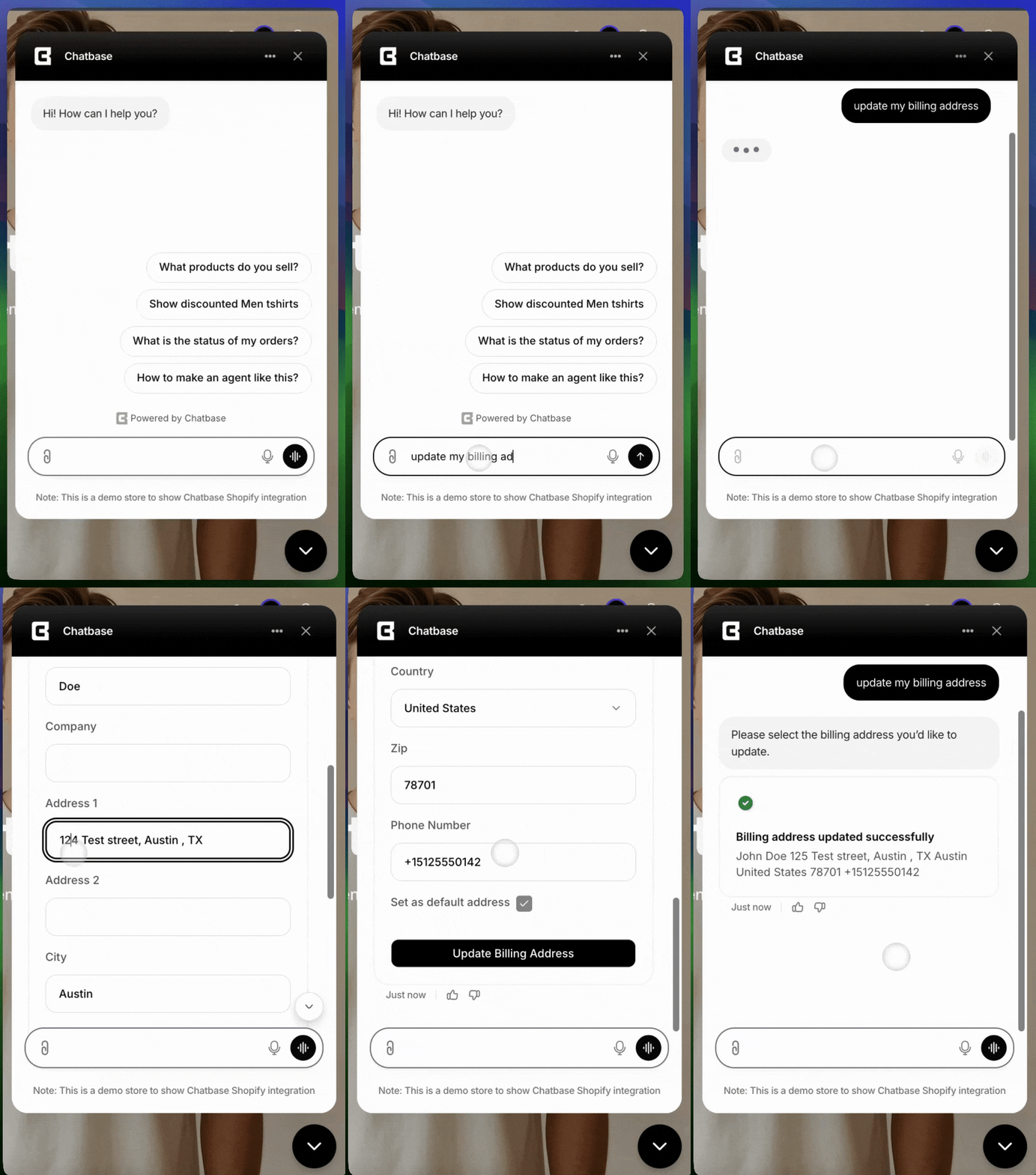
Template: Update shopify customer billing address. The action opens as Shopify update address. Action Name: Update_Address. When to use: Call this tool when asked about adding or updating billing addresses or changing the default address.Test the action by asking your agent to update a billing address. This action requires an authenticated customer, so it can’t be tested in the Action Preview.
Keeping high-stakes actions on rails
Some Shopify actions spend money or change a customer’s record: a Free order, an exchange, a return, a tag that triggers a Shopify workflow. For those, you usually want the action to fire at a point you control rather than whenever the agent judges it appropriate. Two settings do that together:- Only use in procedures on the action, so it can never fire on the agent’s own initiative. It runs only when a procedure step references it with
@action_name. - Eligibility checks in the procedure, ahead of the step that calls the action, so the conditions live in a flow you wrote instead of in the agent’s judgment.
Limitations
- Placed orders can only be edited by a return. No Shopify action cancels an order or changes the shipping address on an existing order. Create return or exchange (same order) is the only action that touches an existing order, and only to return or swap items on it. Route those requests to a person with Escalations. Update customer billing address changes the customer’s account address, not an order’s shipping address.
- Changes are written to Shopify only. Orders, exchanges, and tags the agent creates land in Shopify. They don’t propagate to a 3PL, fulfillment app, or ERP that keeps its own copy of the order, and anything already handed to fulfillment won’t reflect them.
- Exchange orders wait for a human. Create exchange (new order) never pushes the exchange to Shopify on its own; the draft sits on a Chatbase Helpdesk ticket until an agent approves it. If nobody works the ticket, the exchange is never placed.
- Same-order returns don’t wait for a human, for now. Create return or exchange (same order) completes in the conversation, so anything you don’t want the agent doing on its own belongs behind a procedure. A Helpdesk approval option for this action is coming soon.
- Returns are bounded by the return window. Create return or exchange (same order) refuses items that fall outside the Return window (days) you set, and can only refund, not swap, unless Allow exchanges is on.
- Create order with Use the cart depends on Update cart. Without Update cart enabled, the agent has no way to put items in the cart for that order.
- Order status is only as good as your tracking data. The agent reports what Shopify knows. Delivery confirmation requires a trackable carrier or an app that feeds delivery updates back to Shopify.
- Re-sync fetches in-stock products. Product changes sync in real time after the first import, but a manual Re-sync products pulls the in-stock products, so out-of-stock items aren’t included in that pass.
- The Playground isn’t a real store session. Cart updates don’t work there, the agent isn’t told whether an Online payment order was paid, and actions that need an authenticated customer can’t run in the Action Preview at all. Test those from a live channel.
- Not every action runs on every channel. Channels that are incompatible with an action aren’t selectable in its Channels step.
Troubleshooting
The agent never uses a Shopify action
The agent never uses a Shopify action
Possible causes:
- The action is toggled off, or turned off for the channel the customer is on
- Only use in procedures is on, but no procedure step references the action with
@action_name - The When to use description is too vague to match what the customer asked
- The customer isn’t signed in and the action requires authentication
- Enable the action and check its Channels step
- Add the
@action_namereference to the procedure step that should trigger it, or turn Only use in procedures off - Rewrite When to use with the phrases customers actually type
- Check Signed-in and guest customers, and add Check account and send activation email to get guests signed in
Products are missing, wrong, or out of date
Products are missing, wrong, or out of date
Possible causes:
- The initial sync hasn’t finished, or the product was out of stock at the last Re-sync products
- The product is unavailable or unpublished in Shopify
- Your website training source still contains older scraped product pages that compete with the synced data
- Open the action’s Products section and check the synced product count, then click Re-sync products
- Confirm the product is in stock and published in Shopify admin
- Exclude product pages from your website training source, since the sync already supplies that data
The agent can't update a profile, address, or order tag
The agent can't update a profile, address, or order tag
Possible causes:
- The customer isn’t signed in to your Shopify store: all three actions act on the signed-in customer’s own record
- You’re testing in the Action Preview, which has no authenticated customer
- The customer’s account exists but was never activated
- Test from a live channel such as the Chat bubble while signed in to your store
- Enable Check account and send activation email so the agent can send an activation link
- For Tag an order, confirm the tag is in the action’s Allowed tags list; the agent only applies tags from that list
The theme's cart icon doesn't update after the agent adds an item
The theme's cart icon doesn't update after the agent adds an item
Possible cause: your theme isn’t listening for the cart events Chatbase dispatches, so its cart count only refreshes on page load.Solution: add a listener for one of the cart events in your theme’s JavaScript. See Keeping Your Theme’s Cart Icon in Sync.
An order was created but doesn't show as paid
An order was created but doesn't show as paid
Possible cause: with Online payment, the agent sends a Shopify-hosted checkout link and Shopify finalizes the order only once the shopper completes checkout. Until then there’s no paid order.Solutions:
- Check whether the shopper opened and completed the checkout link
- Remember that in the Playground the agent isn’t told when payment completes; on supported channels it is
- For flows where no payment should be collected, use a Free order variant instead
An approved exchange didn't reach Shopify
An approved exchange didn't reach Shopify
Possible causes:
- The Helpdesk ticket is still awaiting review: the exchange is only pushed when an agent clicks Approve
- The ticket was rejected
- Required fields under Collect additional details were never gathered, so the agent didn’t open the exchange
- Open the ticket in the Helpdesk and check the Review action tab
- Search Shopify admin for the action’s Order tags to find exchange orders that were created
- Loosen or remove Required on data inputs the agent can’t reliably collect
The agent won't return an item, or only offers a refund
The agent won't return an item, or only offers a refund
Possible causes:
- The order falls outside the Return window (days) set on the action
- Allow exchanges is off, so the action can only refund the returned items
- Only use in procedures is on, but no procedure step calls the action with
@Create_Return
- Raise the Return window (days), or clear the field for no time limit
- Turn on Allow exchanges in the action’s Behavior section to let the agent swap items instead of refunding them
- Reference the action from the procedure step that should trigger it, or turn Only use in procedures off
Best Practices
Clear Action Triggers
Write specific “When to use” descriptions to help the AI agent accurately determine when to trigger each action. Include example phrases customers might use.
Test Thoroughly
Test each action with various customer queries before going live. Verify that product searches return accurate results.
Keep Products Synced
In case you notice discrepancies in available products, click Re-sync products in the action’s Products section.
Use Procedures
For multi-step flows like exchanges or damaged-item replacements, build a procedure that calls the right Shopify actions in order, so the agent doesn’t improvise on high-stakes flows. See Keeping high-stakes actions on rails.
Match Actions to Channels
Turn off actions that need a signed-in customer on channels where shoppers never are, so the agent doesn’t offer something it can’t complete.
Curate Your Tags
Keep the Allowed tags list short and meaningful, so the tags the agent writes are ones your team and your Shopify workflows actually act on.