

Overview
The Channels tab lets you make your AI agent available to users across multiple channels, including your website, a standalone help page, and third-party platforms like Slack, Email, Meta apps (WhatsApp, Messenger, Instagram), and Phone. You can enable one or many channels depending on how you want users to interact with your AI agent. Each channel is enabled, configured, and managed independently, so the same AI agent can look and behave differently in each place.What you can do:
Put one AI agent everywhere your customers are, and tune its appearance, capabilities, and instructions per channel without touching the others.
Available channels
Chat bubble
The Chat bubble embeds a floating chat window on your website so visitors can interact with your AI agent directly.Enable the chat bubble
1
Open the chat bubble channel
Go to Channels and click Manage on the Chat bubble card.
2
Choose the embed type
Click Deploy and choose Website widget.
3
Enable it
Click Enable chat bubble.
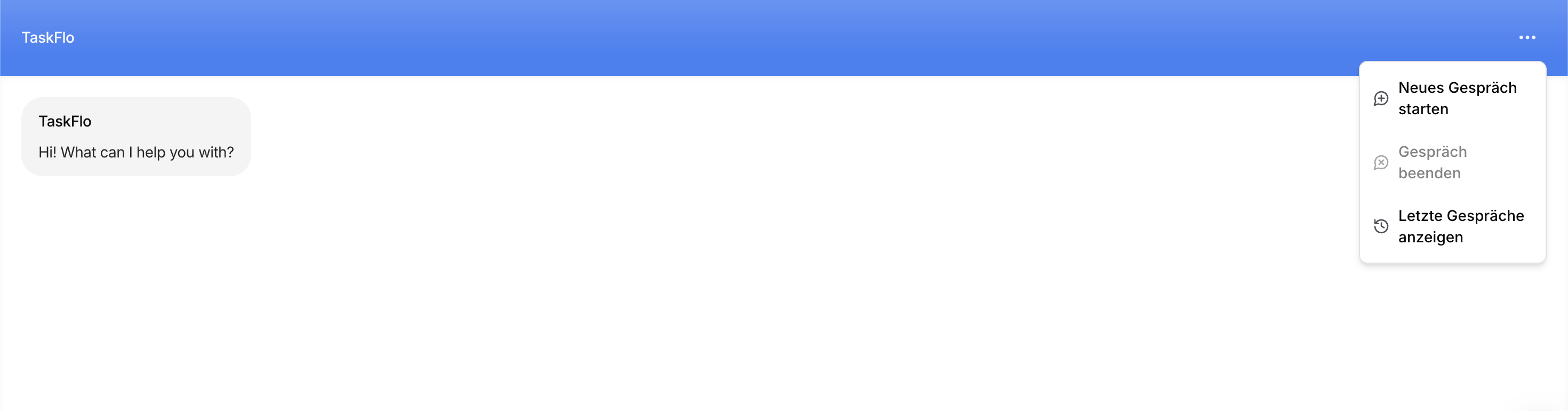
The chat bubble menu
Visitors open the menu from the three dots in the top-right corner of the chat header. It holds the following items:Why ending a chat matters
A conversation that is never ended stays open indefinitely, and anything measured per conversation is distorted by it. End chat draws a boundary around the conversation, which is what the rest depends on:- Analytics stay accurate. Figures derived from a finished conversation, such as how long it ran, how many messages it took, and how it concluded, are only meaningful once the conversation is closed. A store full of conversations that never end pulls those numbers off.
- Resolution rate becomes measurable. A conversation has to be closed before it can be counted as resolved or unresolved, so the rate is calculated across ended conversations.
- Conversation end becomes a trigger. A closed conversation is a clean point to hand the outcome to your own systems. Webhooks that fire when a conversation ends are coming soon.
These menu items are translated automatically for every language you add under Localization.
Chat bubble settings
The chat bubble settings are split into four tabs:Overview tab
The Overview tab shows your AI agent’s Model and Data sources, which apply to the whole AI agent, alongside the Actions, Instructions, and Visibility for this channel. Model: The AI model your AI agent uses globally across all channels. Data sources: A read-only summary of what the AI agent is trained on: its training status, total size, and counts of Links, Texts, and Q&A’s. Actions: View the actions enabled for this channel. Instructions: Customize the instructions used by this channel. Sync with global instructions: By default, your AI agent uses global instructions, which define its core behavior across all channels. When this is enabled, the chat bubble uses the same global instructions as the rest of your AI agent. When disabled, you can define channel-specific instructions that apply only to the chat bubble and override the global ones. Visibility: Control whether this channel is active. When disabled, the channel is hidden and messages from it won’t be routed to your AI agent.Chat bubble display
Under the Display tab, you can control what users see when the chat starts.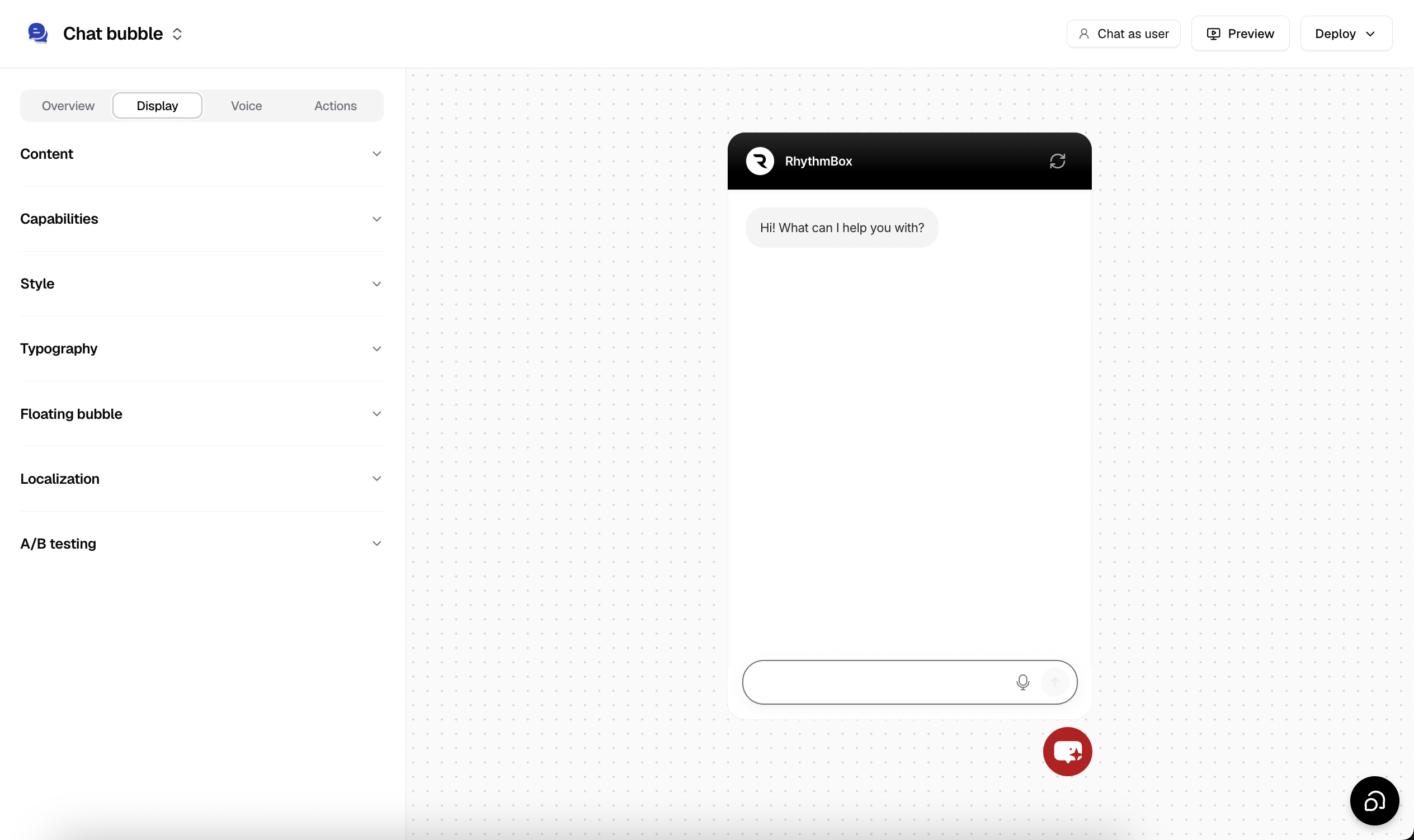
Content
- Agent picture: Picture of the AI agent when providing answers.
- Border around profile picture: Show a border around the agent picture.
- Display name: The name shown at the top of the chat bubble.
- Initial message: The message shown before the user opens the chat bubble, designed to grab attention and encourage interaction, also shown once the user opens the bubble. Enter each message on a new line to send several. You can customize the initial message per user by following this guide.
- Use different message for mobile: Toggle this on to show a different initial message when users open your website on a mobile device, usually a shorter one.
- Auto show initial messages pop-ups after set duration: Set a timer to control when the initial messages pop up.
- Show auto pop-up on mobile: Toggle this off to disable the pop-up when users open your website on a mobile device.
- Use different duration for mobile: Toggle this on to set a different timer for the pop-up on mobile.
- Message placeholder: The text shown in the field where users write their questions.
- Dismissable notice: A message shown above the text input area that disappears after the user sends a message. Supports rich text, up to 200 characters.
- Footer: A message shown below the text input area, for a disclaimer or a link to your privacy policy. Supports rich text, up to 200 characters.
- Suggested messages: Predefined prompts shown when users open the chat, to help them start quickly. These should reflect your most common questions or actions. Click + Add message to add one, and use the type dropdown beside it (default Basic) to group related prompts under a main message, so users pick a category first and then a more specific follow-up. Enable Keep showing suggested messages to keep them visible after the first reply.
Suggested messages set here are fixed wordings. To have the AI agent adapt its suggestions as the conversation develops, use the Suggested Messages action instead.
If you include links in the footer or a dismissable notice, they must be full URLs starting with
http:// or https://, for example https://www.example.com, not www.example.com or example.com.Capabilities
- Agent chat bubble: Wrap AI agent messages in a rounded bubble. When off, AI agent messages appear as plain text.
- Attachments: Enable or disable sending attachments, allowing your AI agent to process them and respond based on their content.
- Voice to text (Dictation): When enabled, a dictation button (microphone) appears in the text input area. Users can speak their message, which is converted to text for them to review and edit before sending.
- Copy message: When enabled, a copy button on AI agent messages lets users copy the response.
- Collect user feedback: When enabled, thumbs up and thumbs down buttons appear on AI agent messages.
- Delete conversations: Allow users to delete their own conversations from the recent chats screen.
Style
- Theme: Choose between Light or Dark mode.
- Tinted grayscale: Add a subtle hue to neutral elements such as the chat background, borders, and AI agent message bubbles. Leave this disabled to use the default grayscale colors.
- Hue: Set the base hue of the tint from
0to360on the color wheel. For example,0is red,120is green, and220is blue. - Tint: Control the intensity of the tint from
0to9. Higher values make the selected hue more noticeable. - Shade: Adjust the lightness or darkness of tinted surfaces from
-4to4. Negative values make them lighter, positive values darker, and0keeps the default shade.
- Hue: Set the base hue of the tint from
- Accent color: Apply a custom color to highlighted elements, such as user message bubbles. When disabled, the default accent color is used.
- Color: Enter the hex value of your accent color, or use the reset button to restore the default.
- Use accent color for header: Apply the accent color to the chat header.
- Use accent color for send icon: Apply the accent color to the send button in the text input area.
- Radius: Set the corner radius of the chat widget to control how rounded its edges appear.
Typography
- Font family: Choose the font used throughout the chat bubble.
- Font size: Set the base font size for text displayed in the bubble.
Floating bubble
- Position: Align the bubble to the Left or Right.
- Chat bubble icon style: Select from the built-in icon styles, or upload your own custom icon to match your brand.
- Chat bubble button color: Set the color of the floating chat button displayed on your website.
- Show text in the chat bubble: Display a short label next to the chat bubble icon, to make it more noticeable and encourage visitors to start a conversation. Your website can change this label per page or per visitor by following this guide.
Localization
The chat bubble supports localization, so you can translate action buttons and interface text into multiple languages. Language source: choose how the chat bubble detects which language to display:- Visitor’s browser: Uses the language configured in the visitor’s browser. This is the default.
- Website language: Uses the language specified in the page’s
html langattribute. Recommended for multilingual websites with their own language switcher, so the chat bubble matches the language of the page the visitor is viewing.
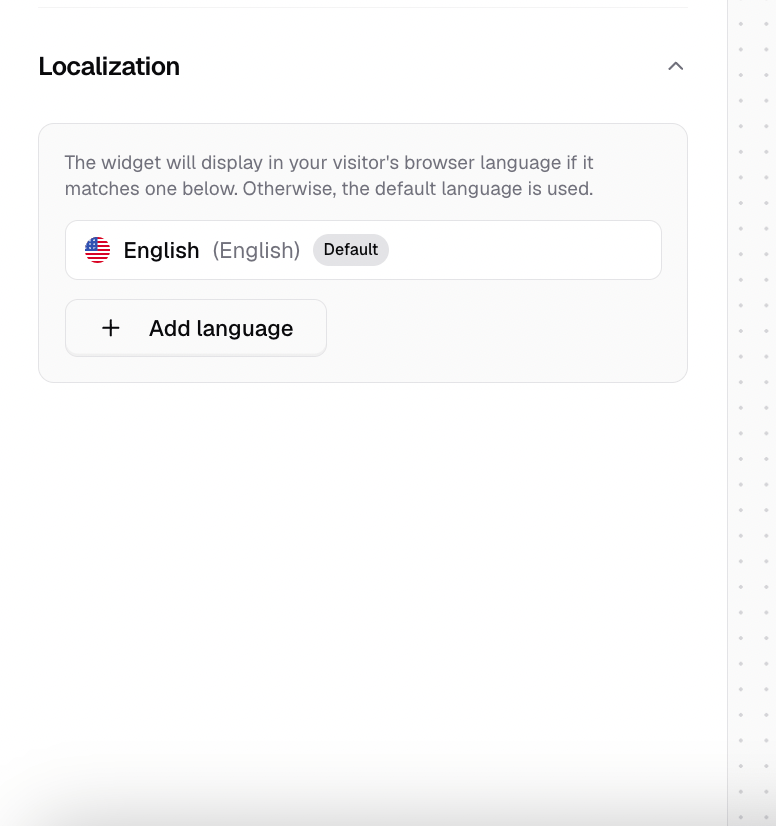
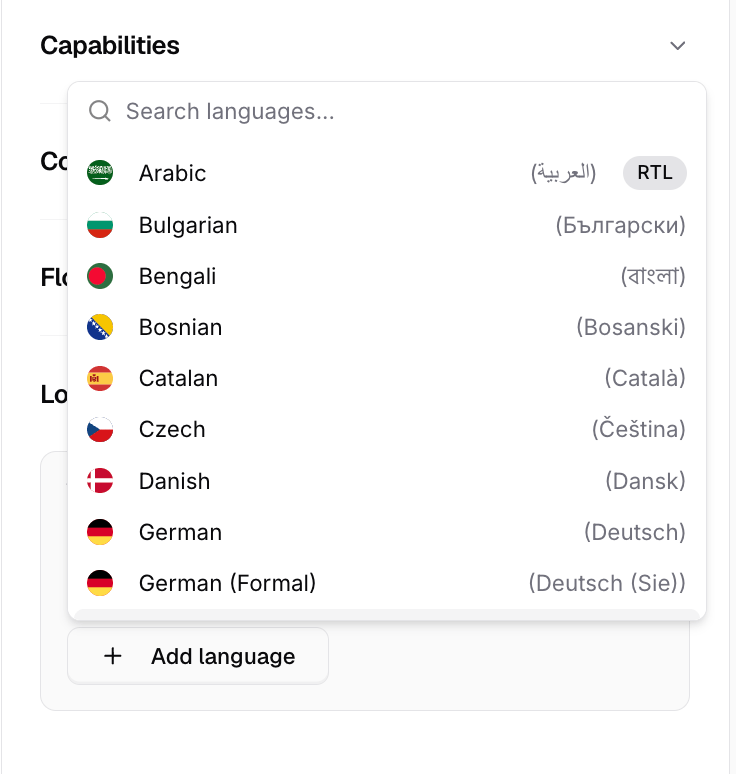
The chat bubble only displays languages you’ve added under Localization. If the detected language hasn’t been added, the chat bubble falls back to your default language.
Localize dynamic chat bubble content: You can also use
setOptions to localize the display name, initial message, message placeholder, footer, dismissable notice, and suggested messages. See Runtime options.A/B testing
You can run A/B tests by choosing the percentage of visitors who will see your AI agent. For example, setting the percentage to 10% shows it to 10% of your visitors, while the remaining 90% won’t see it. This is especially useful for gradual rollouts, letting you introduce your AI agent to a smaller group before making it available to everyone. A/B testing is available on both the Chat bubble and Center Stage channels.1
Enable A/B testing
Go to Display → A/B testing and enable Show to a percentage of visitors.
2
Choose the percentage
Enter the percentage of visitors you want to see your AI agent.
3
Save your changes
Click Save changes to apply the A/B test.
Attachments
Chatbase lets your end users upload attachments during conversations. The AI agent can analyze supported files and generate responses based on their content. Supported formats- Images:
.png,.jpg,.jpeg - Documents:
.pdf - On Instagram, Messenger, and WhatsApp, also:
.docx,.xlsx,.txt
For Word, Excel, and text files, the AI agent reads the text only; images and charts inside them are not processed. Other file types (for example GIF) are discarded and not processed.
Any attachments that exceed these limits are ignored and not processed.
Billing
When a message contains attachments, the credits consumed include both the text response and the attachments processed. Each AI model has separate pricing for text requests, image analysis, and PDF file analysis (per page).
So for every reply the AI agent generates, credits are consumed for the text response, plus additional credits for each attachment: images charged per image, PDFs charged per page.
Example, with a model cost of 1 credit:
Actions and attachments
If the message triggers an action, for example booking a meeting, the attachments are processed more than once: charged once when the action is executed, and again when the AI agent generates a response.
In this case the image is billed twice: once when processing the action, and again when generating the AI agent’s response.
Other channels that support attachments
Help page, Center Stage, Email, Instagram, Messenger, and WhatsApp.
Voice
Configure channel-specific voice settings that override your AI agent’s default voice configuration. See Settings → Voice.Deploy button
The Deploy button provides the code needed to add the chat bubble to your website. It opens a dropdown with Website widget, Website iframe, Shopify, and WordPress. Allowed domains: Restrict where your AI agent is allowed to load by specifying approved domains. When enabled, the AI agent only works on the domains listed.
Copy the embed script and paste it into your site’s HTML, typically before the closing
</body> tag.
Load your site and confirm the chat bubble appears, opens, and answers a test question with the styling you configured.
Help page
The Help page is a standalone page hosted by Chatbase. It’s ideal for help centers, documentation portals, or internal tools.Enable the help page
1
Open the help page channel
Go to Channels → Help page.
2
Enable it
Click Deploy, then Enable help page.
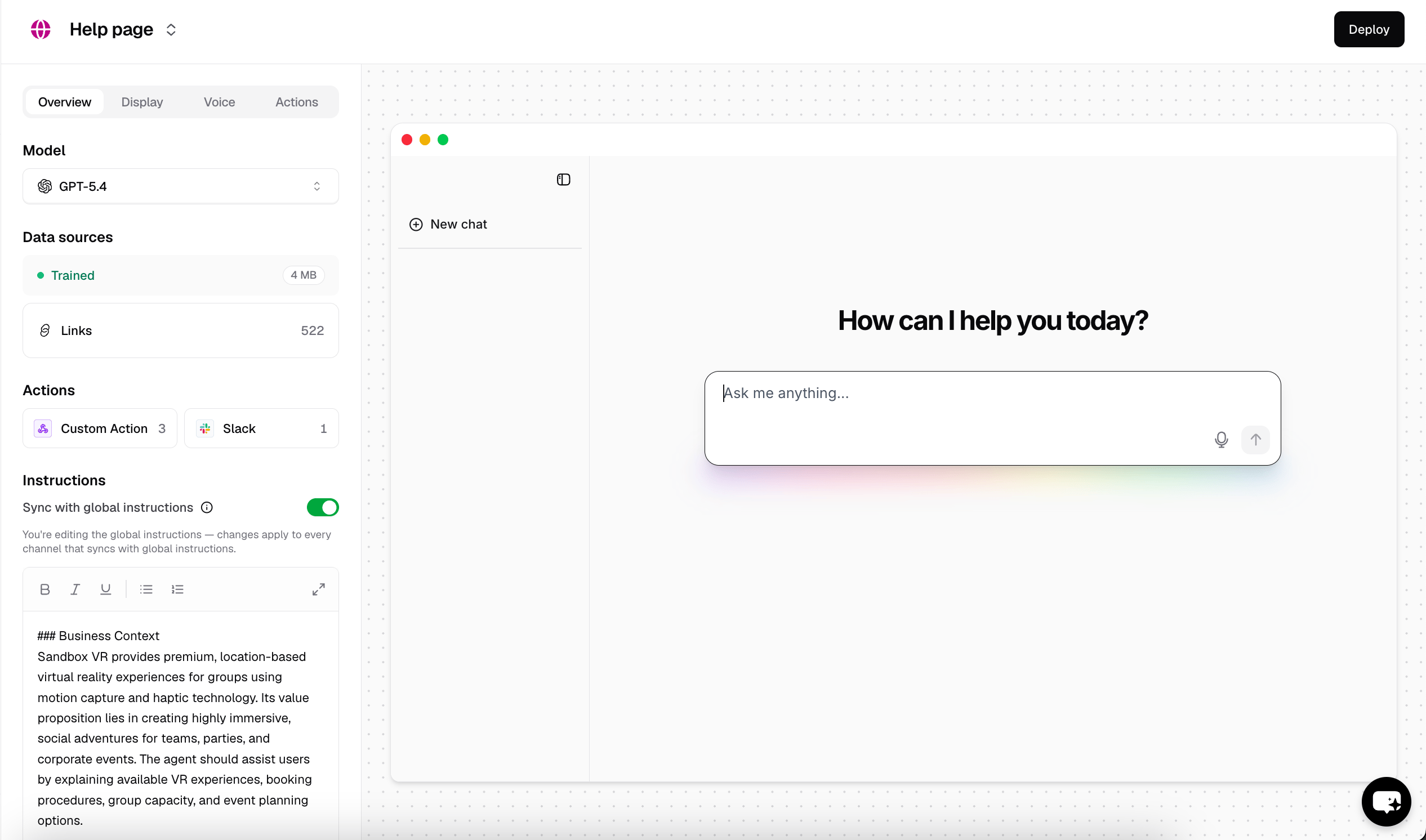
Help page display
General- Page title: The title shown in the browser tab.
- Favicon: Upload a custom favicon for the help page. Supports JPG, PNG, and SVG files up to 1MB.
- Welcome message: The text shown at the center of the help page, greeting your users.
- Message placeholder: The text shown in the field where users write their questions.
- Suggested messages
- Scheme: Upload different assets for dark and light modes.
- Logos: Upload a logo for light mode.
- Heros: Upload a hero for light mode.
- Enable voice to text: When enabled, a microphone button in the text input area converts speech into text for users to review before sending.
- Enable attachments: Enable or disable sending attachments, allowing your AI agent to process them and respond based on their content.
- Theme settings: Enable or disable theme switching, set a default theme for all users, and customize light and dark primary colors.
- Add Primary and Secondary buttons to the left sidebar, for links you’d like to refer your users to.
- Add link buttons at the bottom of the help page.
Deploy button
The Deploy button shows the default URL Chatbase generated for your help page, and lets you host it on your own domain.Center Stage
Center Stage opens your AI agent in a focused chat interface centered over your website. It’s ideal for giving visitors more space to interact with your AI agent while keeping them on the page they’re viewing.Enable Center Stage
1
Open the Center Stage channel
Go to Channels → Center Stage.
2
Enable it
Click Deploy, then Enable center stage.
Center Stage offers the same settings and configuration options as the Chat bubble.
Third-party channels
Each of these connects your AI agent to an outside platform. The channel card handles enabling it; the linked guide covers the connection itself.Phone
Let your AI agent handle inbound phone calls. Callers are connected directly to your AI agent, which responds using its configured voice settings and knowledge base. There are two ways to connect a number:Best Practices
Start With One Channel
Launch on a single channel, learn from real conversations, then expand.
Tailor Each Channel
Customize prompts and suggested messages per channel rather than reusing one set everywhere.
Test Before Sharing
Test each deployment in the Playground before pointing users at it.
Match Channel to Purpose
Use the Help page for structured support and the chat bubble for quick assistance.
Next steps
Playground
Preview and tune each channel before you deploy it.
Integrations
Connect the third-party platforms behind these channels.
Actions
Control what your AI agent can do on each channel.
Build
Edit the instructions and model behind every channel.