

Attachments are supported, allowing your agent to process them and respond based on their content. For more information, please refer to this section.
Before we start
- The WhatsApp phone number integrated with the agent can only be used by the agent, and can’t be used on WhatsApp or WhatsApp business. If you already use the phone number with WhatsApp, you must delete your account in the app first.
-
To delete WhatsApp
- Navigate to WhatsApp or WhatsApp Business app.
- Navigate to Settings > Account.
- Select Delete my account. This may take a few minutes, but after that, the number will be available to use.
-
If you previously used WhatsApp through Meta Developer for business you must disable two-step verification
- Navigate to you Whatsapp Business Account and login.
- Choose the phone number you would like to integrate.
- Navigate to Settings > Two-step verification and choose turn off two-step verification.
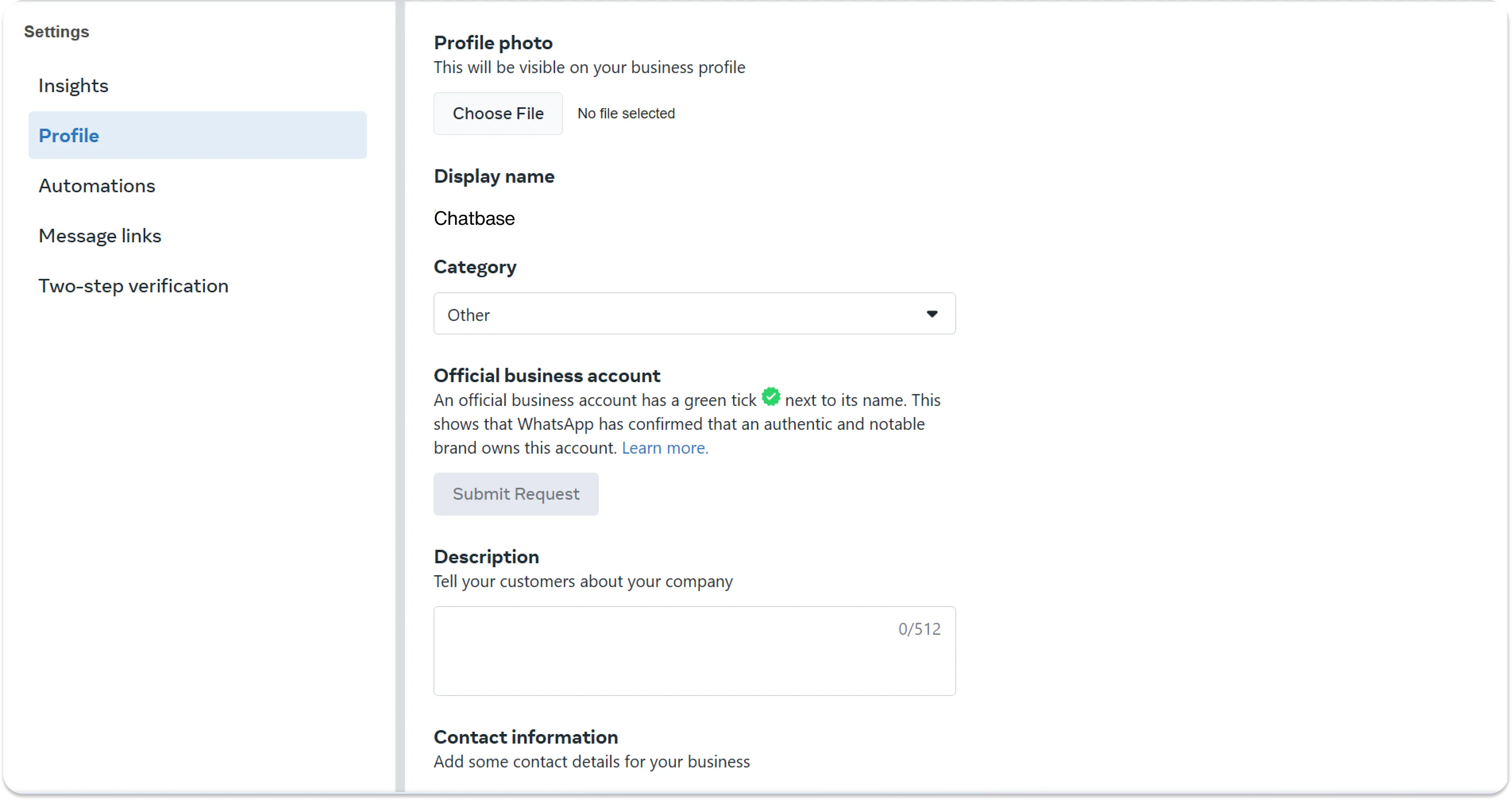
- Make sure you have an approved display name before integrating with your agent, you can read more about it here
Setting up the WhatsApp Integration
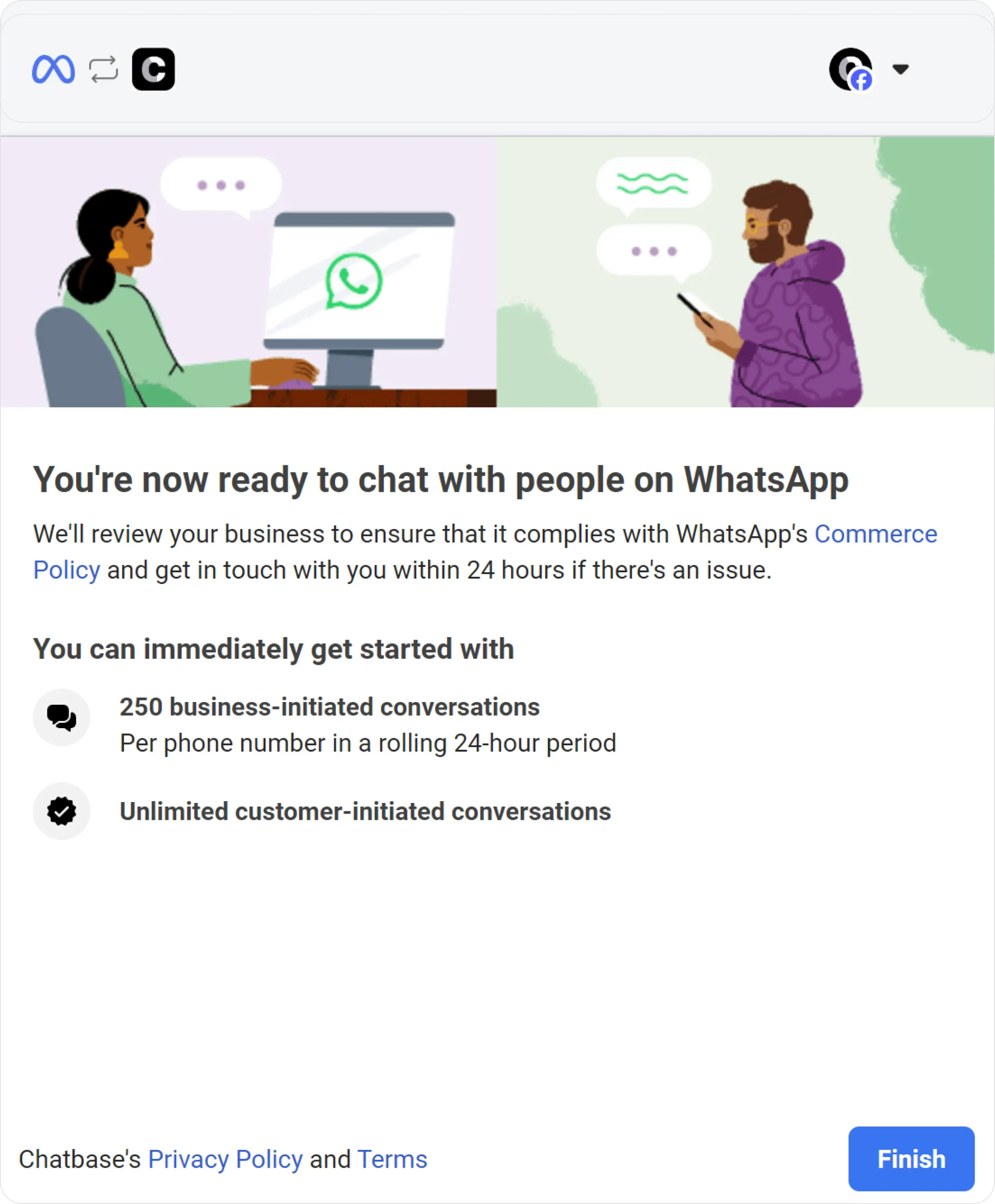
1. Navigate to the Agent you would like to integrate with WhatsApp. 2. Click Channels in the sidebar, then click Setup on the WhatsApp card. 3. Log in with your personal Facebook Account.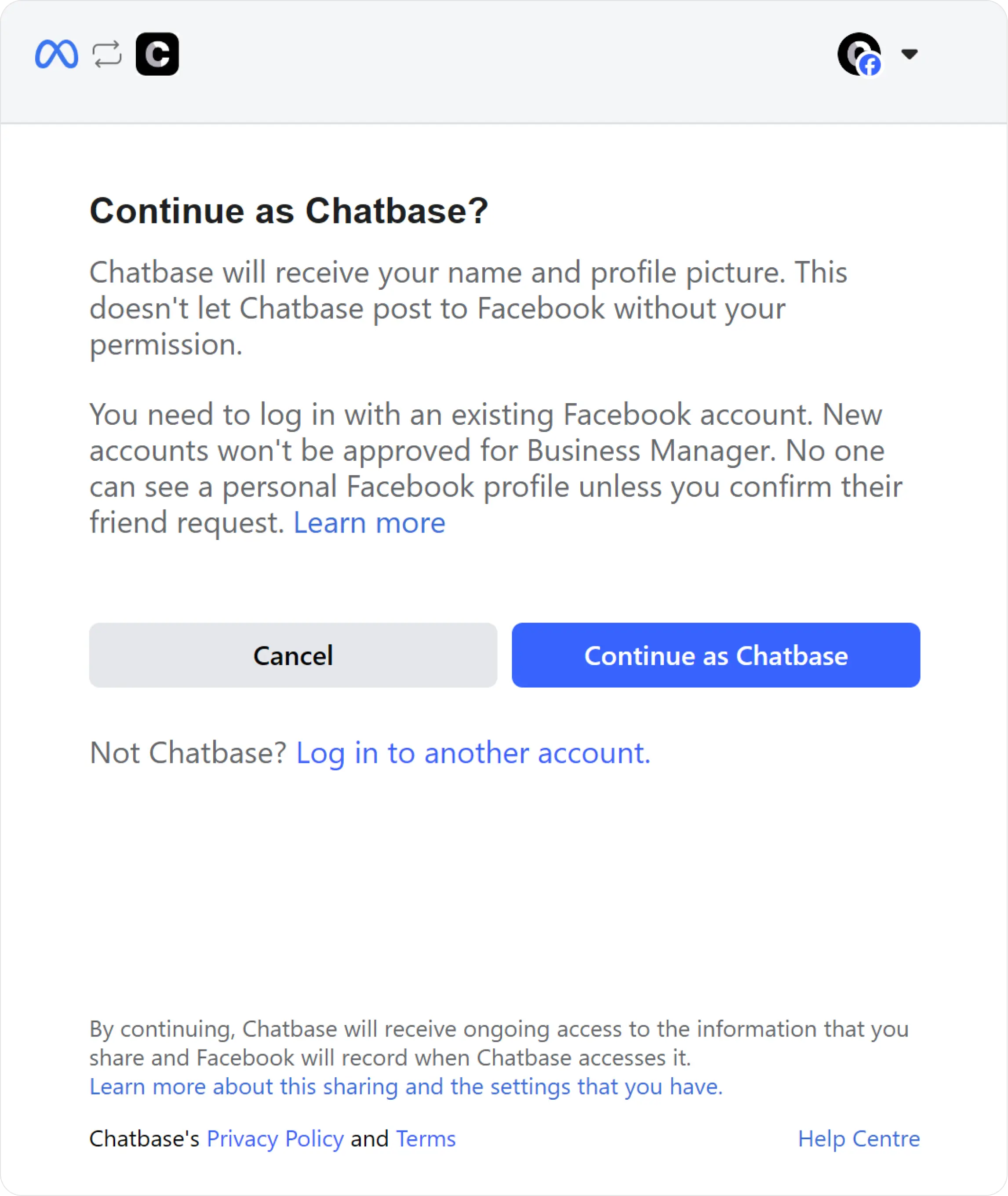
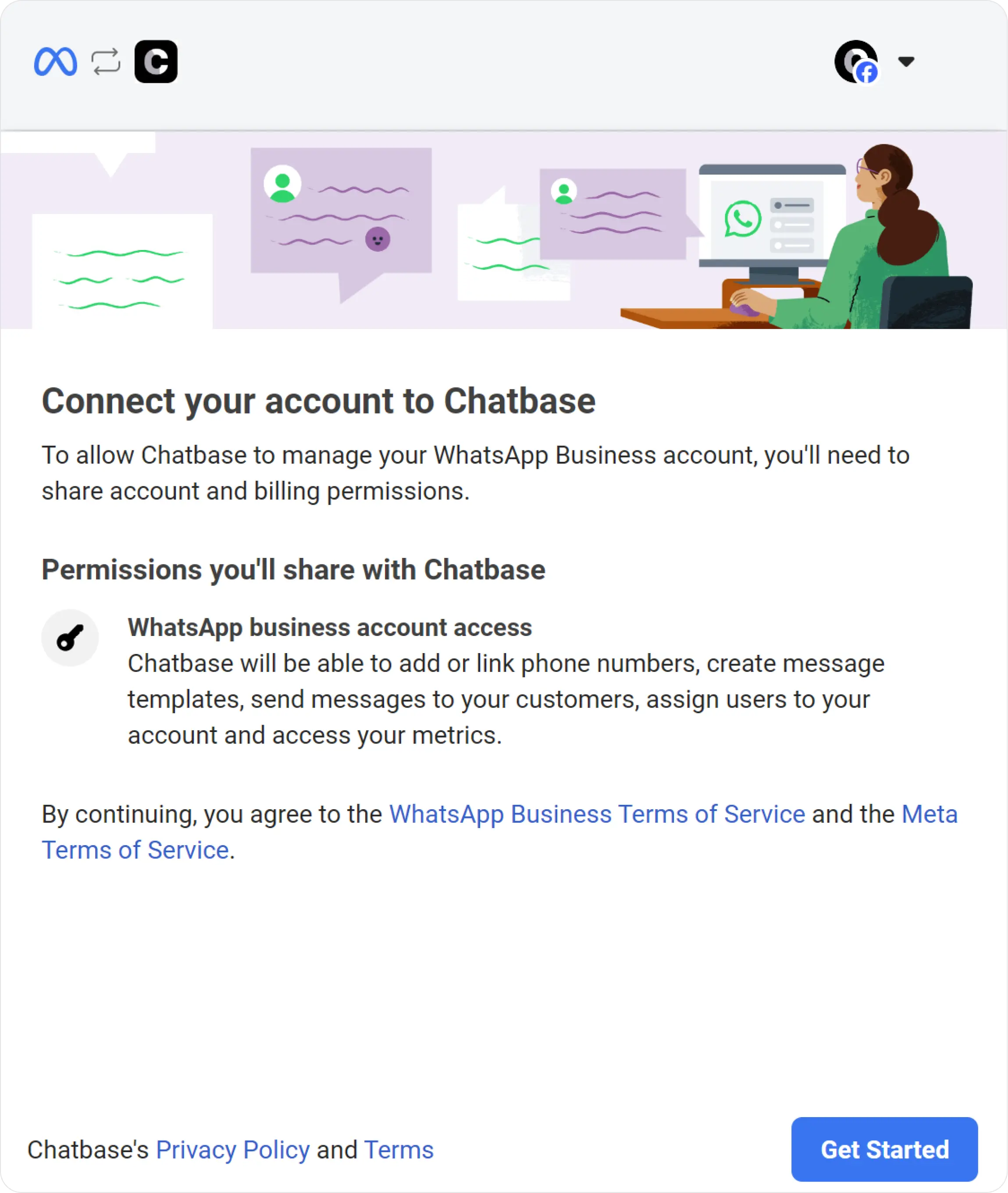
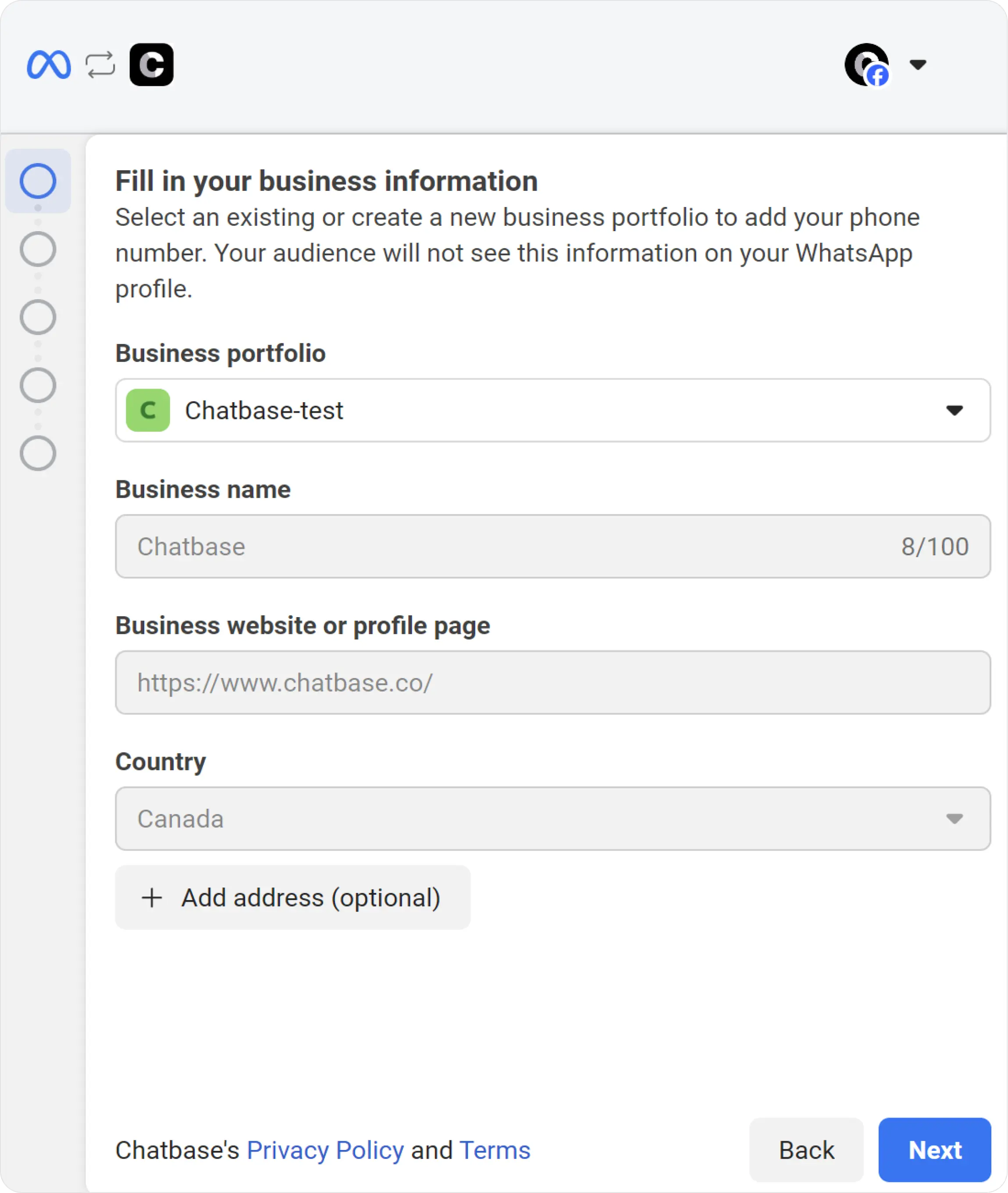
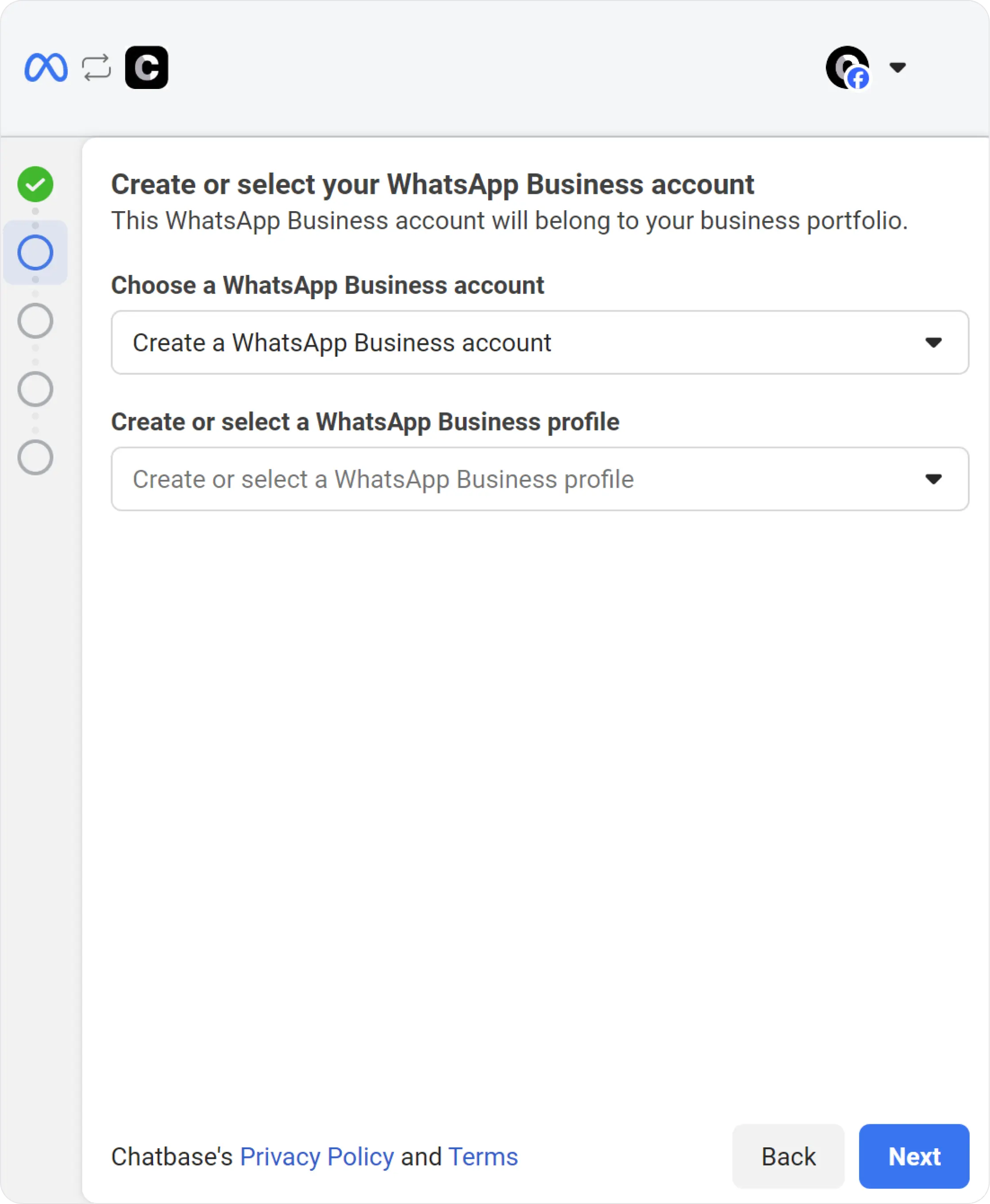
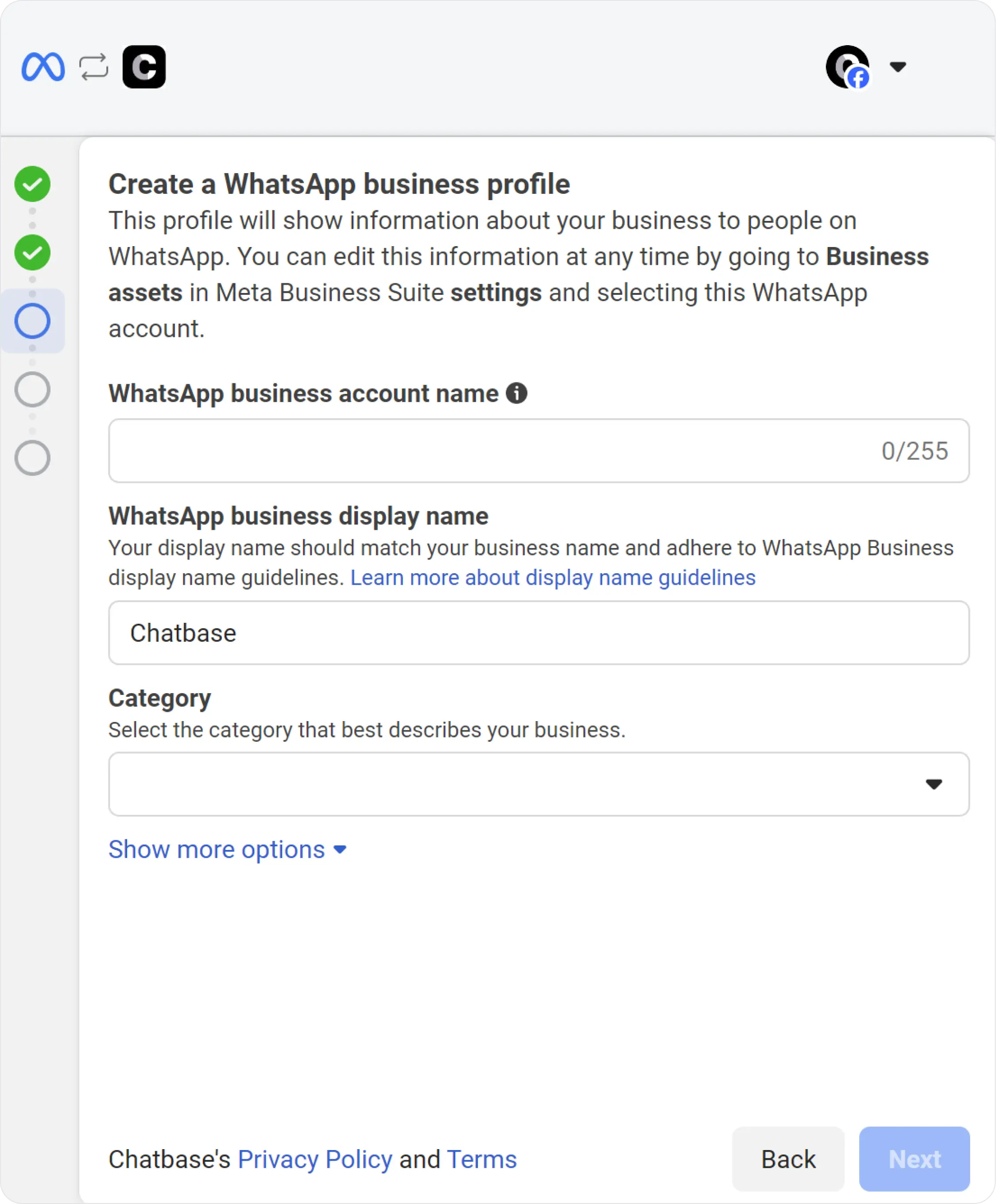
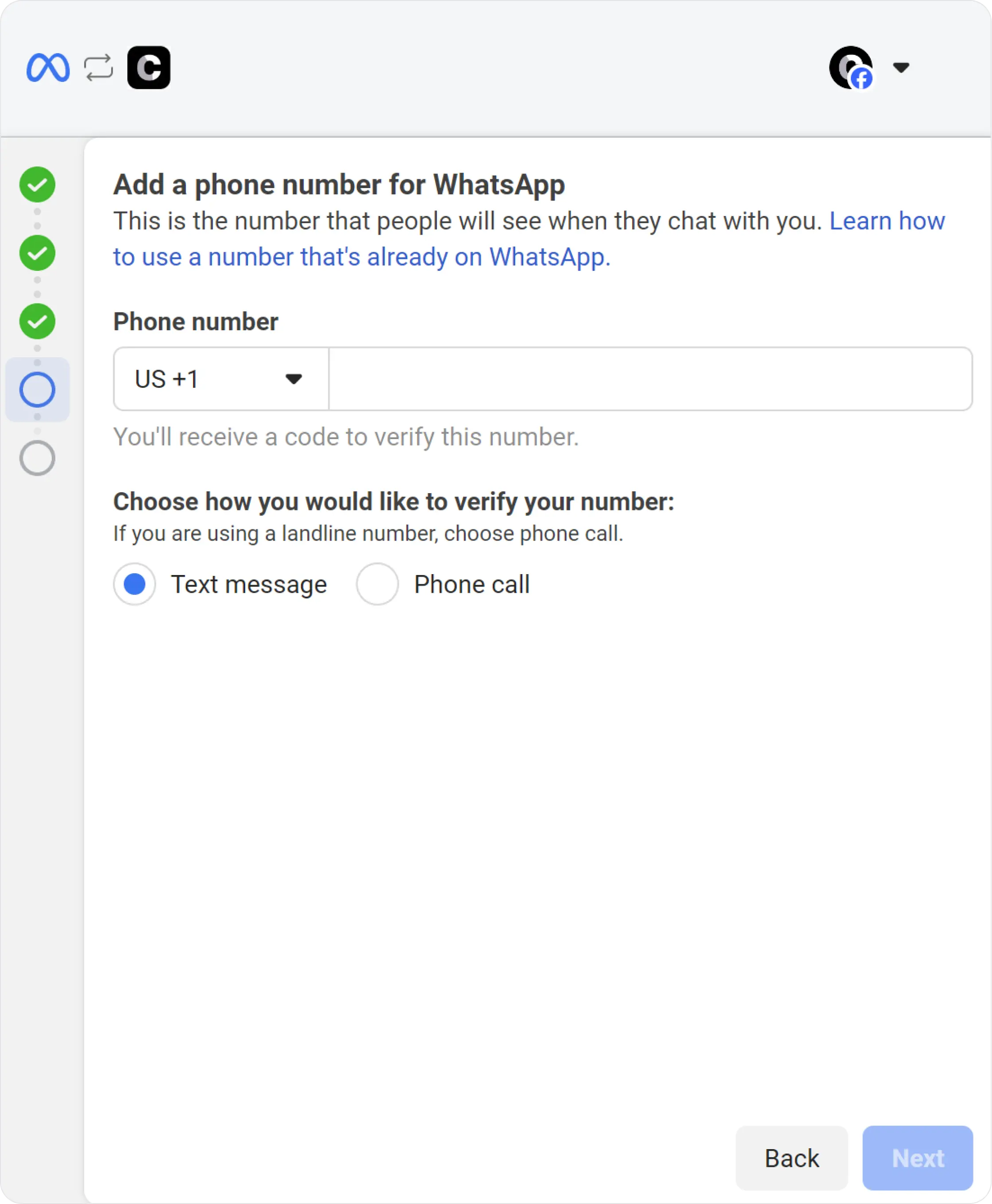
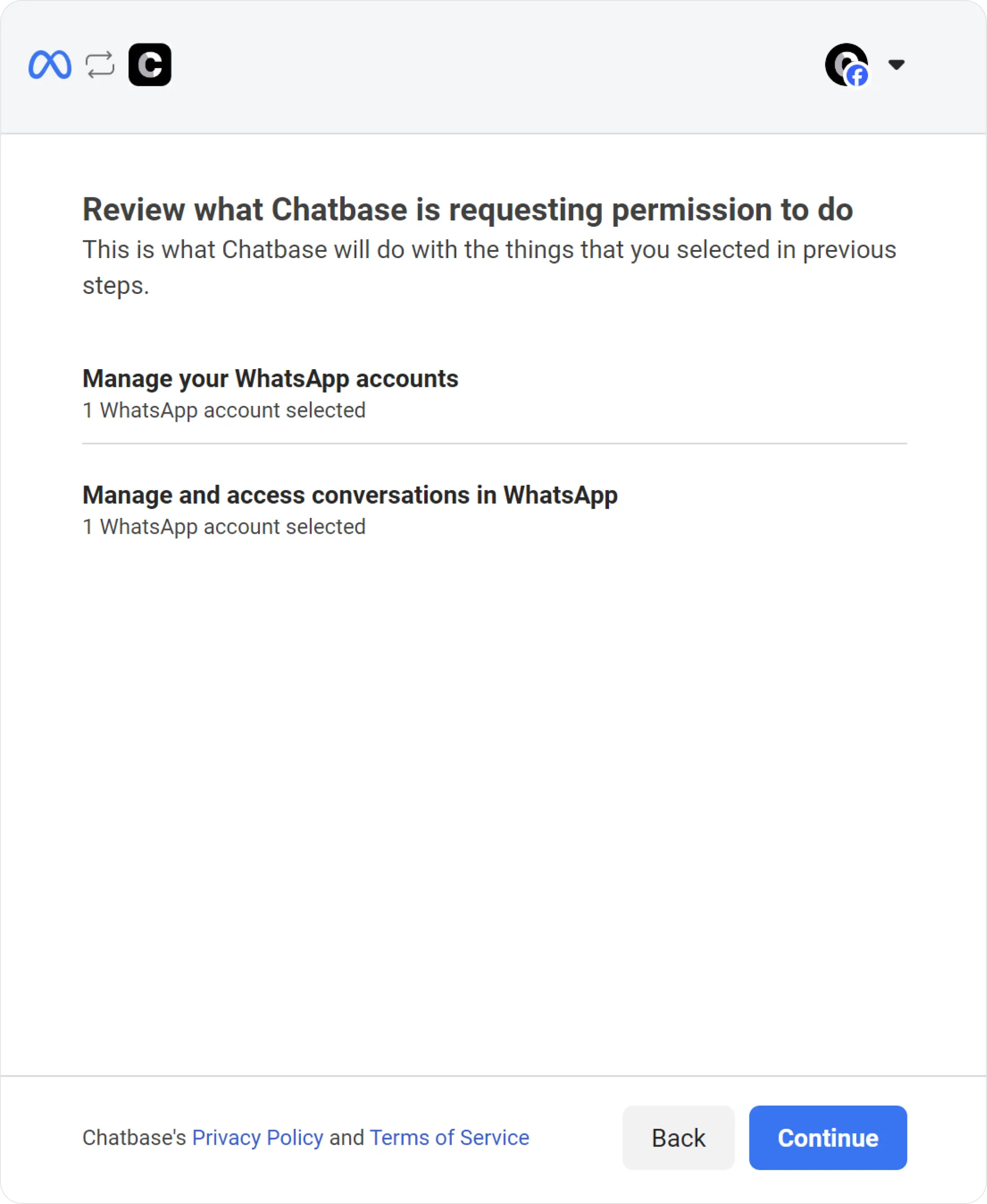
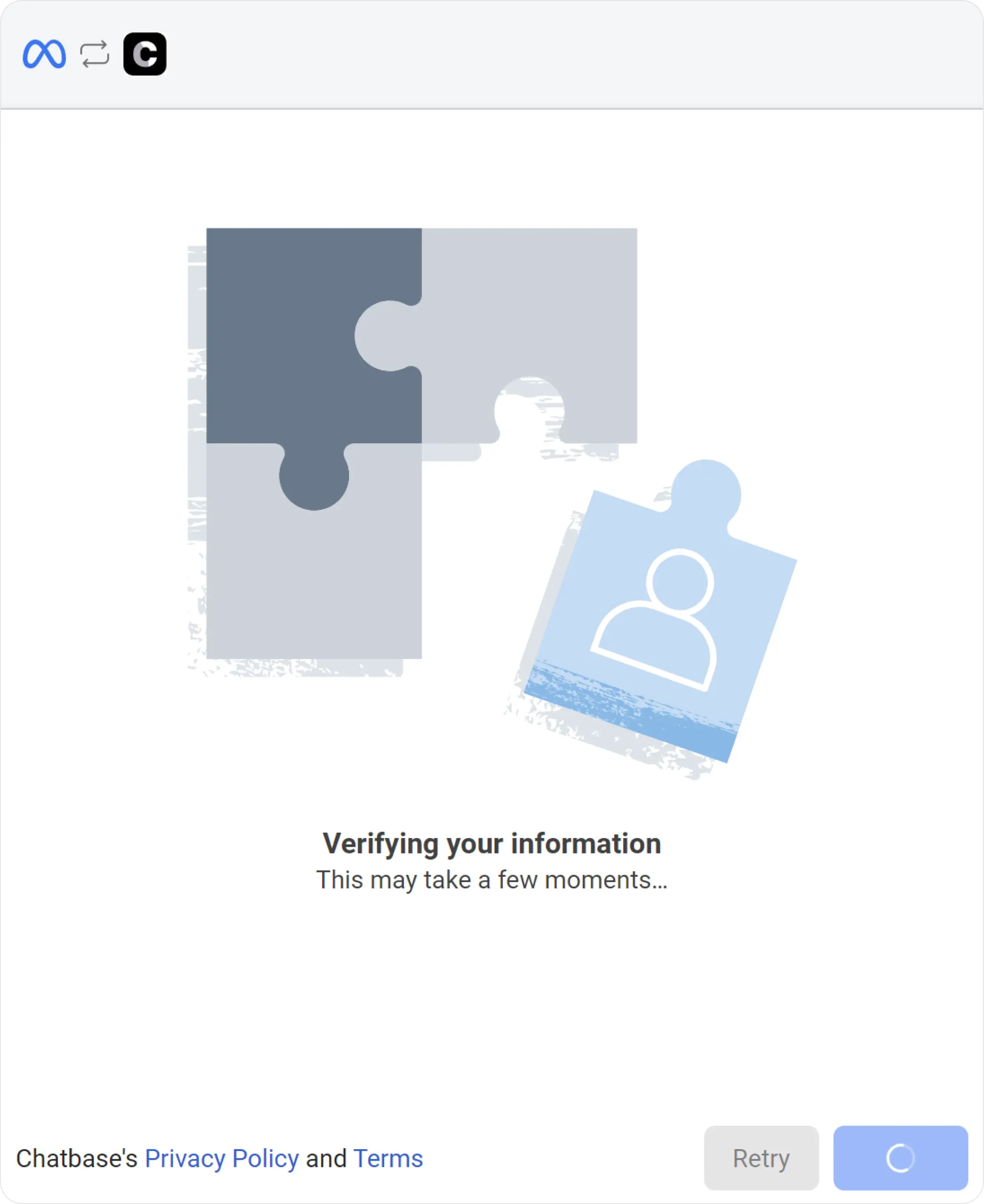
Automatic Lead Collection
Chatbase allows you to automatically collect basic user information from WhatsApp conversations, including the user’s phone number and name (when available). To enable automatic lead collection:- Go to Channels → WhatsApp → Manage → Leads
- Toggle Enable Automatic Collection of Leads
- Select the WhatsApp number(s) you want to apply this to
For more advanced lead capture and customization, you can use the Collect Leads action within your agent.
You can now enable or disable WhatsApp integration without disconnecting it. Disabling pauses messages while keeping your setup intact, and you can re-enable anytime to resume. New chats will still appear in your Chatbase dashboard chat logs