

Overview
A workspace groups your AI agents, billing, and team members together. Each workspace has its own AI agents, billing information, and plan, none of which are shared with any other workspace.What you can do:
Separate AI agents by team, client, or environment, and control who can change settings versus who can only work on the AI agents.
Creating a workspace
1
Open the workspace menu
Click your avatar at the bottom-left of the sidebar and select Create or join workspace.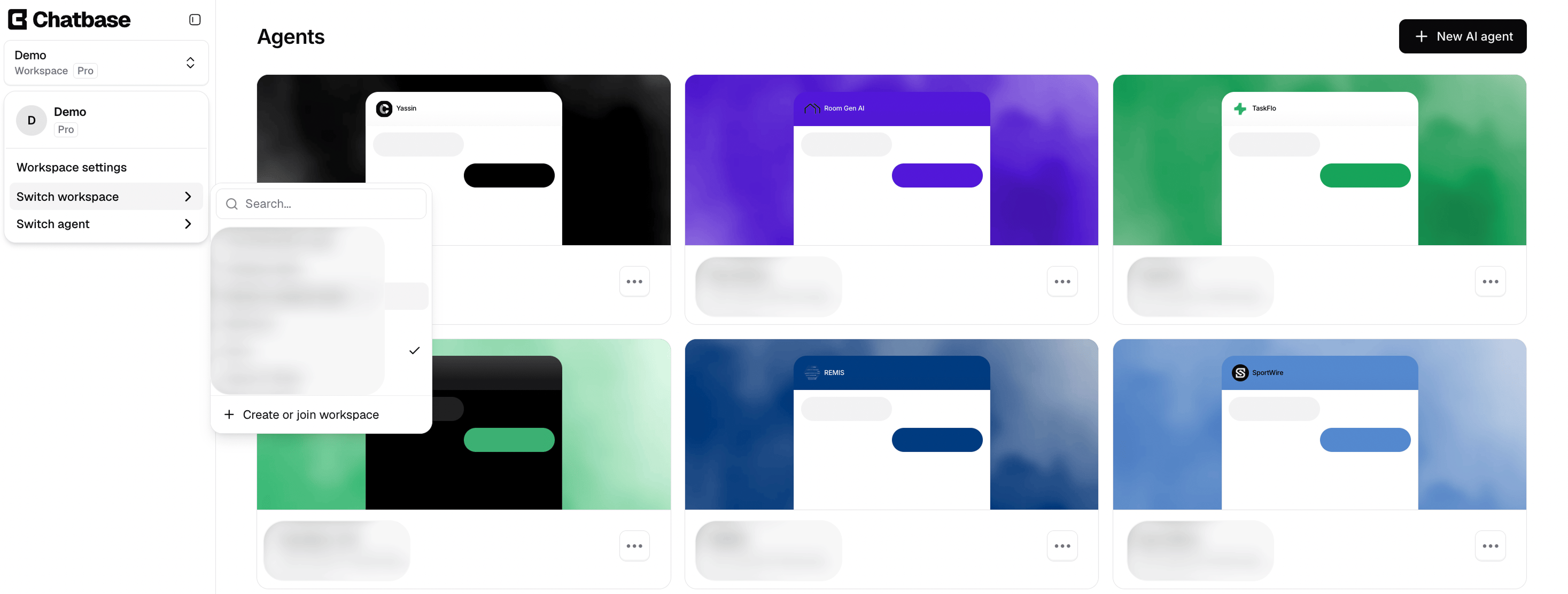
2
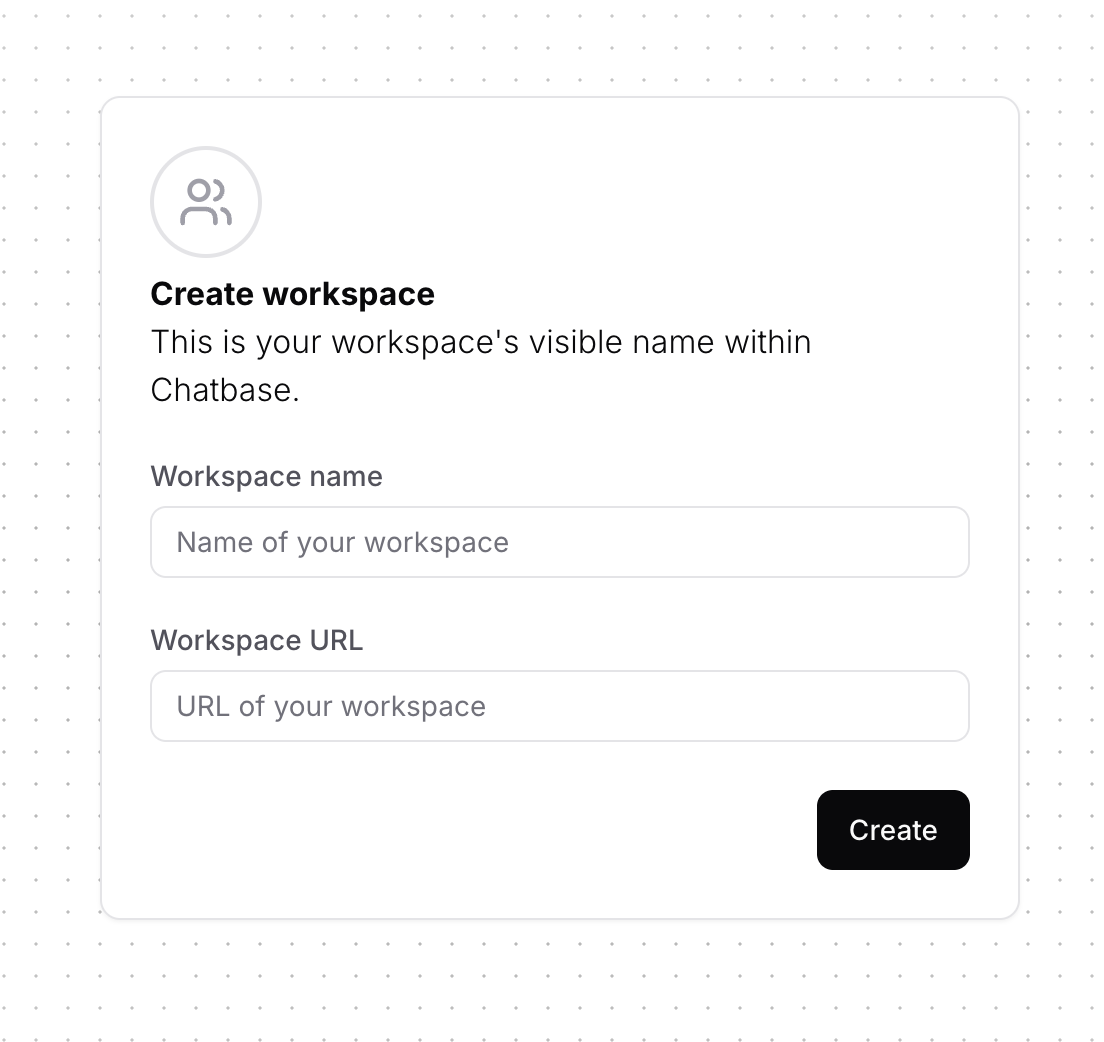
Add the workspace details
- Workspace Name: the AI agent’s display name within the dashboard.
- Workspace URL: the workspace slug, visible only in the URL when accessing the workspace on the dashboard.
You can choose any workspace URL you prefer, as long as it’s unique and doesn’t match an existing workspace.
3
Create your first AI agent
You’ll be taken to a new page where you can click New AI agent and start adding your sources.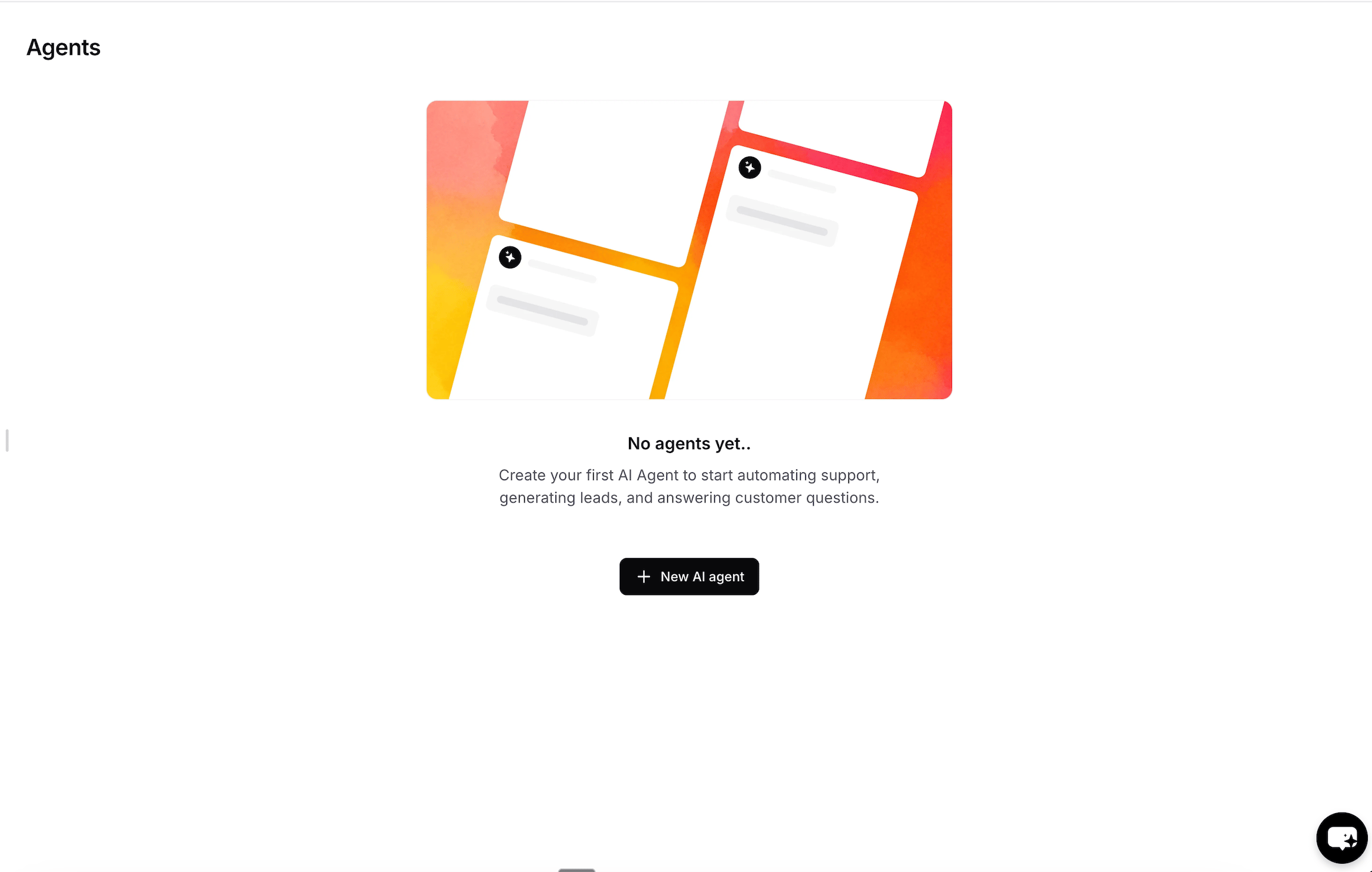
Duplicating an AI agent
You can duplicate any AI agent by clicking the three dots icon and choosing Duplicate Agent.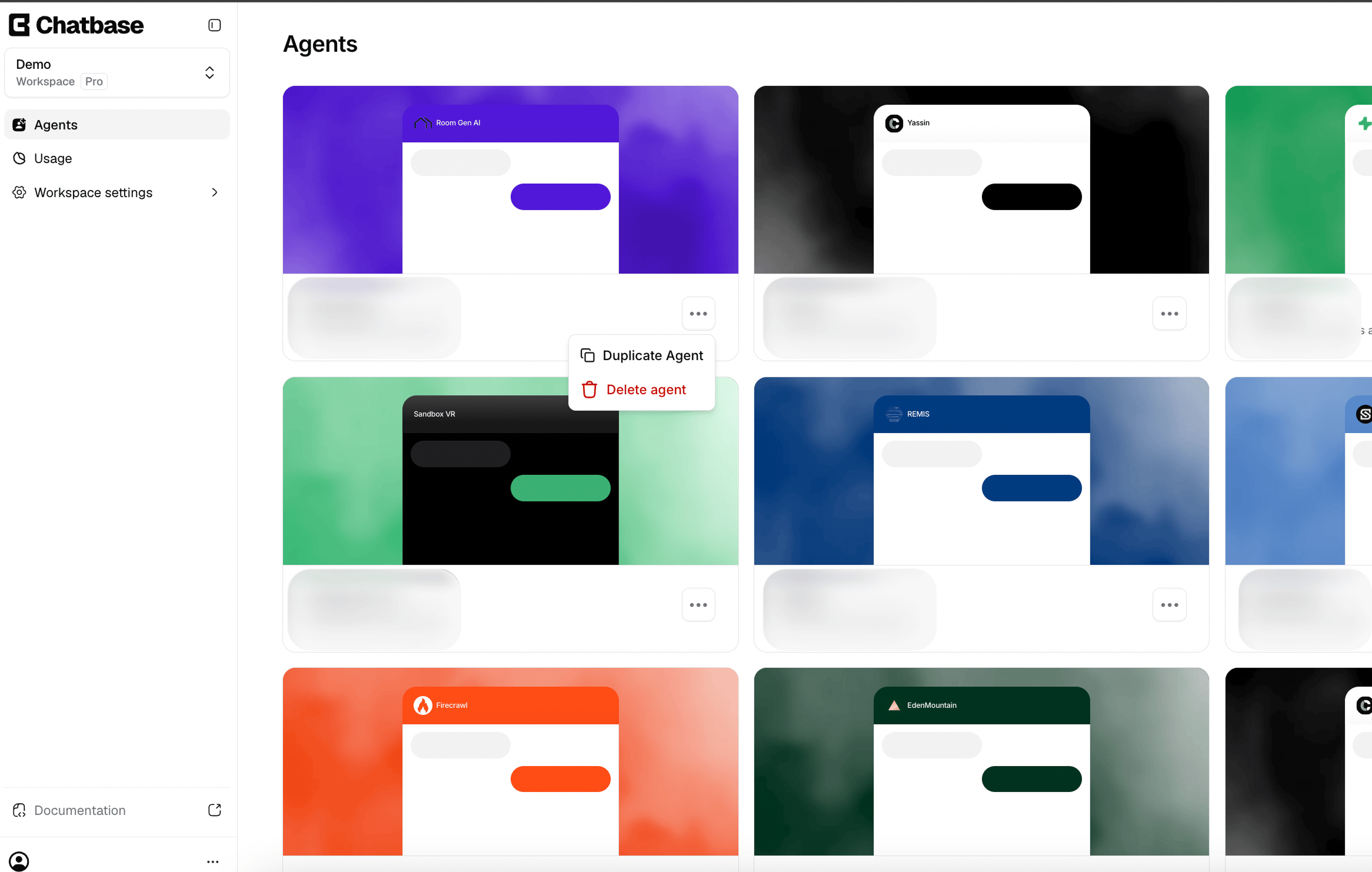
What’s not copied
Most AI agent settings are copied, but the following are not:Organizing AI agents in groups
Group related AI agents together on the Agents page, for example by client, brand, or use case.1
Open the Move to group dialog
On the Agents page, click the three dots icon on an AI agent and choose Move to group.
2
Pick or create a group
Pick an existing group, or type a new name to create one. Then click Save.
Groups are personal. Any workspace member can create them, whatever their role. They’re saved in your browser, so they don’t change what other members see, and they don’t carry over to another browser or device.
Roles and permissions
Invite links expire 24 hours after they’re sent to an invitee.
Next steps
Usage
Track message credits consumed across the AI agents in this workspace.
Workspace settings
Manage billing, your plan, and add-ons.
Build Your First AI Agent
Create, train, and deploy an AI agent in the new workspace.
Two-factor authentication
Add a second factor for everyone in the workspace.