

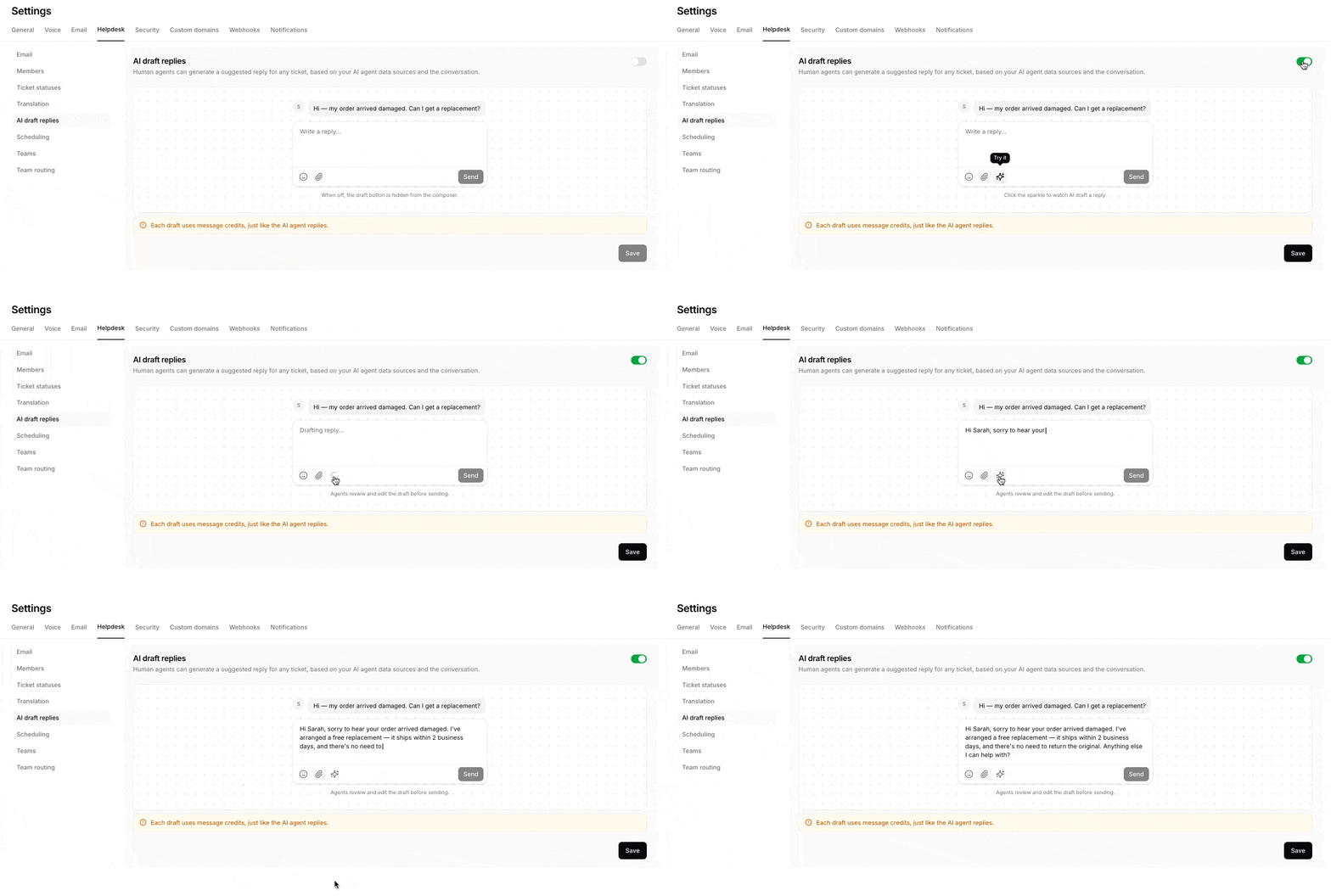
How AI Draft Replies work
When a human agent is handling a ticket, they can click the AI Draft Reply button in the message composer. Chatbase will generate a suggested response based on:- The customer’s conversation history
- The latest message in the ticket
- The AI agent’s instructions
- The AI agent’s connected data sources
- Review the generated response
- Edit or personalize the content
- Add any missing information
- Send the response when ready
Each generated draft uses message credits, just like a reply generated directly by the AI agent.
Enable AI Draft Replies
To enable AI Draft Replies:- Log in to your Chatbase dashboard.
- Open your agent.
- Go to Settings.
- Select Helpdesk.
- Open AI draft replies.
- Enable the AI Draft Replies toggle.
- Click Save.
Generate a draft reply
To generate a response:- Open a ticket in the Chatbase Helpdesk.
- Click the AI draft button in the message composer.
- Wait for the AI agent to generate a suggested response.
- Review and edit the draft as needed.
- Click Send when the response is ready.
AI-generated drafts are never sent automatically. A human agent must review and send the response.
Disable AI Draft Replies
To remove the AI draft button from the composer:- Go to Settings → Helpdesk → AI draft replies.
- Disable the toggle.
- Click Save.