

WhatsApp requires all outbound messages to use pre-approved templates. You cannot send free-form text as a campaign — templates must be created in Meta and approved before use. See the WhatsApp Templates guide for how to create and manage templates.
Prerequisites
- A connected WhatsApp integration (setup guide)
- At least one approved message template in Meta (WhatsApp Templates guide)
- Contacts with phone numbers in your contact list (Contacts guide)
- A payment method configured in your Meta billing settings
Creating a WhatsApp Campaign
1. Click Outbound in the sidebar and click + New campaign.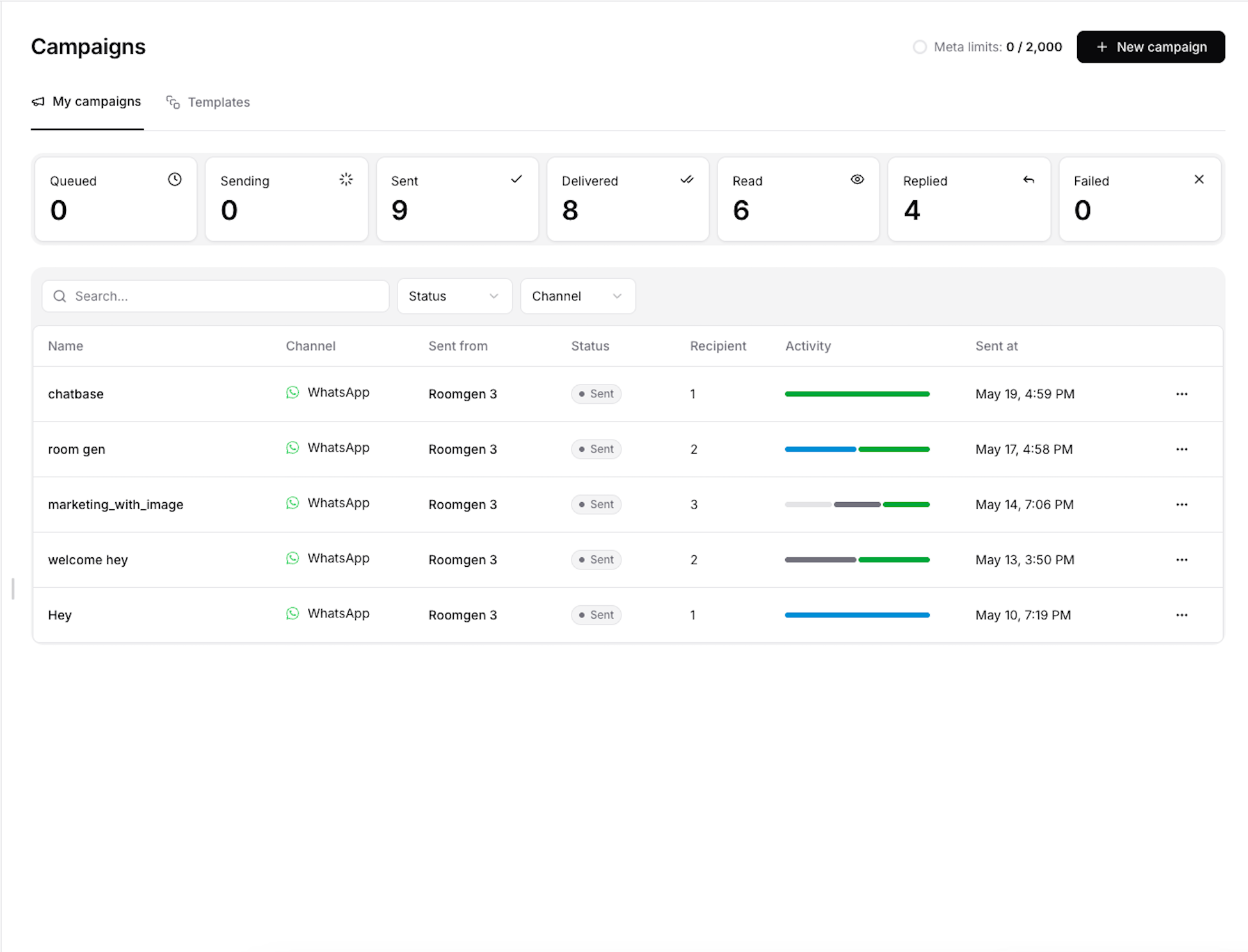
Configuration
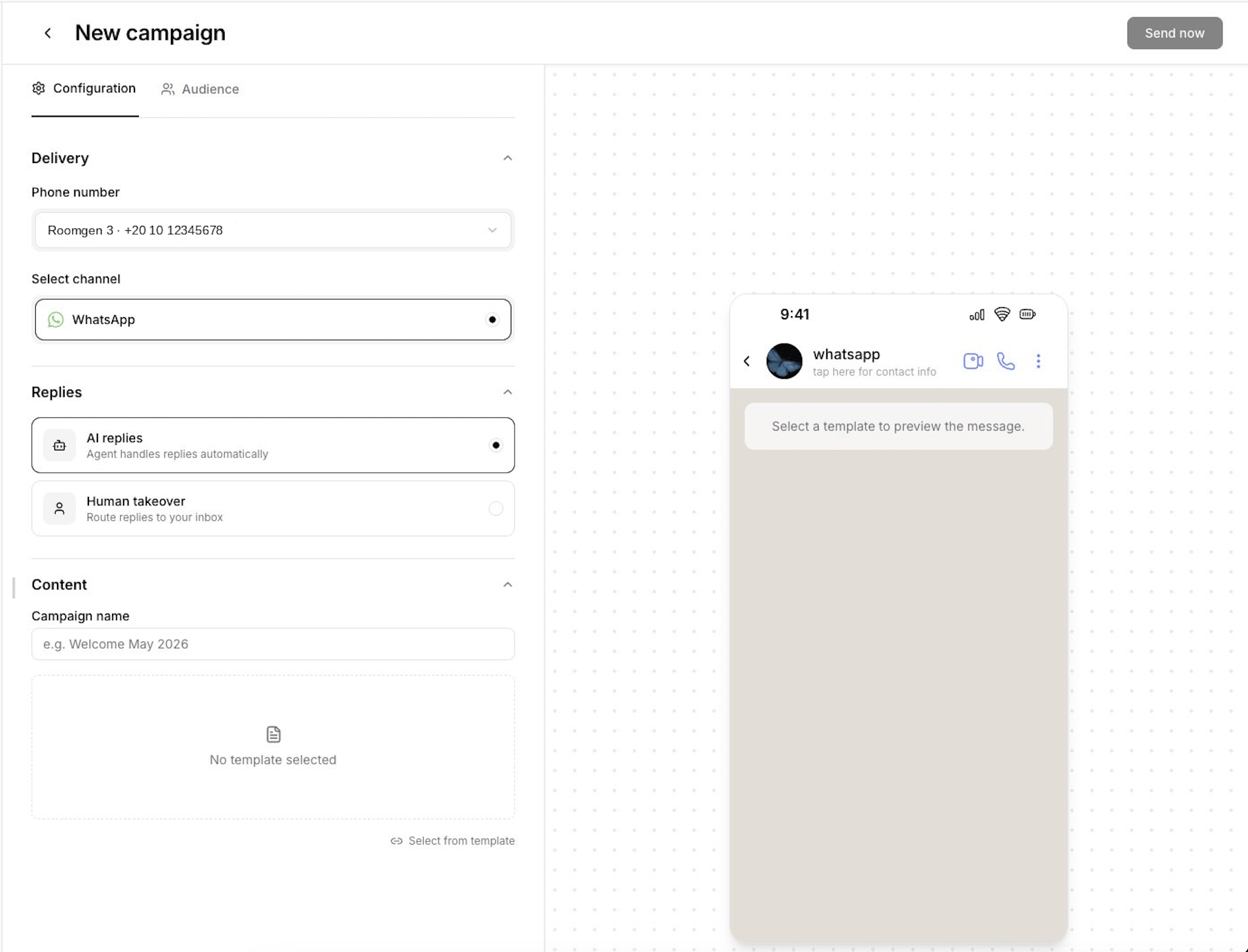
- AI replies (default) — Your AI agent responds to replies automatically. The conversation continues like any normal inbound chat.
- Human takeover — When a recipient replies, a helpdesk ticket is created automatically. Your team picks up the conversation from there.
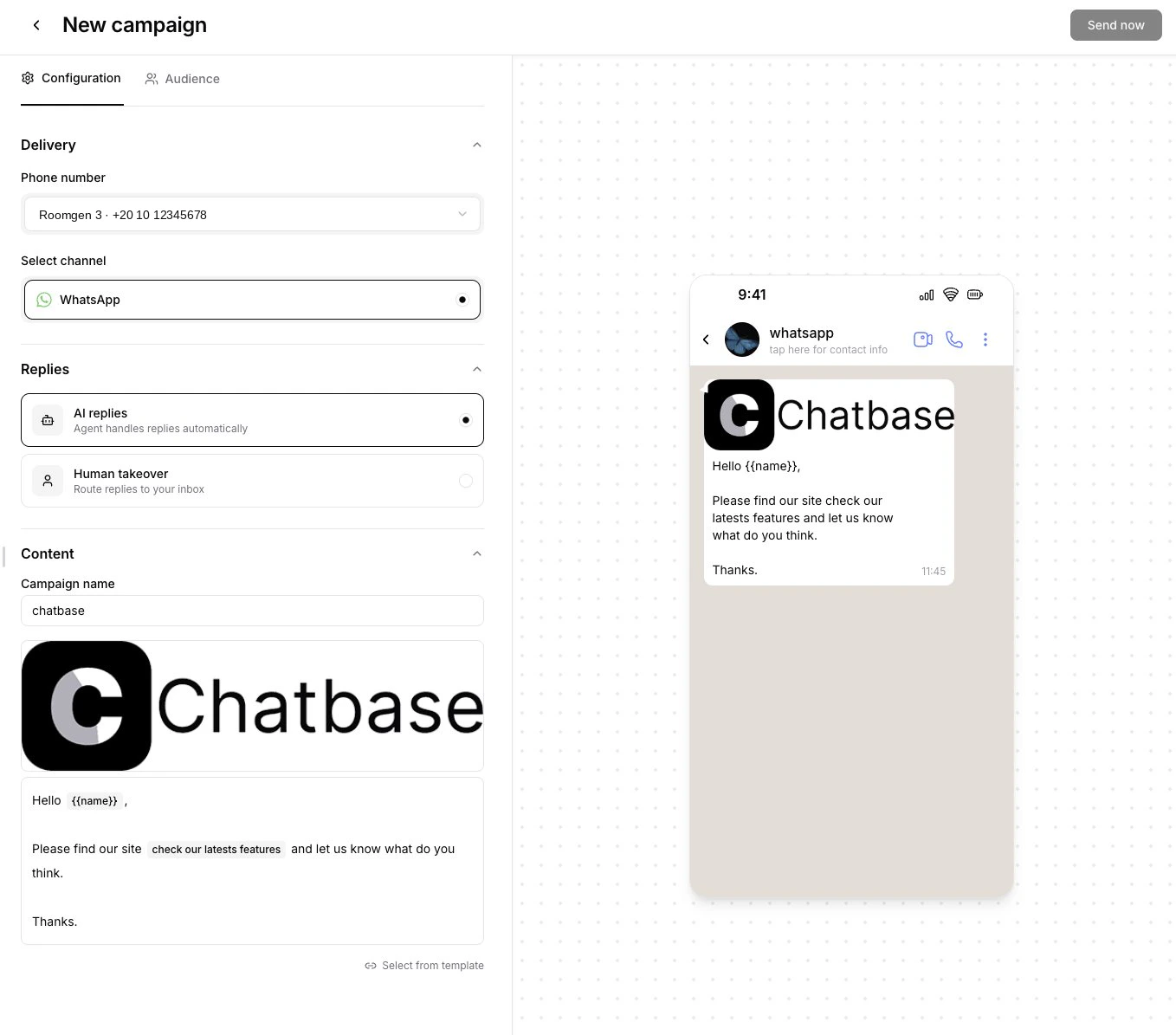
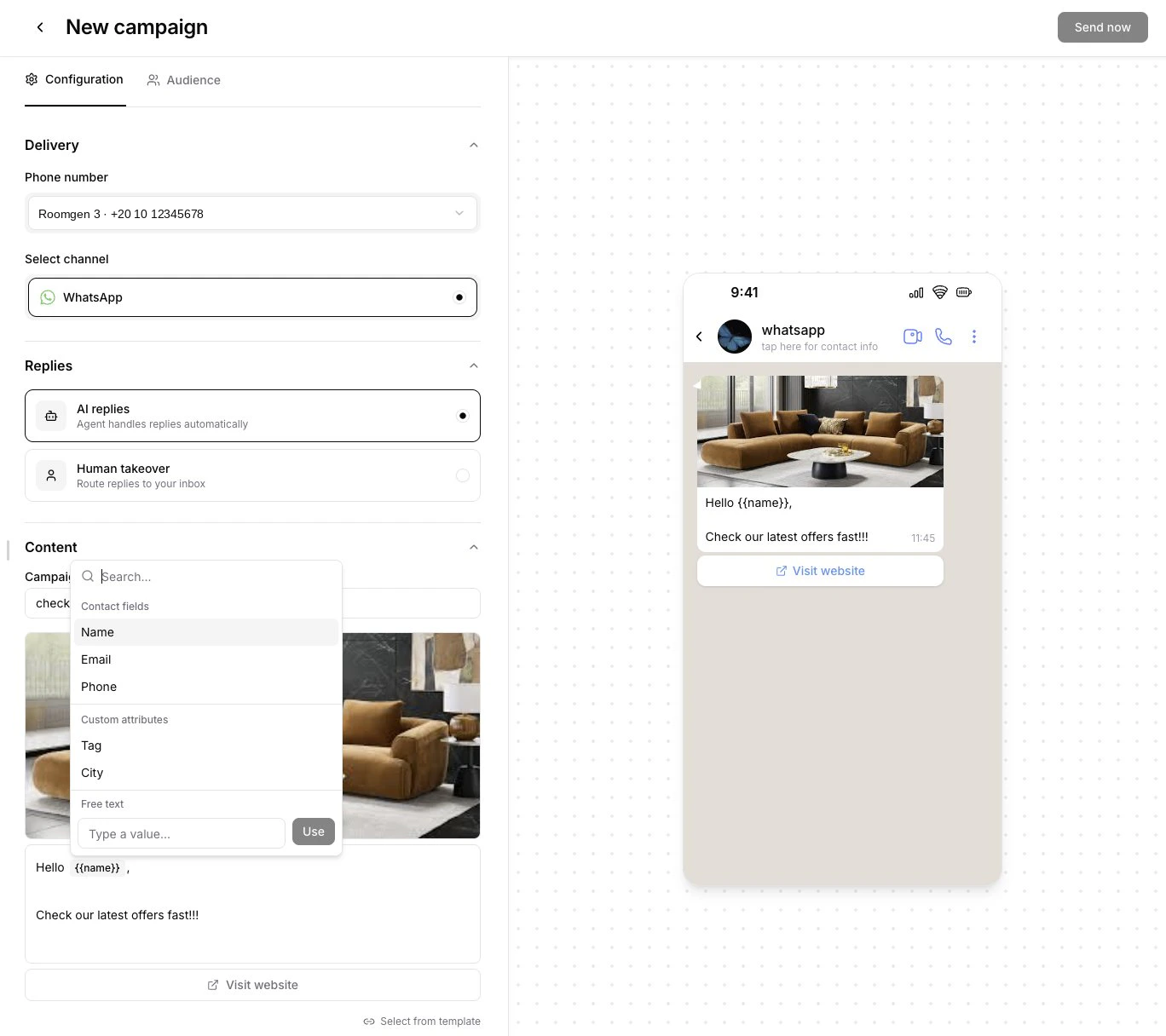
{{name}}), map each one to a data source:
- Contact field — Pulls from the recipient’s contact data (name, email, phone number, or custom attributes). Each recipient gets a personalized value.
- Static value — Enter fixed text that will be the same for all recipients.
Audience
Switch to the Audience tab to choose recipients.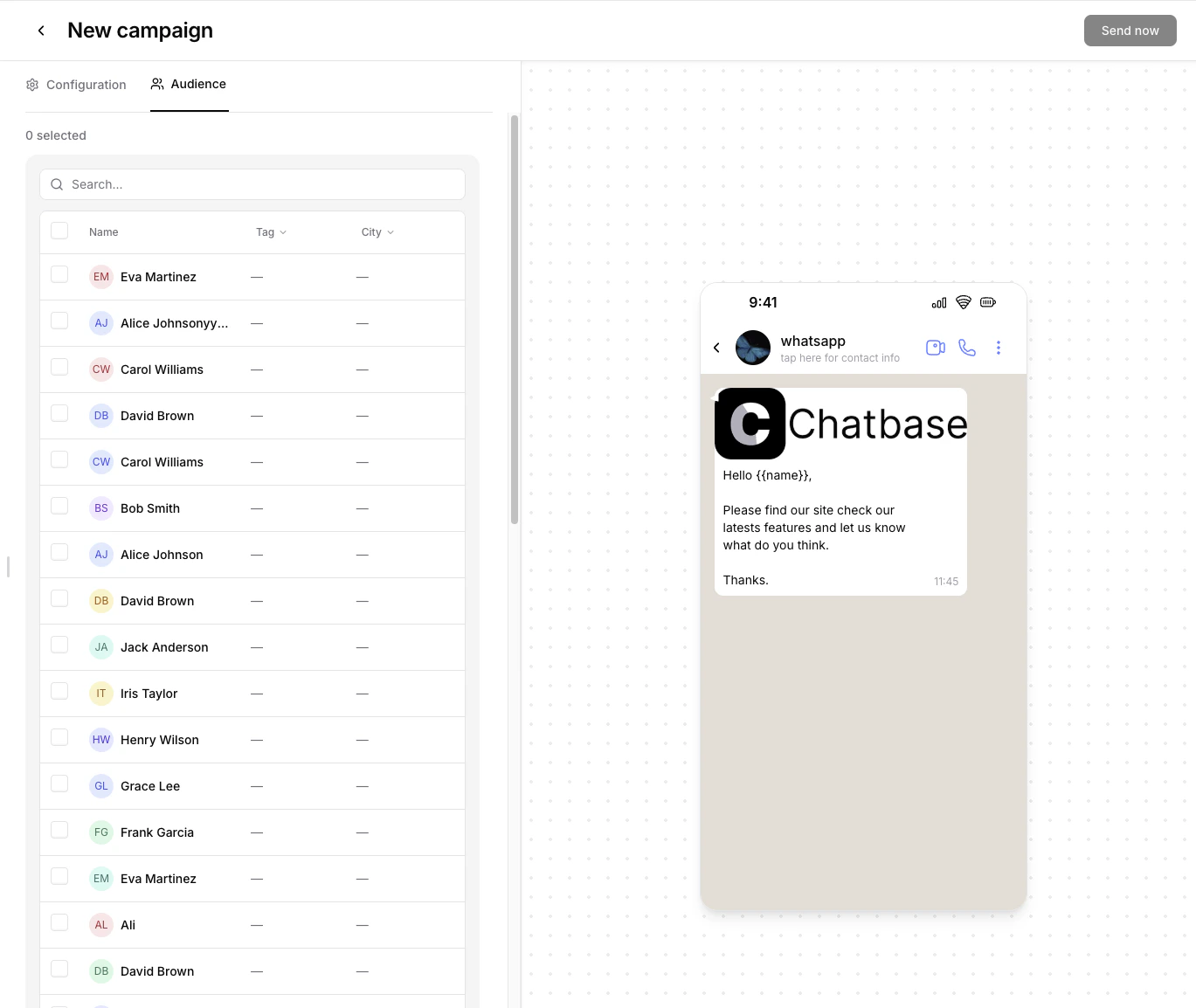
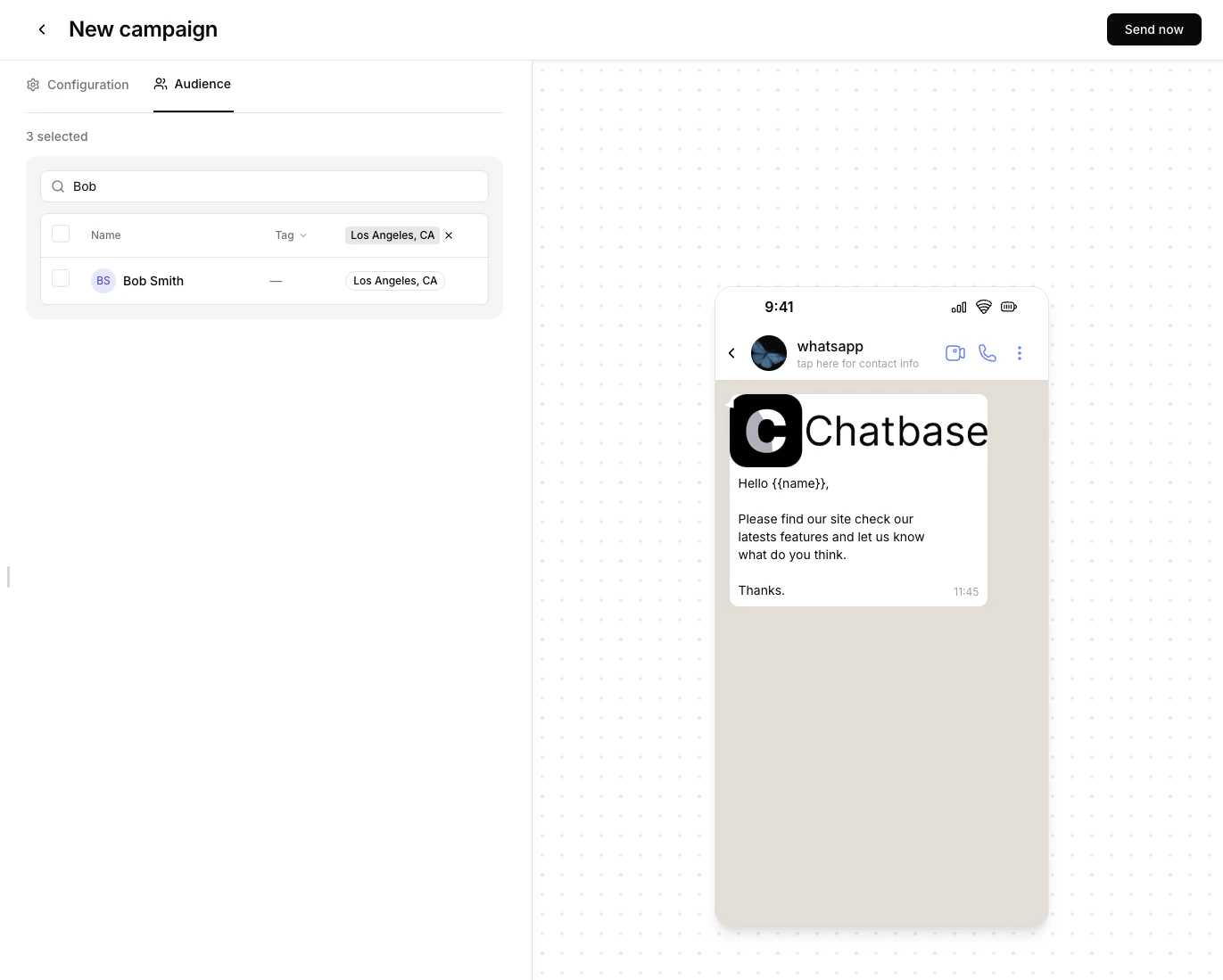
- Search contacts by name or phone number
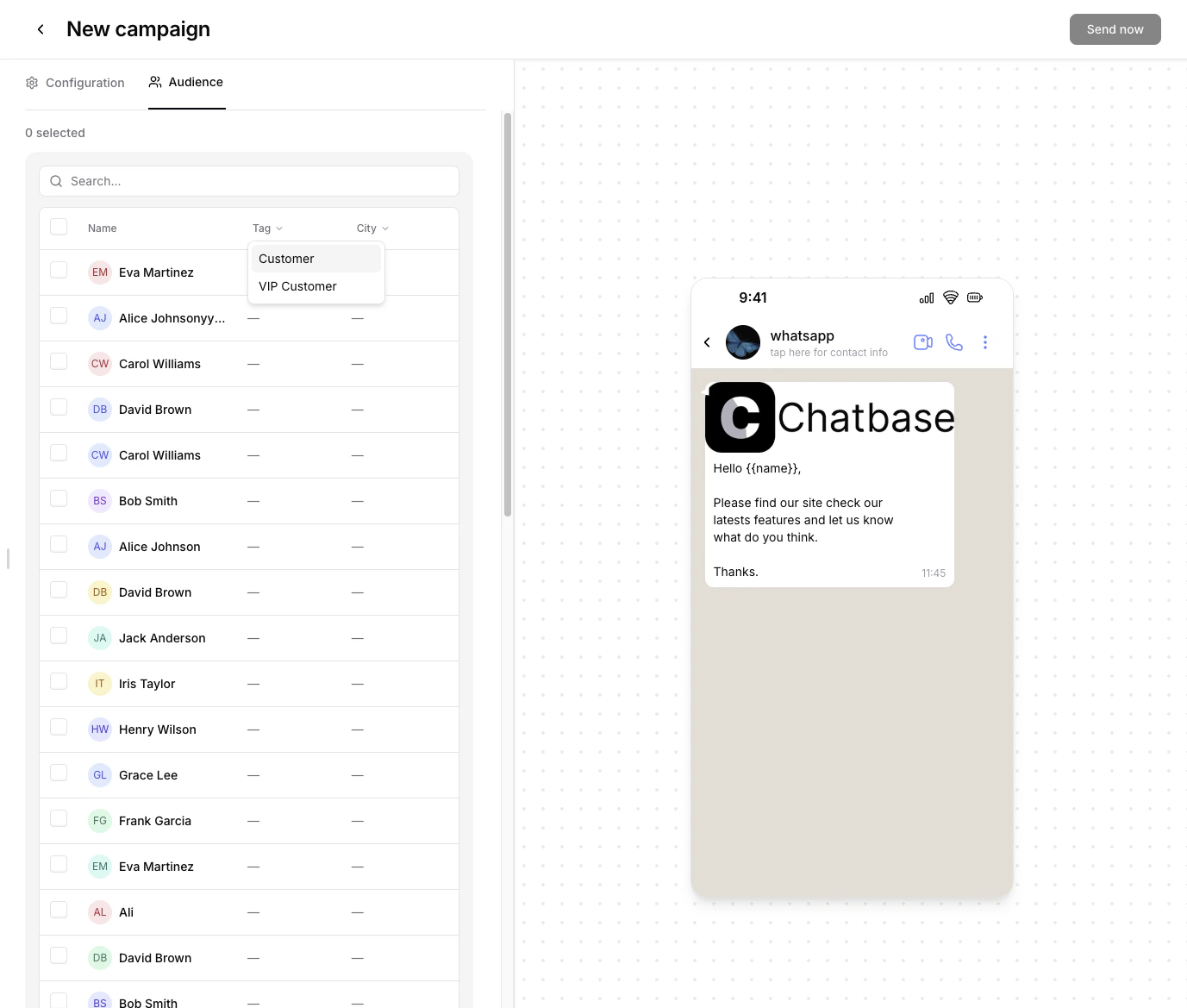
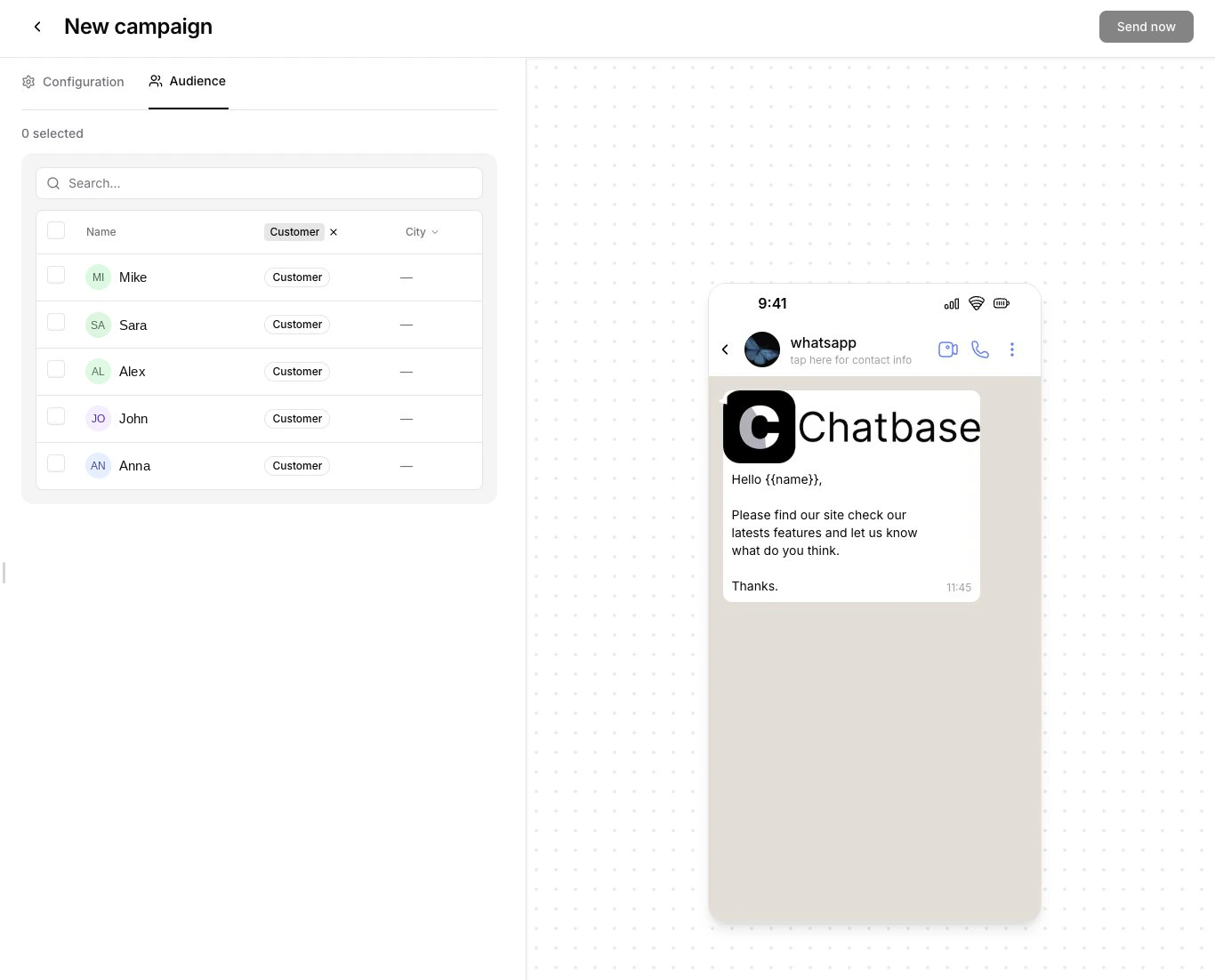
- Filter by custom attributes — click a column header like Tag or City to filter by specific values
Only contacts with a valid phone number can receive WhatsApp campaign messages. If a contact doesn’t appear in the list, make sure their phone number is set in their contact profile.
Sending Your Campaign
Once you’ve configured delivery, content, and audience, click Send now in the top right. You’ll be redirected to the campaign detail page where you can monitor delivery in real time.Monitoring Delivery
After sending, the campaigns list shows the status and activity for each campaign at a glance. Hover over the activity bar to see a breakdown of delivery stages.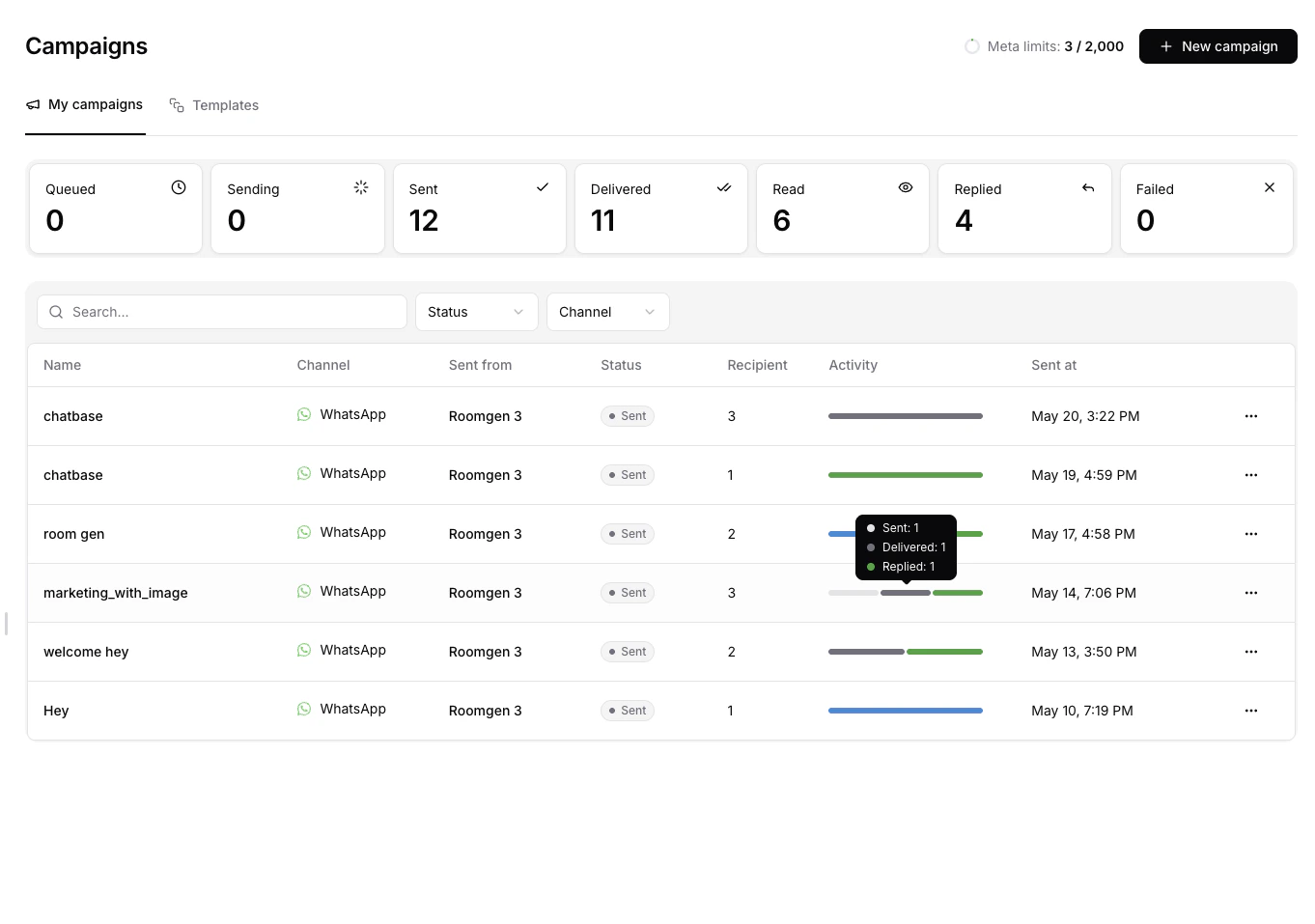
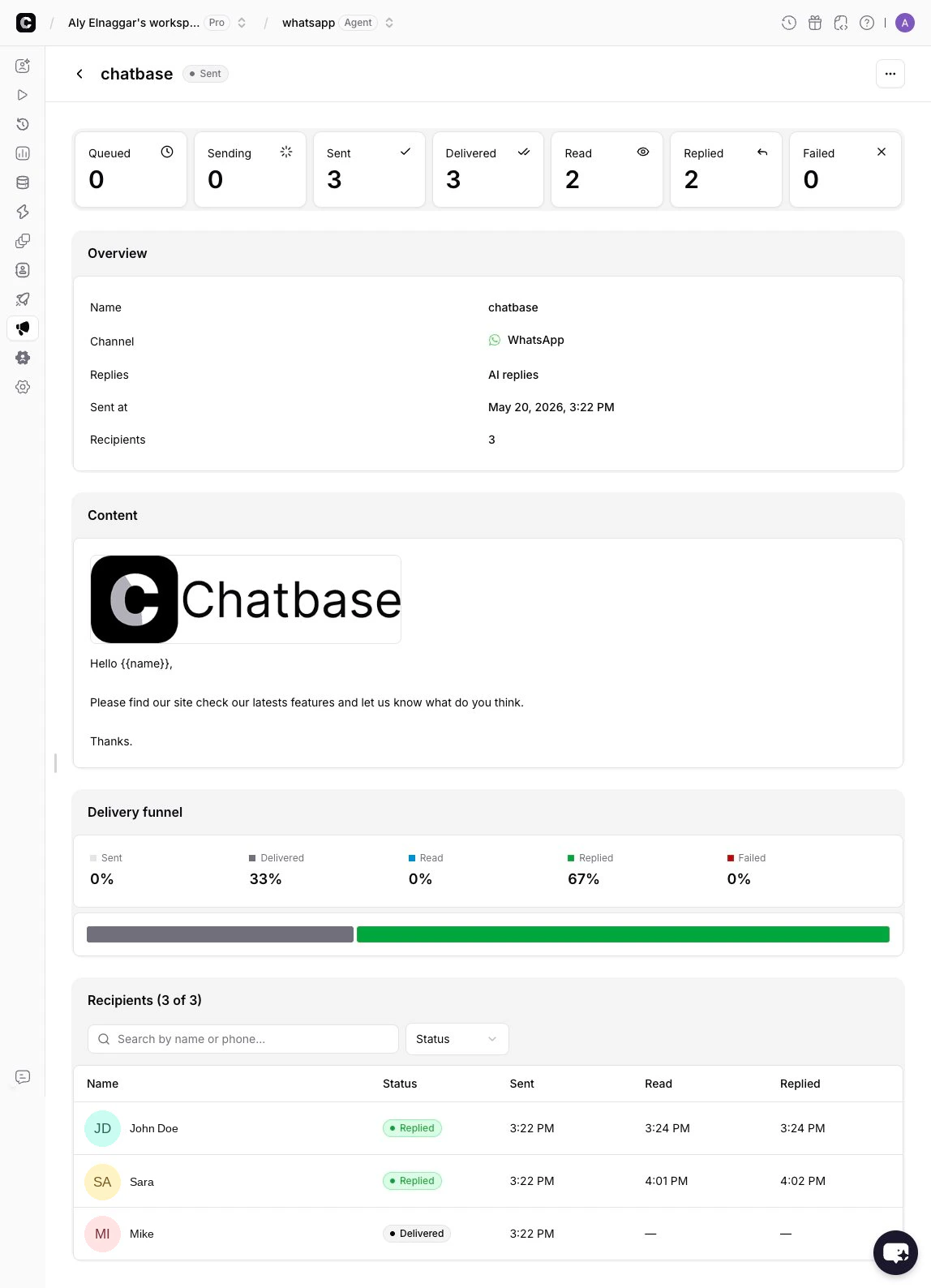
- Status counters — Queued, Sending, Sent, Delivered, Read, Replied, and Failed counts at the top.
- Overview — Campaign name, channel, reply mode, send time, and recipient count.
- Content — The template message that was sent.
- Delivery funnel — A visual breakdown showing the percentage of recipients at each stage. Helps you see drop-off between Sent → Delivered → Read → Replied.
- Recipients table — A searchable, filterable list of every recipient with their delivery status and timestamps.
Understanding messaging tiers: Meta assigns a messaging tier to your WhatsApp Business Account based on quality and volume. Your tier determines how many unique contacts you can message per day. The current usage is shown as Meta limits in the top right of the campaigns page.
Reply Handling
When contacts reply to your campaign, the behavior depends on the mode you selected during creation: AI Replies — Your AI agent handles the reply automatically. The conversation continues like a normal inbound chat. This works well for product inquiries, support questions, and automated follow-ups. Human Takeover — The reply creates a helpdesk ticket tagged with the campaign name. Your team picks up the conversation and responds manually from the helpdesk inbox.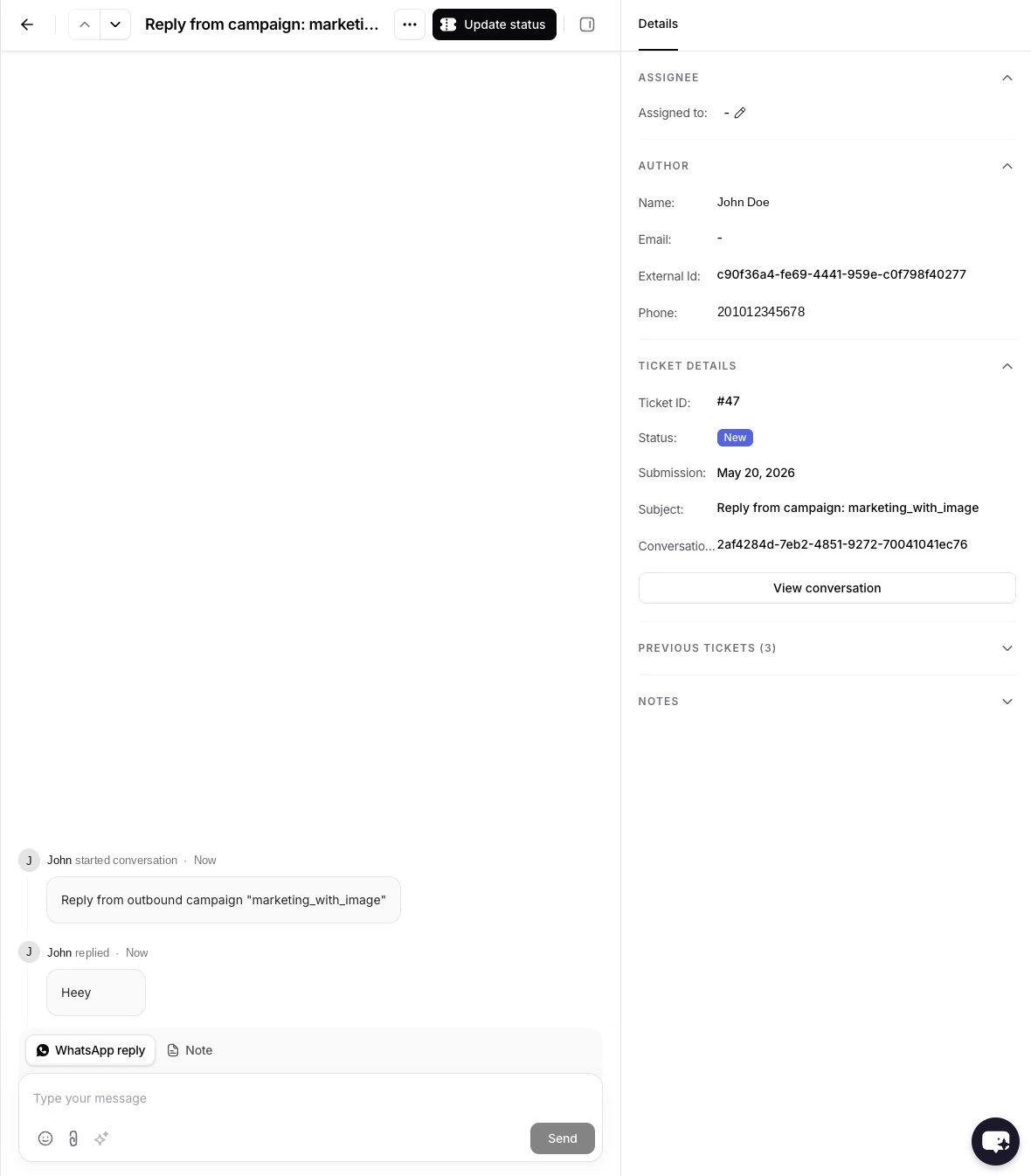
Troubleshooting
- Campaign stuck in “Sending”? Large campaigns are processed in batches and may take a few minutes. If there’s no progress after 10 minutes, check that your WhatsApp integration is still connected.
- Recipients showing “Failed”? Common causes include an invalid phone number, Meta rate limits being reached, or a missing payment method in your Meta billing settings.
- Template not appearing? Make sure the template has been approved in Meta. Only approved templates appear in the campaign template picker.
- Replies not creating tickets? Verify that reply behavior is set to Human Takeover.
- Hitting rate limits? Your Meta messaging tier determines daily send limits. Check your tier on the campaigns page. To increase your tier, maintain high message quality and gradually increase volume.