

Overview
The quality of your agent’s answers comes down to four things you control: the instructions you give it, the data sources you train it on, the model you pick, and how you correct it once it’s live. This page covers each in turn.Refine the AI agent’s instructions
The instructions shape your agent’s behavior and responses. Use them to set a persona, define tone, or specify the types of questions the agent can answer. Clear, precise instructions keep the agent aligned with your goals and your user experience. This is the default, which you can edit or replace:Friendly Support Agent Instructions
Friendly Support Agent Instructions
Improve readability of data sources
The quality of your agent’s responses depends heavily on the quality of the data sources you provide. Chatbase relies on readable text to generate accurate responses, so make sure the websites or PDFs you upload contain readable text. Some websites aren’t scraper-friendly. If your agent struggles to answer questions based on your website, this could be why. Work around it by copying the information in as text, or uploading it as a PDF.Chatbase can’t process images, videos, or other non-textual elements in documents.
Bad Product Example
Bad Product Example
Product: Widget123, colors not specified, possibly red or blue. Discount details unclear. Weight: Approx. 1 kg or 1.5 kg? Shipping: Delivery time uncertain, could be fast or delayed. Availability: Global shipping not confirmed. Packaging: Uncertain if it comes in a box. Assembly: Information unclear. Limited stock? Not confirmed.
Good Product Example
Good Product Example
Product: Widget123
Colors: Red, Blue
Discount: 50% off
Weight: 1.5 kg
Shipping: Estimated delivery within 1-2 weeks (depends on location)
Availability: Ships worldwide
Packaging: Comes in a standard-sized box
Assembly: Some assembly required
Order Now: Limited stock available, don’t miss out!
Colors: Red, Blue
Discount: 50% off
Weight: 1.5 kg
Shipping: Estimated delivery within 1-2 weeks (depends on location)
Availability: Ships worldwide
Packaging: Comes in a standard-sized box
Assembly: Some assembly required
Order Now: Limited stock available, don’t miss out!
Bad Description Example
Bad Description Example
The product is a thing. Its color is unspecified, and its size is unknown. The product might be useful, but it’s not clear. Its availability is uncertain, and shipping times are not mentioned. There might be a discount, but it’s not specified. Assembly instructions? Unclear. Get it soon? It’s unclear when stock might run out.
Good Description Example
Good Description Example
The Widget123 is a premium-quality product available in two colors: red and blue.
It offers a 50% discount, making it an excellent deal.
The product weighs 1.5 kg and is shipped worldwide.
You can expect delivery within 1-2 weeks, depending on your location.
The item comes in a standard-sized box and requires minimal assembly.
Act fast, stock is limited!
It offers a 50% discount, making it an excellent deal.
The product weighs 1.5 kg and is shipped worldwide.
You can expect delivery within 1-2 weeks, depending on your location.
The item comes in a standard-sized box and requires minimal assembly.
Act fast, stock is limited!
Add suggestable images
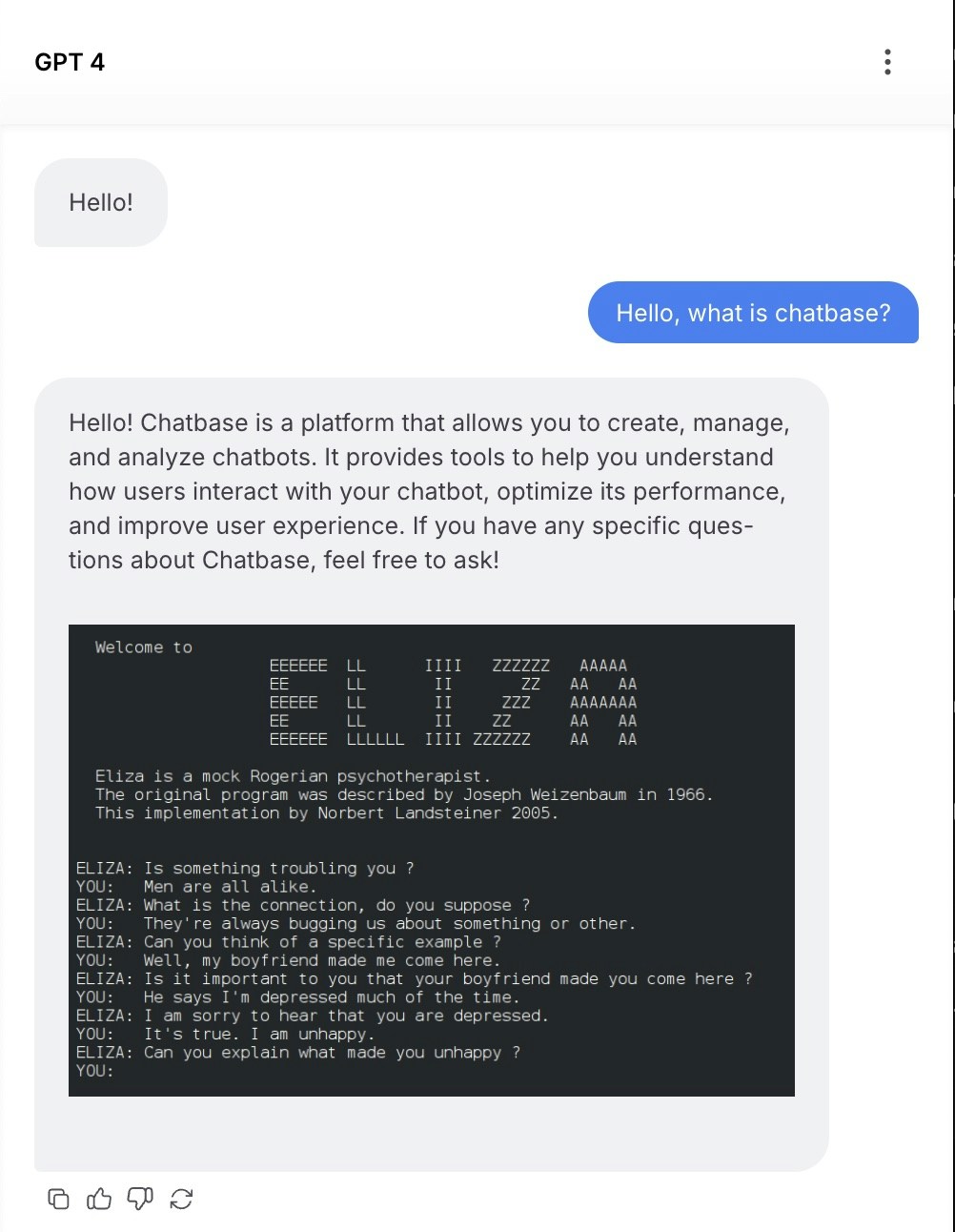
To display images in the chat bubble, have the agent send image links in markdown format. The URL must end in.png or .jpg for the image to render. You can also use a widget.
You can include a line like this in your instructions to display an image after each response:
Choose the right AI model
Selecting the right model matters for performance. Match it to your use case, considering task complexity and speed: a model suited for structured data is ideal for data-heavy tasks, while a conversational model works best for customer support. Also consider scalability. Choose a model that can grow with your needs, handling more data while maintaining accuracy. Some models are better for real-time interactions, others excel in batch processing.Compare models side by side
To see how each model responds, go to Build > Instructions and click Compare in the header. You can run the same message against several models at once and judge:- Response quality and accuracy
- Response time and speed
- Tone and personality
- Handling of edge cases
If you’re unsure which model to use, see the models comparison page.
Use Revise and Q&A to correct answers
Two features let you fix a wrong answer so it stays fixed. Add Q&A’s gives the agent exact answers for specific questions. On Build > Data sources, click Add Q&A’s. When a user asks something similar to one of your saved questions, the agent replies with your predefined answer word-for-word. Revise corrects an answer after the fact. Monitor your agent’s responses under Activity > Conversations. When you find an answer you’d like to change, click the revise button and adjust it. The revised answer is saved as a Q&A data type, so the agent references it for future queries. Revised responses appear on Build > Data sources with a Q/A badge.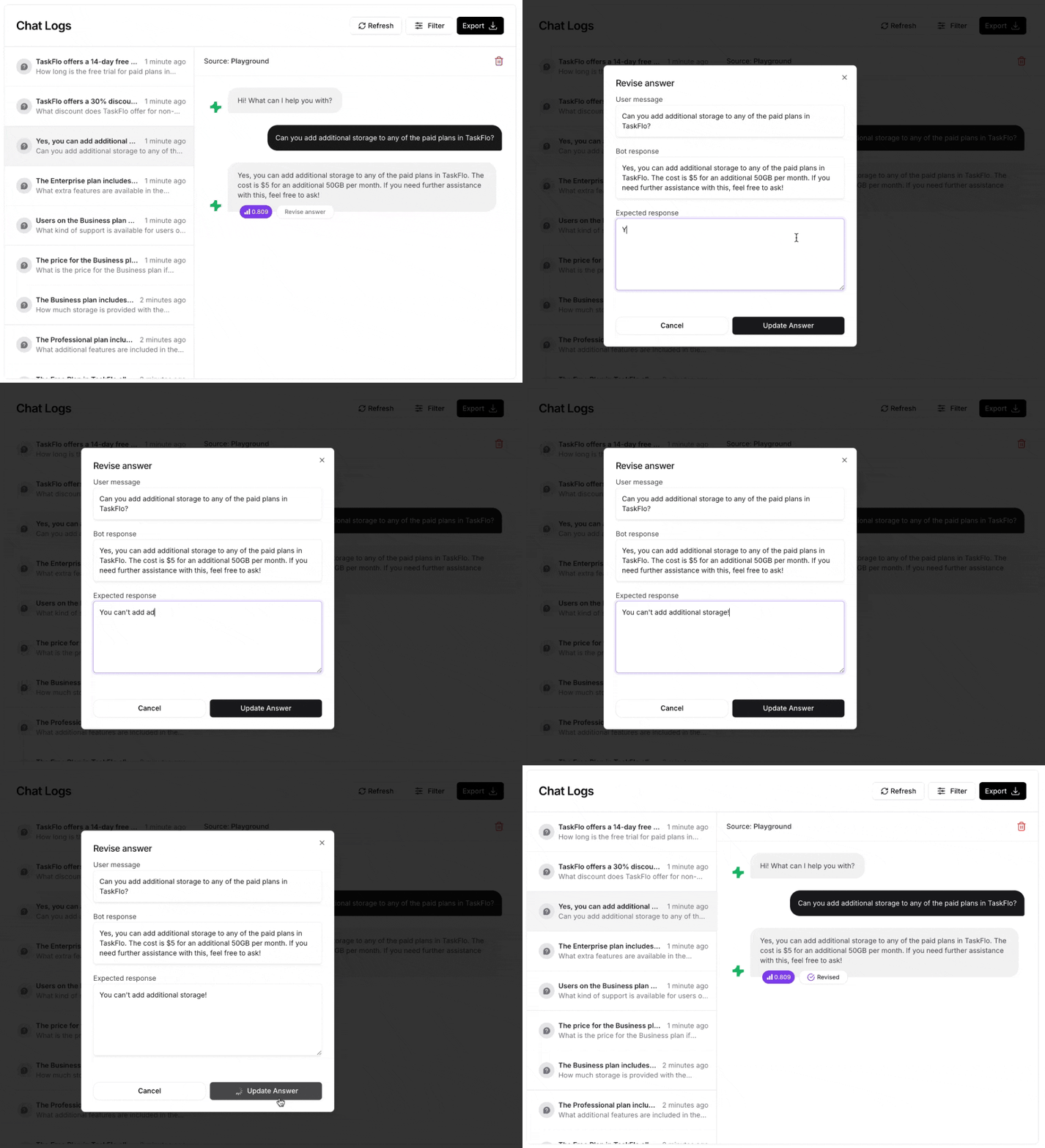
Next steps
Instructions
The full reference on instructions, guardrails, model, and temperature.
Data sources
Add, organize, and retrain on the content your agent learns from.
Models comparison
See how the available models differ before you commit to one.
Analytics
Track conversations and measure whether your changes actually helped.