

Attachments are supported, allowing your agent to process them and respond based on their content. For more information, please refer to this section.
Step 1: Access and Configure Your Chatbase Agent
These steps assume that you have already created a Chatbase account and that you have a Chatbase agent already available for use. If you haven’t yet, create a Chatbase account, subscribe to a plan then build your first AI agent. For example, you can create a company FAQ agent to handle common employee questions or build a recruiting assistant to screen candidates and schedule interviews. Get your agent ready before moving to the integration. Read More: A step-by-step guide to creating a Chatbase agent in just a few minutes.Step 2: Locate the Slack Integration
- Once you have a Chatbase account and an agent set up, head over to your dashboard. On your dashboard, you’ll find a list of all the agents you have created. Locate and click on the agent you wish to integrate with Slack.
- Click Integrations in the left sidebar to see the list of integration options.
- Click on Connect under the Slack card
- Up next, you’ll be asked to authorize Chatbase to access your Slack account and workspace.
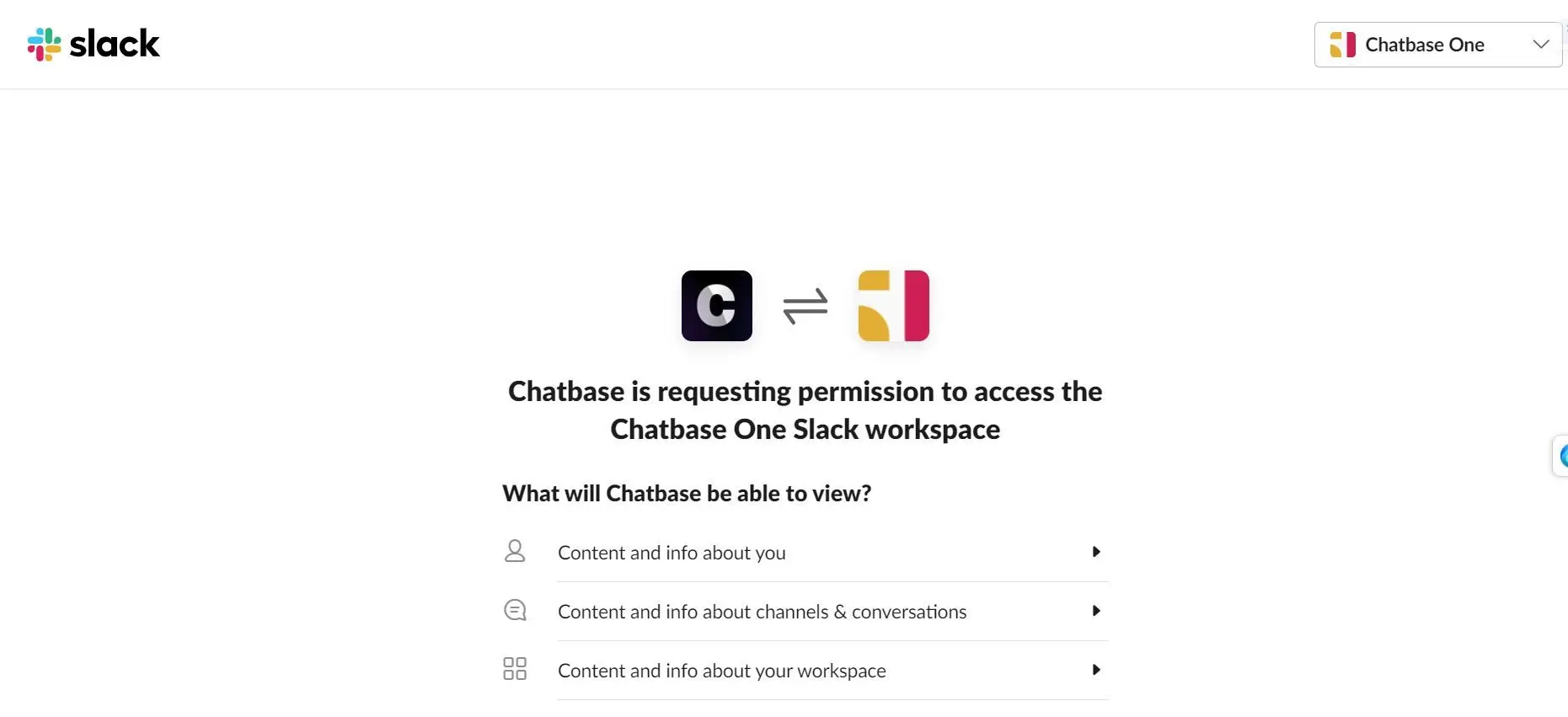
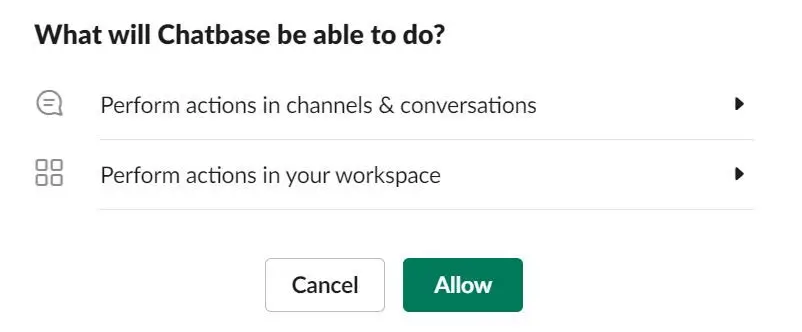
- Scroll down and click on Allow.
- If all goes well, you should get a message saying “Chatbase has been successfully added to your workspace.”
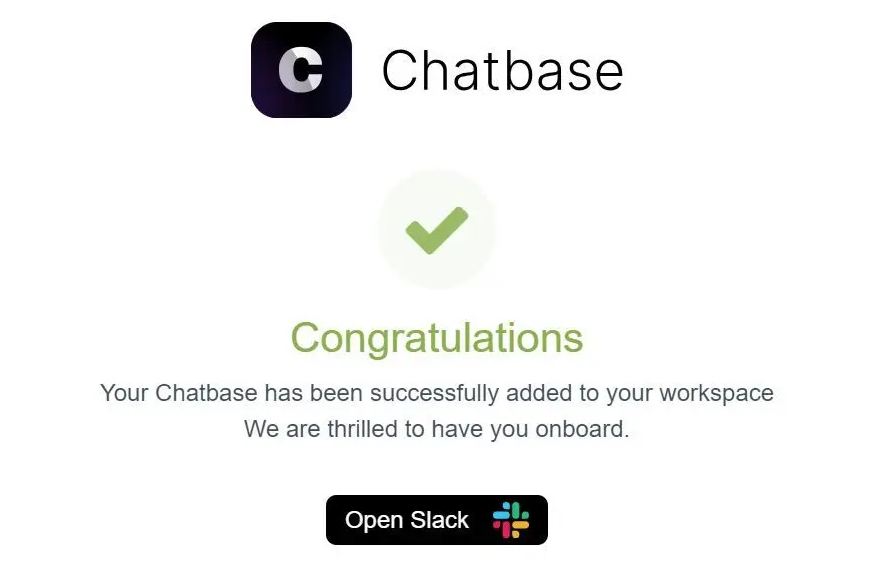
- Click on Open Slack to launch your Slack workspace.
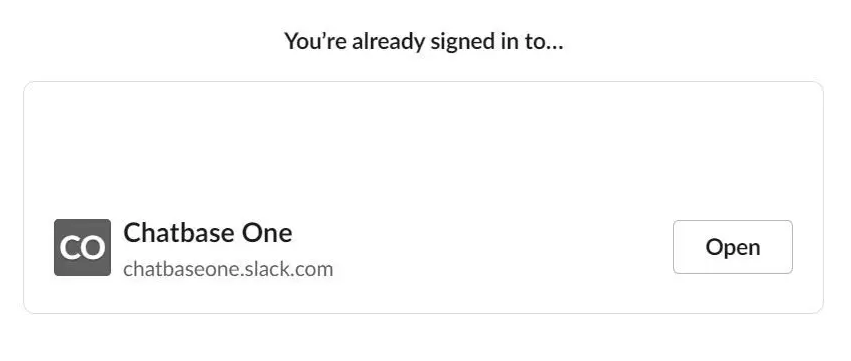
- You’ll be prompted to sign into your Slack workspace or select from a list of Slack workspaces you are currently signed into. Click open beside the target workspace.
Step 3: Deploy Slack Agent
Once you’ve launched the Slack workspace that hosts your Chatbase agent, you can start setting up the agent as a Slack agent. To do this:- Open any channel on your Slack workspace, and type @chatbase followed by any question related to the purpose of your agent. This should trigger a prompt by Slack asking you to invite the agent to the channel or take no action.
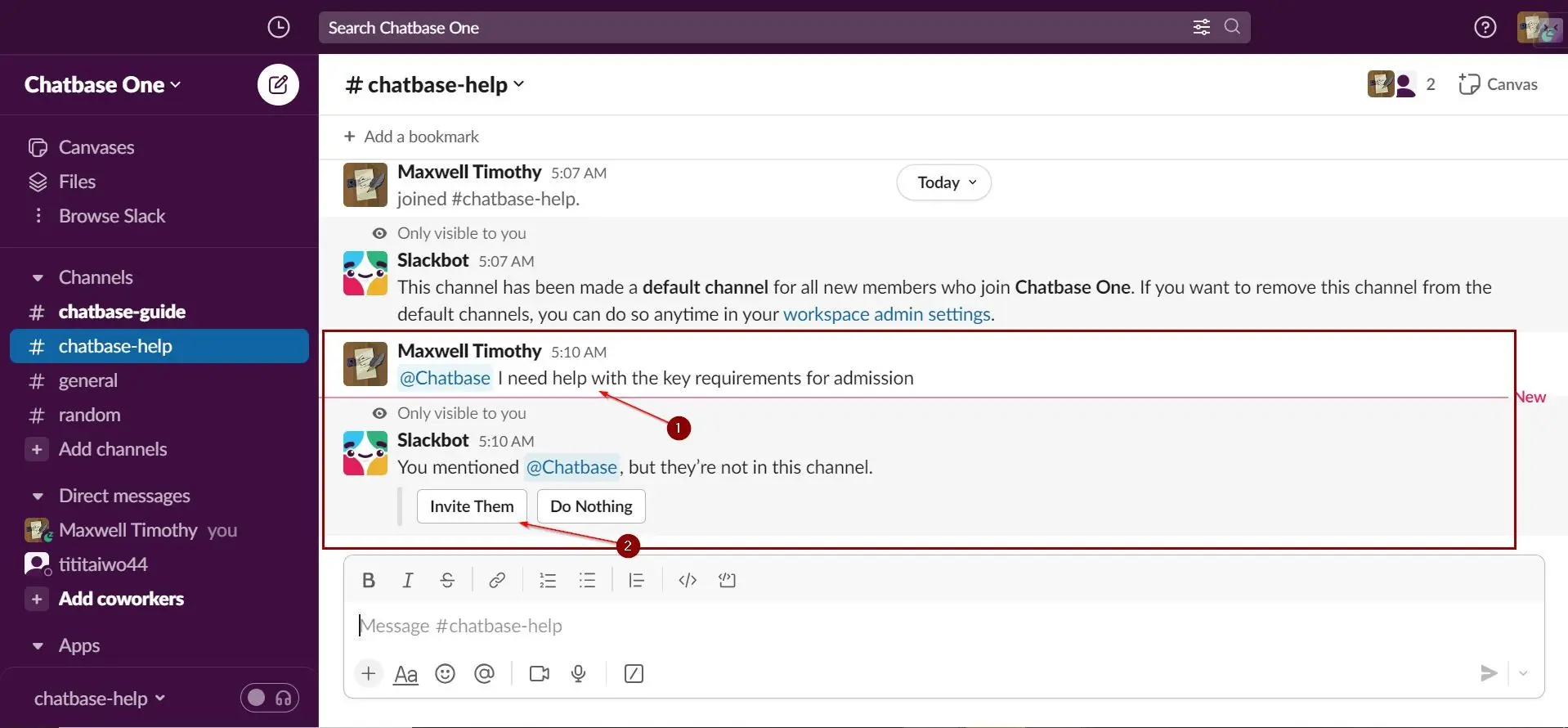
- Click on Invite Them. The agent will then be available in the channel to answer any questions you might have.
Step 4: Start Chatting!
That’s it! Your Chatbase agent is now integrated and ready to elevate workspace communication in your Slack workspace. Anytime you or any member of your workspace needs a question answered, just type @chatbase followed by your question, and your agent will respond.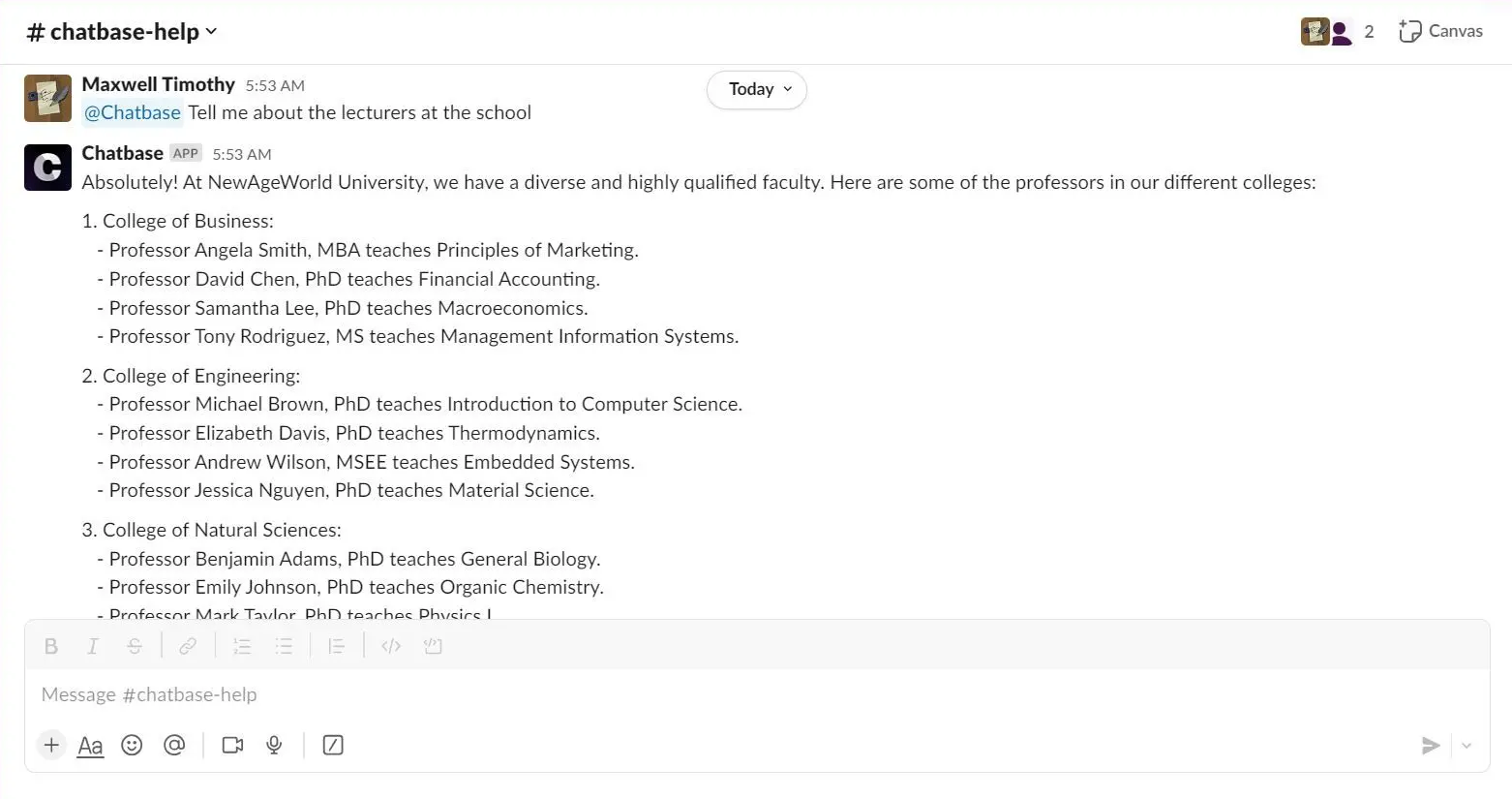
Message Appearance in Slack
Replies sent by your agent in Slack use the agent name and avatar configured in your Chat bubble settings. How it works If a custom name and avatar are set in your Chat bubble settings, those will be reflected in Slack messages. If no custom values are provided, default values will be used:- Name: Chatbase
- Avatar: Chatbase logo
Customize your agent’s response appearance
To change how your agent appears in Slack, update the profile picture and display name that are inside the Widget’s settings in your Chatbase dashboard.
If the agent is mentioned inside a thread, it will reply within that same thread (instead of the main channel). Each Slack thread is treated as a separate conversation, allowing the agent to maintain more accurate context within each discussion.
Ignore bot messages
Under Channels → Slack → Manage → Extra Settings, tick Ignore bots and click Save. When enabled, your Chatbase agent will ignore messages sent by other Slack bots and only respond to messages from human users. This is useful if your Slack workspace contains automation bots or AI agents that post messages, as it prevents your Chatbase agent from replying to them and avoids unintended bot-to-bot loops or infinite conversations.Backstage
Slack is one of the ways you can interact with Backstage, Chatbase’s AI assistant for managing your agent. You can refer to it’s documentation to learn more.Team members can ask your AI agent questions in any channel where it’s added. It responds right in the conversation, so your whole workspace can get answers without leaving Slack. Integrating Chatbase into Slack unlocks game-changing possibilities. Your employees gain a productivity-boosting agent that enriches the collaboration experience. So go ahead, and give your new AI-powered workspace member a try! Intelligent automation is just a chat away.
Incase you need your Chatbase agent to notify you on slack when a specific topic is triggered, check out Slack notification action