

Overview
Custom Actions let you connect your AI agent to anything you can reach over an API. The AI agent calls your endpoint, gets the response back, and uses that data in its reply, so it can answer questions and perform tasks that live entirely in your own systems. Custom Actions can also run code in the customer’s browser or display an interactive widget in the chat.Best for:
Anything Chatbase doesn’t have a built-in action for: looking up records in your own database, triggering a workflow, or showing a custom UI in the chat.
- “Upgrade my subscription to premium”
- “What’s the weather in London?”
- “Look up my account balance”
Action Types
When creating a custom action, you select a type that determines how the action behaves:Server with UI and Widget only actions let you attach a widget to the action. You can create and manage widgets directly from the action’s configuration page. See the Widgets documentation for details on building widgets.
How to create the action
1
Navigate to Actions
Go to your Chatbase dashboard and select your AI agent. Click Build > Actions in the left sidebar.
2
Create the Action
Click Create action, then select Custom Action and the type you need.
3
Configure General Settings
See General below, then click Save and continue.
4
Configure the API
Define the data inputs the AI agent collects and the request it sends. See API below, then click Save and continue.
5
Test the response
Verify the endpoint returns what you expect. See Test Response below, then click Save and continue.
6
Set data access
Choose how much of the response the AI agent can see. See Data Access below, then click Save and continue.
7
Choose Channels
Use Channels to control where the action is available. Toggle the action on or off for each configured channel, then click Save. Some channels may be incompatible with the action and won’t be available for selection.
8
Enable and Test
Ensure the action is toggled to Enabled, then test it in the Playground.
General
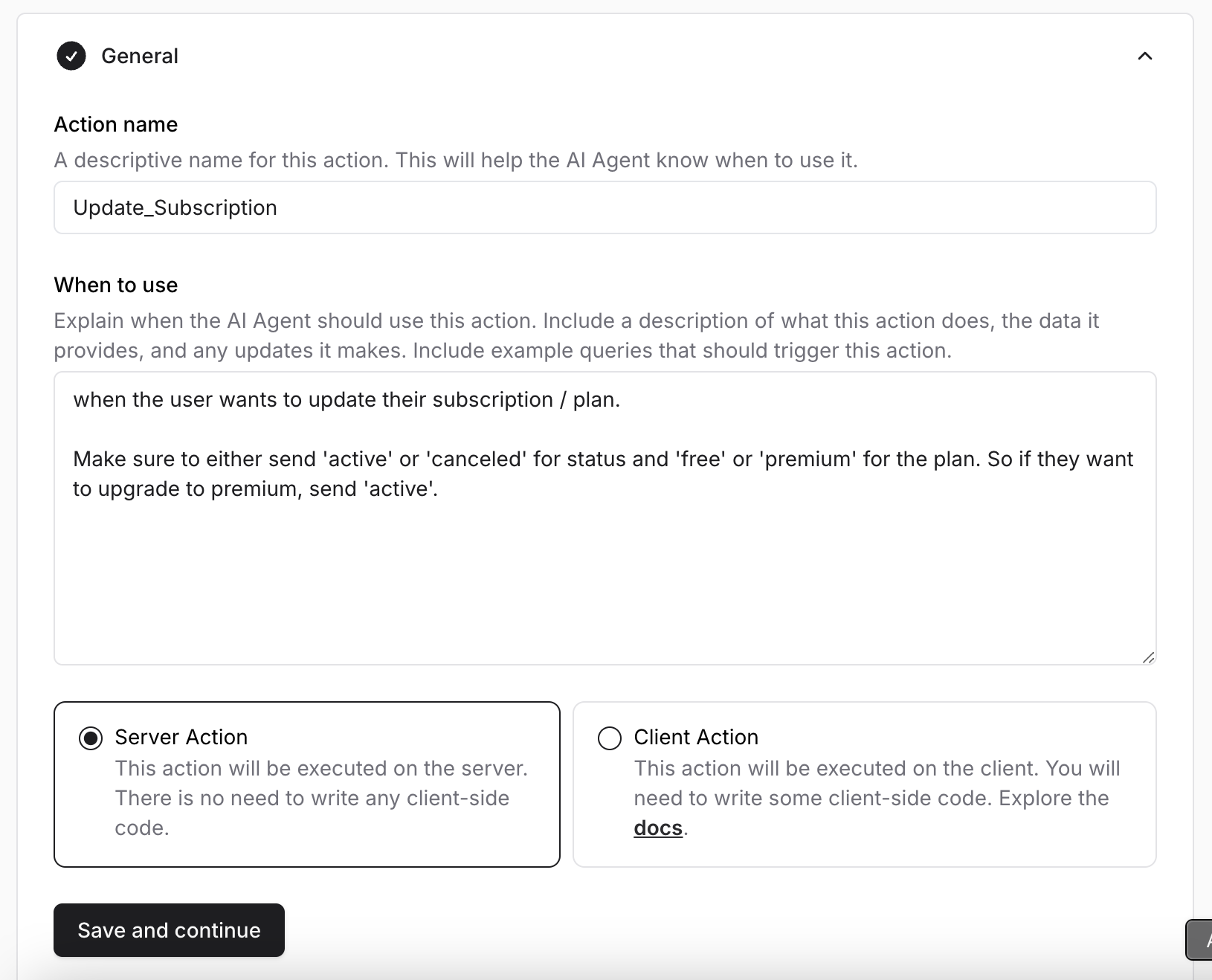
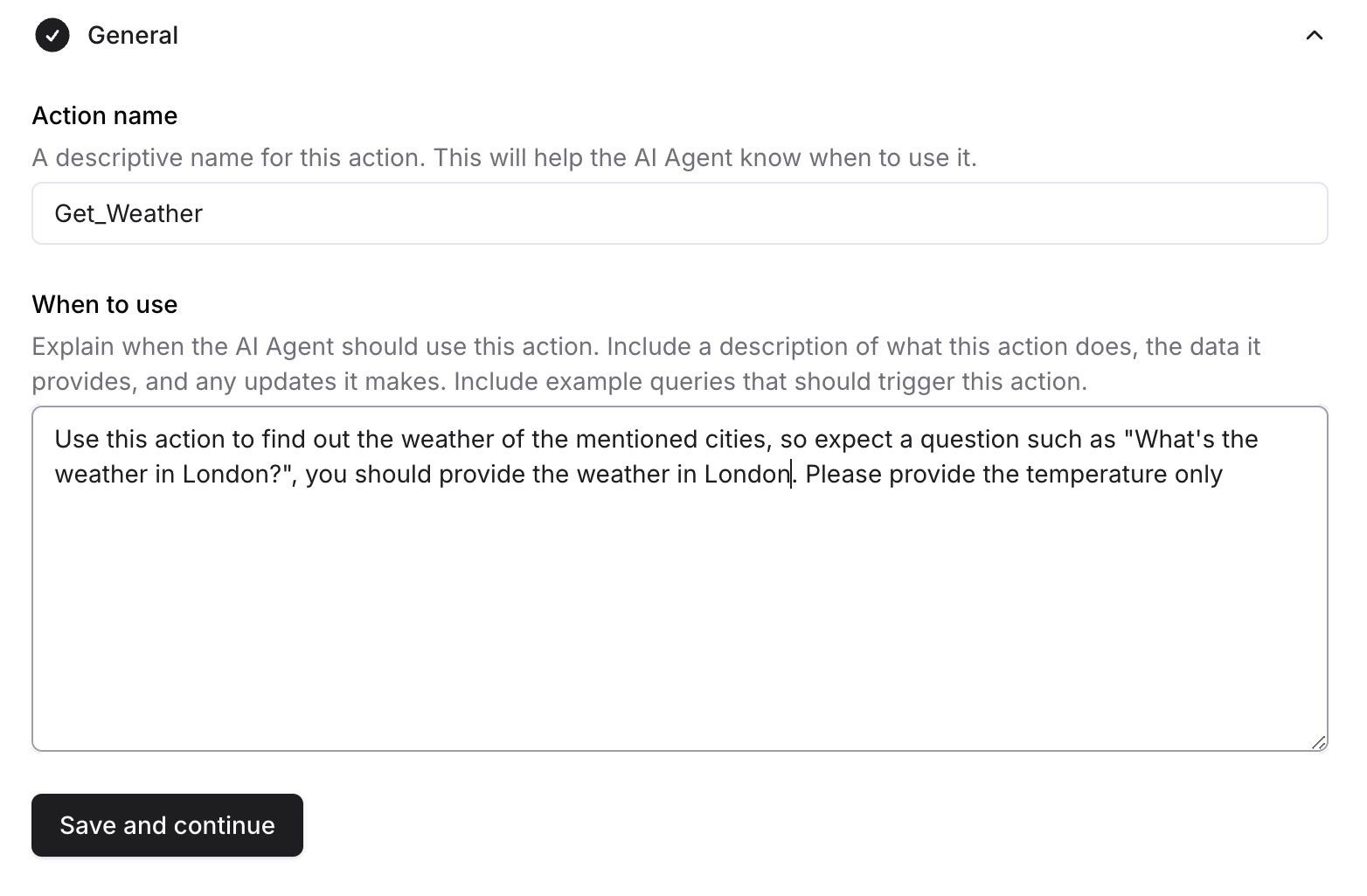
Action Name: A descriptive name for this action. This helps the AI agent know when to use it. When to use: A detailed description explaining when the AI agent should use this action and API. Include examples of the data this action provides and the customer queries it helps answer. To restrict the action to procedure steps only, turn on Only use in procedures. When it’s on, the When to use field is hidden, because the AI agent no longer decides when to call the action.All custom action requests must send a JSON body, and all custom action responses must be JSON-formatted.
API
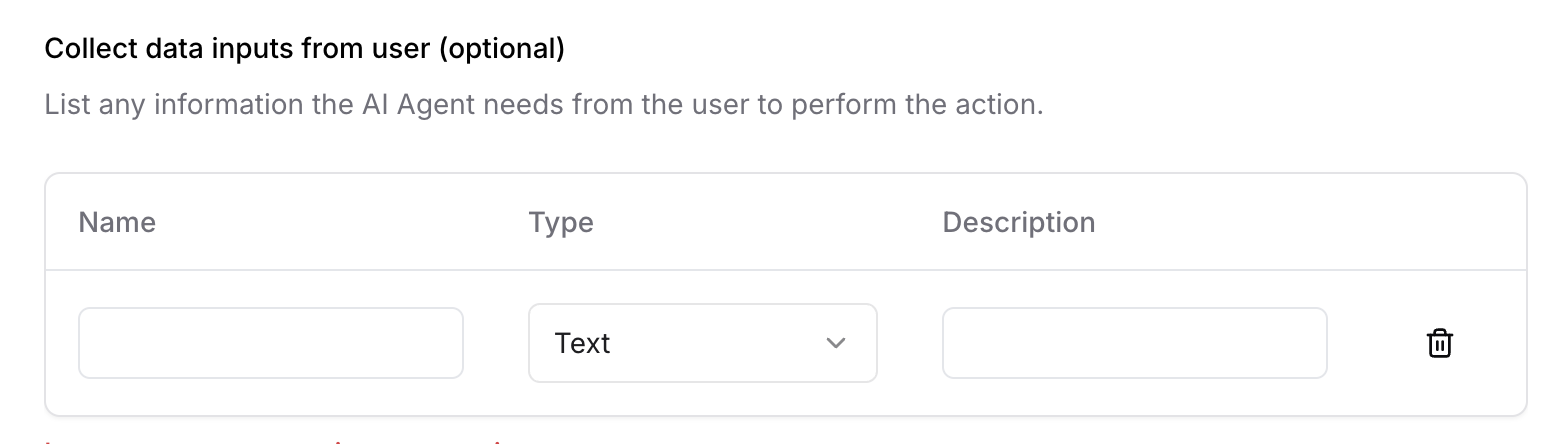
Collect data inputs from user
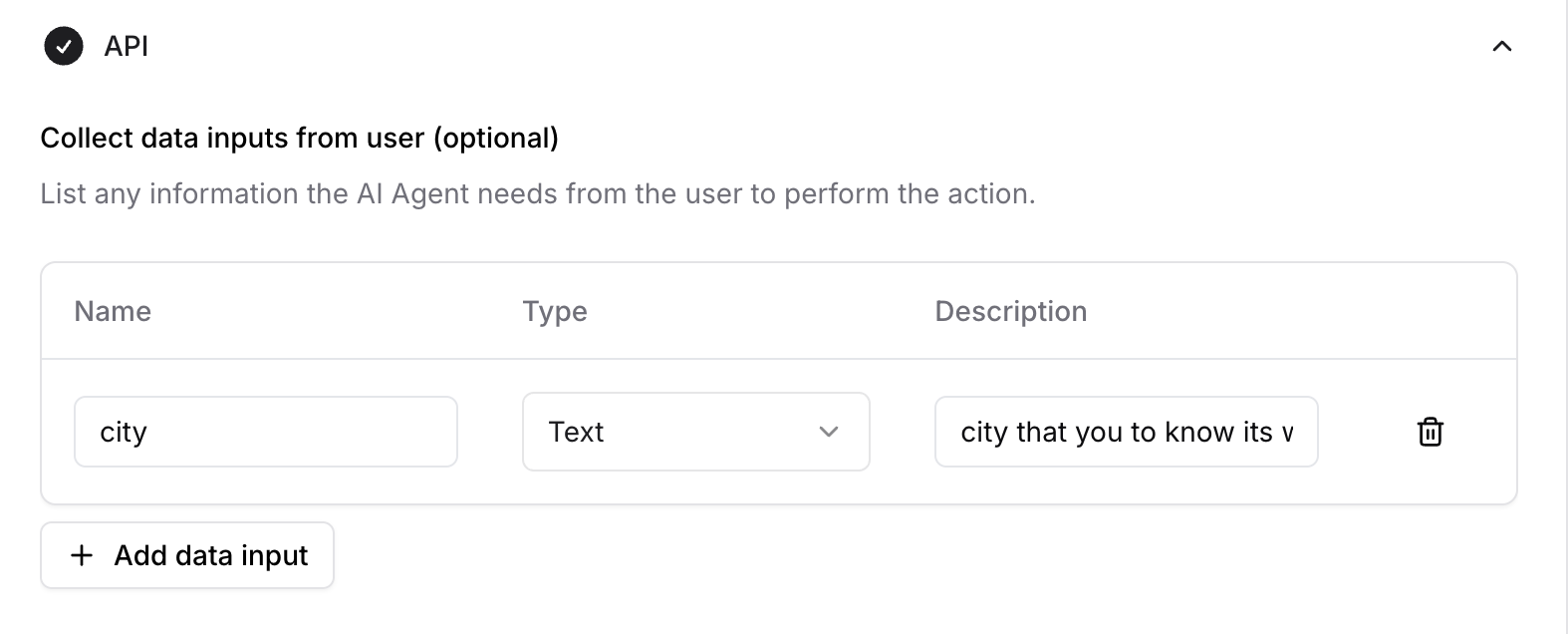
The list of information the AI agent needs from the customer to perform the action. Each input has:- Name: Name of the data input.
- Type: Type of the data input.
- Description: A short sentence describing the data input to the AI agent, so it knows what to ask for.
API request
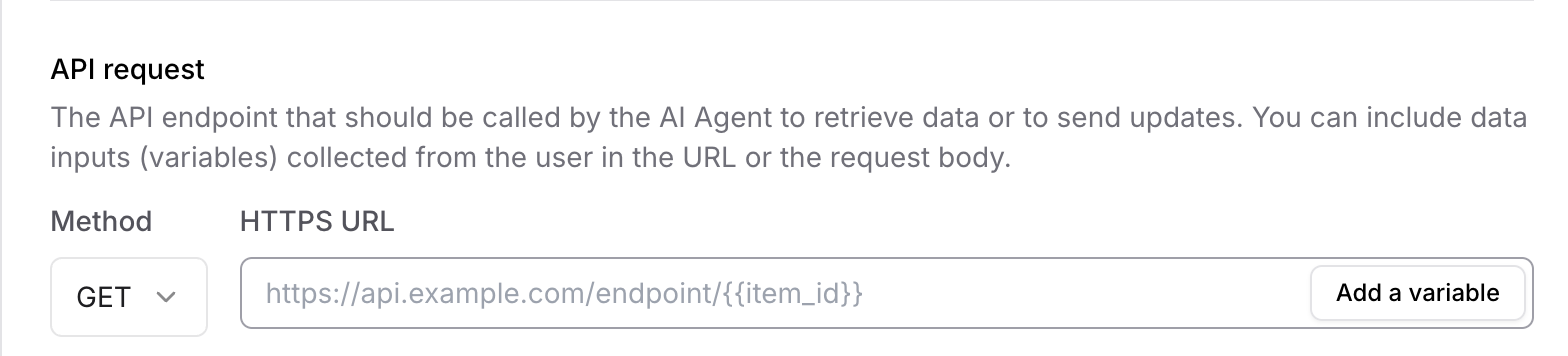
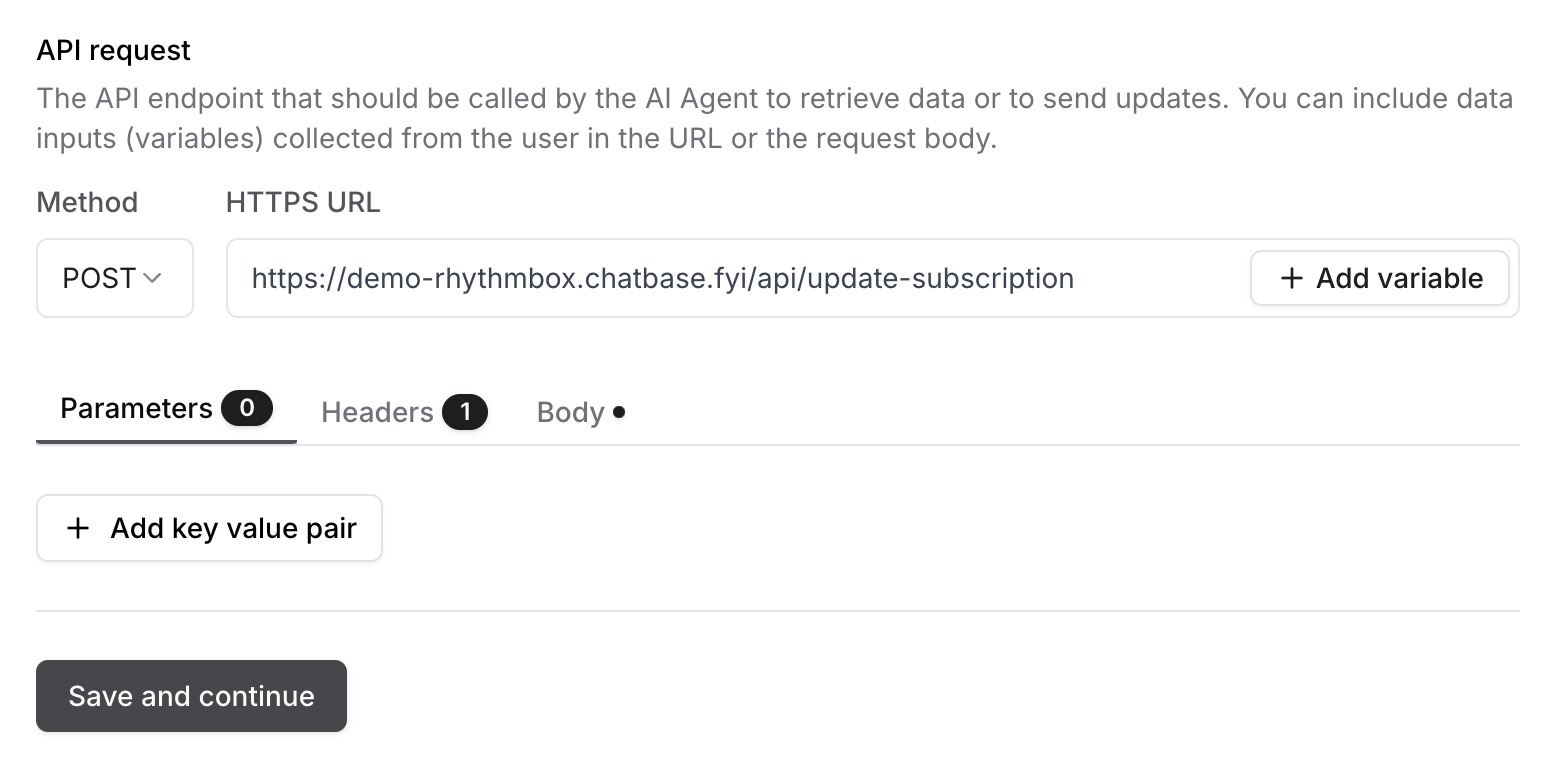
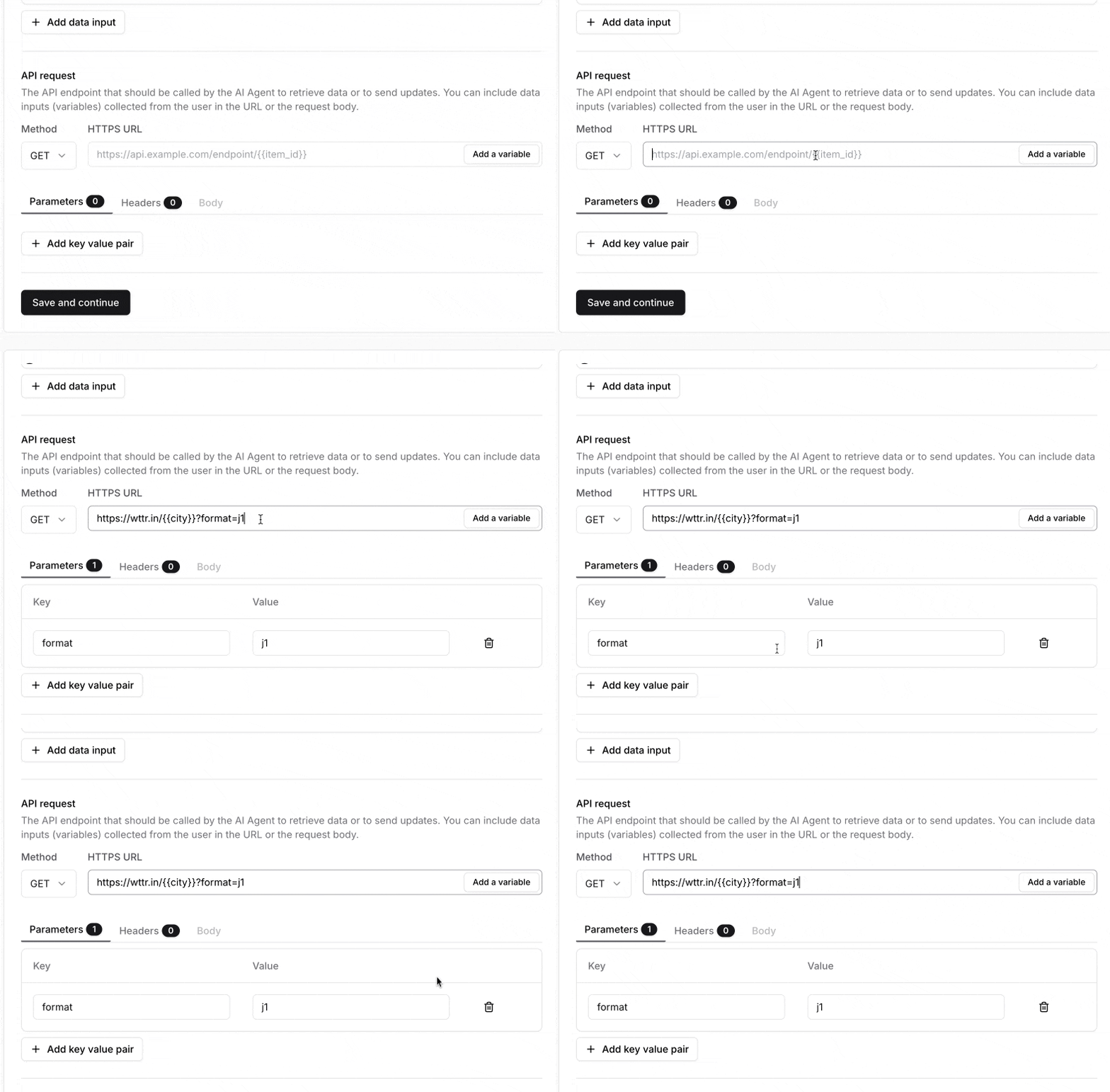
The endpoint the AI agent calls to retrieve data or send updates. You can include data inputs collected from the customer in the URL or the request body.- Method: The HTTP method the request should use.
- HTTPS URL: The URL of the API the AI agent should call.
- Add variable: Inserts a variable that depends on the customer’s input.
- Parameters: Key-value pairs sent as part of the request URL to provide input data or filter the response.
- Headers: Metadata sent along with the request to describe the request or client.
- Body: The data sent as part of the request. The body must be JSON-formatted.
Test Response
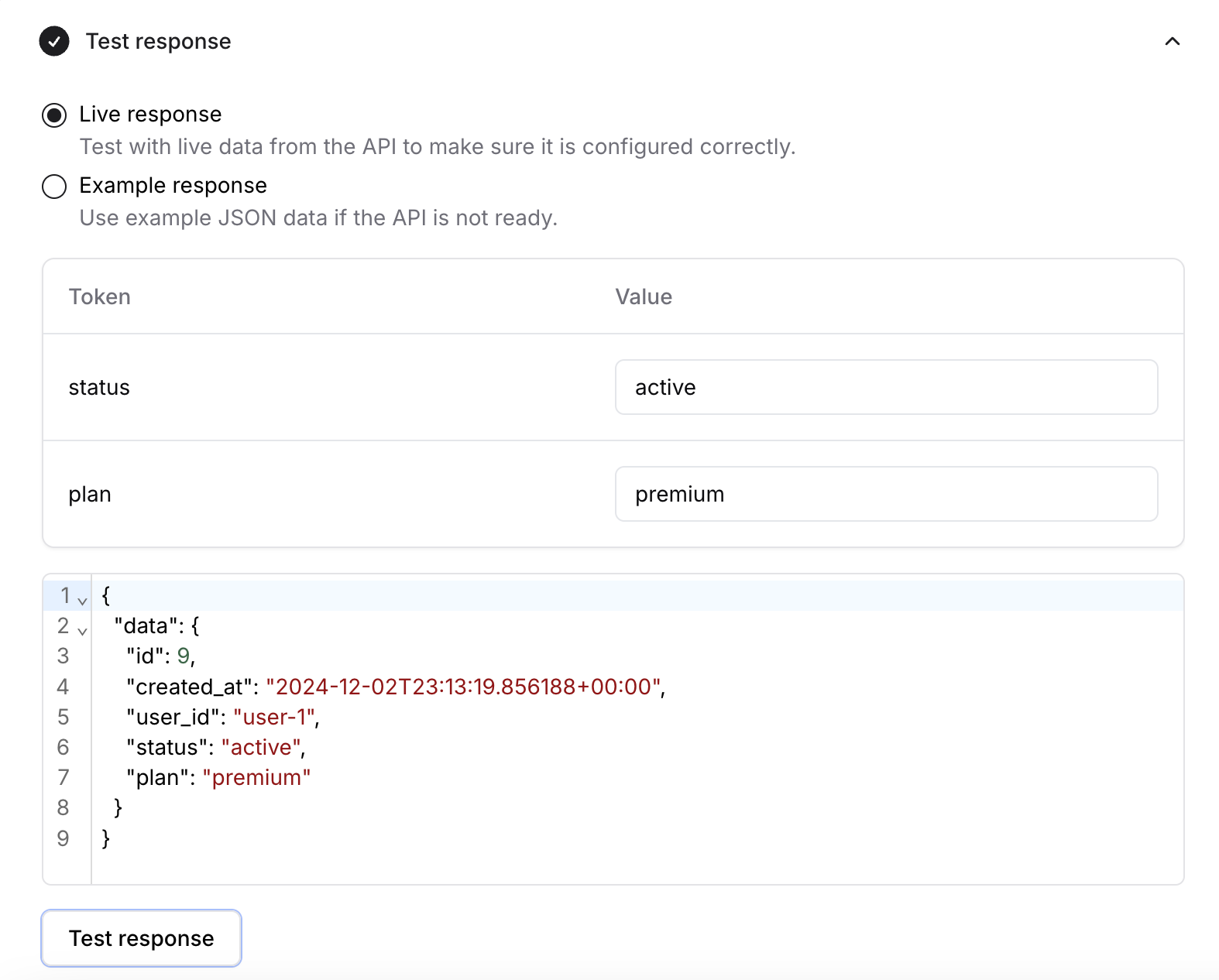
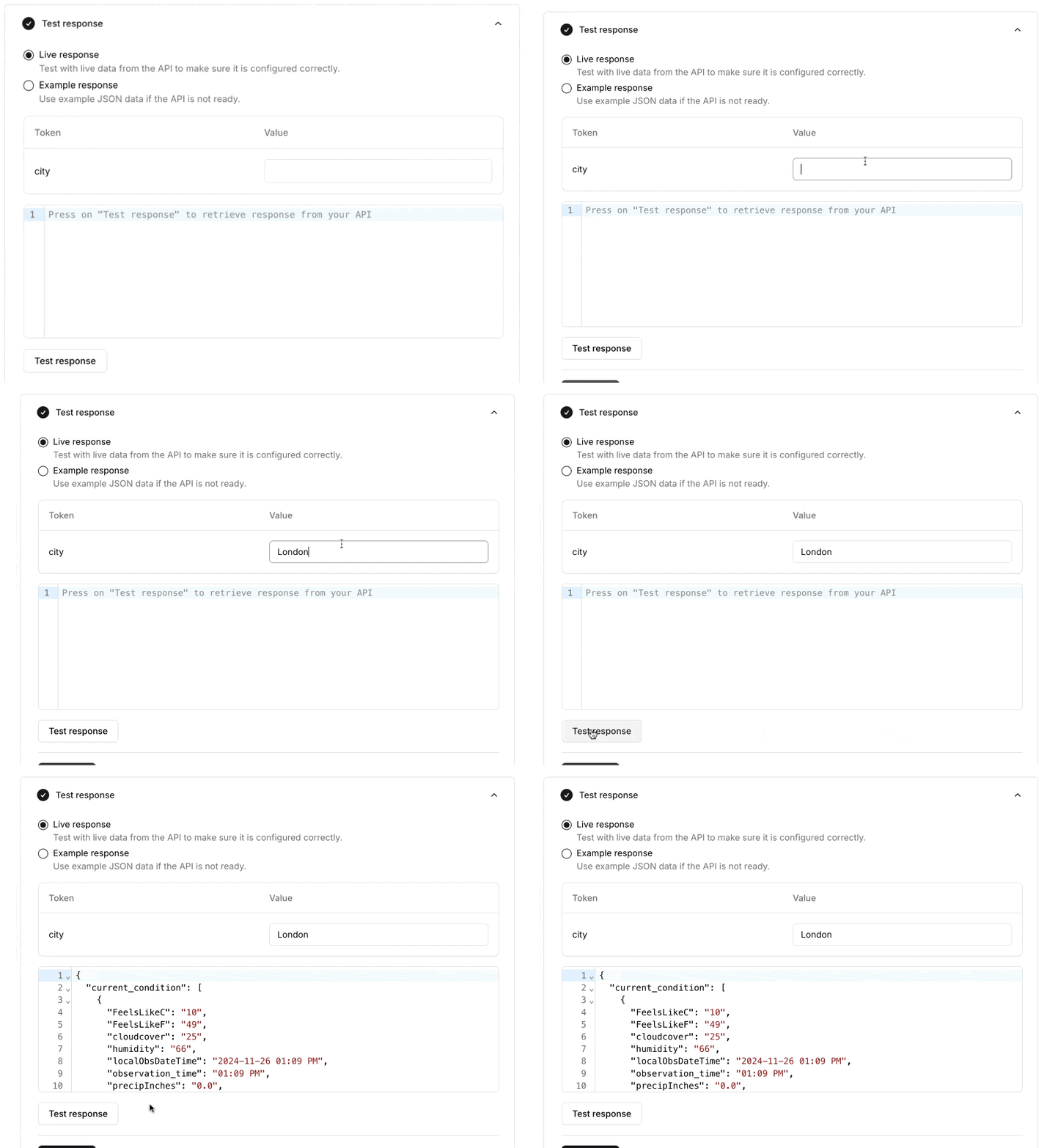
- Live response: Test with live data from the API to make sure it’s configured correctly.
- Example response: Use example JSON data if the API isn’t ready yet.
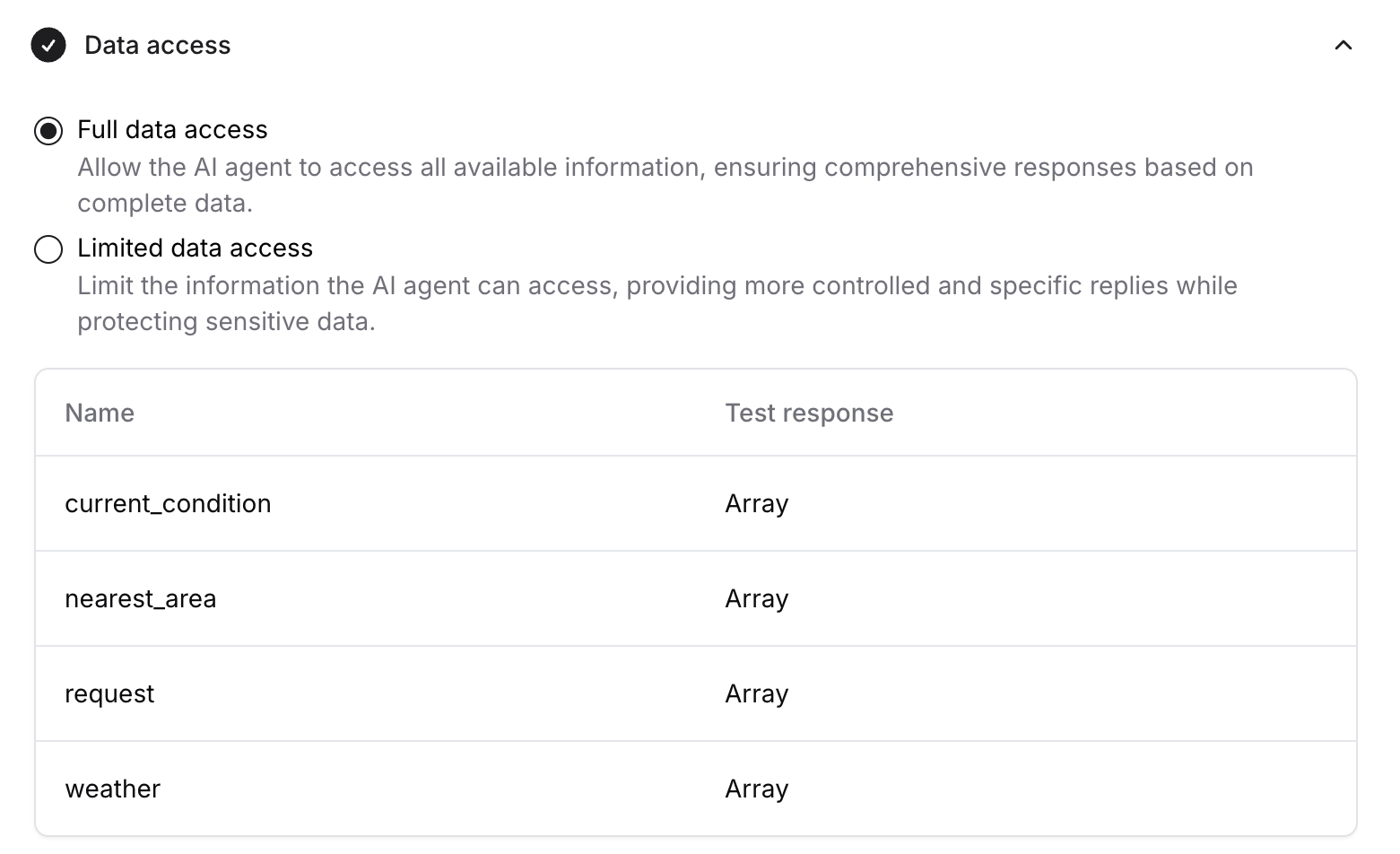
Data Access
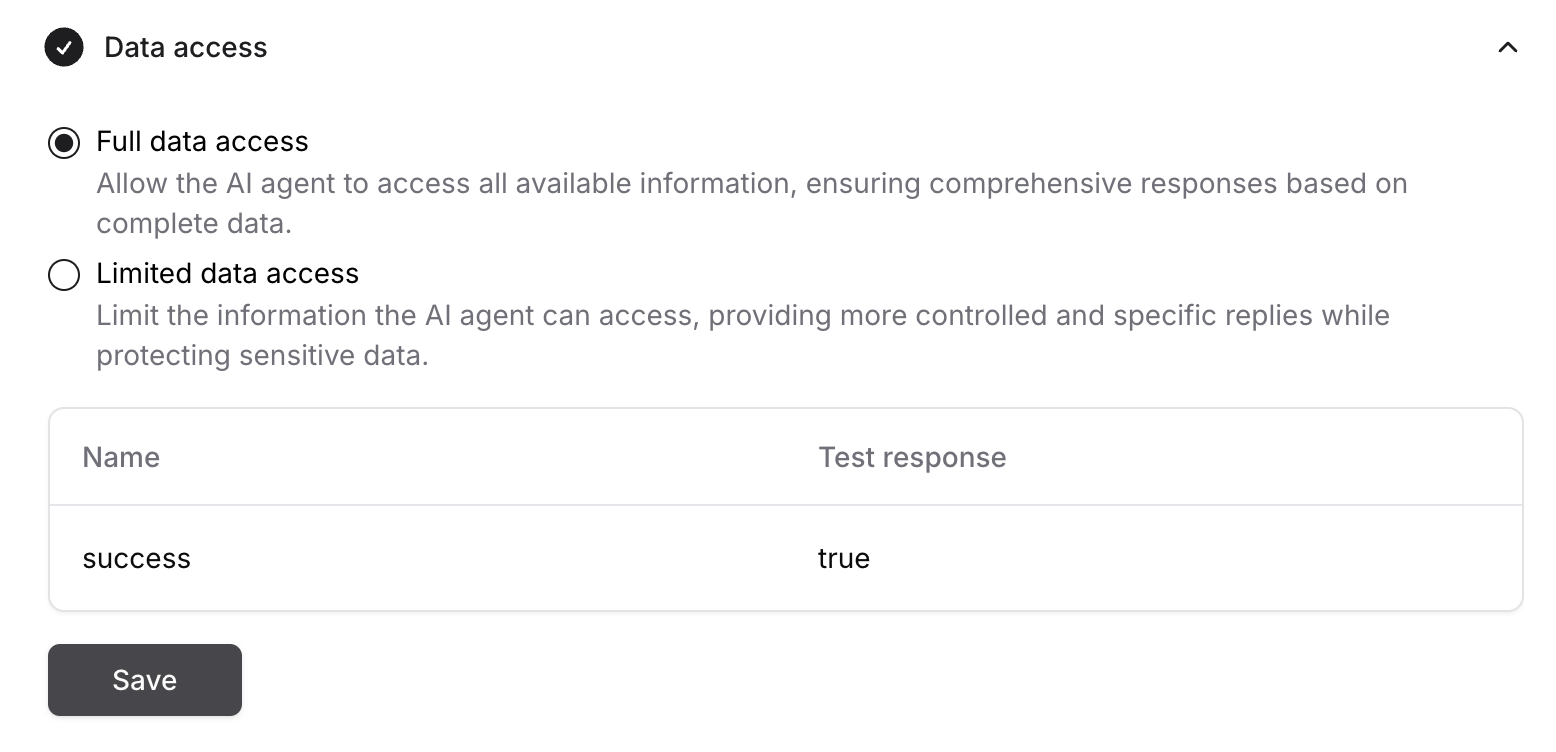
- Full data access: The AI agent can access all available information from the API’s response, giving comprehensive replies based on complete data.
- Limited data access: Restricts the information the AI agent can access, giving more controlled and specific replies while protecting sensitive data.
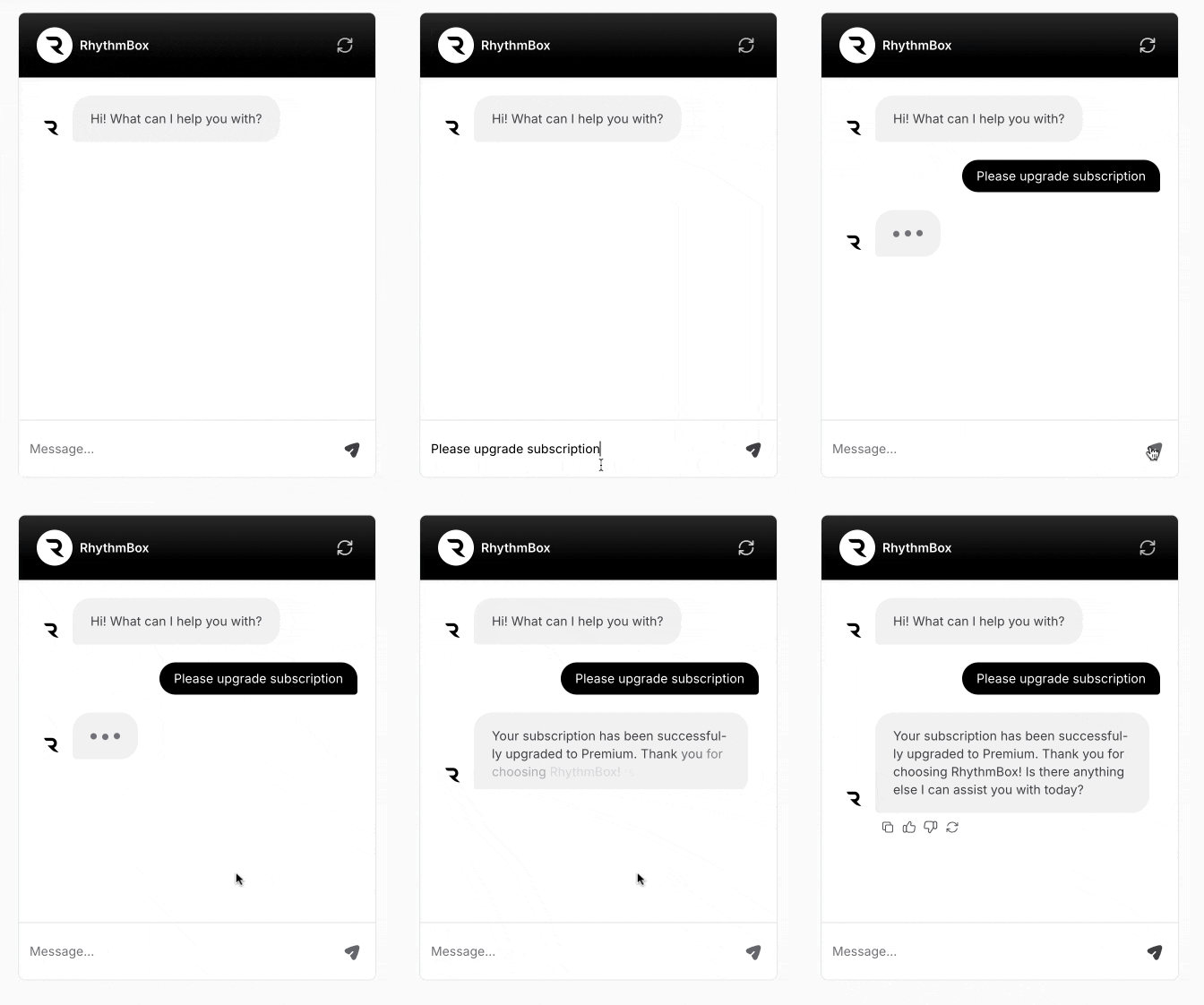
Test the action in the Playground with a query that should trigger it, and confirm the AI agent calls your endpoint and uses the response in its reply.
Examples
Upgrade subscription
AnUpdate_Subscription action that lets the customer ask the AI agent to upgrade their subscription to the premium plan.
In the General section, the action is named Update_Subscription, with a When to use description telling the AI agent to call this API whenever the customer wants to upgrade.
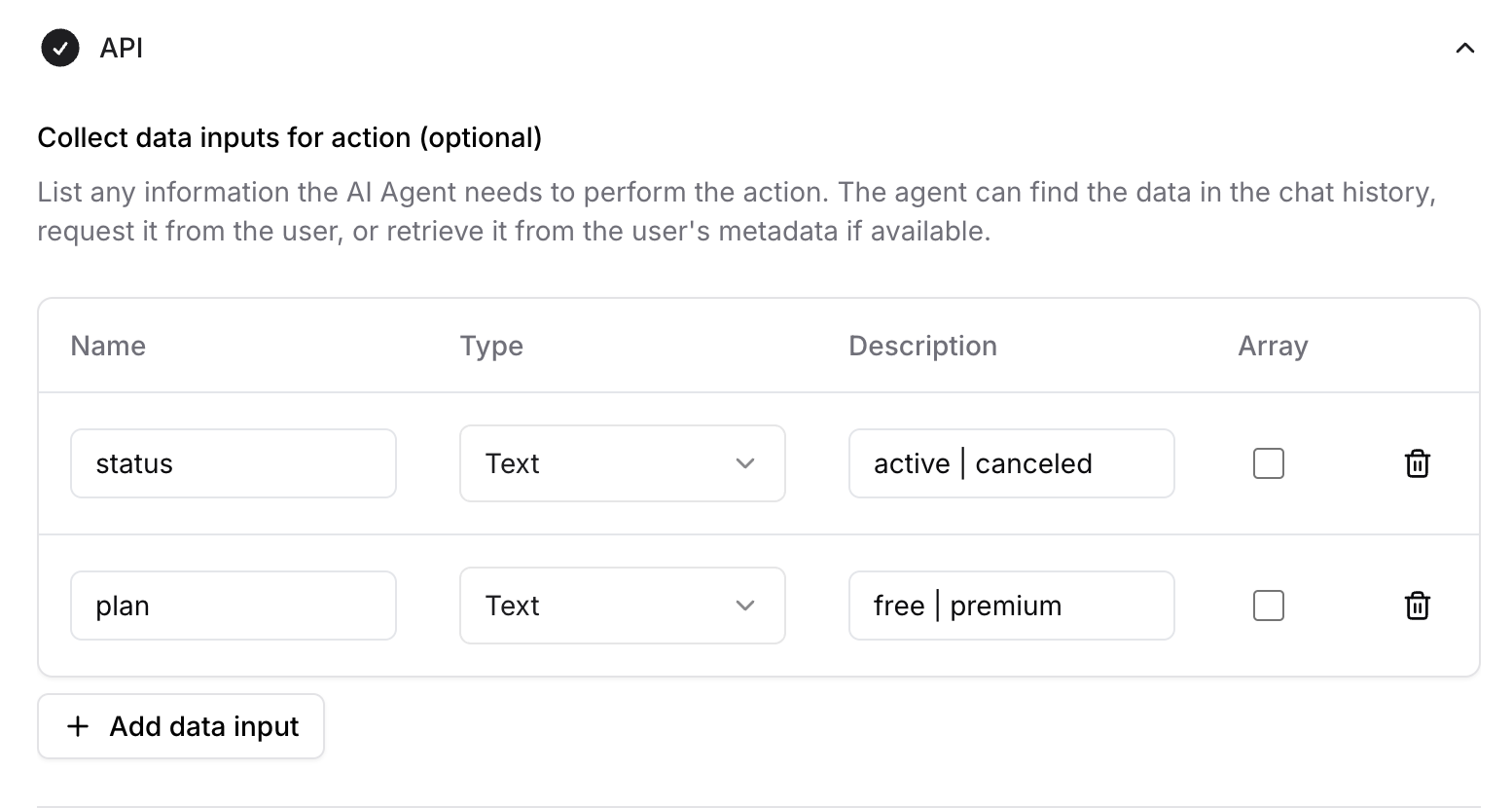
https://demo-rhythmbox.chatbase.fyi/api/update-subscription with the method set to GET.
active and premium as the upgrade example.
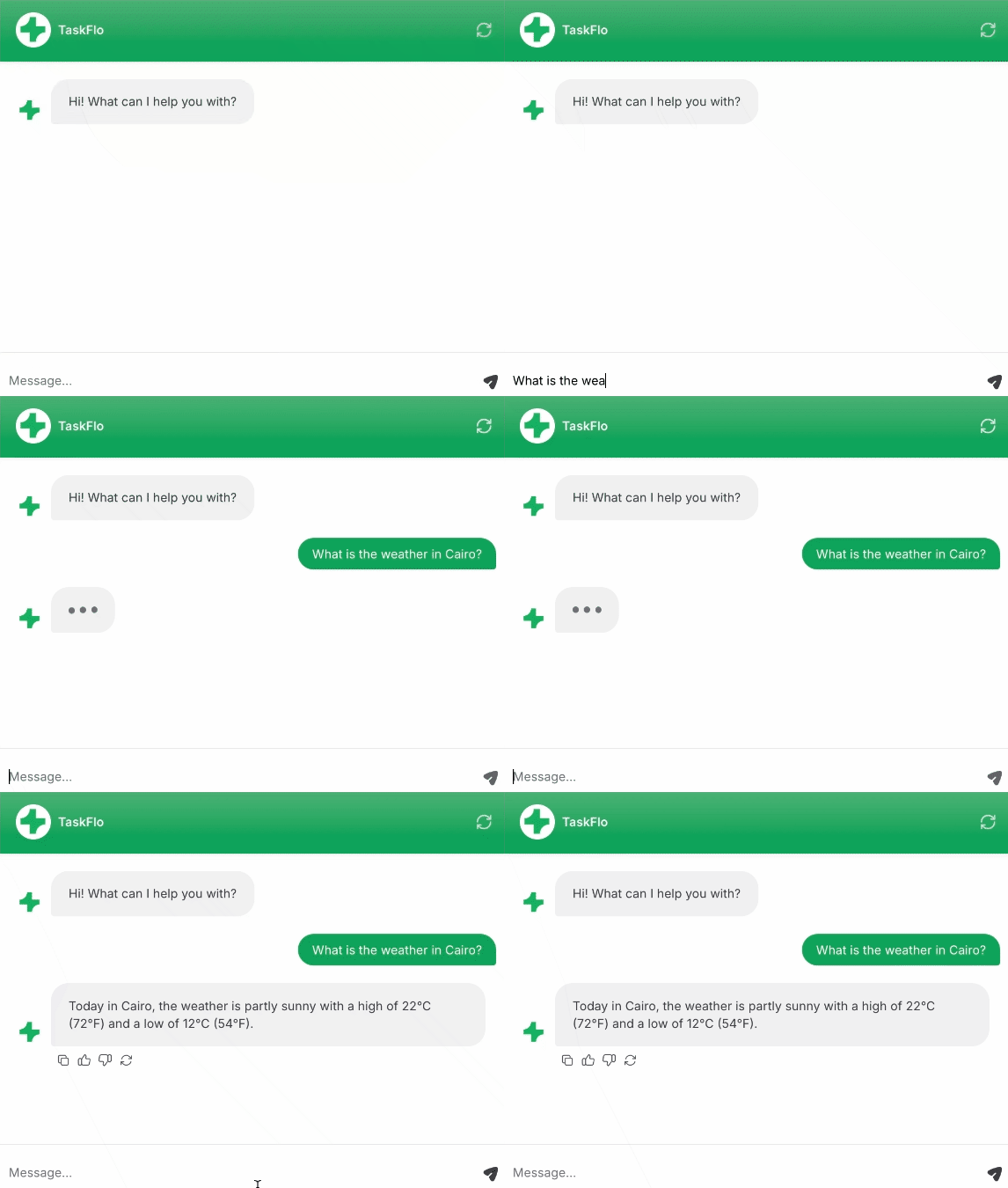
Weather API
AGet_Weather action that provides weather information for any city the customer asks about.
In the General section, the action is named Get_Weather, with a When to use description telling the AI agent to use this API whenever it’s asked about the weather of any city.
City, with the type Text and the description: The city that you want to know its weather.
https://wttr.in/{{city}}?format=j1 with the method set to GET. The key-value pair in the parameters is added automatically after entering the URL.
London as the city.
Limitations
- The maximum response size is 20KB. Anything larger returns an error.
- Requests and responses must be JSON. The request body must be JSON-formatted, and the returned response must be JSON-formatted.
- Client actions need the JavaScript embed. The Client type executes in the customer’s browser through the embed script, so it won’t run on channels that don’t load it.
Best Practices
Clear Action Triggers
Write a specific When to use description that names the data this action provides and the customer queries it answers.
Describe Every Input
The input description is what the AI agent uses to decide what to ask the customer for. Vague descriptions produce wrong values.
Limit Data Access
Use Limited data access when the response contains anything the AI agent shouldn’t repeat back to the customer.
Keep Responses Small
Return only the fields the AI agent needs. Trimming the response keeps you under the 20KB cap and makes replies more accurate.