

How it works
1
The AI decides a transfer is needed
The AI Agent determines that a human should handle the conversation based on the instructions you’ve provided in the When to use field.
2
The caller hears the hand-off message
Chatbase automatically plays your configured Message to caller before initiating the transfer.
3
The call is transferred
The live call is forwarded to the configured phone number.
4
Transfer complete
Once the transfer begins, the AI Agent leaves the call and cannot resume the conversation.
Setting up the action
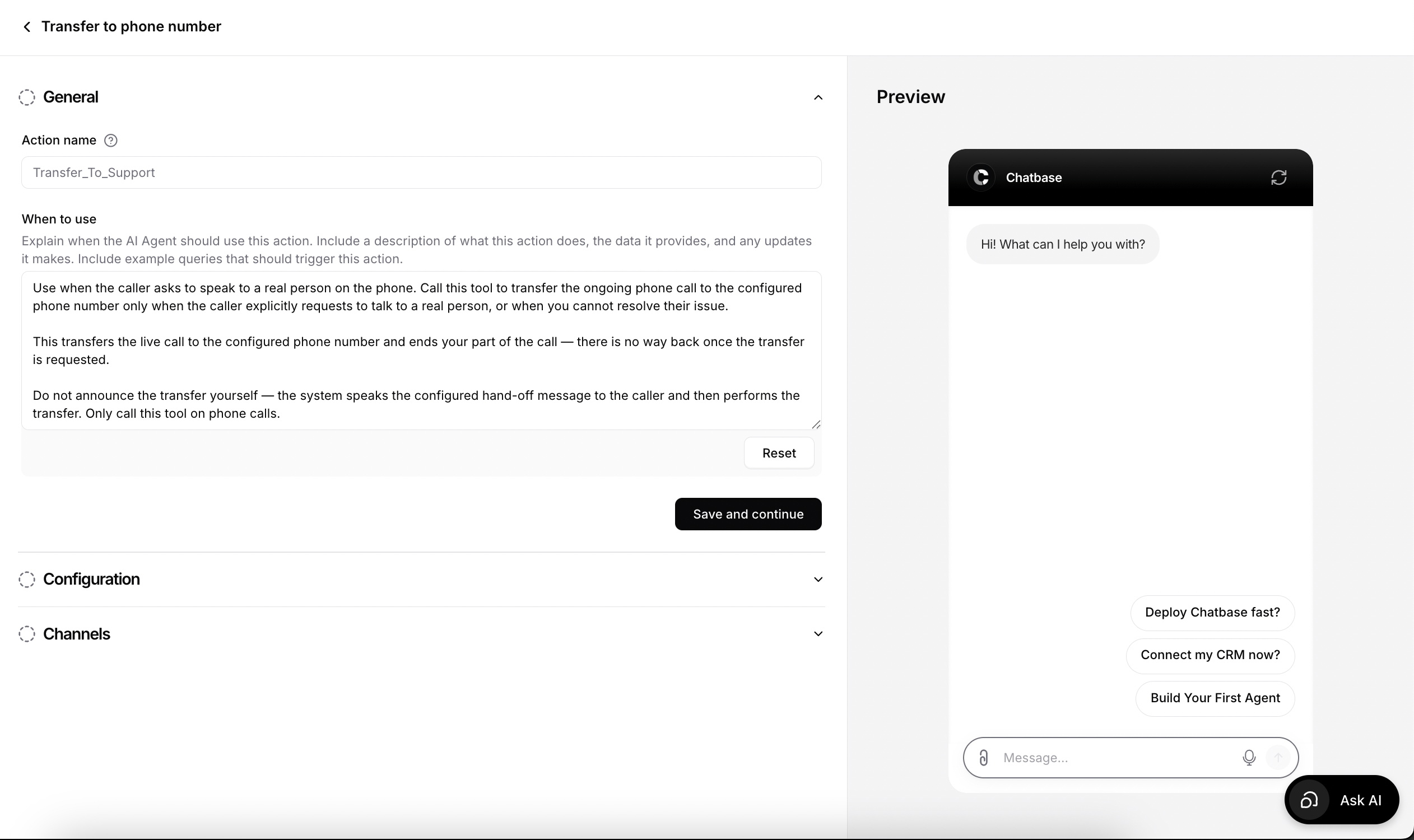
General
General
Action name
Give the action a descriptive name.Example: Transfer_To_SupportIf you have multiple departments, you can create multiple transfer actions.Examples:- Transfer_To_Sales
- Transfer_To_Support
- Transfer_To_Billing
When to use
Describe exactly when the AI should perform the transfer.Example:Use when the caller asks to speak to a real person on the phone.Call this tool to transfer the ongoing phone call to the configured phone number only when the caller explicitly requests to talk to a real person, or when you cannot resolve their issue.This transfers the live call to the configured phone number and ends your part of the call.Do not announce the transfer yourself—the system speaks the configured hand-off message to the caller and then performs the transfer.Only call this tool on phone calls.Configuration
Configuration
Phone number
Enter the phone number that should receive transferred calls.The phone number must use E.164 format.Example: +12125551234Only the following are supported:- Twilio phone numbers
- SIP trunks
If you’re using a SIP trunk, make sure both SIP REFER and PSTN are enabled on the trunk before using this action. Otherwise, call transfers will not work.
Message to caller
Configure the message that is played to the caller immediately before the transfer begins.Message if the transfer fails
Configure the message the AI Agent should say if the transfer cannot be completed.After this message, the AI Agent continues the conversation.If the transfer fails, the AI Agent will say this message and continue assisting the caller. If this field is left empty, the default failure message will be used.
Channels
Channels
This action currently supports the Phone channel.Click Setup next to Phone to configure the required phone integration.Once configured, click Save & enable.
Best practices
Be explicit
Clearly define when the AI should transfer the caller instead of trying to solve the issue itself.
Use descriptive names
If you have multiple transfer actions, give each one a meaningful name like Transfer_To_Sales or Transfer_To_Billing.
Write a natural hand-off message
Keep the message short so callers know they’re being connected.
Configure a fallback
Always provide a friendly fallback message in case the transfer cannot be completed.
Limitations
- Once a transfer begins, the AI Agent cannot resume the conversation.
- This action only works for live phone calls and is not available on chat-based channels.