

Overview
The Chatbase Live Chat action lets your AI agent hand a conversation over to a human support agent through the Chatbase Helpdesk. When triggered, the conversation is routed straight to your Helpdesk inbox so your team can continue helping the customer in real time.Best for:
Sensitive, urgent, or account-specific issues where the customer needs a person now, rather than a ticket and a follow-up later.
- “I want to speak to someone right now”
- “This is urgent”
- “The AI isn’t helping me”
Prerequisite: The Chatbase Helpdesk must be enabled. Click Helpdesk inbox in the sidebar and enable it from there. See the Helpdesk overview for how conversations are handled once they arrive.
Live chat routes the conversation to an available human in real time. If you’d rather open a ticket for asynchronous follow-up (in Chatbase Helpdesk or a third-party platform), use Escalations instead.
How it works
End-user experience
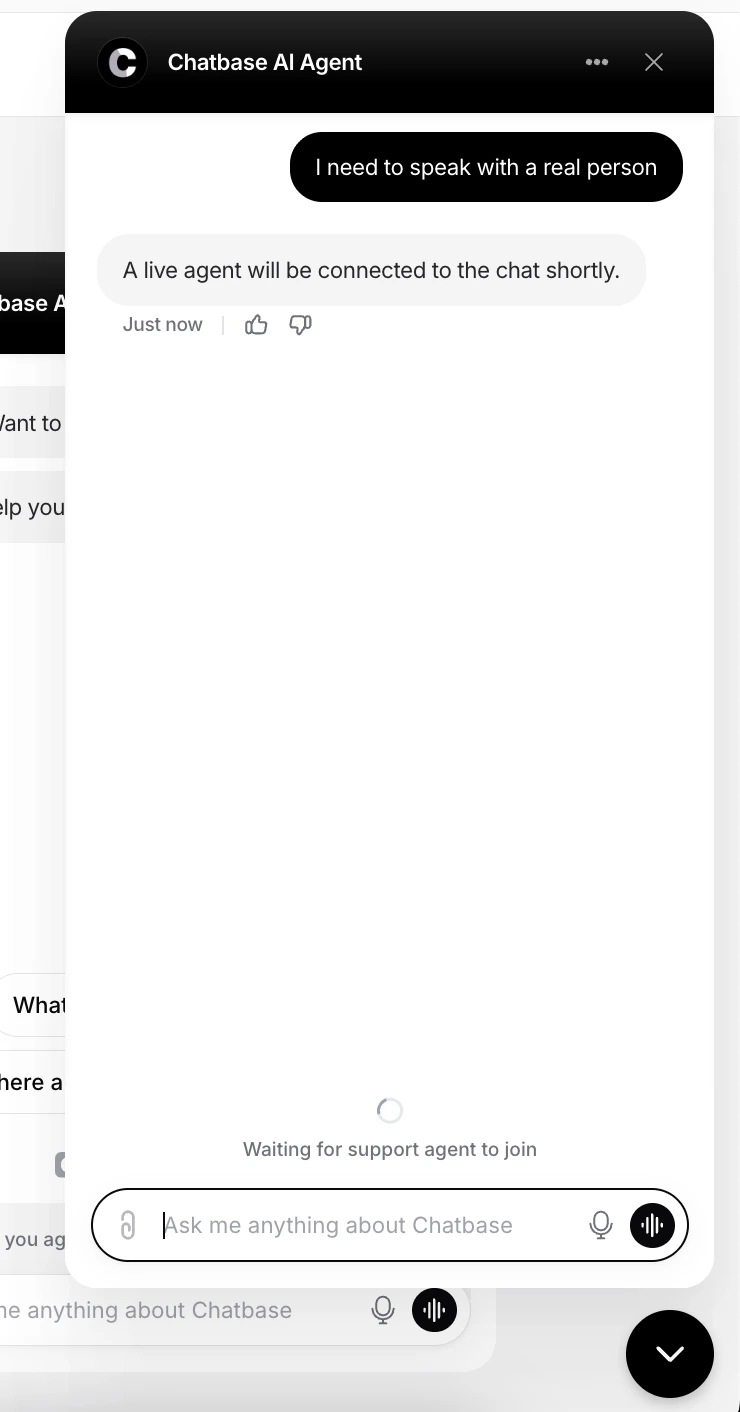
When the AI agent determines that a customer wants to speak with a human, the conversation is handed over to a live support agent. The customer sees a confirmation message in the chat bubble telling them an agent will join shortly. During this state:- The AI agent stops handling the conversation
- The chat is marked as a live chat request
- The customer stays connected in the widget while waiting for an agent to respond
Support agents’ experience
Support agents are notified immediately when a conversation is escalated to live chat. Inside their inbox, the conversation is clearly labeled as a Live chat session so agents can prioritize and respond accordingly.
- Reply directly to the customer in real time
- Add internal notes
- Continue the conversation from the existing thread
- Take over seamlessly from the AI agent
Test the action by asking your AI agent to speak to a human, and confirm the conversation appears in your Helpdesk inbox labeled as a live chat.
Best Practices
Staff It Before You Enable It
Only enable live chat if you have support agents available to respond. An unstaffed live chat is worse than a ticket.
Keep Triggers Strict
Write tight When to use instructions so the AI agent doesn’t escalate conversations it could have resolved.
Let the AI Try First
Handle common questions with the AI agent and reserve live chat for what it can’t resolve.
Reserve It for Urgency
Use live chat for sensitive, urgent, or account-specific issues, and Escalations for everything that can wait.