

Overview
Adding your Chatbase AI agent to a Framer website takes two things: the embed code from your Chatbase dashboard, and the Custom Code section of your Framer page settings. Once pasted, a floating chat bubble appears on that page.What you can do:
Put your AI agent in front of every visitor to your Framer site, answering questions without them leaving the page.
Before you start
- A Chatbase account with an AI agent. If you haven’t built one yet, follow Your first AI agent.
- A Framer website project you can edit.
How to embed your AI agent
1
Copy your embed code
- Log into your Chatbase account and navigate to your dashboard.
- On the list of available AI agents, click the one you want to integrate into your Framer website.
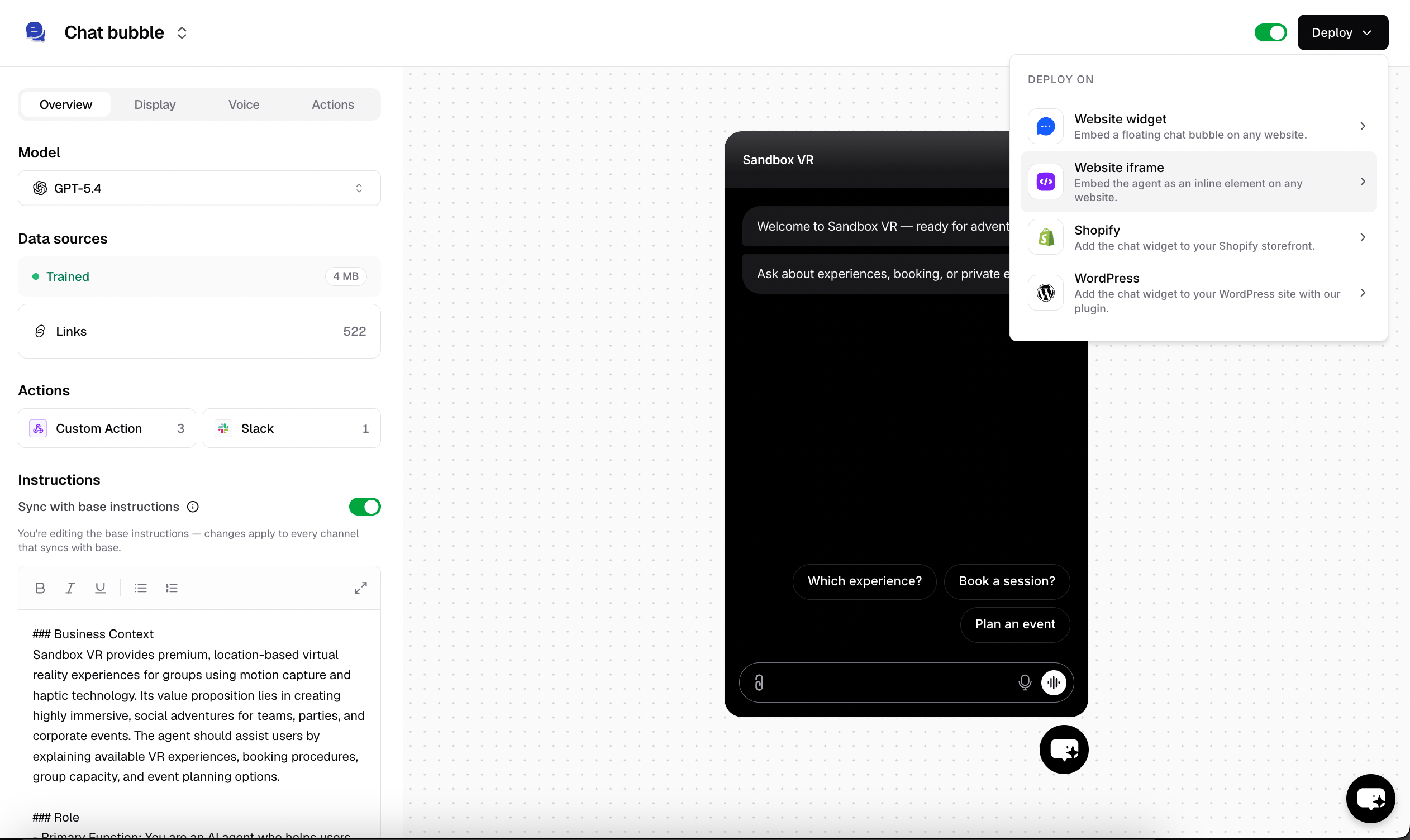
- Click Channels in the left sidebar, then click Manage on the Chat bubble card (or Setup, if you haven’t configured it yet).
- Click Deploy and select the Website widget embed type. Scroll down and click Copy to copy the provided script.
2
Open your Framer project
Sign in to Framer, go to your project dashboard, and click the website project you want to embed your AI agent in.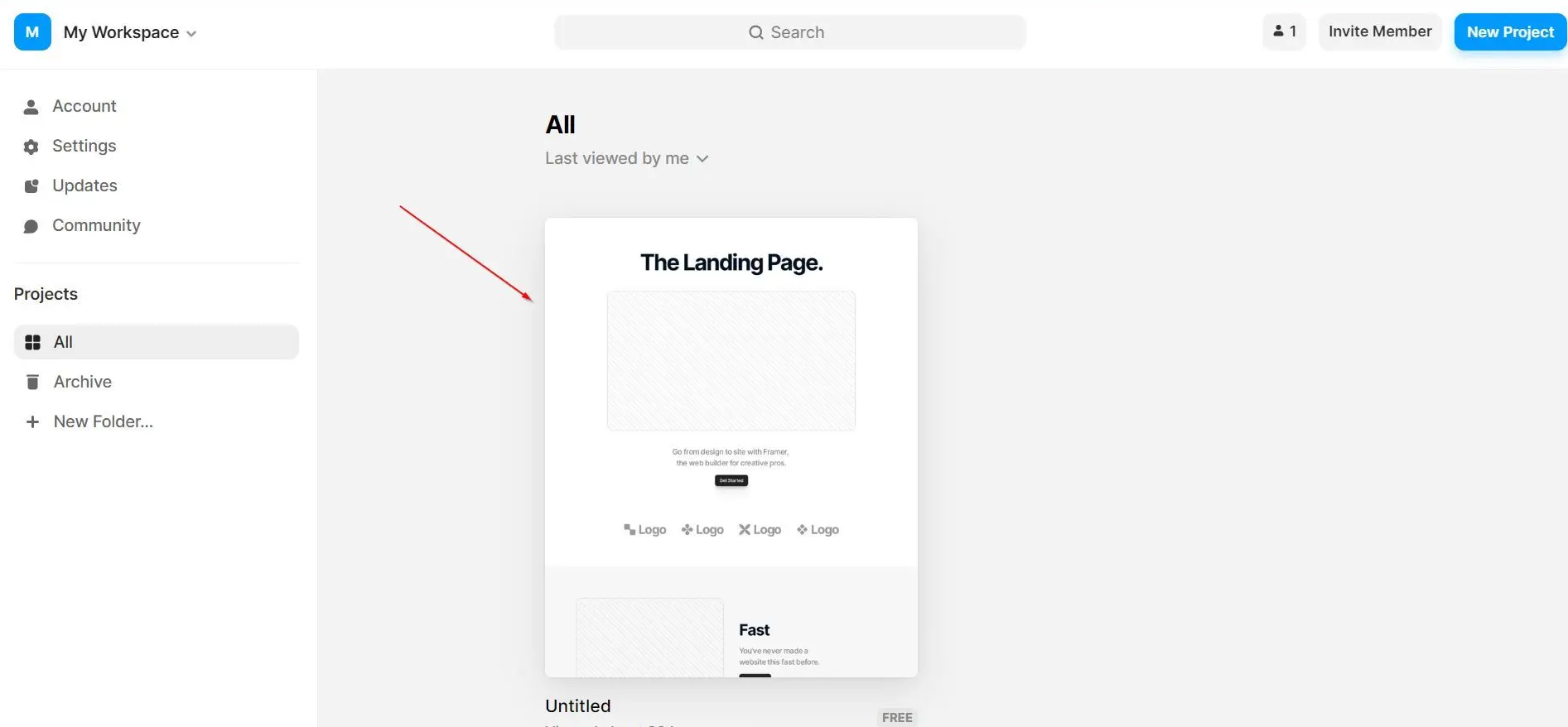
3
Open the page settings
Locate the page you want the AI agent on in the left side of the editor, click the three-dot icon next to the page name, then click Settings.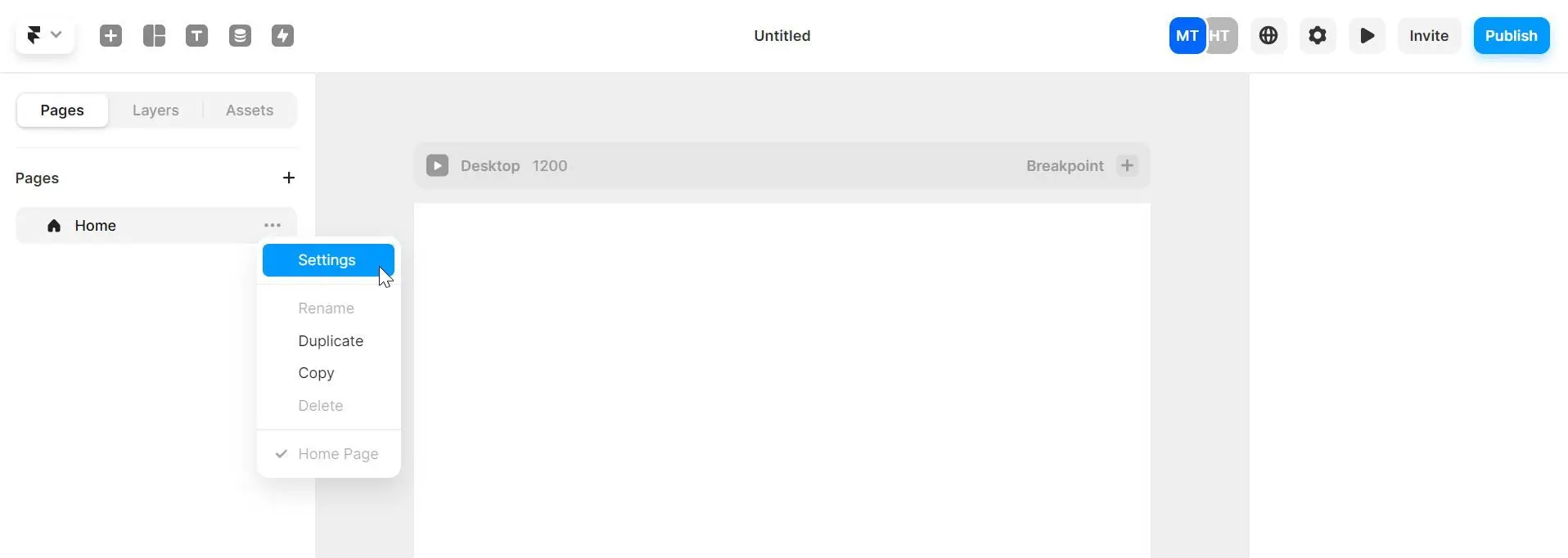
4
Paste the embed code
On the Settings page, scroll down to the section labeled Custom Code. Paste your embed code in the first box, labeled “Start of <head> tag”, then click Save in the top-right corner of the panel.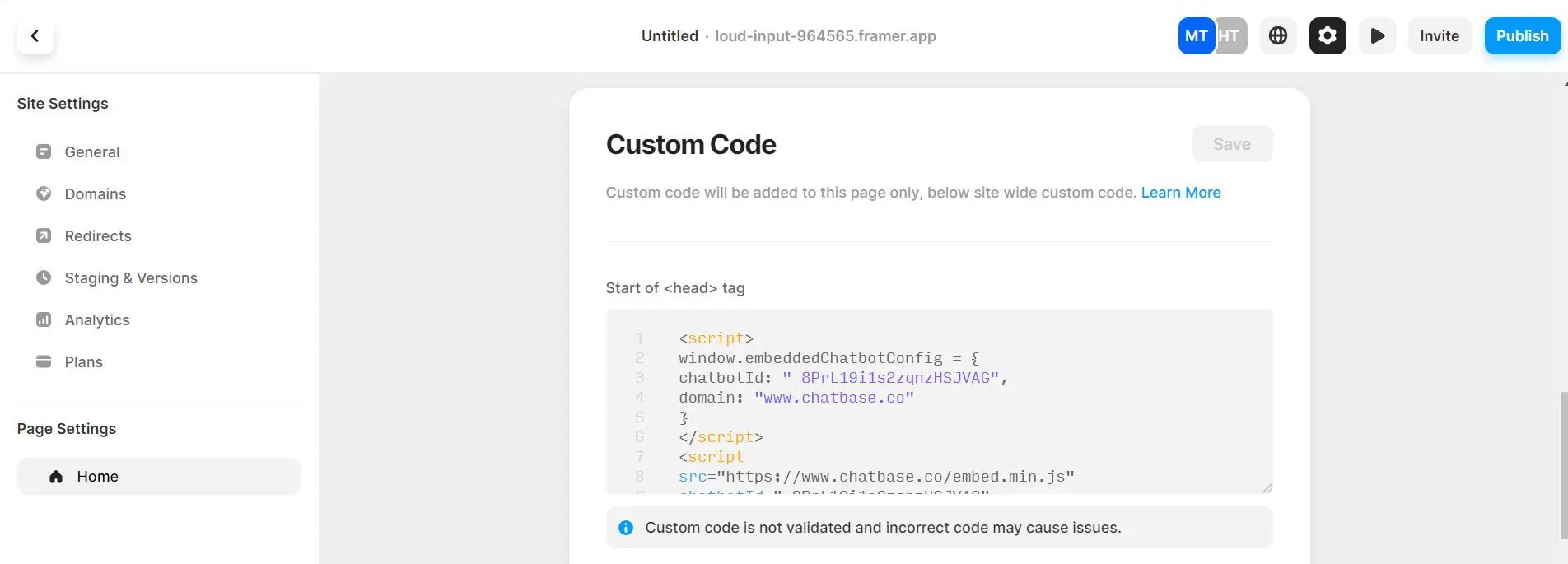
You should now see a floating Chatbase AI agent icon on your Framer website, on the page you added it to.

You can customize the appearance and colors of your AI agent on your Chatbase dashboard. Go to your dashboard, choose an AI agent, click Channels in the left sidebar, click Manage on the Chat bubble card, then open the Display tab to edit Content, Capabilities, Colors, Floating bubble, and Localization.
Next steps
Customize the chat bubble
Match the widget to your brand colors, position, and copy.