> ## Documentation Index
> Fetch the complete documentation index at: https://chatbase.co/docs/llms.txt
> Use this file to discover all available pages before exploring further.
# Two-factor authentication (2FA)
> Secure your Chatbase workspace with two-factor authentication and backup recovery codes.
## What two-factor authentication does
Two-factor authentication (2FA) adds an extra step when you sign in or perform sensitive actions, so your account stays protected even if someone knows your password.
With 2FA enabled in Chatbase, you:
* Sign in with your email and password
* Then confirm using:
* A 6‑digit code from an authenticator app (TOTP), or
* A one-time recovery code as backup
We strongly recommend enabling 2FA for all workspaces.
## Enable 2FA for your account
1. Sign in to the Chatbase dashboard.
2. Click your avatar in the top-right corner.
3. Go to **Account settings** and open the **Two-step verification** section.
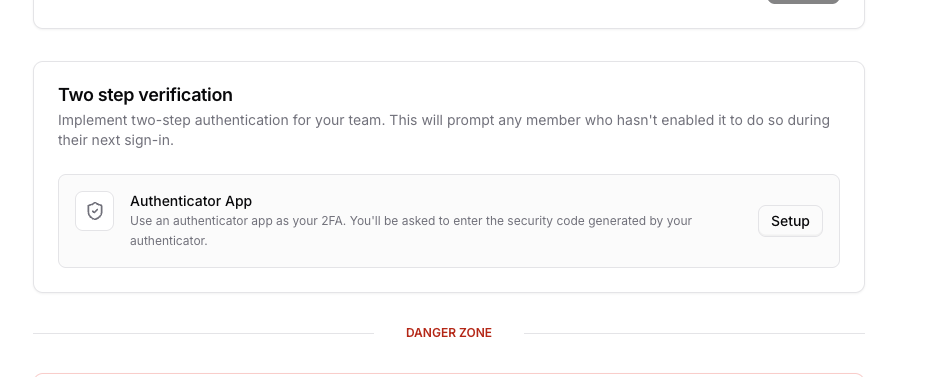 1. Select **Set up two-step verification**.
2. Open your authenticator app (for example, Google Authenticator, 1Password, or Authy).
3. Scan the QR code shown in Chatbase.
Anyone with access to this QR code or secret can generate valid 2FA codes for your account. Do not share it or store screenshots in insecure places.
1. Select **Set up two-step verification**.
2. Open your authenticator app (for example, Google Authenticator, 1Password, or Authy).
3. Scan the QR code shown in Chatbase.
Anyone with access to this QR code or secret can generate valid 2FA codes for your account. Do not share it or store screenshots in insecure places.
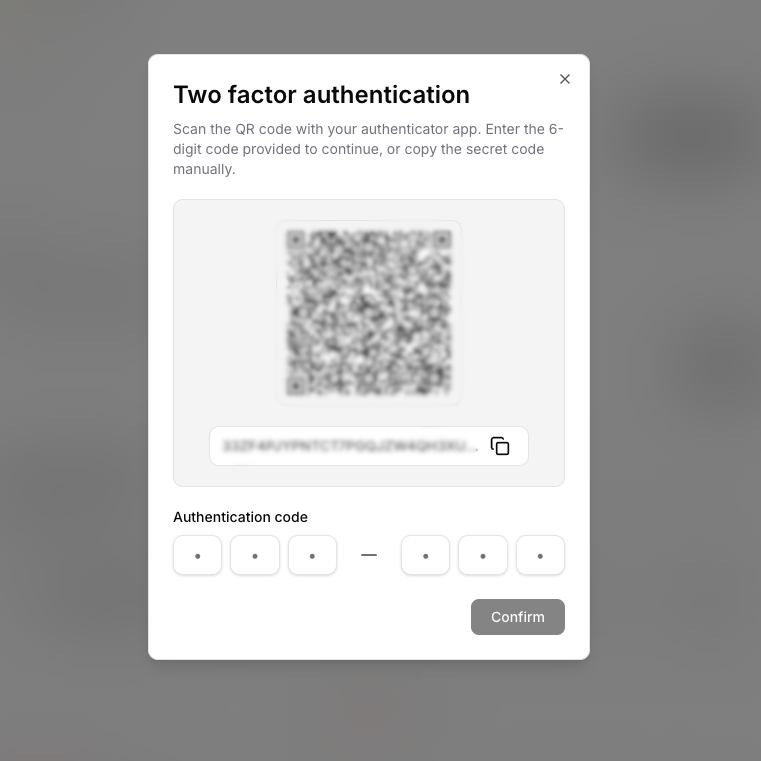 1. In Chatbase, enter the 6‑digit code from your authenticator app.
2. Select **Confirm** to finish setup.
After confirmation, you’ll be prompted for a 2FA code the next time you sign in.
## Recovery codes
Recovery codes let you sign in when you don’t have access to your authenticator app (for example, if you lost your phone).
Key rules:
* You see recovery codes **only once** when you generate them
* Each code is **single-use**
* Generating a new set of codes **invalidates all previous codes**
Treat recovery codes like physical keys. Store them in a secure password manager or print them and keep them in a safe place.
### Generate and download recovery codes
1. In the Chatbase dashboard, go to **Account settings → Two-step verification**.
2. Open **Manage recovery codes**.
3. Select **Generate codes**.
4. Copy or download the codes and store them securely.
1. In Chatbase, enter the 6‑digit code from your authenticator app.
2. Select **Confirm** to finish setup.
After confirmation, you’ll be prompted for a 2FA code the next time you sign in.
## Recovery codes
Recovery codes let you sign in when you don’t have access to your authenticator app (for example, if you lost your phone).
Key rules:
* You see recovery codes **only once** when you generate them
* Each code is **single-use**
* Generating a new set of codes **invalidates all previous codes**
Treat recovery codes like physical keys. Store them in a secure password manager or print them and keep them in a safe place.
### Generate and download recovery codes
1. In the Chatbase dashboard, go to **Account settings → Two-step verification**.
2. Open **Manage recovery codes**.
3. Select **Generate codes**.
4. Copy or download the codes and store them securely.
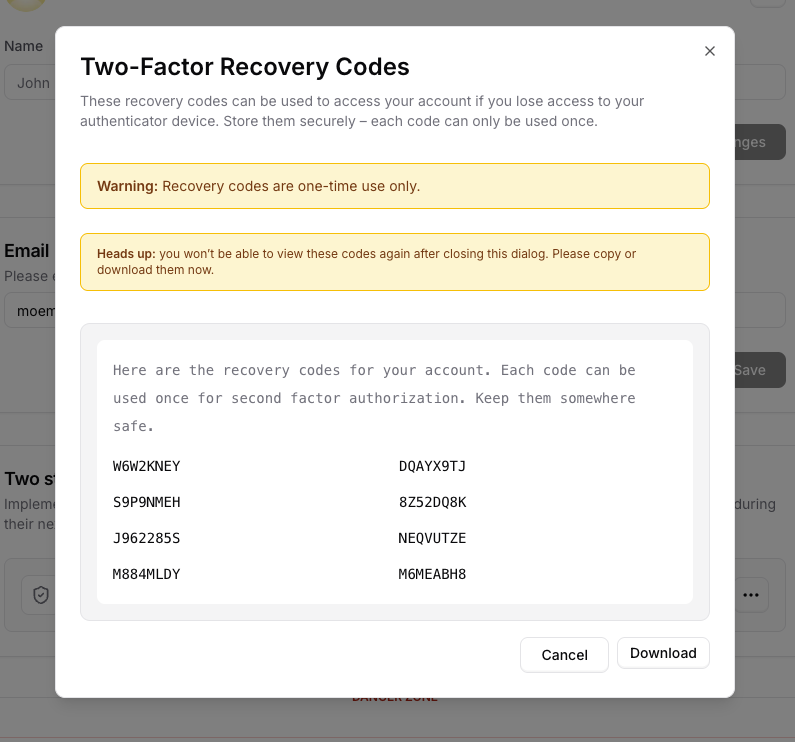 If you close the recovery codes dialog without saving, you will need to generate a new set. Old codes are invalidated when you regenerate.
## Sign in with 2FA
When 2FA is enabled, the sign-in flow looks like this:
1. Enter your email and password as usual.
2. If your account requires 2FA, Chatbase redirects you to a **Two-factor authentication** page.
3. On this page you can:
* Enter a 6‑digit code from your authenticator app, or
* Select **Use a recovery code** and enter one of your single‑use codes.
If the code is valid, you’re redirected back to the page you were trying to access.
If you close the recovery codes dialog without saving, you will need to generate a new set. Old codes are invalidated when you regenerate.
## Sign in with 2FA
When 2FA is enabled, the sign-in flow looks like this:
1. Enter your email and password as usual.
2. If your account requires 2FA, Chatbase redirects you to a **Two-factor authentication** page.
3. On this page you can:
* Enter a 6‑digit code from your authenticator app, or
* Select **Use a recovery code** and enter one of your single‑use codes.
If the code is valid, you’re redirected back to the page you were trying to access.
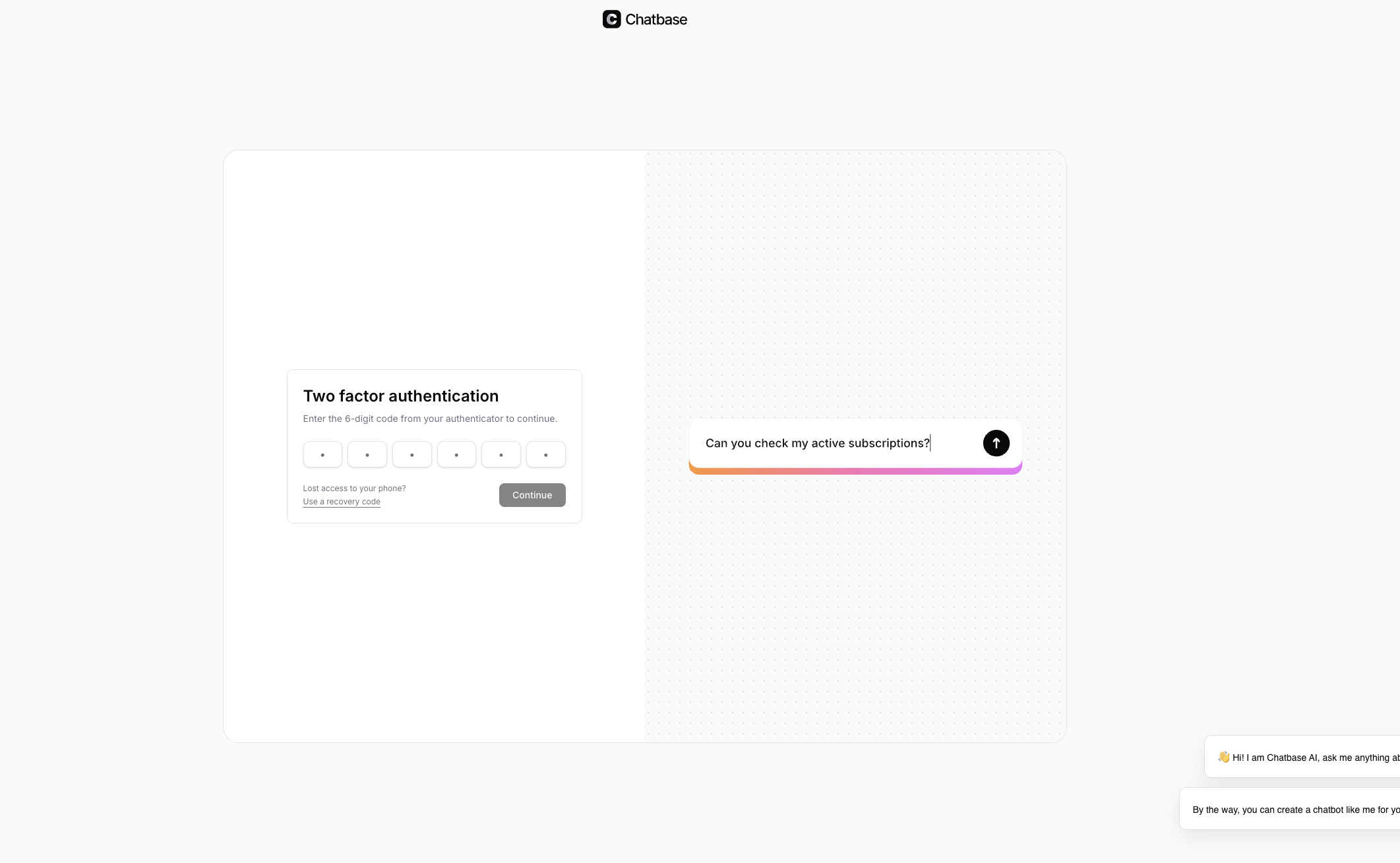 If you close or navigate away from the 2FA challenge page without completing it, Chatbase signs you out to protect your session.
## Change email or 2FA settings
Some actions in Chatbase are protected by 2FA, including:
* Changing your account email
* Managing or regenerating recovery codes
* Removing 2FA from your account
When you try one of these actions, you’ll be asked to confirm with:
* A 6‑digit authenticator code, or
* A recovery code (for most actions)
If you remove 2FA, your account will fall back to password-only protection. Do this only if you have a strong, unique password and understand the risk.
If you close or navigate away from the 2FA challenge page without completing it, Chatbase signs you out to protect your session.
## Change email or 2FA settings
Some actions in Chatbase are protected by 2FA, including:
* Changing your account email
* Managing or regenerating recovery codes
* Removing 2FA from your account
When you try one of these actions, you’ll be asked to confirm with:
* A 6‑digit authenticator code, or
* A recovery code (for most actions)
If you remove 2FA, your account will fall back to password-only protection. Do this only if you have a strong, unique password and understand the risk.