> ## Documentation Index
> Fetch the complete documentation index at: https://chatbase.co/docs/llms.txt
> Use this file to discover all available pages before exploring further.
# WhatsApp Templates
> Learn how to create WhatsApp message templates in WhatsApp Manager and send them to customers from the Chatbase Helpdesk.
WhatsApp message templates are pre-approved messages required by Meta to contact customers outside the 24-hour conversation window. When a customer hasn't messaged you in the last 24 hours, you must use an approved template to re-initiate the conversation.
Chatbase supports **Utility**, **Authentication**, and **Marketing** templates. Utility and Authentication templates can be sent from the Helpdesk, while Marketing templates are available for [Outbound Campaigns](/user-guides/chatbot/outbound-campaigns).
Before you begin, make sure you have already connected your WhatsApp integration. If you haven't, follow the [WhatsApp integration setup guide](/user-guides/integrations/whatsapp) first.
## Prerequisites
* A connected WhatsApp integration in Chatbase ([setup guide](/user-guides/integrations/whatsapp))
* Access to [WhatsApp Manager](https://business.facebook.com/wa/manage/message-templates/)
* An approved WhatsApp Business Account
## Part 1: Creating a Template in WhatsApp Manager
1\. Navigate to [WhatsApp Manager](https://business.facebook.com/wa/manage/message-templates/) and open **Message Templates**.
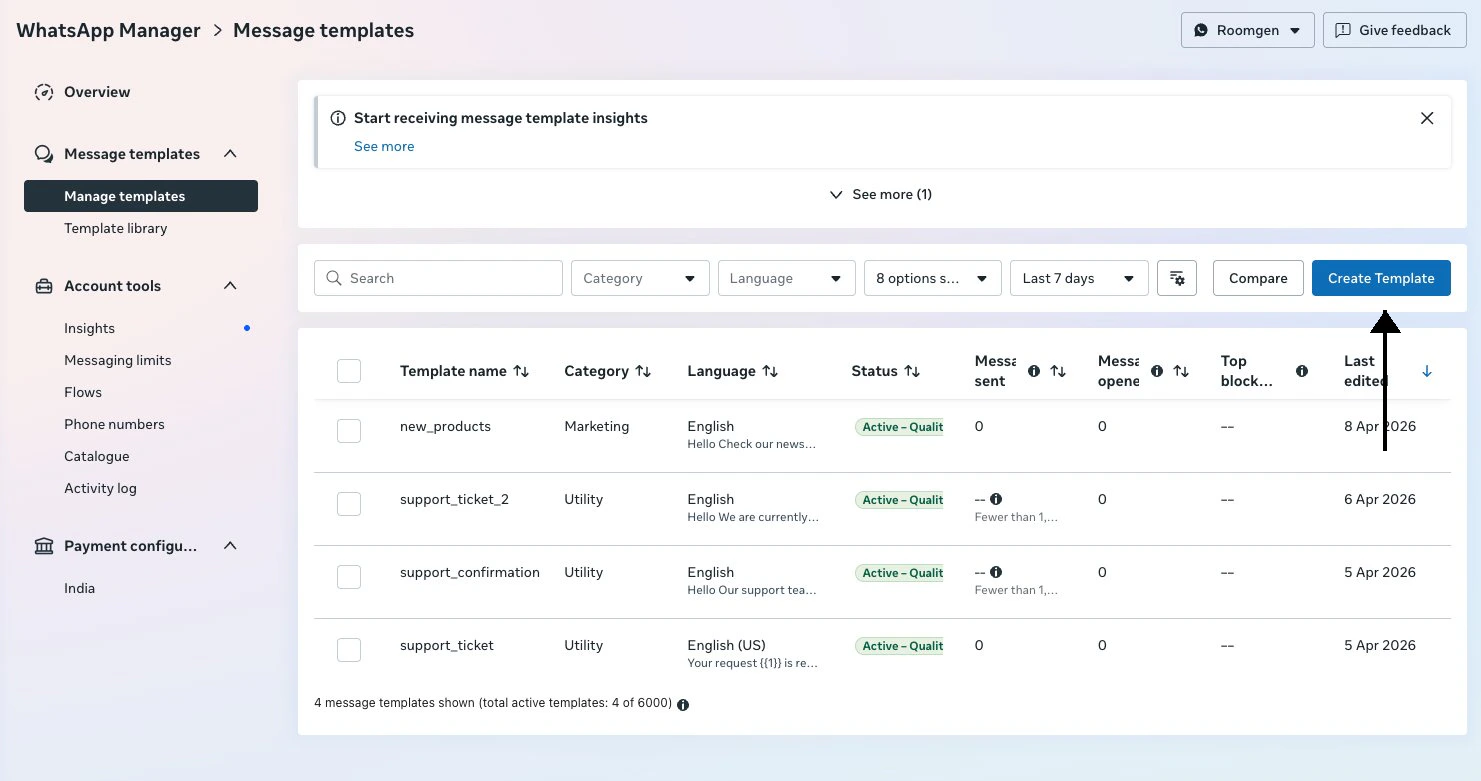
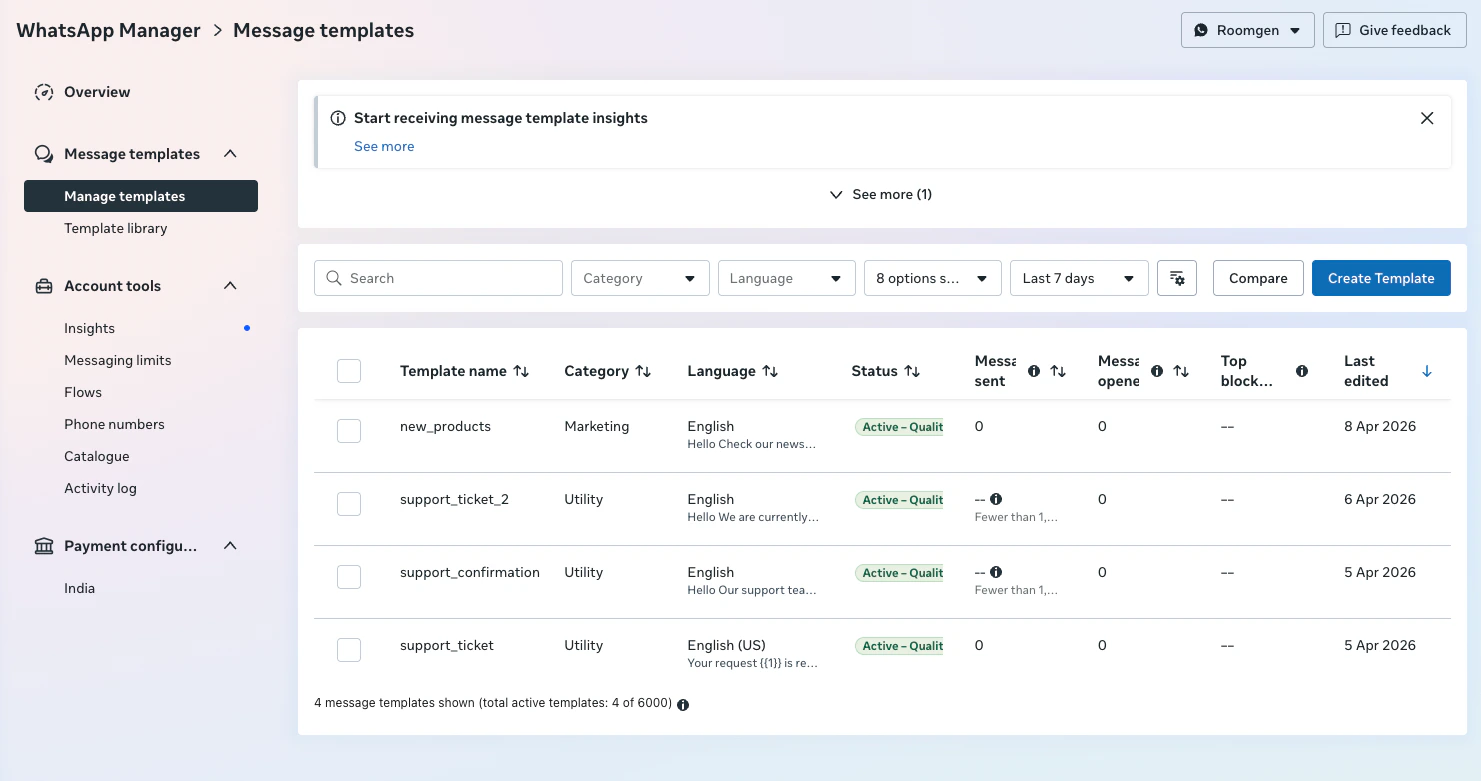 2\. Click **Create Template**.
 3\. Choose a template category:
* **Utility** — for order updates, account notifications, and transaction confirmations
* **Authentication** — for verification codes and login confirmations
3\. Choose a template category:
* **Utility** — for order updates, account notifications, and transaction confirmations
* **Authentication** — for verification codes and login confirmations
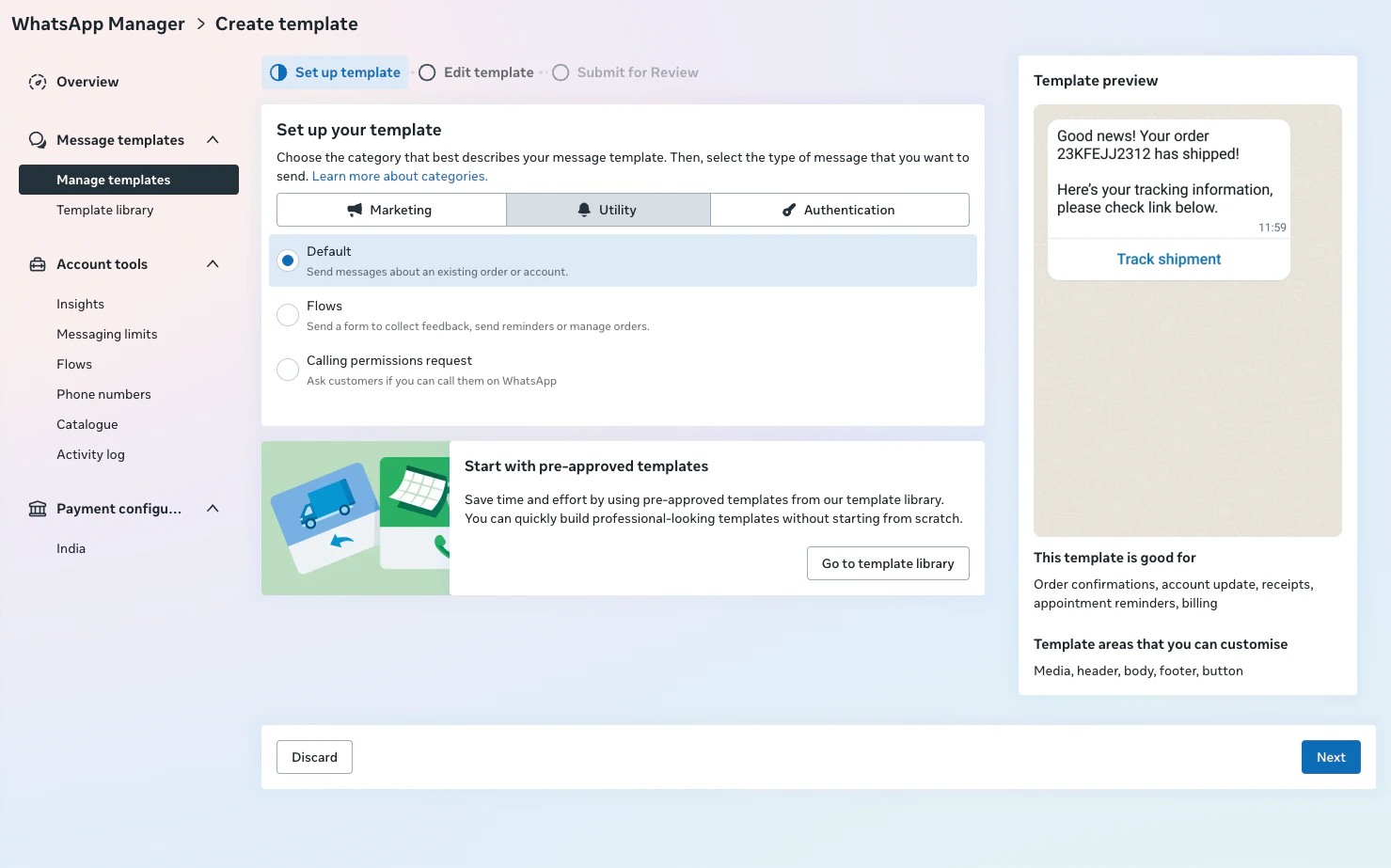 **Utility** and **Authentication** templates can be used in both the Helpdesk and Outbound Campaigns. **Marketing** templates are available for [Outbound Campaigns](/user-guides/chatbot/outbound-campaigns) only.
4\. Enter a name for your template and select the language.
**Utility** and **Authentication** templates can be used in both the Helpdesk and Outbound Campaigns. **Marketing** templates are available for [Outbound Campaigns](/user-guides/chatbot/outbound-campaigns) only.
4\. Enter a name for your template and select the language.
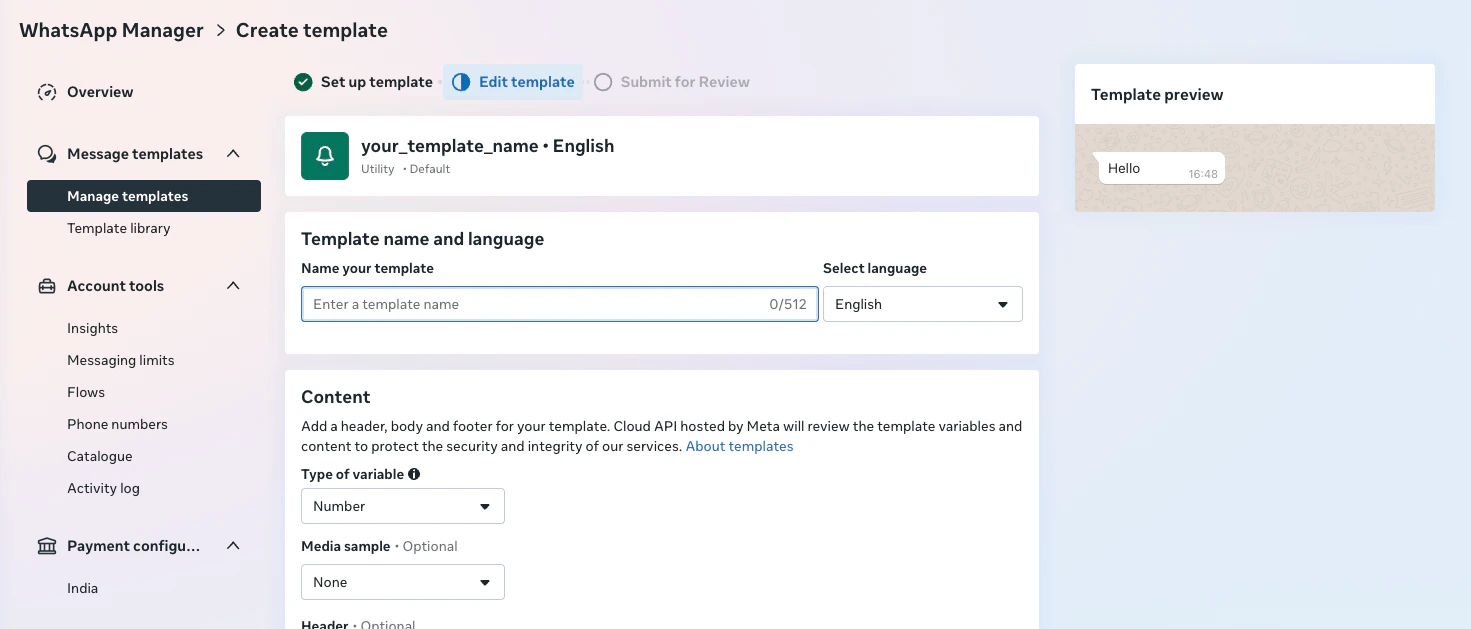 5\. Write your template body text. Keep it plain text — variables are not supported.
 6\. Click **Submit for Review**.
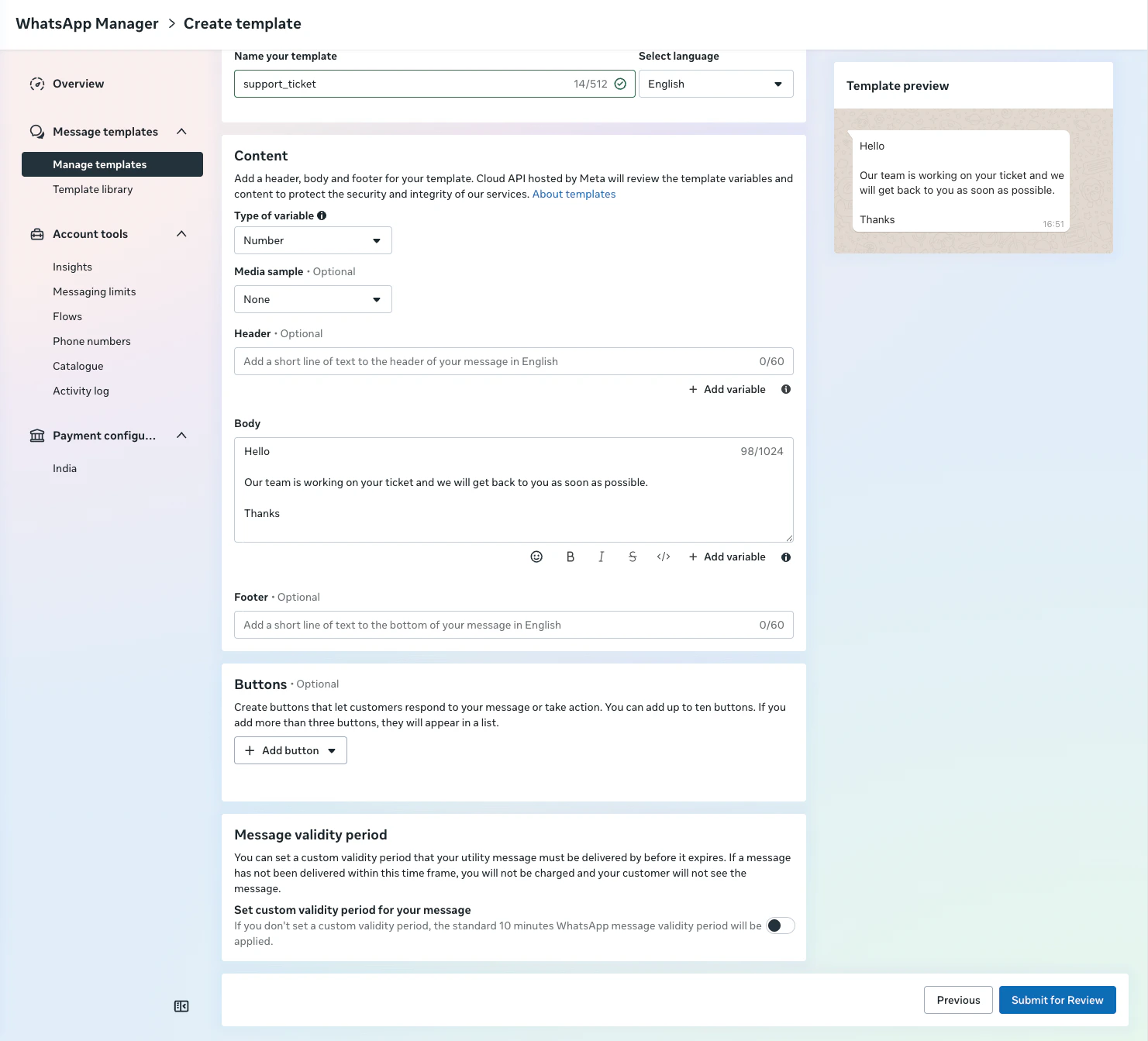 Meta reviews templates before they can be used. The review usually takes a few minutes, but can take longer. Your template must be approved before it appears in Chatbase.
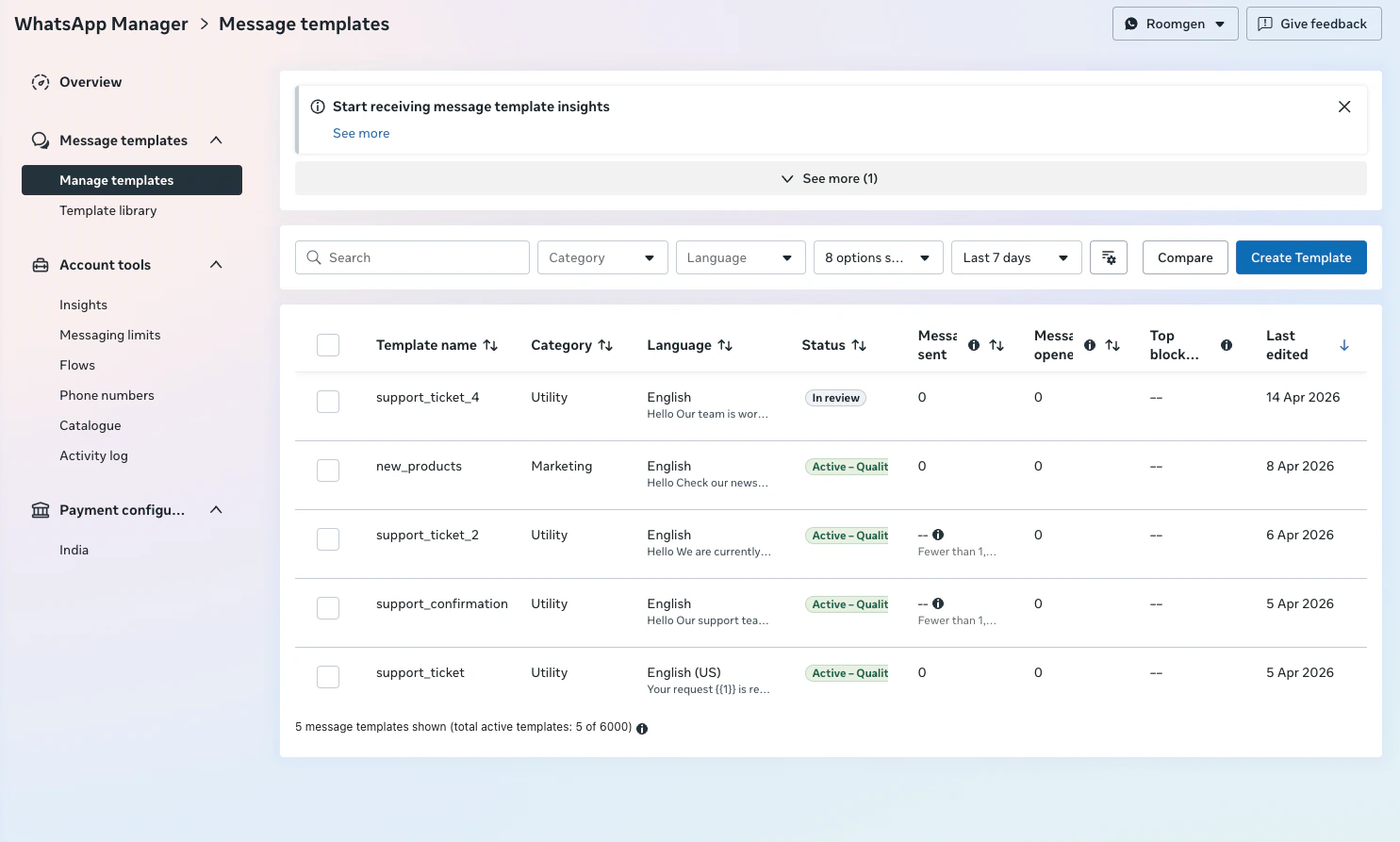 To improve your chances of approval, keep your message clear and concise, avoid promotional language, and clearly specify the transactional or authentication purpose of the template.
Meta charges fees for each template message sent. Fees vary by country and template category. See [Meta's WhatsApp pricing](https://developers.facebook.com/docs/whatsapp/pricing) for current rates.
## Part 2: Sending a Template from Helpdesk
Once your template is approved in Meta, you can use it to message customers from the Chatbase Helpdesk.
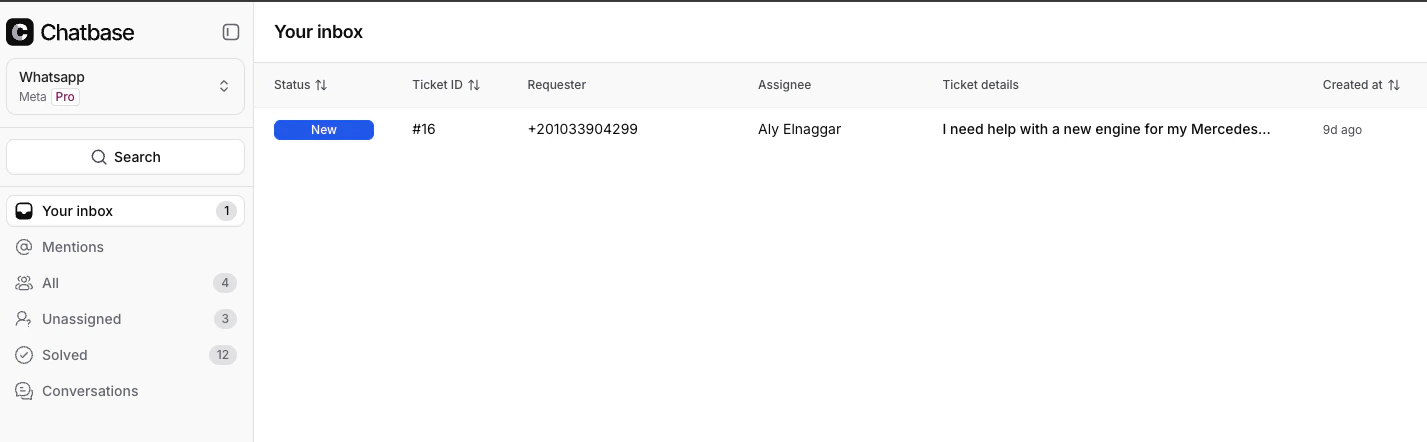
1\. Open the **Helpdesk** inbox.
To improve your chances of approval, keep your message clear and concise, avoid promotional language, and clearly specify the transactional or authentication purpose of the template.
Meta charges fees for each template message sent. Fees vary by country and template category. See [Meta's WhatsApp pricing](https://developers.facebook.com/docs/whatsapp/pricing) for current rates.
## Part 2: Sending a Template from Helpdesk
Once your template is approved in Meta, you can use it to message customers from the Chatbase Helpdesk.
1\. Open the **Helpdesk** inbox.
 2\. Navigate to or open a conversation with the contact you want to message.
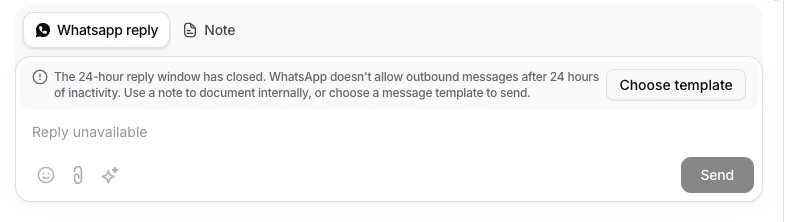
 3\. When the 24-hour reply window has closed, you'll see a notice that sending messages is no longer allowed. Click **Choose template** to send a pre-approved message template.
 4\. Browse and select from your list of approved templates.
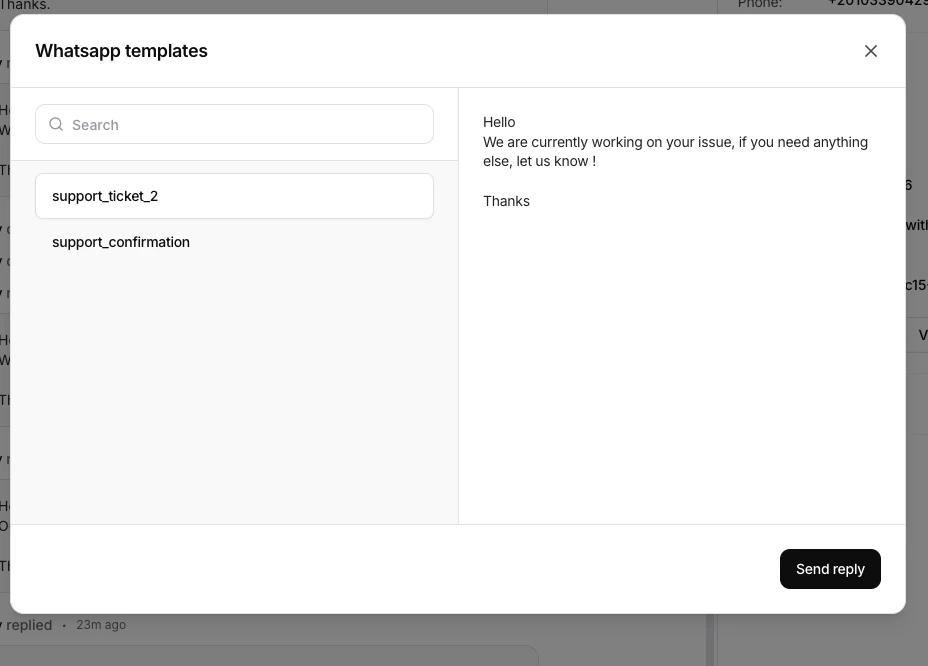 5\. Preview the template content.
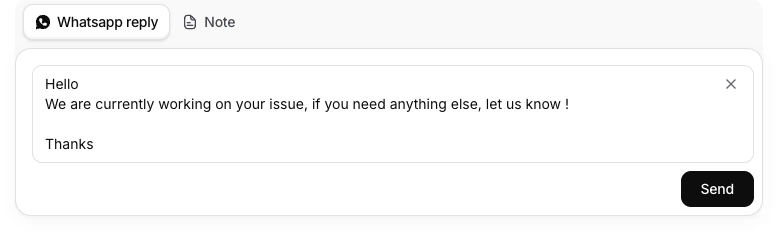 6\. Click **Send**.
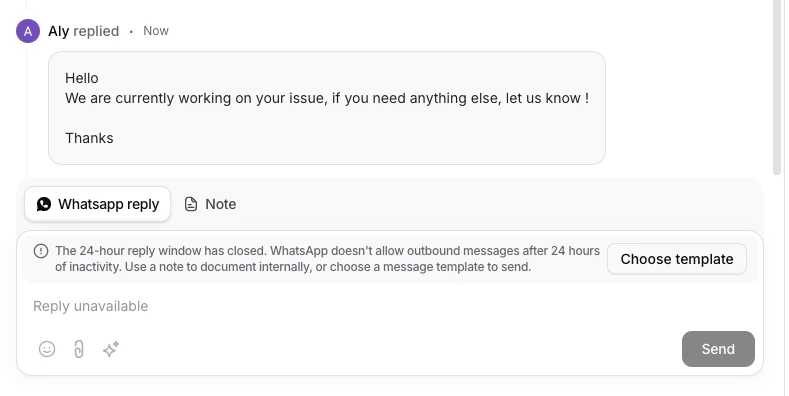 **Understanding the 24-hour window:** WhatsApp allows free-form messaging only within 24 hours of the customer's last message. After that window expires, you must use an approved template to re-initiate the conversation. Once the customer replies, the 24-hour window resets and you can send free-form messages again.
Make sure you have added a payment method in your [Meta billing settings](https://business.facebook.com/billing_hub). Without a payment method, template messages may fail to send.
## Troubleshooting
* **Template not appearing in Chatbase?** Check that the template has been fully approved in Meta. For the Helpdesk, only Utility and Authentication templates appear. Marketing templates are available in [Outbound Campaigns](/user-guides/chatbot/outbound-campaigns).
* **Message failed to send?** Ensure the contact has a valid WhatsApp phone number and that you have a payment method configured in your [Meta billing settings](https://business.facebook.com/billing_hub).
**Understanding the 24-hour window:** WhatsApp allows free-form messaging only within 24 hours of the customer's last message. After that window expires, you must use an approved template to re-initiate the conversation. Once the customer replies, the 24-hour window resets and you can send free-form messages again.
Make sure you have added a payment method in your [Meta billing settings](https://business.facebook.com/billing_hub). Without a payment method, template messages may fail to send.
## Troubleshooting
* **Template not appearing in Chatbase?** Check that the template has been fully approved in Meta. For the Helpdesk, only Utility and Authentication templates appear. Marketing templates are available in [Outbound Campaigns](/user-guides/chatbot/outbound-campaigns).
* **Message failed to send?** Ensure the contact has a valid WhatsApp phone number and that you have a payment method configured in your [Meta billing settings](https://business.facebook.com/billing_hub).