> ## Documentation Index
> Fetch the complete documentation index at: https://chatbase.co/docs/llms.txt
> Use this file to discover all available pages before exploring further.
# Weebly
## Step 1: Sign Into Your Chatbase Account and Set up your Bot
To embed your Chatbase bot into your Weebly website, first sign in to your Chatbase account. If you don't have an account yet, you can create one for free. Once signed in, you can set up your bot in Chatbase by uploading data sources like files, text snippets, websites, or Q\&A pairs that the bot can learn from. Here is a [step-by-step guide for setting up your Chatbase agent](/user-guides/quick-start/your-first-agent).
## Step 2: Generate and Copy Chatbot Embed Code
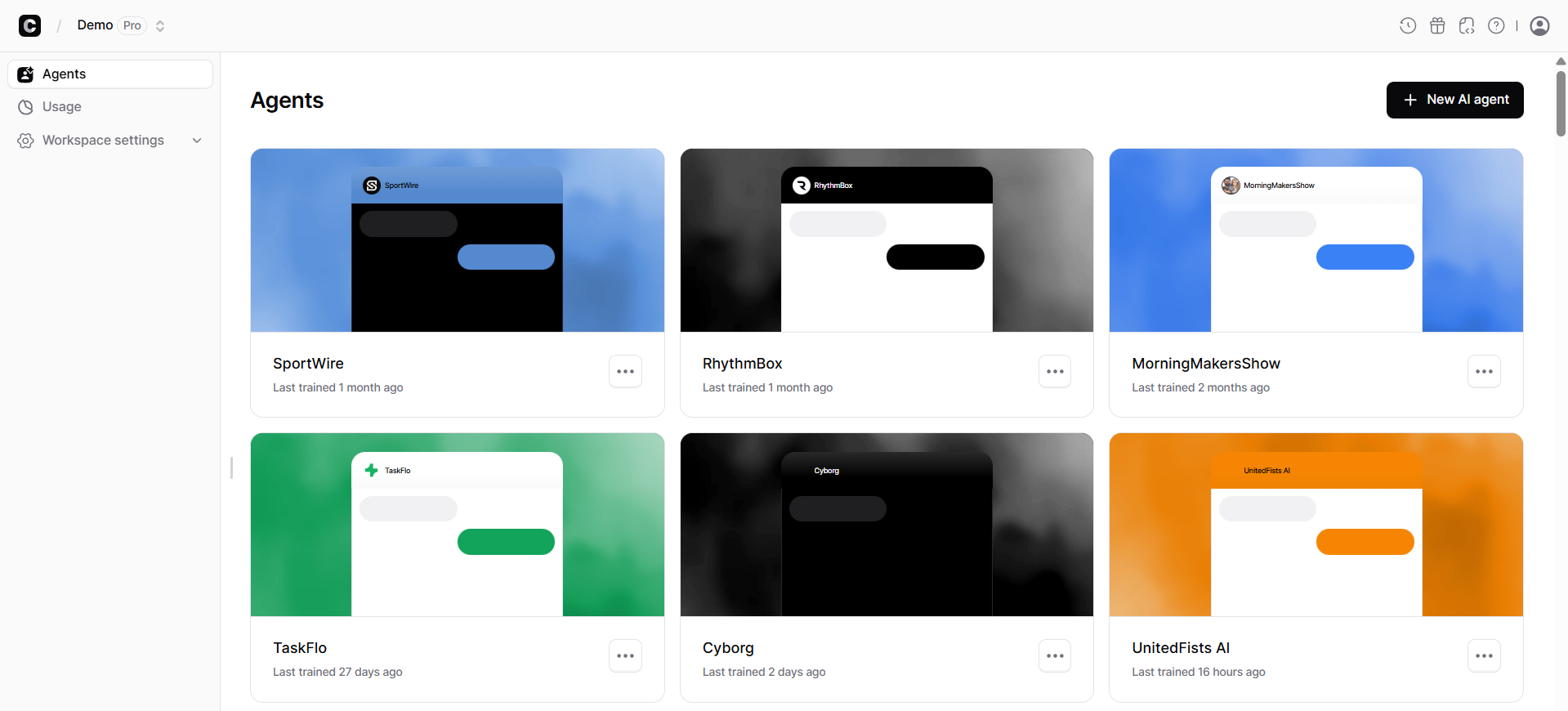
1\. After setting up your agent, head to your [dashboard](https://www.chatbase.co/dashboard/), and click on the bot you want to embed on your Weebly website to reveal the bot's Playground page.
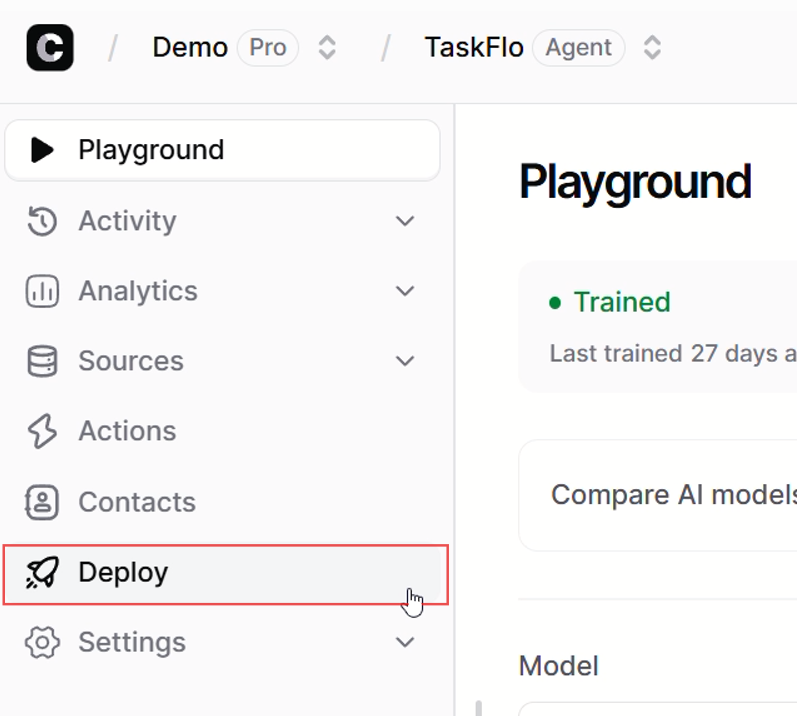
 2\. On the agent preview page, click on the **Deploy** tab.
 3\. A new page should come up. Click on **Manage** for the Chat Widget.
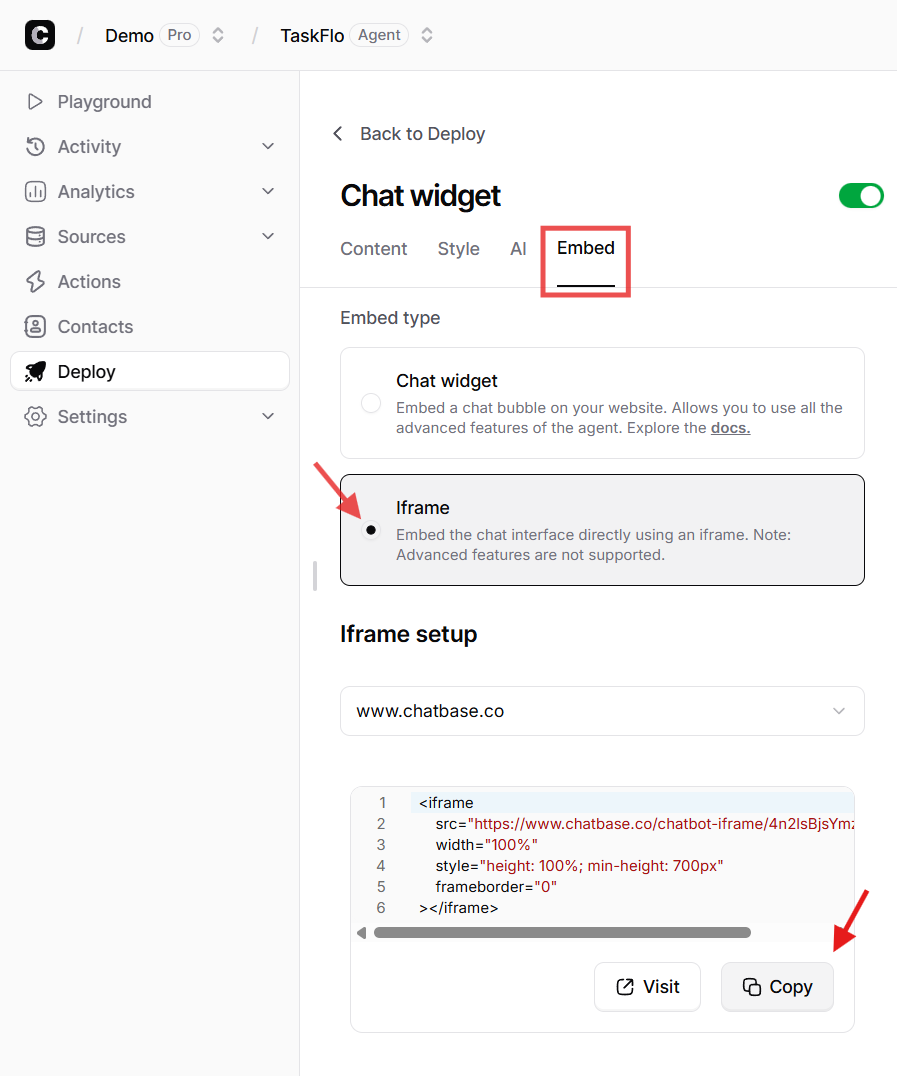
![Chat Widget [Manage]](https://mintlify.s3.us-west-1.amazonaws.com/chatbase/user-guides/integrations/images/Integrations/chatwidget-manage.png) 4\. Click on **Embed** and select the **Iframe** embed type. Scroll down and Click **Copy** to copy the provided HTML code.
4\. Click on **Embed** and select the **Iframe** embed type. Scroll down and Click **Copy** to copy the provided HTML code.
 ## Step 3: Add Embed Code to Your Weebly Website
To add a Chatbase agent to your Weebly website:
1\. Sign in to your Weebly account and head to the **Edit site** page.
2\. Select the page to edit.
3\. From the Basic toolbar on the left side of the editing page, locate the widget that says **Embed Code**.
## Step 3: Add Embed Code to Your Weebly Website
To add a Chatbase agent to your Weebly website:
1\. Sign in to your Weebly account and head to the **Edit site** page.
2\. Select the page to edit.
3\. From the Basic toolbar on the left side of the editing page, locate the widget that says **Embed Code**.
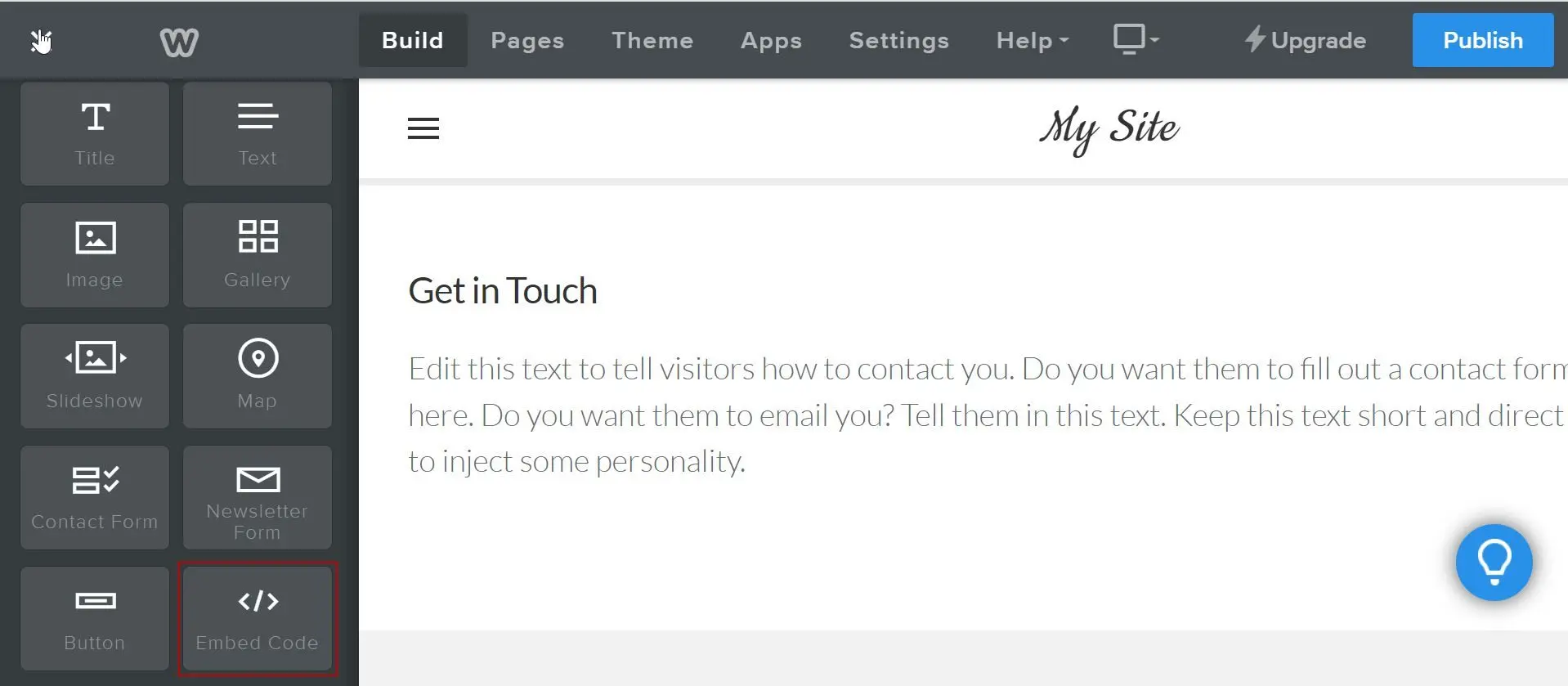 4\. Drag the **Embed Code** element to wherever you want your agent to appear on the page.
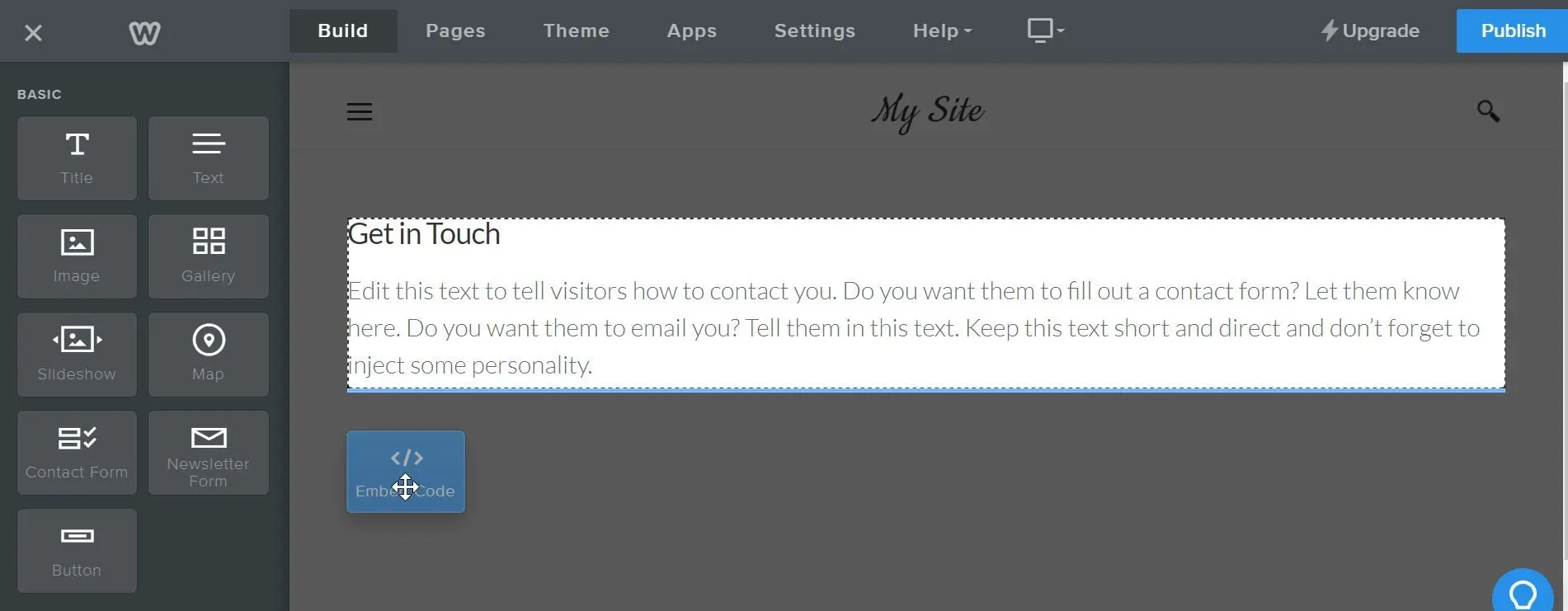 5\. You should then see a text element that says **Click to set custom HTML** where the Embed code widget was placed. Click on the text, and then click on **Edit Custom HTML.**
6\. Paste your Chatbase embed code into the custom HTML box.
5\. You should then see a text element that says **Click to set custom HTML** where the Embed code widget was placed. Click on the text, and then click on **Edit Custom HTML.**
6\. Paste your Chatbase embed code into the custom HTML box.
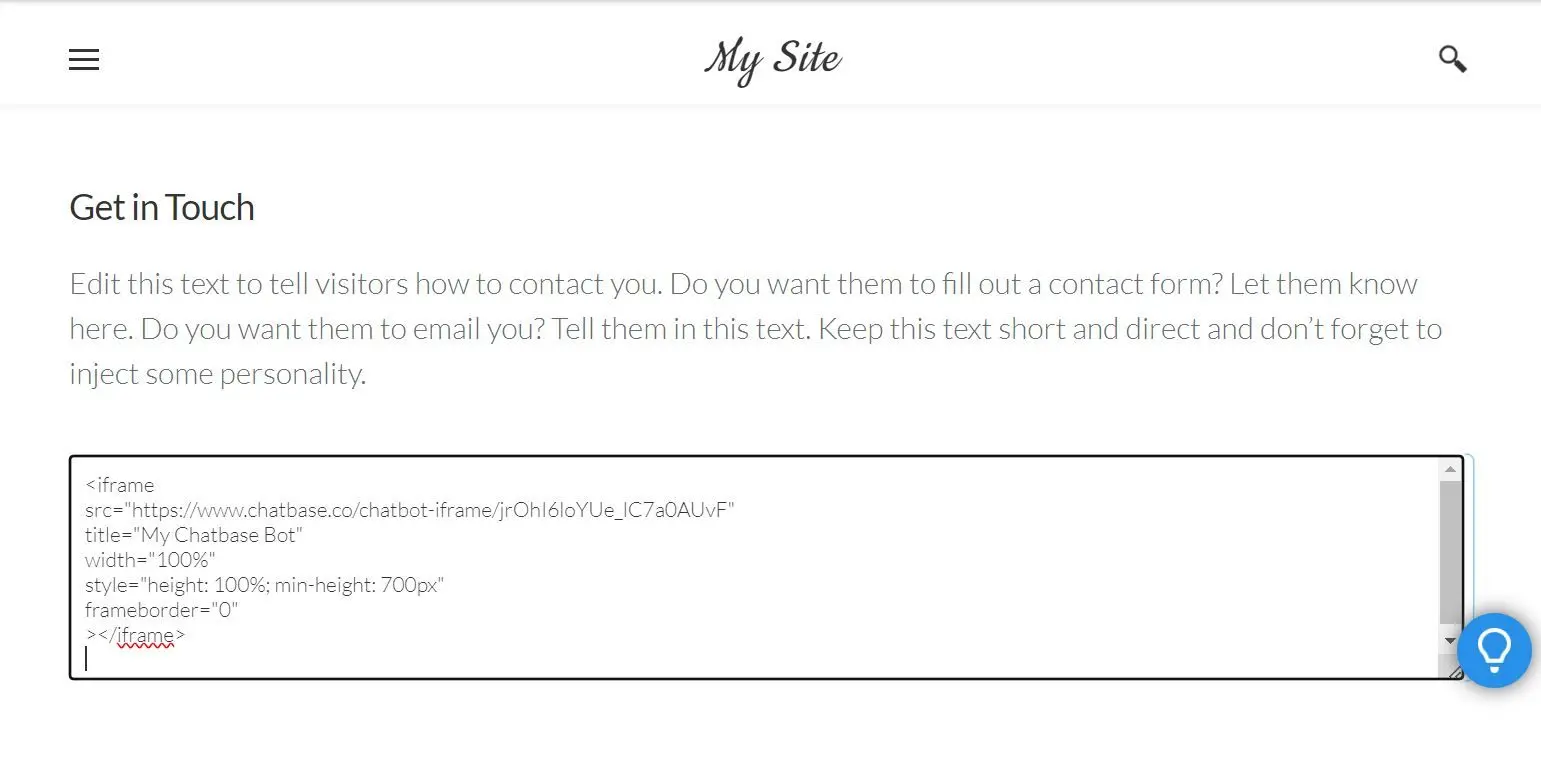 7\. Click outside the element and your agent should appear on the page.
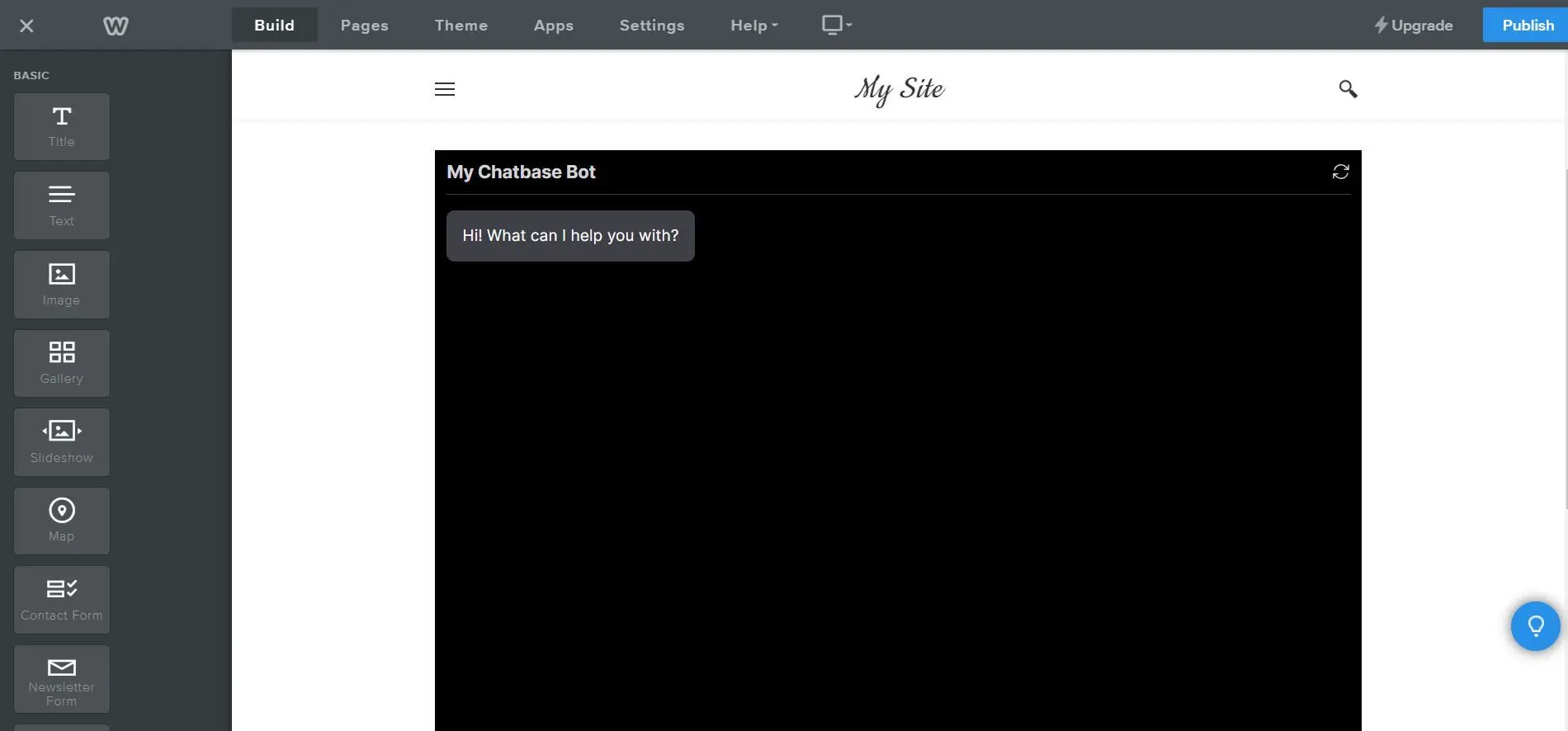 Congratulations, your agent is now live on your Weebly website!
> **Note:** You can customize the appearance and colors of your bot on your Chatbase dashboard. To do this, go to your **dashboard**, choose a bot, click the **Settings** tab on the top of the page, and then click **Chat Interface** on the left sidebar to reveal the agent customization options.
Congratulations, your agent is now live on your Weebly website!
> **Note:** You can customize the appearance and colors of your bot on your Chatbase dashboard. To do this, go to your **dashboard**, choose a bot, click the **Settings** tab on the top of the page, and then click **Chat Interface** on the left sidebar to reveal the agent customization options.