> ## Documentation Index
> Fetch the complete documentation index at: https://chatbase.co/docs/llms.txt
> Use this file to discover all available pages before exploring further.
# Webflow
## Step 1: Sign Into Your Chatbase Account and Set Up Your Chatbot
1. Sign up for a free Chatbase account if you don't already have one.
2. Log into your Chatbase account and navigate to the bot creation page.
3. Provide training data for your new bot by uploading sources like text snippets, documents, website content, or Q\&A pairs.
4. Train and test your bot in Chatbase until it responds accurately to queries.
New to Chatbase? Check out [Your First Agent](/user-guides/quick-start/your-first-agent) to get started with the embed script first.
## Step 2: Copy Your AI Agent Embed Code
Once you've set up and tested your Chatbase bot, you'll need the embed code to display the bot widget on your website. To do this:
1\. Go to the [dashboard](https://www.chatbase.co/dashboard/) of your Chatbase account.
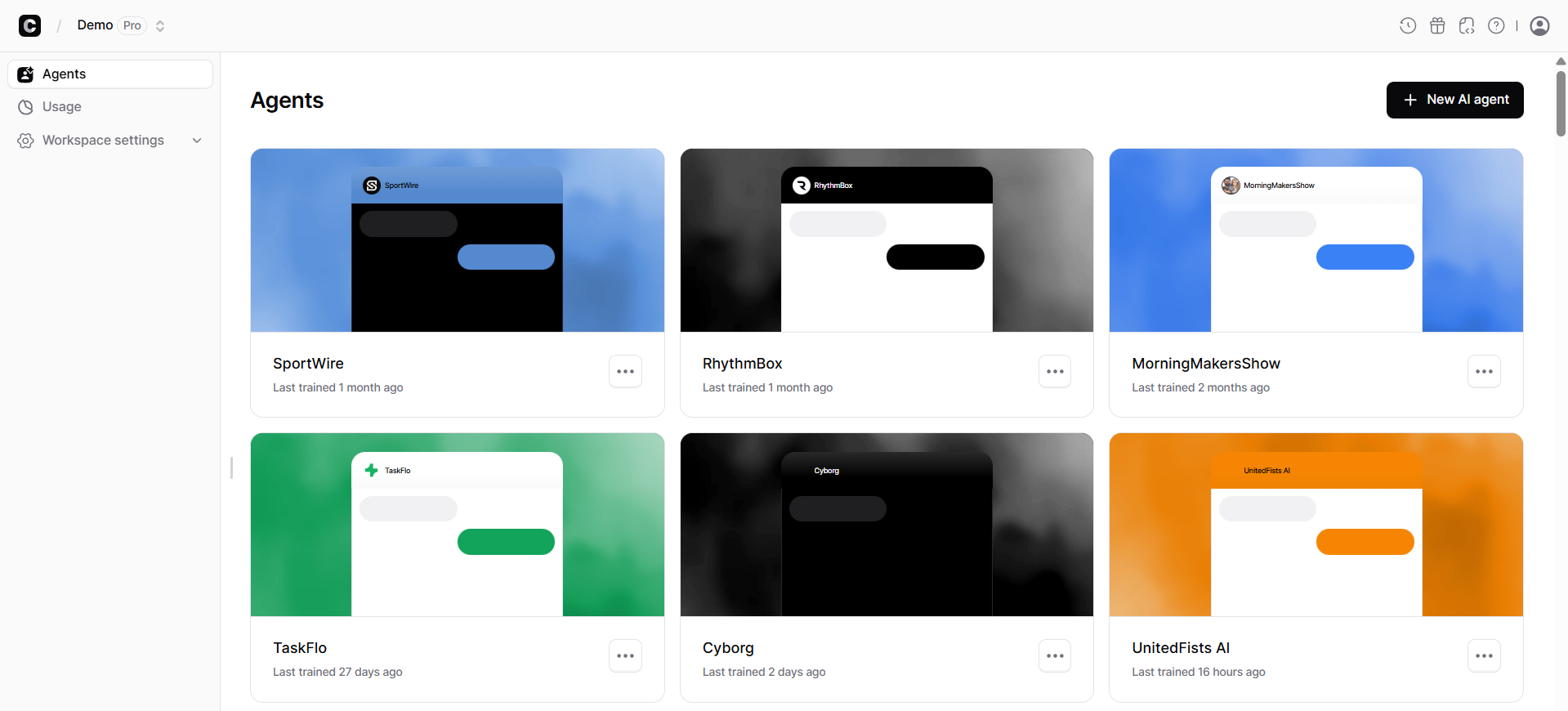
2\. You should see a list of agents, click the agent you wish to integrate into your Webflow website. You should be taken to the agent's preview page.
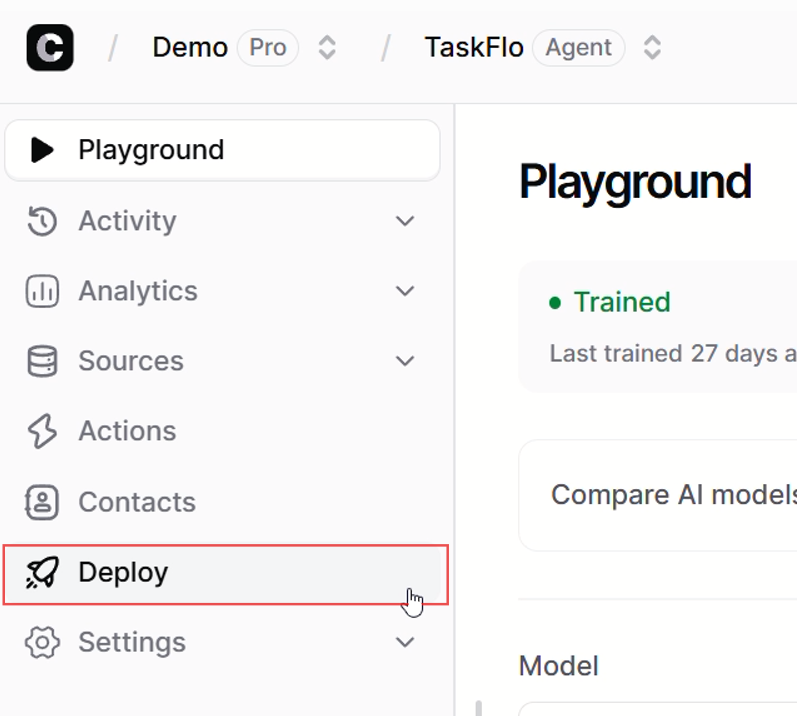
 3\. On the agent preview page, click on the **Deploy** tab.
 4\. A new page should come up. Click on **Manage** for the Chat Widget.
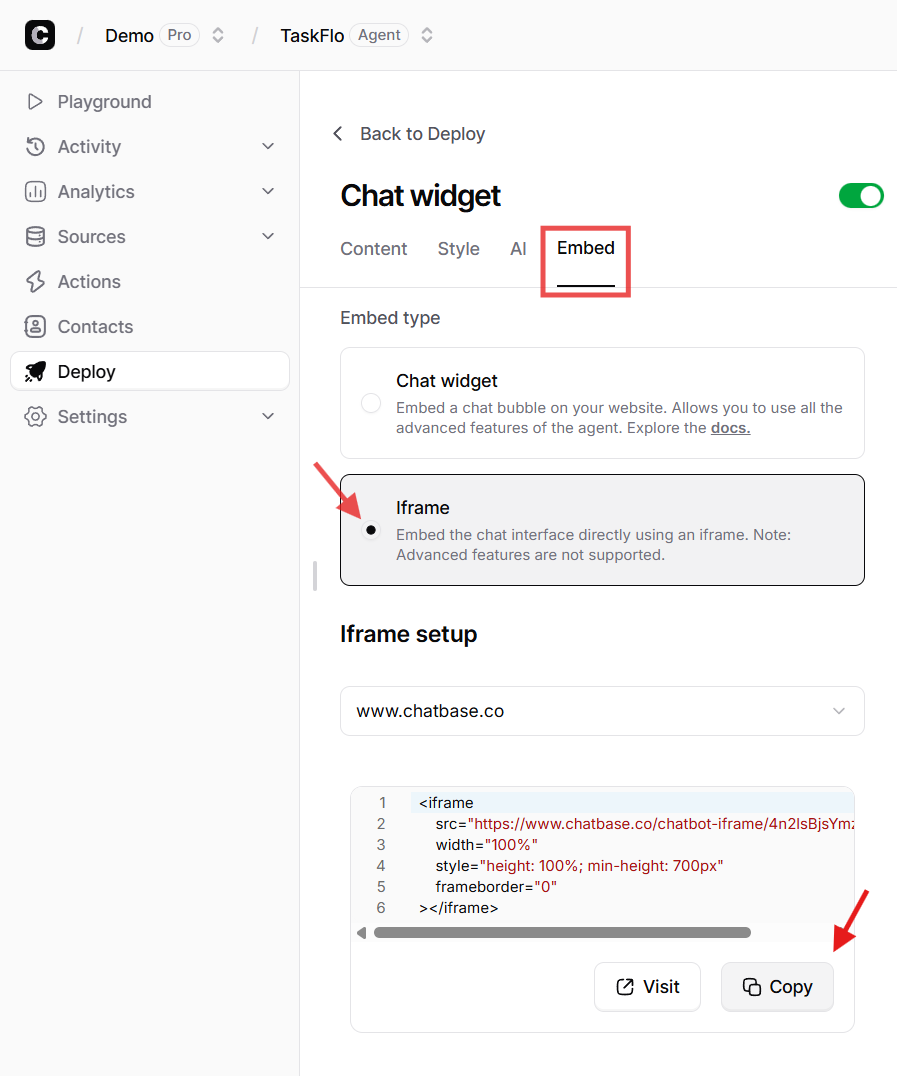
![Chat Widget [Manage]](https://mintlify.s3.us-west-1.amazonaws.com/chatbase/user-guides/integrations/images/Integrations/chatwidget-manage.png) 5\. Click on **Embed** and select the **Iframe** embed type. Scroll down and Click **Copy** to copy the provided HTML code.
5\. Click on **Embed** and select the **Iframe** embed type. Scroll down and Click **Copy** to copy the provided HTML code.
 ## Step 3: Set Up a Container to Display Your Chatbot Widget
Before adding the embed code to your Webflow site, you will need to create a container to display the widget. This will ensure that the widget is displayed in the correct place on your website and doesn't extend the entire width of the page.
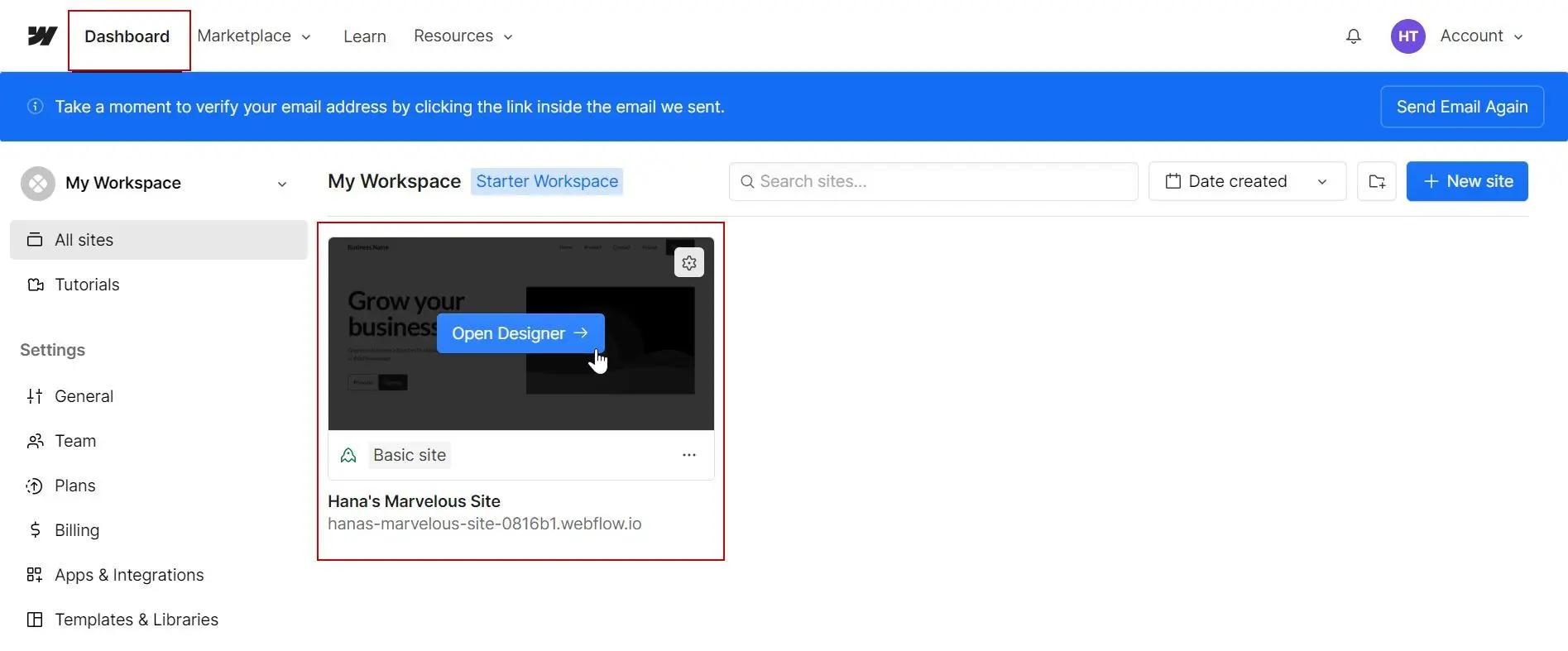
1\. To create a container, on Webflow, log into your Webflow account and go to your dashboard.
2\. On your Webflow dashboard, you'll find a list of all your website projects, hover on the website you want to add the agent to and click on **Open Designer**.
## Step 3: Set Up a Container to Display Your Chatbot Widget
Before adding the embed code to your Webflow site, you will need to create a container to display the widget. This will ensure that the widget is displayed in the correct place on your website and doesn't extend the entire width of the page.
1\. To create a container, on Webflow, log into your Webflow account and go to your dashboard.
2\. On your Webflow dashboard, you'll find a list of all your website projects, hover on the website you want to add the agent to and click on **Open Designer**.
 3\. On the designer page, click on the file icon (**Pages**) on the top left corner of the webflow site designer and select the page you want to embed the agent.
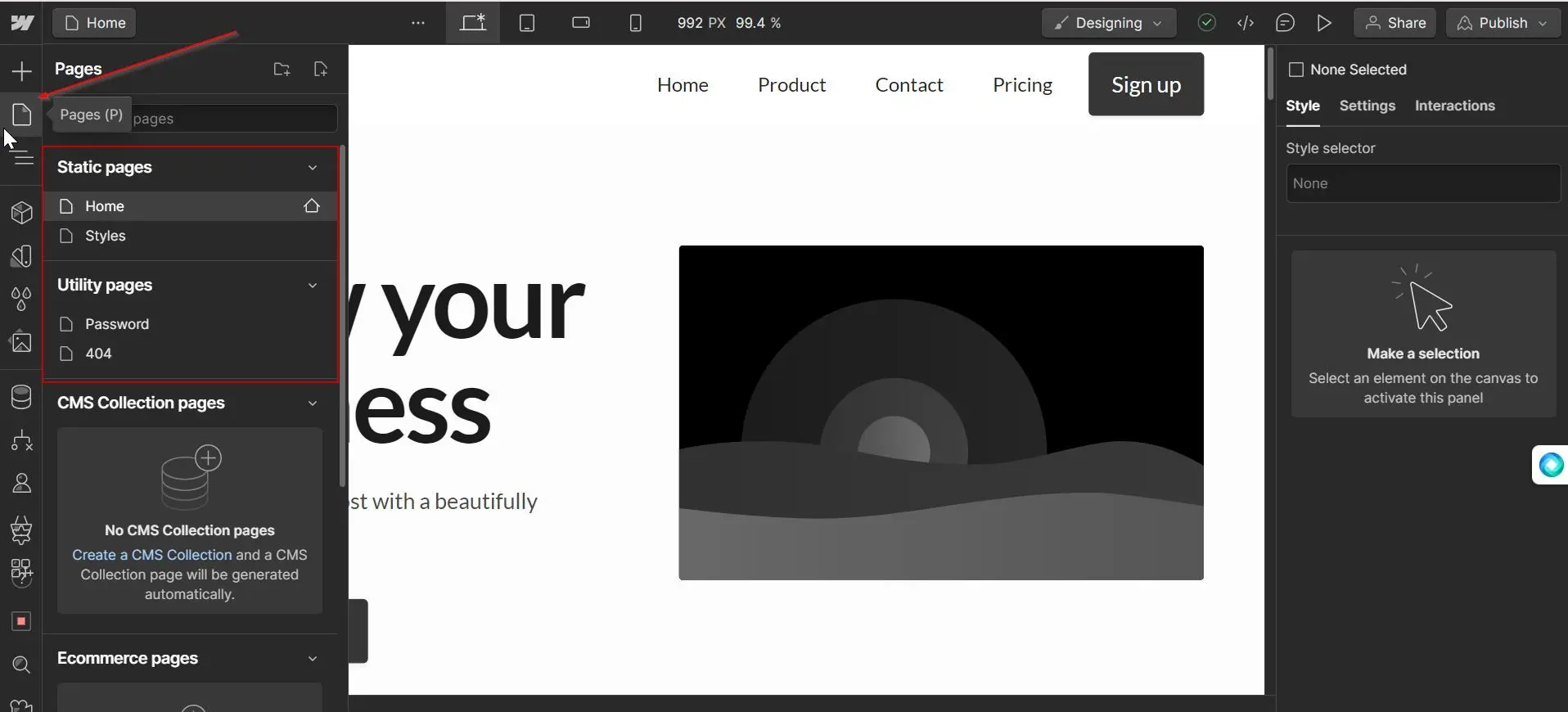 4\. Once you've selected the page, click the Plus button (**Add elements**) on the top left corner of the designer screen, and a list of available elements should come up.
5\. Drag the **Section** element to the portion of the page you want to embed your agent.
6\. Drag a **Container** element unto the **Section.**
7\. Drag a **Div** element unto the Container element and set the size of the Div element to ensure that the bot will be contained within the Div and does not span the entire width of the page.
4\. Once you've selected the page, click the Plus button (**Add elements**) on the top left corner of the designer screen, and a list of available elements should come up.
5\. Drag the **Section** element to the portion of the page you want to embed your agent.
6\. Drag a **Container** element unto the **Section.**
7\. Drag a **Div** element unto the Container element and set the size of the Div element to ensure that the bot will be contained within the Div and does not span the entire width of the page.
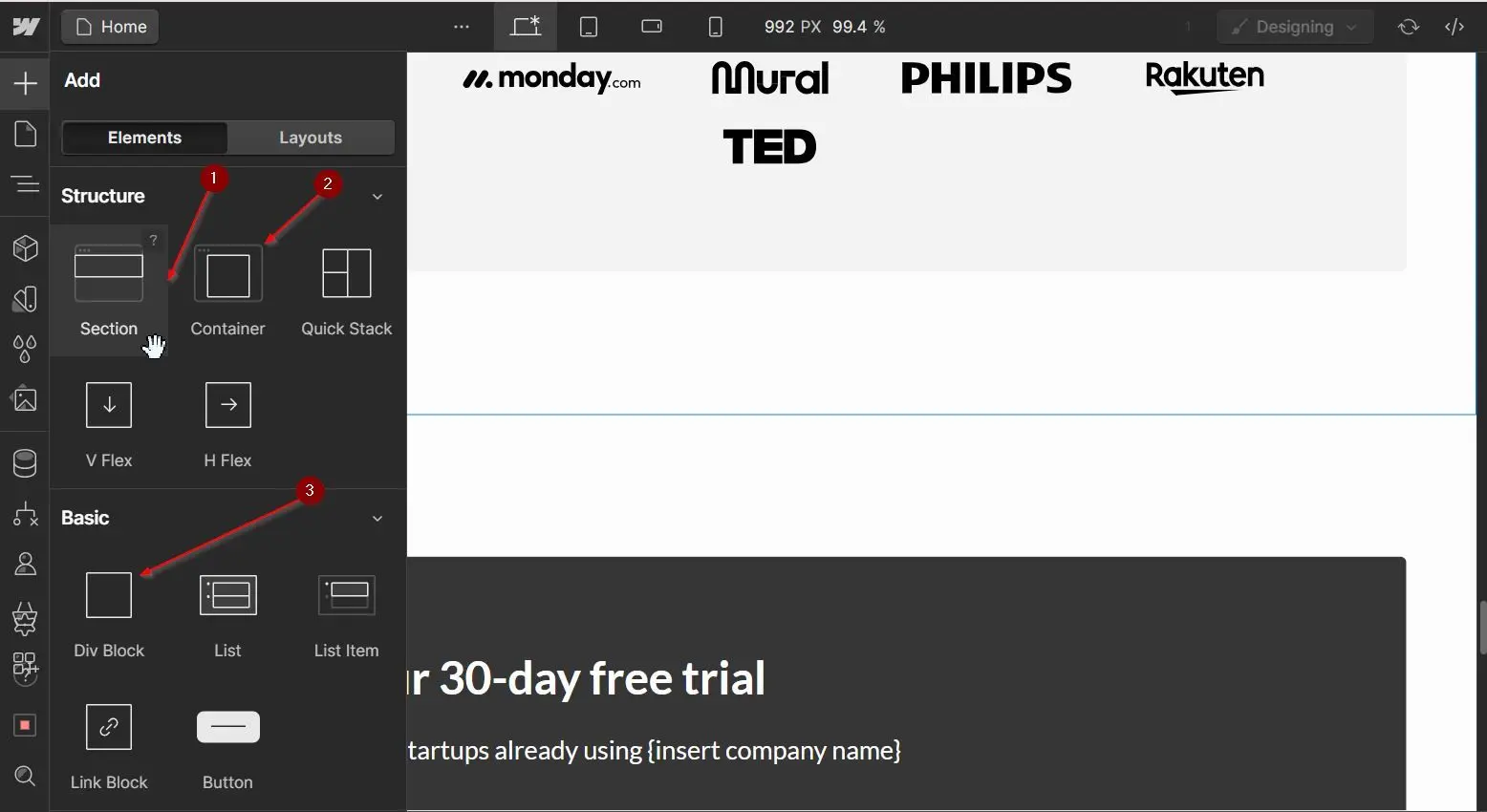 8\. Now, scroll down down the list of elements and drag the **Embed** element unto the Div you added on the Webflow canvas.
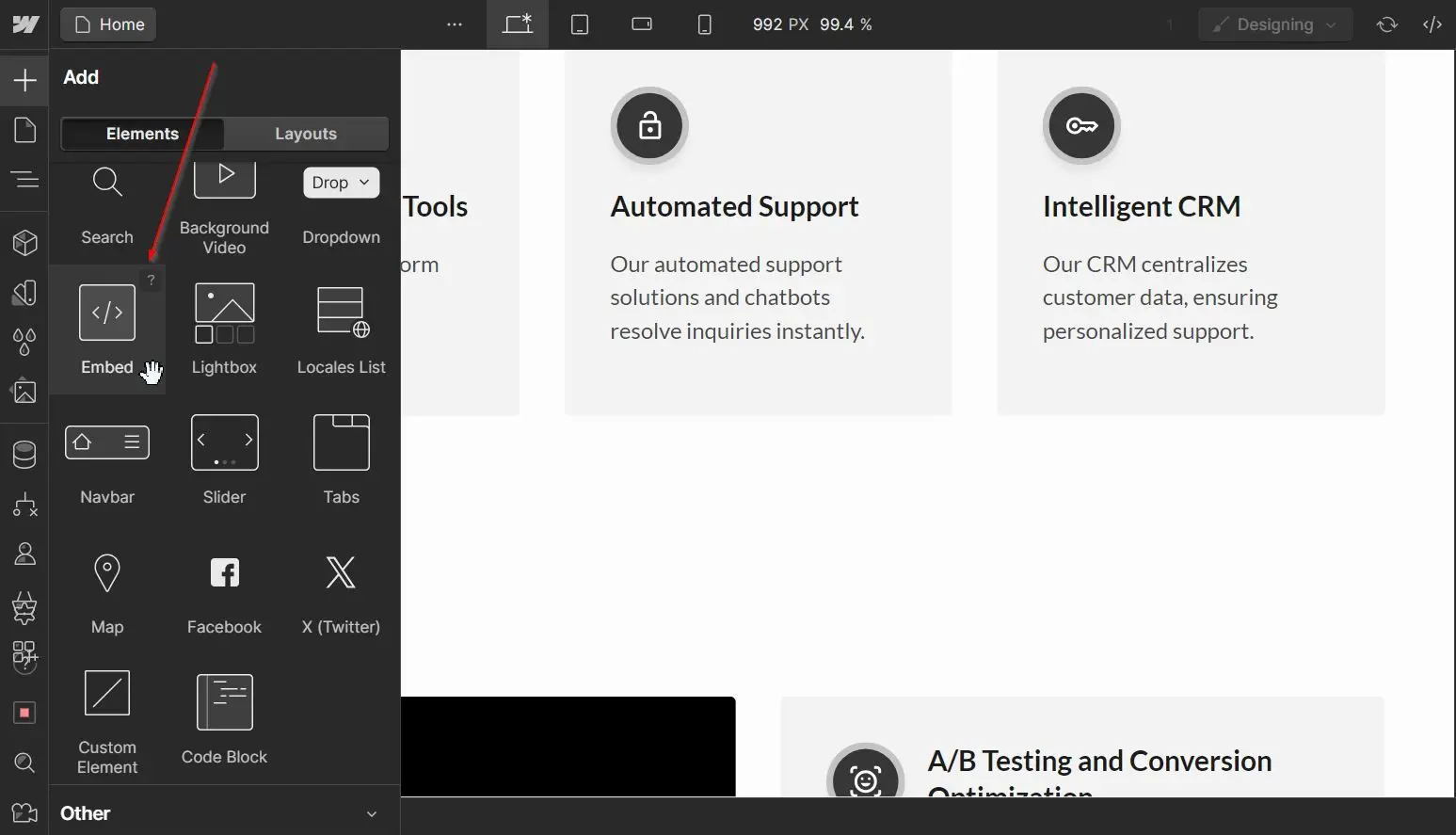 9\. Select and double-click the Embed element to reveal the HTML Embed code editor.
10\. Paste the Chatbase agent embed code from Step 2 above and click **Save & Close**.
9\. Select and double-click the Embed element to reveal the HTML Embed code editor.
10\. Paste the Chatbase agent embed code from Step 2 above and click **Save & Close**.
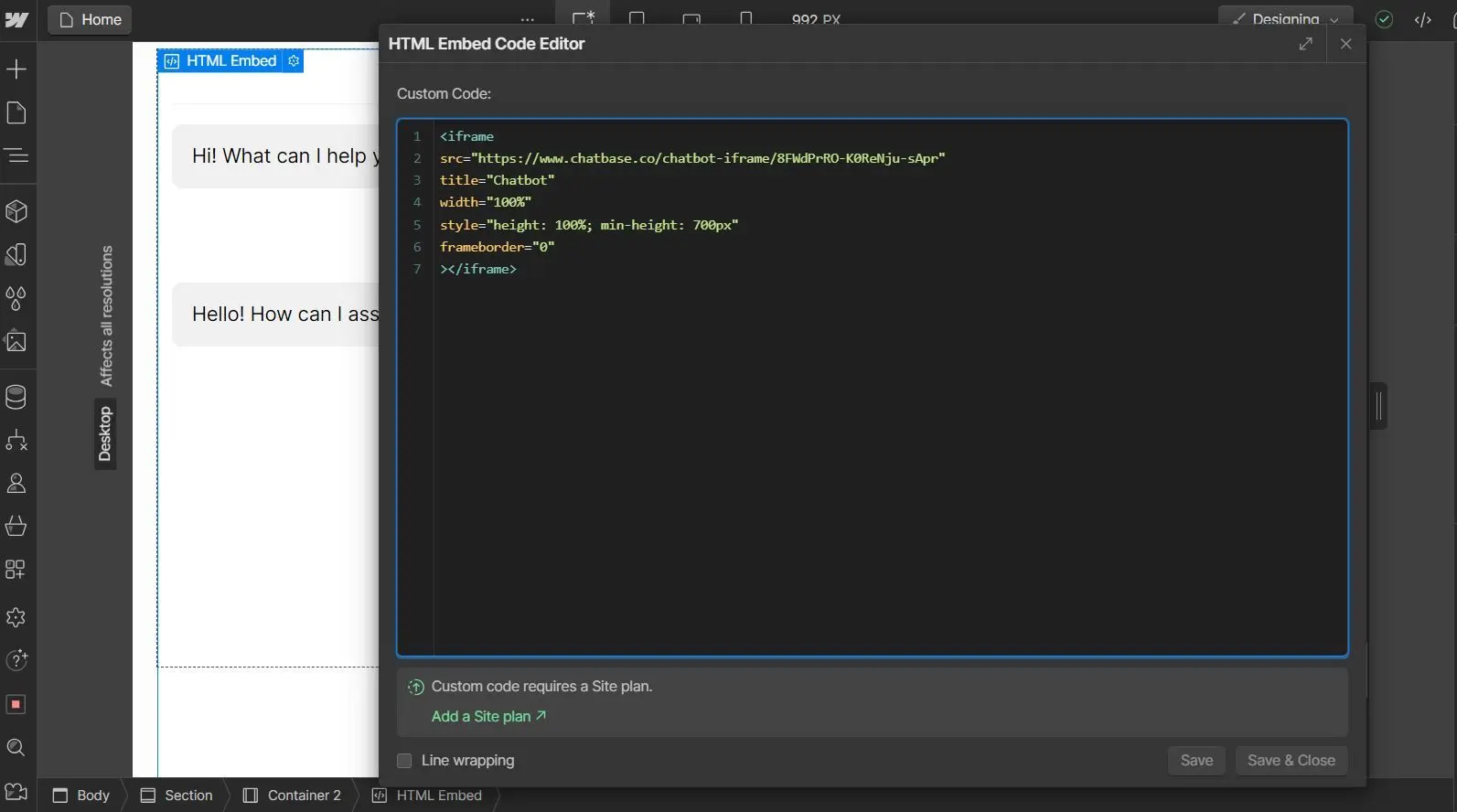 If all goes well, you should see a preview of the agent on the live preview of your Webflow website right inside the designer.
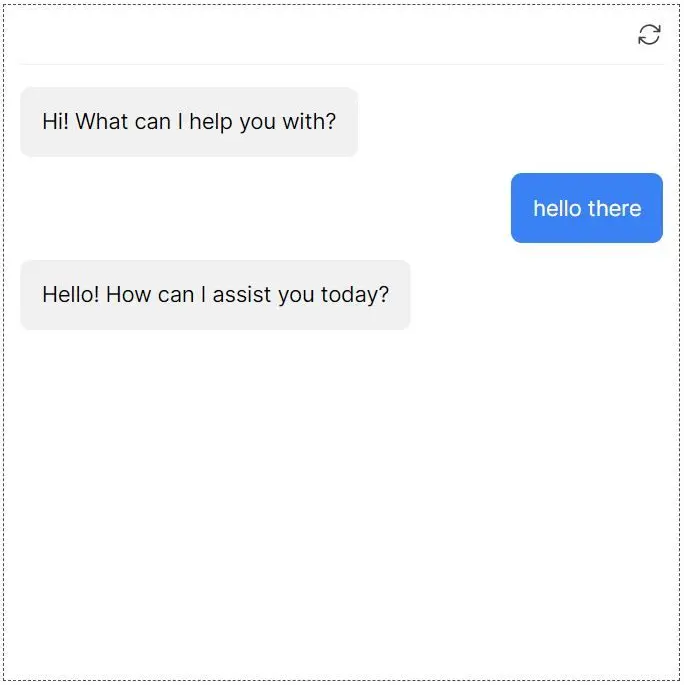 After completing these steps, your agent should be ready to serve your website visitors!
If you are having difficulties with managing the dimension of your Embed and agent element, it is a common problem. Webflow components take a bit of getting used to. You can follow this [official Webflow documentation on the Embed element](https://university.webflow.com/lesson/custom-code-embed?topics=elements) to learn more about embedding a third-party tool like Chatbase agent on a Webflow website.
> **Note:** You can customize the appearance and colors of your bot on your Chatbase dashboard. To do this, go to your **dashboard**, choose a bot, click the **Settings** tab on the top of the page, and then click **Chat Interface** on the left sidebar to reveal the agent customization options.
After completing these steps, your agent should be ready to serve your website visitors!
If you are having difficulties with managing the dimension of your Embed and agent element, it is a common problem. Webflow components take a bit of getting used to. You can follow this [official Webflow documentation on the Embed element](https://university.webflow.com/lesson/custom-code-embed?topics=elements) to learn more about embedding a third-party tool like Chatbase agent on a Webflow website.
> **Note:** You can customize the appearance and colors of your bot on your Chatbase dashboard. To do this, go to your **dashboard**, choose a bot, click the **Settings** tab on the top of the page, and then click **Chat Interface** on the left sidebar to reveal the agent customization options.