> ## Documentation Index
> Fetch the complete documentation index at: https://chatbase.co/docs/llms.txt
> Use this file to discover all available pages before exploring further.
# Vercel
> Install Chatbase AI Agent directly from the Vercel Marketplace with one-click integration
The Chatbase Vercel integration allows you to add an AI-powered chatbot to your Vercel-hosted applications directly from the Vercel Marketplace. No code required—just a few clicks to get started.
## Overview
The Chatbase native integration for Vercel provides a seamless way to add conversational AI to your web applications. With this integration, you can:
* Install Chatbase directly from the Vercel Marketplace
* Create and configure your AI chatbot without leaving Vercel
* Automatically inject environment variables into your project
* Deploy AI-powered chat experiences instantly
* Scale automatically with Vercel's global edge network
The Chatbase integration works seamlessly with all frameworks supported by Vercel, including Next.js, React, Vue.js, SvelteKit, and static HTML sites.
## Prerequisites
Before you begin, ensure you have:
* A Vercel account ([Sign up for free](https://vercel.com/signup))
* An existing Vercel project or [use our template here](https://github.com/Chatbase-co/nextjs-marketplace-template)
## Installation Guide
Follow these steps to install and configure Chatbase from the Vercel Marketplace:
### Step 1: Install Chatbase from Vercel Marketplace
1. Log into your [Vercel Dashboard](https://vercel.com/dashboard)
2. Click on the **Marketplace** tab in the top navigation
3. In the search bar, type **"Chatbase"**
4. Click on the Chatbase integration from the search results
You can also access the Chatbase integration directly at [vercel.com/integrations/chatbase](https://vercel.com/integrations/chatbase)
On the Chatbase integration page, click the **Install** button to begin the installation process.
You'll be redirected to the Chatbase configuration wizard.
### Step 2: Configure Your Chatbot
Select the preset that best matches your use case:
* **AI Agent** - A general-purpose intelligent assistant
* **Customer Support Agent** - Optimized for answering customer questions and providing support
* **Sales Agent** - Helps guide customers through product selection and purchase decisions
* **Language Tutor** - Designed for language learning and practice
* And more preset options tailored to specific use cases
You can customize any preset later. This just provides a starting point for your chatbot's behavior.
* If you're on a paid plan, you can select an AI model.
* If you're on a free plan, it will use the default model which you can change from your Chatbase dashboard.
You can change both the personality, AI model, and styles anytime from your Chatbase dashboard.
### Step 3: Choose Your Subscription Plan
Choose the plan that fits your needs:
* **Free** - Perfect for testing and small projects (limited messages/month)
* **Hobby** - For personal projects and small websites
* **Standard** - For growing businesses
* **Professional** - For high-traffic applications
Review the features and message limits for each plan before selecting.
After selecting your plan:
1. An invoice will be sent to your registered email address
2. Follow the payment link in the invoice to complete your subscription
3. Your plan will become active once the invoice is paid
Your selected plan will only take effect after the invoice is paid. Until then, you'll have access to the free tier features.
Billing is handled securely through Vercel's payment system. You can manage your subscription from the Vercel dashboard.
### Step 4: Name Your Chatbot
Provide a descriptive name for your chatbot. This name will:
* Appear in your Chatbase dashboard
* Help you identify the chatbot if you create multiple agents
* Be visible in your Vercel integration settings
**Examples:**
* "Website Support Bot"
* "Product Assistant"
* "Sales Lead Qualifier"
* "Documentation Helper"
Choose a name that clearly describes the chatbot's purpose, especially if you plan to create multiple chatbots for different projects.
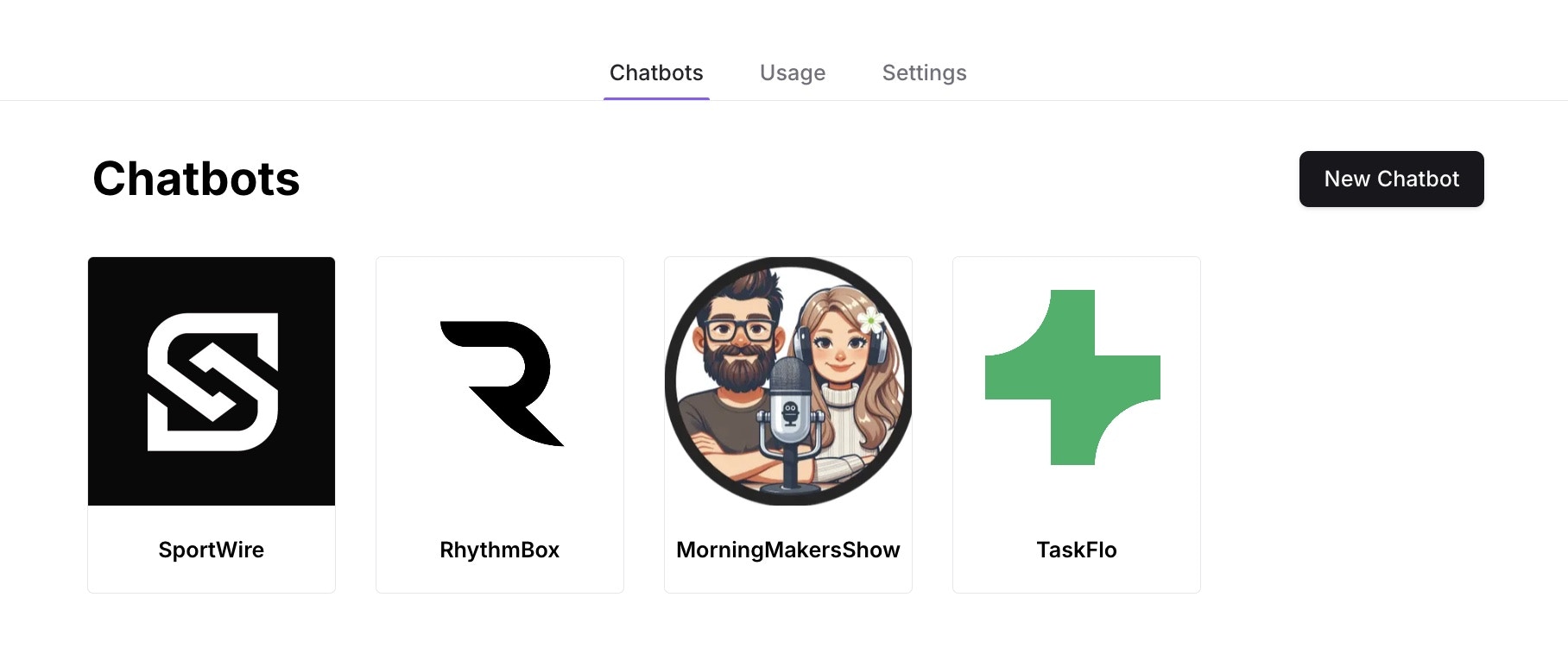
### Step 5: Customize in Chatbase Dashboard
After creating your chatbot, you'll be provided with a link to access your Chatbase dashboard. Alternatively, visit [chatbase.co/dashboard](https://www.chatbase.co/dashboard) and log in with your account.
Navigate to **Settings** → **Chat Interface** to customize:
* **Theme colors** - Match your brand colors
* **Widget position** - Bottom left, bottom right, or custom
* **Chat bubble style** - Icon style and size
* **Avatar image** - Upload your logo or brand image
* **Initial message** - Set the greeting message
* **Placeholder text** - Customize the input field text
 Train your chatbot with your content:
1. Navigate to the **Data sources** tab
2. Add training data from various sources:
* **Website URLs** - Scrape content from your website
* **Documents** - Upload PDF, DOCX, or TXT files
* **Text snippets** - Paste content directly
* **Q\&A pairs** - Add specific question-answer pairs
* **Sitemaps** - Import entire website structures
The more relevant training data you provide, the better your chatbot will respond to user queries. Learn more in [Adding Data Sources](/user-guides/chatbot/data-sources).
Add interactive capabilities to your chatbot:
* **Lead Collection** - Capture visitor information
* **Calendar Booking** - Integrate with Calendly or Cal.com
* **Stripe Payments** - Accept payments directly in chat
* **Custom Actions** - Create custom workflows and API calls
* **Web Search** - Allow the bot to search the internet for current information
[Learn more about Actions →](/user-guides/chatbot/actions/actions-overview)
Connect your chatbot with other tools:
* **Slack** - Send notifications to Slack channels
* **Zapier** - Connect with 5,000+ apps
* **Webhooks** - Send data to your own endpoints
* **CRM systems** - Sync contacts with your CRM
[Explore all integrations →](/user-guides/integrations/zapier)
### Step 6: Connect to Your Vercel Project
Go back to your Vercel dashboard where you initiated the Chatbase installation.
1. In the Chatbase integration settings, click **Connect Project**
2. A dialog will appear showing all your Vercel projects
3. Select the project(s) where you want to add the Chatbase chatbot
You can connect the same chatbot to multiple projects if needed.
Click **Connect** to finalize the connection. Vercel will automatically inject the environment variables into your selected project(s).
Your environment variables are now configured and ready to use!
### Step 7: Redeploy Your Project
For the environment variables to take effect, you need to redeploy your project:
1. Go to your project in the Vercel dashboard
2. Click on the **Deployments** tab
3. Click the three-dot menu (⋯) on your latest deployment
4. Select **Redeploy**
Environment variables are injected at **build time**, not runtime. This is why a redeployment is necessary.
### Step 8: Verify Installation
Once the deployment is complete:
1. Click the **Visit** button in your Vercel dashboard
2. Or navigate directly to your project's URL
Your Chatbase chat widget should now appear on your website, typically in the bottom-right corner.
Verify that your chatbot is working correctly:
1. **Look for the chat bubble** - Should be visible in the corner of your page
2. **Click to open** - The chat interface should expand
3. **Send a test message** - Try asking a question related to your training data
4. **Verify response** - The AI should respond based on the sources you configured
If the chatbot responds appropriately to your test questions, your integration is successful!
## Managing Your Integration
### Updating Your Chatbot
Changes made in your Chatbase dashboard apply instantly without requiring redeployment:
* **Appearance customization** - Colors, position, styling
* **Training data updates** - Add or remove sources
* **Response behavior** - Adjust personality and model
* **Actions and integrations** - Enable or disable features
Only environment variable changes require redeployment. All chatbot configuration changes are live immediately.
## Advanced Features
### Multiple Projects
You can connect the same Chatbase chatbot to multiple Vercel projects:
1. Go to your Vercel dashboard
2. Navigate to **Integrations** → **Chatbase**
3. Click **Manage** on your Chatbase integration
4. Click **Add Project** to connect additional projects
This is useful if you have multiple frontends (web app, marketing site, documentation) that should use the same chatbot.
### Different Chatbots for Different Environments
To use different chatbots for production, preview, and development environments:
1. Create separate chatbots in Chatbase for each environment
2. In Vercel, manually override environment variables:
* Go to **Settings** → **Environment Variables**
* Set different `NEXT_PUBLIC_CHATBOT_ID` values for Production, Preview, and Development
This allows you to:
* Test changes without affecting production conversations
* Maintain separate training data per environment
* Monitor environment-specific analytics separately
### Managing Your Subscription Plan
To change your Chatbase subscription:
1. Go to your Vercel dashboard
2. Navigate to **Integrations** → **Chatbase** → **Settings**
3. Click **Change Plan**
4. Select your desired plan option
#### Upgrading Your Plan
Choose a higher-tier plan and complete the invoice payment.
Plan upgrades take effect **immediately** once the invoice is paid. You'll have instant access to all the features and increased limits of your new plan.
**What happens when you upgrade:**
* Your new plan features activate right away
* Increased message limits are available immediately
* Any prorated charges are calculated automatically
* Your billing cycle continues with the new plan pricing
#### Downgrading Your Plan
Choose a lower-tier plan to switch to.
Plan downgrades take effect at the **end of your current billing period**. This ensures you don't lose access to features you've already paid for.
**What happens when you downgrade:**
* You continue to enjoy your current plan features until period end
* The new plan activates automatically when your billing cycle renews
* You'll receive a confirmation email with the effective date
Downgrading at period end means you get full value for what you've paid. Use the remaining time to adjust to the new plan's limits or export any data if needed.
#### Canceling Your Subscription
Select the **Free** plan and confirm your cancellation.
Subscription cancellations also take effect at the **end of your current billing period**. Your chatbot will continue working until then, ensuring you receive full value for your payment.
**What happens when you cancel:**
* Your chatbot remains active until the end of your billing period
* You retain access to all current plan features until period end
* No future charges will be processed
* You can resubscribe at any time if you change your mind
* After cancellation takes effect, your plan reverts to the Free tier
You can undo a cancellation before the period end by selecting a paid plan again from the same settings page.
## Uninstalling the Integration
If you need to remove the Chatbase integration:
1. Go to your Vercel dashboard
2. Navigate to **Integrations** → **Chatbase**
3. Click **Manage** → **Remove Integration**
4. Confirm removal
Removing the integration will immediately stop the chatbot from appearing on your Vercel deployments. Make sure to redeploy after removing environment variables.
## Troubleshooting
**Common solutions:**
1. **Redeploy your project**
* Environment variables are injected at build time
* Go to **Deployments** → Select latest → **Redeploy**
2. **Verify environment variables**
* Check **Settings** → **Environment Variables**
* Ensure `NEXT_PUBLIC_CHATBOT_ID` is present
* Verify they're enabled for all environments
3. **Check browser console**
* Open DevTools (F12)
* Look for any JavaScript errors related to Chatbase
* Verify the embed script is loading successfully
4. **Clear browser cache**
* Hard refresh: Ctrl+Shift+R (Windows) or Cmd+Shift+R (Mac)
* Try in an incognito/private window
**Solution steps:**
1. **Remove and reinstall**
* Go to Vercel → **Integrations** → **Chatbase**
* Click **Manage** → **Remove Integration**
* Reinstall from the Vercel Marketplace
2. **Check permissions**
* Ensure you have admin access to the Vercel team/project
* Verify your Vercel account is properly authenticated
3. **Contact support**
* If issues persist, contact [Chatbase Support](https://chatbase.co/help)
* Provide your Vercel project ID and integration details
**Solution:**
Environment variables require redeployment to take effect:
1. Make your environment variable changes
2. Trigger a new deployment:
* Option A: Push a commit to your Git repository
* Option B: Manual redeploy from Vercel dashboard
3. Clear browser cache and test
**Common scenarios:**
1. **Invoice not received**
* Check your email spam/junk folder
* Verify email address in Vercel account settings
* Contact Vercel support for invoice resend
2. **Plan not activating after payment**
* Allow up to 10 minutes for payment processing
* Check payment status in Vercel billing dashboard
* Contact Vercel support if payment is confirmed but plan isn't active
3. **Subscription changes**
* Upgrades activate immediately after payment
* Downgrades and cancellations take effect at the end of current billing period
* You retain current plan features until period end for downgrades/cancellations
## Optimizing Response Quality
For the best chatbot performance:
1. **Add comprehensive training data** - More sources = better responses
2. **Test regularly** - Use the Chatbase playground to verify quality
3. **Monitor conversations** - Review chat logs in Chatbase dashboard
4. **Iterate on sources** - Remove irrelevant content, add missing information
5. **Use custom actions** - Add interactive features for complex workflows
[Learn more about Response Quality →](/user-guides/quick-start/response-quality)
## Next Steps
Now that your Chatbase chatbot is live on Vercel, explore these features to enhance your implementation:
Upload documents, connect websites, and add Q\&A pairs
Match your brand colors and style
Add lead collection, bookings, and custom workflows
Track conversations and measure performance
Integrate with Slack, CRMs, and 5,000+ apps
Explore API, webhooks, and advanced integrations
## Additional Resources
* [Vercel Integrations Overview](https://vercel.com/docs/integrations)
* [Vercel Environment Variables](https://vercel.com/docs/concepts/projects/environment-variables)
* [Vercel Deployments](https://vercel.com/docs/concepts/deployments/overview)
* [Vercel Analytics](https://vercel.com/docs/analytics)
* [Getting Started Guide](/user-guides/quick-start/introduction)
* [Your First Agent](/user-guides/quick-start/your-first-agent)
* [Best Practices](/user-guides/quick-start/best-practices)
* [Response Quality Tips](/user-guides/quick-start/response-quality)
* [JavaScript Embed Options](/developer-guides/javascript-embed)
Need help? We're here for you:
* **Chatbase Help Center:** [chatbase.co/help](https://chatbase.co/help)
* **Vercel Support:** [vercel.com/support](https://vercel.com/support)
* **Email Support:** Contact us through your dashboard
* **Documentation:** Browse our comprehensive guides
When contacting support, include your Vercel project ID and Chatbase chatbot ID for faster assistance.
Train your chatbot with your content:
1. Navigate to the **Data sources** tab
2. Add training data from various sources:
* **Website URLs** - Scrape content from your website
* **Documents** - Upload PDF, DOCX, or TXT files
* **Text snippets** - Paste content directly
* **Q\&A pairs** - Add specific question-answer pairs
* **Sitemaps** - Import entire website structures
The more relevant training data you provide, the better your chatbot will respond to user queries. Learn more in [Adding Data Sources](/user-guides/chatbot/data-sources).
Add interactive capabilities to your chatbot:
* **Lead Collection** - Capture visitor information
* **Calendar Booking** - Integrate with Calendly or Cal.com
* **Stripe Payments** - Accept payments directly in chat
* **Custom Actions** - Create custom workflows and API calls
* **Web Search** - Allow the bot to search the internet for current information
[Learn more about Actions →](/user-guides/chatbot/actions/actions-overview)
Connect your chatbot with other tools:
* **Slack** - Send notifications to Slack channels
* **Zapier** - Connect with 5,000+ apps
* **Webhooks** - Send data to your own endpoints
* **CRM systems** - Sync contacts with your CRM
[Explore all integrations →](/user-guides/integrations/zapier)
### Step 6: Connect to Your Vercel Project
Go back to your Vercel dashboard where you initiated the Chatbase installation.
1. In the Chatbase integration settings, click **Connect Project**
2. A dialog will appear showing all your Vercel projects
3. Select the project(s) where you want to add the Chatbase chatbot
You can connect the same chatbot to multiple projects if needed.
Click **Connect** to finalize the connection. Vercel will automatically inject the environment variables into your selected project(s).
Your environment variables are now configured and ready to use!
### Step 7: Redeploy Your Project
For the environment variables to take effect, you need to redeploy your project:
1. Go to your project in the Vercel dashboard
2. Click on the **Deployments** tab
3. Click the three-dot menu (⋯) on your latest deployment
4. Select **Redeploy**
Environment variables are injected at **build time**, not runtime. This is why a redeployment is necessary.
### Step 8: Verify Installation
Once the deployment is complete:
1. Click the **Visit** button in your Vercel dashboard
2. Or navigate directly to your project's URL
Your Chatbase chat widget should now appear on your website, typically in the bottom-right corner.
Verify that your chatbot is working correctly:
1. **Look for the chat bubble** - Should be visible in the corner of your page
2. **Click to open** - The chat interface should expand
3. **Send a test message** - Try asking a question related to your training data
4. **Verify response** - The AI should respond based on the sources you configured
If the chatbot responds appropriately to your test questions, your integration is successful!
## Managing Your Integration
### Updating Your Chatbot
Changes made in your Chatbase dashboard apply instantly without requiring redeployment:
* **Appearance customization** - Colors, position, styling
* **Training data updates** - Add or remove sources
* **Response behavior** - Adjust personality and model
* **Actions and integrations** - Enable or disable features
Only environment variable changes require redeployment. All chatbot configuration changes are live immediately.
## Advanced Features
### Multiple Projects
You can connect the same Chatbase chatbot to multiple Vercel projects:
1. Go to your Vercel dashboard
2. Navigate to **Integrations** → **Chatbase**
3. Click **Manage** on your Chatbase integration
4. Click **Add Project** to connect additional projects
This is useful if you have multiple frontends (web app, marketing site, documentation) that should use the same chatbot.
### Different Chatbots for Different Environments
To use different chatbots for production, preview, and development environments:
1. Create separate chatbots in Chatbase for each environment
2. In Vercel, manually override environment variables:
* Go to **Settings** → **Environment Variables**
* Set different `NEXT_PUBLIC_CHATBOT_ID` values for Production, Preview, and Development
This allows you to:
* Test changes without affecting production conversations
* Maintain separate training data per environment
* Monitor environment-specific analytics separately
### Managing Your Subscription Plan
To change your Chatbase subscription:
1. Go to your Vercel dashboard
2. Navigate to **Integrations** → **Chatbase** → **Settings**
3. Click **Change Plan**
4. Select your desired plan option
#### Upgrading Your Plan
Choose a higher-tier plan and complete the invoice payment.
Plan upgrades take effect **immediately** once the invoice is paid. You'll have instant access to all the features and increased limits of your new plan.
**What happens when you upgrade:**
* Your new plan features activate right away
* Increased message limits are available immediately
* Any prorated charges are calculated automatically
* Your billing cycle continues with the new plan pricing
#### Downgrading Your Plan
Choose a lower-tier plan to switch to.
Plan downgrades take effect at the **end of your current billing period**. This ensures you don't lose access to features you've already paid for.
**What happens when you downgrade:**
* You continue to enjoy your current plan features until period end
* The new plan activates automatically when your billing cycle renews
* You'll receive a confirmation email with the effective date
Downgrading at period end means you get full value for what you've paid. Use the remaining time to adjust to the new plan's limits or export any data if needed.
#### Canceling Your Subscription
Select the **Free** plan and confirm your cancellation.
Subscription cancellations also take effect at the **end of your current billing period**. Your chatbot will continue working until then, ensuring you receive full value for your payment.
**What happens when you cancel:**
* Your chatbot remains active until the end of your billing period
* You retain access to all current plan features until period end
* No future charges will be processed
* You can resubscribe at any time if you change your mind
* After cancellation takes effect, your plan reverts to the Free tier
You can undo a cancellation before the period end by selecting a paid plan again from the same settings page.
## Uninstalling the Integration
If you need to remove the Chatbase integration:
1. Go to your Vercel dashboard
2. Navigate to **Integrations** → **Chatbase**
3. Click **Manage** → **Remove Integration**
4. Confirm removal
Removing the integration will immediately stop the chatbot from appearing on your Vercel deployments. Make sure to redeploy after removing environment variables.
## Troubleshooting
**Common solutions:**
1. **Redeploy your project**
* Environment variables are injected at build time
* Go to **Deployments** → Select latest → **Redeploy**
2. **Verify environment variables**
* Check **Settings** → **Environment Variables**
* Ensure `NEXT_PUBLIC_CHATBOT_ID` is present
* Verify they're enabled for all environments
3. **Check browser console**
* Open DevTools (F12)
* Look for any JavaScript errors related to Chatbase
* Verify the embed script is loading successfully
4. **Clear browser cache**
* Hard refresh: Ctrl+Shift+R (Windows) or Cmd+Shift+R (Mac)
* Try in an incognito/private window
**Solution steps:**
1. **Remove and reinstall**
* Go to Vercel → **Integrations** → **Chatbase**
* Click **Manage** → **Remove Integration**
* Reinstall from the Vercel Marketplace
2. **Check permissions**
* Ensure you have admin access to the Vercel team/project
* Verify your Vercel account is properly authenticated
3. **Contact support**
* If issues persist, contact [Chatbase Support](https://chatbase.co/help)
* Provide your Vercel project ID and integration details
**Solution:**
Environment variables require redeployment to take effect:
1. Make your environment variable changes
2. Trigger a new deployment:
* Option A: Push a commit to your Git repository
* Option B: Manual redeploy from Vercel dashboard
3. Clear browser cache and test
**Common scenarios:**
1. **Invoice not received**
* Check your email spam/junk folder
* Verify email address in Vercel account settings
* Contact Vercel support for invoice resend
2. **Plan not activating after payment**
* Allow up to 10 minutes for payment processing
* Check payment status in Vercel billing dashboard
* Contact Vercel support if payment is confirmed but plan isn't active
3. **Subscription changes**
* Upgrades activate immediately after payment
* Downgrades and cancellations take effect at the end of current billing period
* You retain current plan features until period end for downgrades/cancellations
## Optimizing Response Quality
For the best chatbot performance:
1. **Add comprehensive training data** - More sources = better responses
2. **Test regularly** - Use the Chatbase playground to verify quality
3. **Monitor conversations** - Review chat logs in Chatbase dashboard
4. **Iterate on sources** - Remove irrelevant content, add missing information
5. **Use custom actions** - Add interactive features for complex workflows
[Learn more about Response Quality →](/user-guides/quick-start/response-quality)
## Next Steps
Now that your Chatbase chatbot is live on Vercel, explore these features to enhance your implementation:
Upload documents, connect websites, and add Q\&A pairs
Match your brand colors and style
Add lead collection, bookings, and custom workflows
Track conversations and measure performance
Integrate with Slack, CRMs, and 5,000+ apps
Explore API, webhooks, and advanced integrations
## Additional Resources
* [Vercel Integrations Overview](https://vercel.com/docs/integrations)
* [Vercel Environment Variables](https://vercel.com/docs/concepts/projects/environment-variables)
* [Vercel Deployments](https://vercel.com/docs/concepts/deployments/overview)
* [Vercel Analytics](https://vercel.com/docs/analytics)
* [Getting Started Guide](/user-guides/quick-start/introduction)
* [Your First Agent](/user-guides/quick-start/your-first-agent)
* [Best Practices](/user-guides/quick-start/best-practices)
* [Response Quality Tips](/user-guides/quick-start/response-quality)
* [JavaScript Embed Options](/developer-guides/javascript-embed)
Need help? We're here for you:
* **Chatbase Help Center:** [chatbase.co/help](https://chatbase.co/help)
* **Vercel Support:** [vercel.com/support](https://vercel.com/support)
* **Email Support:** Contact us through your dashboard
* **Documentation:** Browse our comprehensive guides
When contacting support, include your Vercel project ID and Chatbase chatbot ID for faster assistance.