> ## Documentation Index
> Fetch the complete documentation index at: https://chatbase.co/docs/llms.txt
> Use this file to discover all available pages before exploring further.
# Sunshine
As part of Zendesk, Sunshine Conversations serves as a live chat solution. This integration centralizes communication, enabling support workspaces to efficiently track and resolve customer inquiries, ultimately improving response times and customer satisfaction.
Chatbase offers an integration with Sunshine Conversations in order to give the agent the ability to connect the user to a live chat agent for fixing problems that require human interaction with the user.
> **Note** This requires your Zendesk Account to have a minimum Suite plan of **Professional** or above
## Step 1: Sign Into Your Zendesk Account
1. Sign in to your Zendesk Account as an Admin and navigate to the **Admin Center**
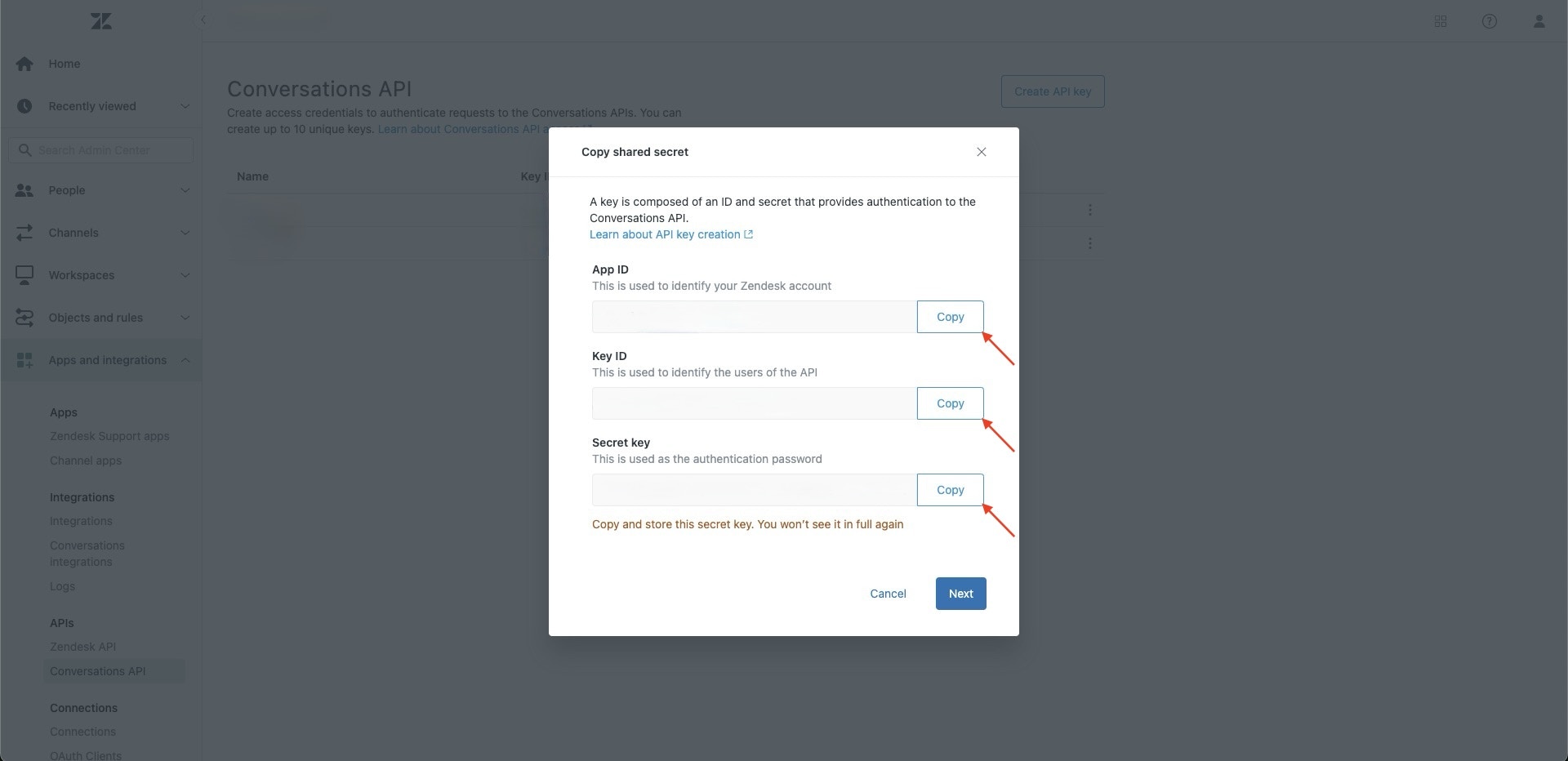
2. Navigate to **Apps and integrations** > **APIs** > **Conversations API**
3. Click on **Create API Key**, enter **Chatbase** as the name and press **Next**
4. Copy the **App ID**, **Key ID** and **Secret key** displayed
 ## Step 2: Set up the Sunshine Integration
1\. Go to the [dashboard](https://www.chatbase.co/dashboard/) of your Chatbase account.
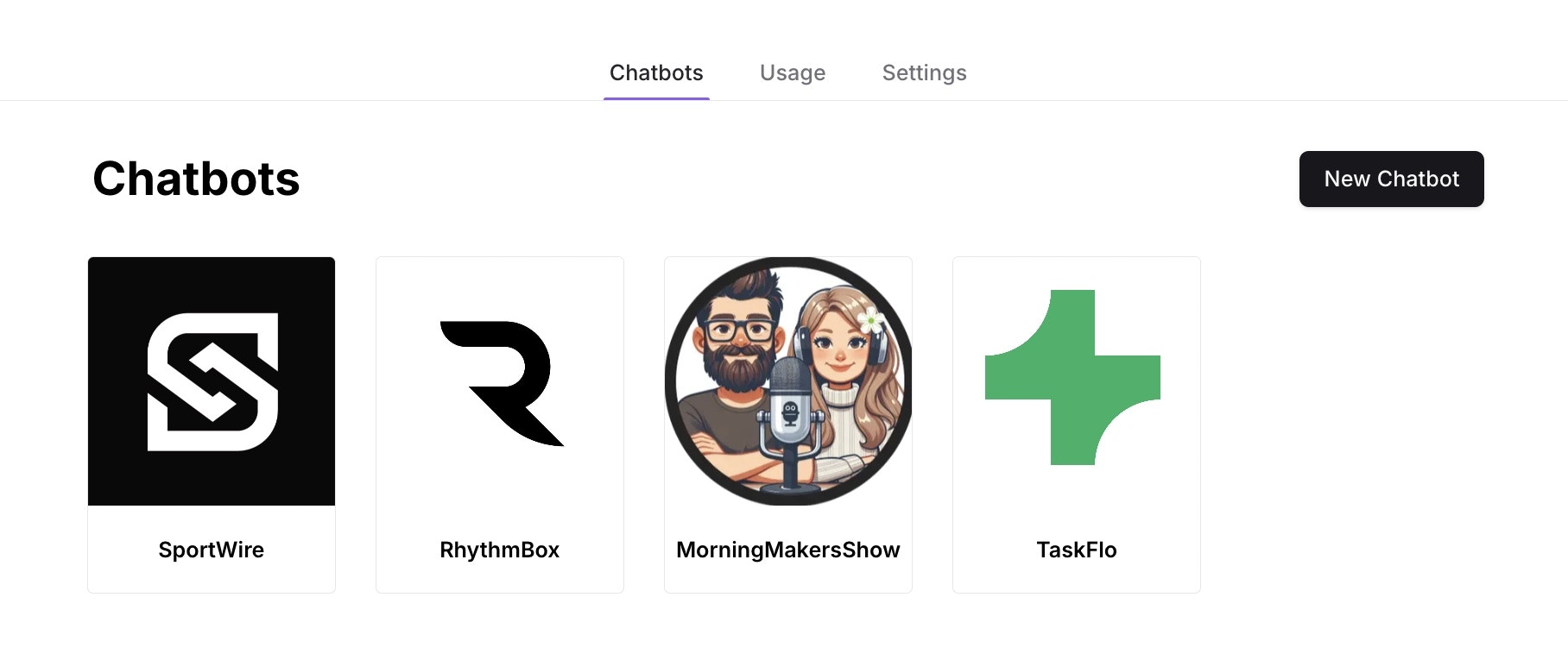
2\. You should see a list of agents, click the agent you wish to enable live chat for. You should be taken to the agent's preview page.
## Step 2: Set up the Sunshine Integration
1\. Go to the [dashboard](https://www.chatbase.co/dashboard/) of your Chatbase account.
2\. You should see a list of agents, click the agent you wish to enable live chat for. You should be taken to the agent's preview page.
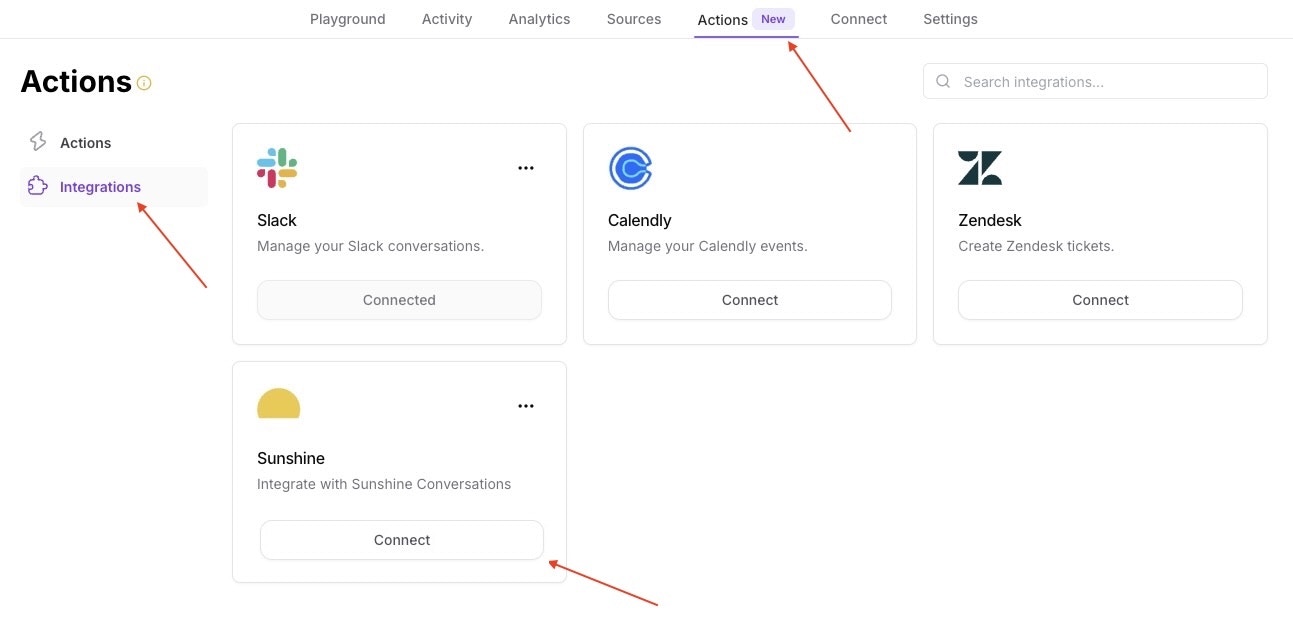
 3\. Navigate to **Actions** > **Integrations**. Click **Connect** on the Sunshine Integration card.
 4\. Enter the copied **App ID**, **Key ID** and **Secret key**, and press **Submit**.
## Step 3: Enable Multi-Conversations Option in Zendesk
We need to enable the multi-conversations option in Zendesk to allow for the same user to open multiple tickets, one per conversation, at the same time. Since the same user can have multiple conversations opened at the same time, then this option must be enabled for a smooth experience.
1\. Sign in to your Zendesk Account as an Admin and navigate to the **Admin Center**
2\. Click **Channels** in the sidebar, then select **Messaging and social** > **Messaging**.
3\. At the top of the page, click **Manage settings**.
4\. Under Web Widget and Mobile SDKs, expand **Multi-conversations**.
5\. Click **Set up multi-conversations**.
6\. Click **Turn on multi-conversations for your account**, then select the channels on which you want to offer multi-conversations, then click **Save**.
For more information regarding multi-conversations for messaging, visit [Understanding multi-conversations for messaging](https://support.zendesk.com/hc/en-us/articles/8195486407706-Understanding-multi-conversations-for-messaging).
## Step 4: Enable End Messaging Sessions in Zendesk
To allow agents to end conversations when issues are resolved, you'll need to enable the messaging session end feature in Zendesk.
1\. Sign in to your Zendesk Account as an Admin and navigate to the **Admin Center**
2\. Click **Channels** in the sidebar, then select **Messaging and social** > **Messaging**.
3\. At the top of the page, click **Manage settings**.
4\. Under Advanced, expand **Ending sessions**.
5\. Select **Agents can end messaging sessions at any time**.
6\. Click **Save settings**.
For more information regarding ending messaging sessions, visit [About ending messaging sessions](https://support.zendesk.com/hc/en-us/articles/8009788438042-About-ending-messaging-sessions).
## Step 5: Add the User Identification
To use the Sunshine integration, you must identify your user. You can find the guide [here](https://www.chatbase.co/docs/developer-guides/identity-verification).
## Step 6: Enable the Live Chat Action
1\. Go to the [dashboard](https://www.chatbase.co/dashboard/) of your Chatbase account.
2\. Choose the agent you have integrated with Sunshine Conversations.
3\. Navigate to **Actions**.
4\. Click on **Create Action** under the Sunshine Live Chat card.
5\. Customize the **When to use**, then save and enable the action.
4\. Enter the copied **App ID**, **Key ID** and **Secret key**, and press **Submit**.
## Step 3: Enable Multi-Conversations Option in Zendesk
We need to enable the multi-conversations option in Zendesk to allow for the same user to open multiple tickets, one per conversation, at the same time. Since the same user can have multiple conversations opened at the same time, then this option must be enabled for a smooth experience.
1\. Sign in to your Zendesk Account as an Admin and navigate to the **Admin Center**
2\. Click **Channels** in the sidebar, then select **Messaging and social** > **Messaging**.
3\. At the top of the page, click **Manage settings**.
4\. Under Web Widget and Mobile SDKs, expand **Multi-conversations**.
5\. Click **Set up multi-conversations**.
6\. Click **Turn on multi-conversations for your account**, then select the channels on which you want to offer multi-conversations, then click **Save**.
For more information regarding multi-conversations for messaging, visit [Understanding multi-conversations for messaging](https://support.zendesk.com/hc/en-us/articles/8195486407706-Understanding-multi-conversations-for-messaging).
## Step 4: Enable End Messaging Sessions in Zendesk
To allow agents to end conversations when issues are resolved, you'll need to enable the messaging session end feature in Zendesk.
1\. Sign in to your Zendesk Account as an Admin and navigate to the **Admin Center**
2\. Click **Channels** in the sidebar, then select **Messaging and social** > **Messaging**.
3\. At the top of the page, click **Manage settings**.
4\. Under Advanced, expand **Ending sessions**.
5\. Select **Agents can end messaging sessions at any time**.
6\. Click **Save settings**.
For more information regarding ending messaging sessions, visit [About ending messaging sessions](https://support.zendesk.com/hc/en-us/articles/8009788438042-About-ending-messaging-sessions).
## Step 5: Add the User Identification
To use the Sunshine integration, you must identify your user. You can find the guide [here](https://www.chatbase.co/docs/developer-guides/identity-verification).
## Step 6: Enable the Live Chat Action
1\. Go to the [dashboard](https://www.chatbase.co/dashboard/) of your Chatbase account.
2\. Choose the agent you have integrated with Sunshine Conversations.
3\. Navigate to **Actions**.
4\. Click on **Create Action** under the Sunshine Live Chat card.
5\. Customize the **When to use**, then save and enable the action.