> ## Documentation Index
> Fetch the complete documentation index at: https://chatbase.co/docs/llms.txt
> Use this file to discover all available pages before exploring further.
# HubSpot
> Connect HubSpot to Chatbase so your AI agent can create tickets.
## Setup Guide
### Before you start
* A Chatbase account with an agent
* A HubSpot account with permissions to install apps
* A paid Chatbase plan with Integrations enabled
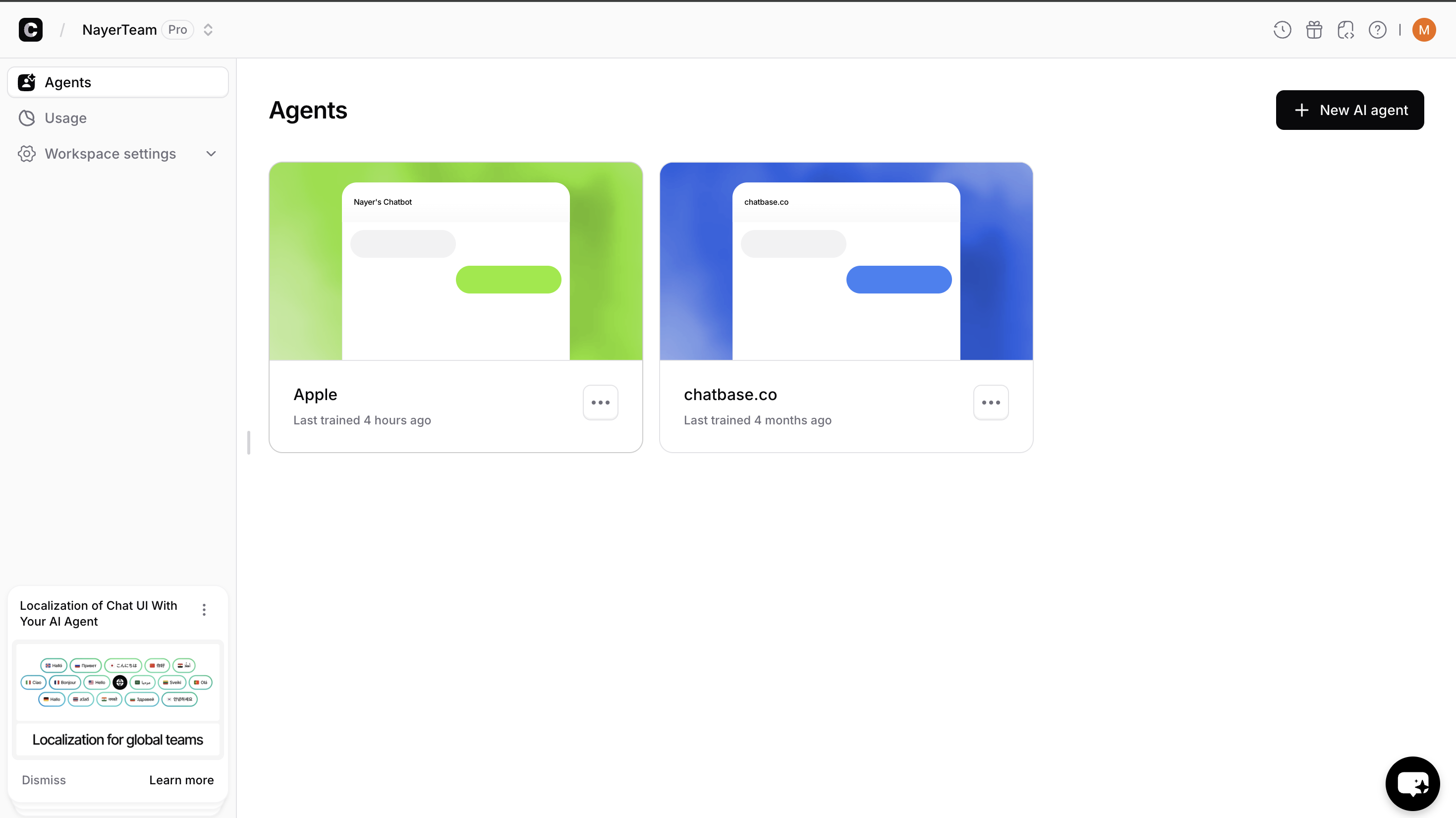
Go to your Chatbase dashboard and select the agent you want to connect.
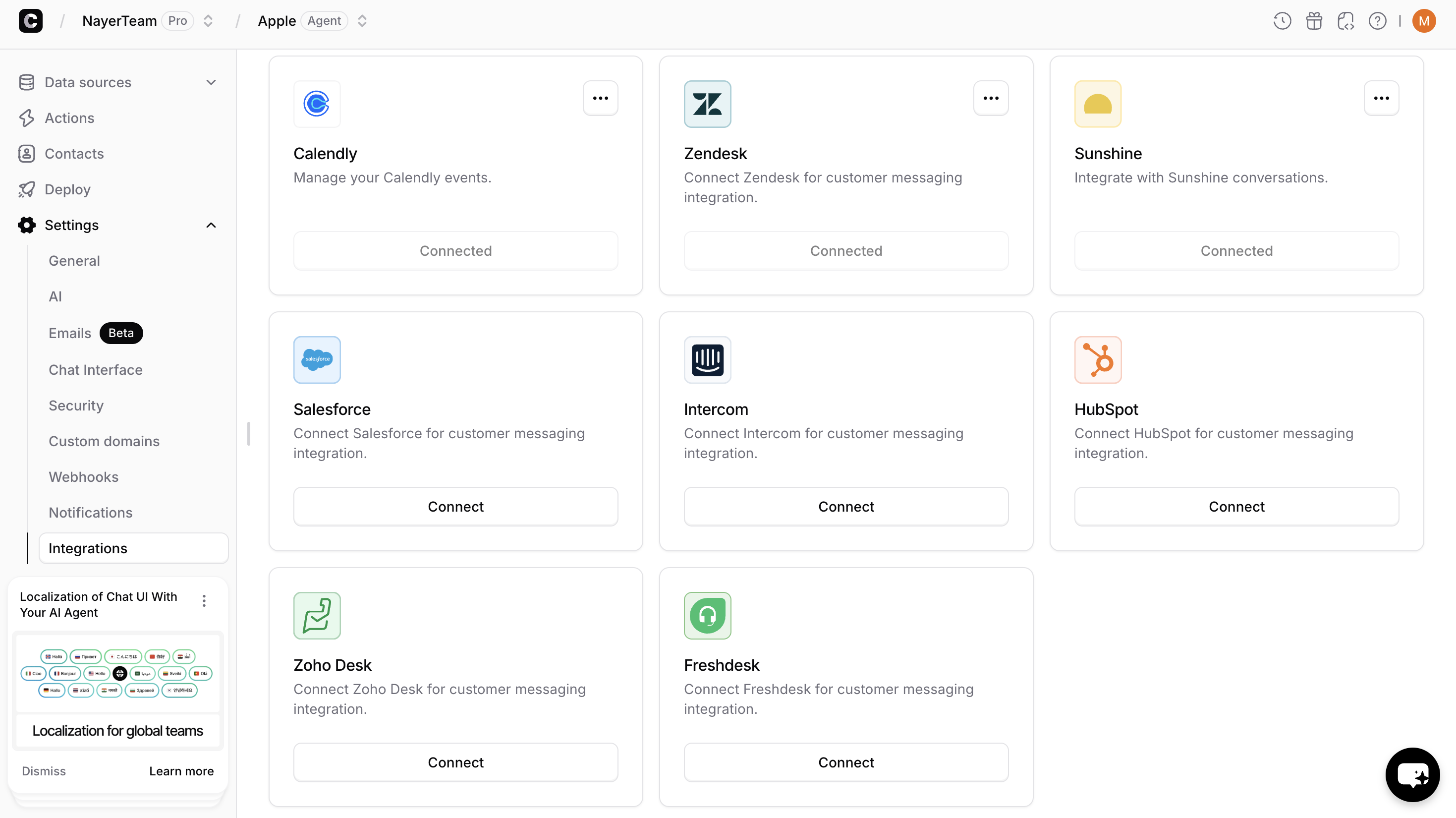
 Go to **Settings → Integrations**, find **HubSpot**, and click **Connect**.
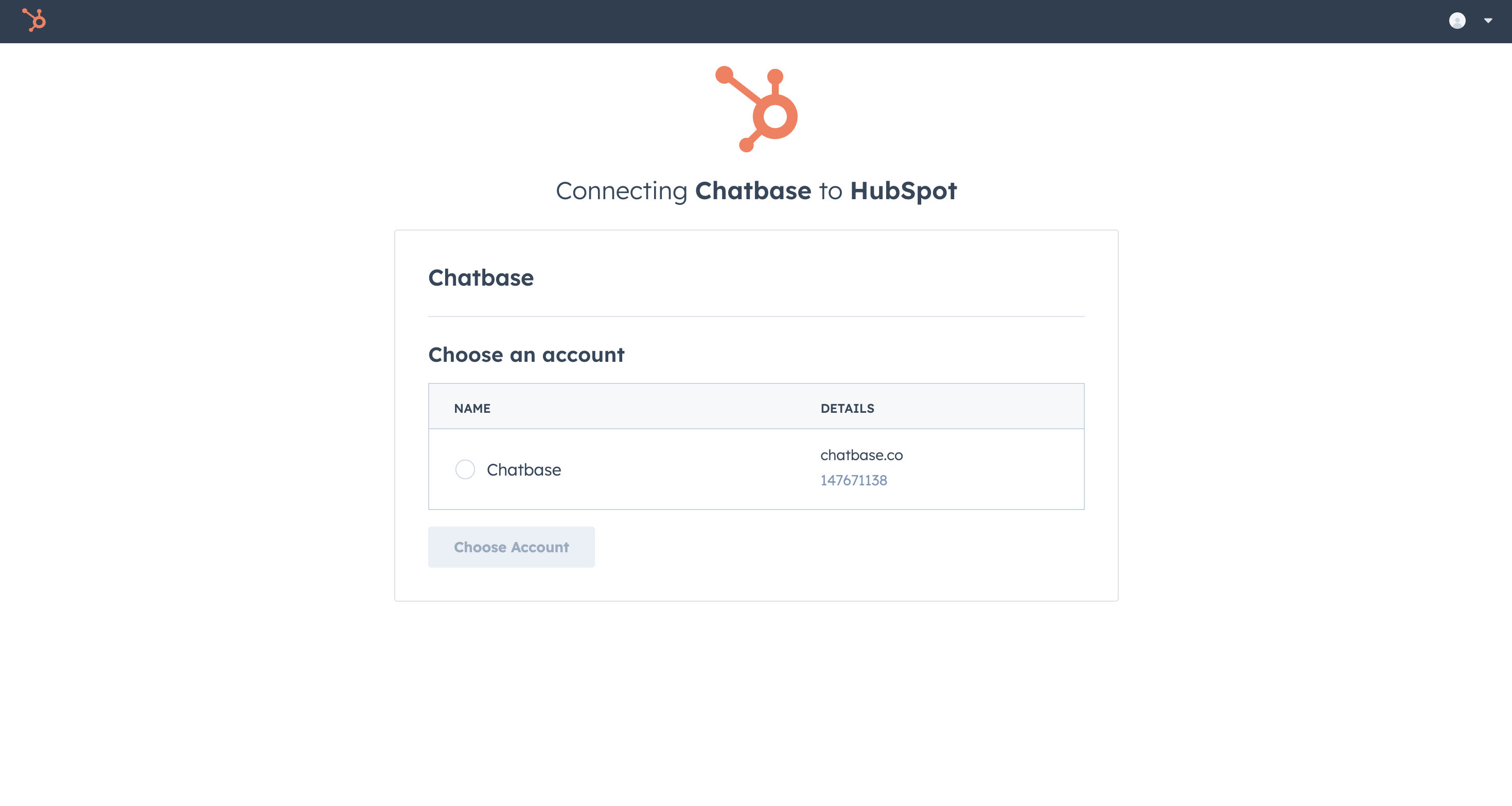
 You will be redirected to HubSpot. Review the requested permissions and click **Connect app**.
 After approval, you will return to Chatbase and see HubSpot marked as **Connected**.
## Configure the ticket action
Create a ticket action so your agent can open tickets in HubSpot.
Go to **Actions → Create action → Create ticket**.
After approval, you will return to Chatbase and see HubSpot marked as **Connected**.
## Configure the ticket action
Create a ticket action so your agent can open tickets in HubSpot.
Go to **Actions → Create action → Create ticket**.
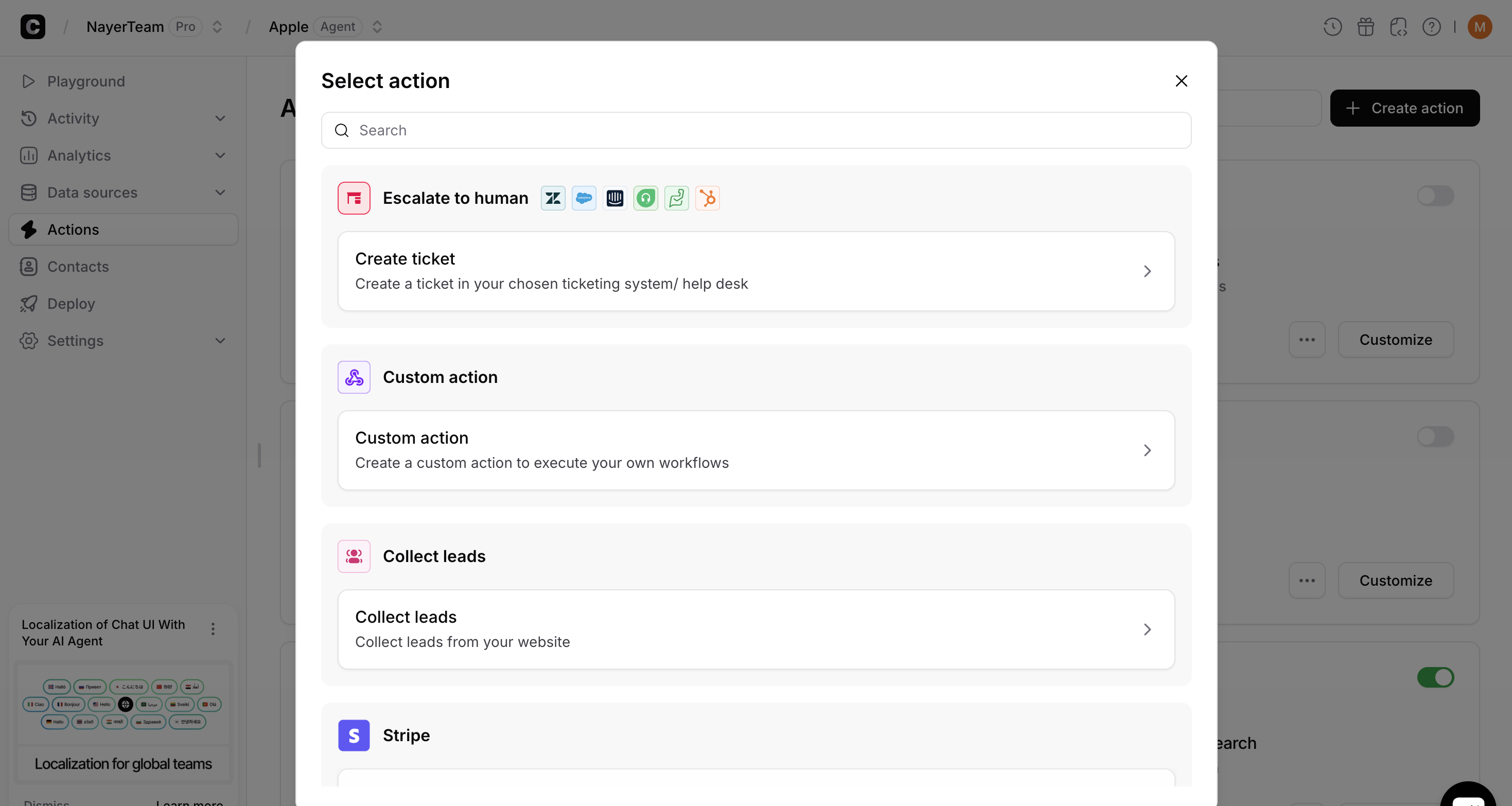 Choose **HubSpot** as the ticket platform, then fill in the ticket fields.
Save the action and run a test conversation to verify a ticket is created in HubSpot.
## Use the integration
Once connected, your agent can create tickets in HubSpot when the action is triggered. You can check out [the action guide here](https://www.chatbase.co/docs/user-guides/chatbot/actions/escalate-to-human).
## Disconnect HubSpot
To disconnect, go to **Settings → Integrations**, find HubSpot, and click **Disconnect**.
## Uninstall the app
To uninstall Chatbase from HubSpot, follow HubSpot's [uninstall guide](https://knowledge.hubspot.com/integrations/connect-apps-to-hubspot#uninstall-an-app).
Choose **HubSpot** as the ticket platform, then fill in the ticket fields.
Save the action and run a test conversation to verify a ticket is created in HubSpot.
## Use the integration
Once connected, your agent can create tickets in HubSpot when the action is triggered. You can check out [the action guide here](https://www.chatbase.co/docs/user-guides/chatbot/actions/escalate-to-human).
## Disconnect HubSpot
To disconnect, go to **Settings → Integrations**, find HubSpot, and click **Disconnect**.
## Uninstall the app
To uninstall Chatbase from HubSpot, follow HubSpot's [uninstall guide](https://knowledge.hubspot.com/integrations/connect-apps-to-hubspot#uninstall-an-app).