> ## Documentation Index
> Fetch the complete documentation index at: https://chatbase.co/docs/llms.txt
> Use this file to discover all available pages before exploring further.
# Email
> Enable AI-powered email responses with automated customer support through email
## Overview
Chatbase's Email Integration enables your AI agent to automatically respond to customer emails, providing instant support and information directly through your company's email system. Set up takes just minutes and provides seamless AI-powered email automation across your organization.
**Prerequisites Required**: Before configuring the Email channel, you must:
1. [Create a Chatbase account](https://www.chatbase.co/auth/signup) and build your AI agent
2. Configure your email domain ([Email settings](/user-guides/chatbot/email-settings)) with proper authentication (DKIM, SPF, forwarding)
3. Have an active Chatbase agent ready for deployment
## How Email Integration Works
The Email Integration allows your AI agent to automatically monitor and respond to incoming emails through your configured email addresses. Here's how it works:
1. **Email Reception**: Incoming emails are forwarded to your Chatbase agent
2. **AI Processing**: The agent analyzes the email content and determines the appropriate response
3. **Automated Reply**: AI generates and sends a contextually appropriate response
4. **Delivery Monitoring**: System tracks email delivery and alerts you of any issues
**Domain Configuration Required**: Email integration will not function until your email domain is properly configured with forwarding, DKIM, and SPF records. Complete domain setup in **Settings** → **Email** before deploying, you must also use a **company email**.
## Setup Instructions
Navigate to your [Chatbase dashboard](https://www.chatbase.co/dashboard/) and select the agent you want to integrate with email.
If you haven't created an agent yet, follow our [step-by-step guide to creating your first agent](/user-guides/quick-start/your-first-agent) to get started.
Navigate to **Settings** → **Email** and follow the domain configuration process. Refer to [Email settings](/user-guides/chatbot/email-settings) for detailed instructions.
Verify all configuration steps are complete before proceeding. Email addresses with configuration issues will display warnings.
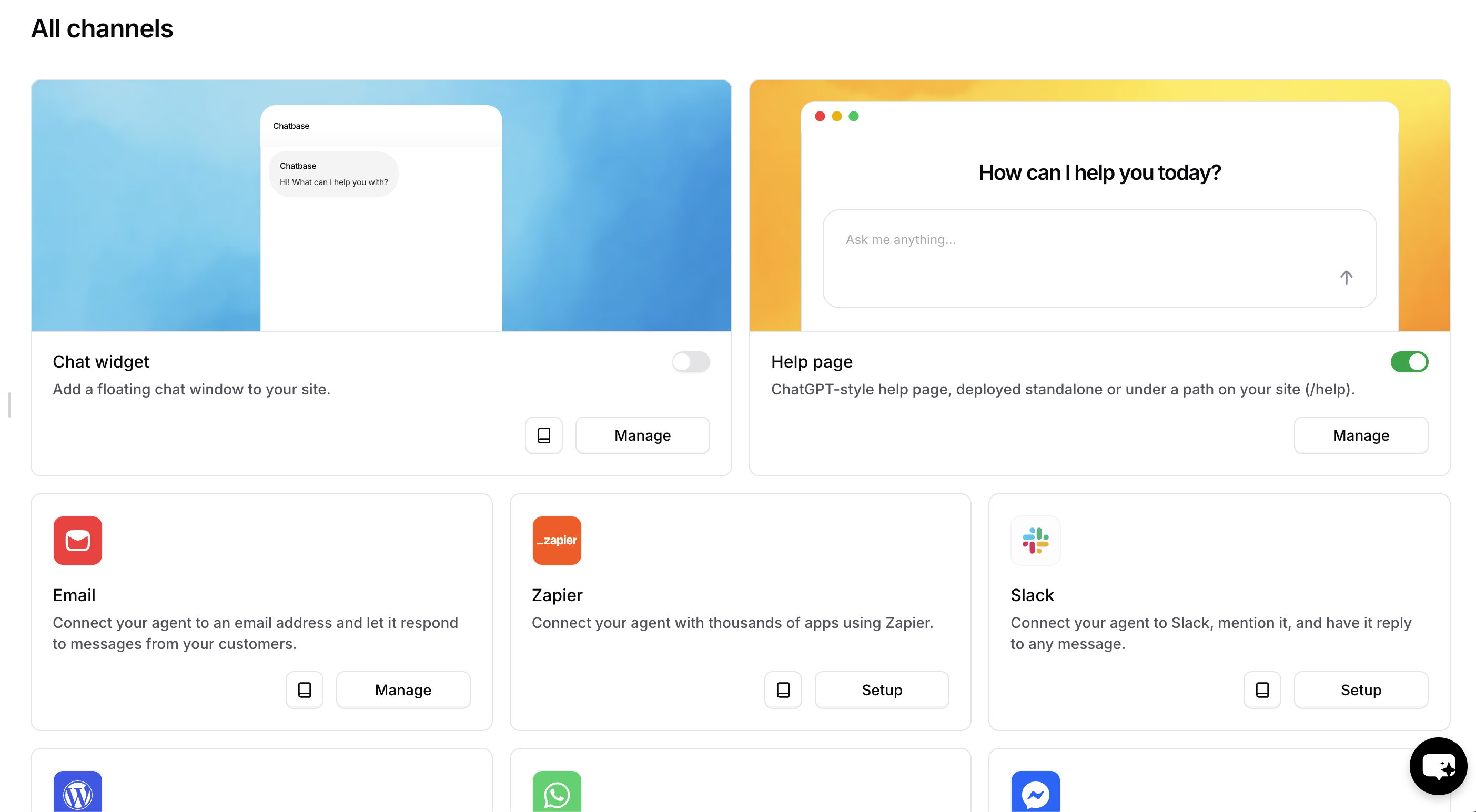
1. Navigate to **Deploy** → **Email**
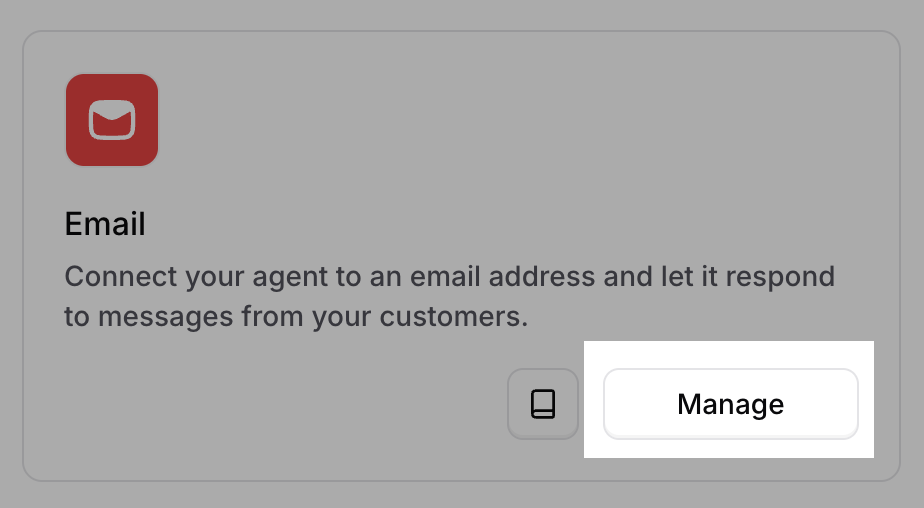
 2. Click **Manage** to access email deployment settings
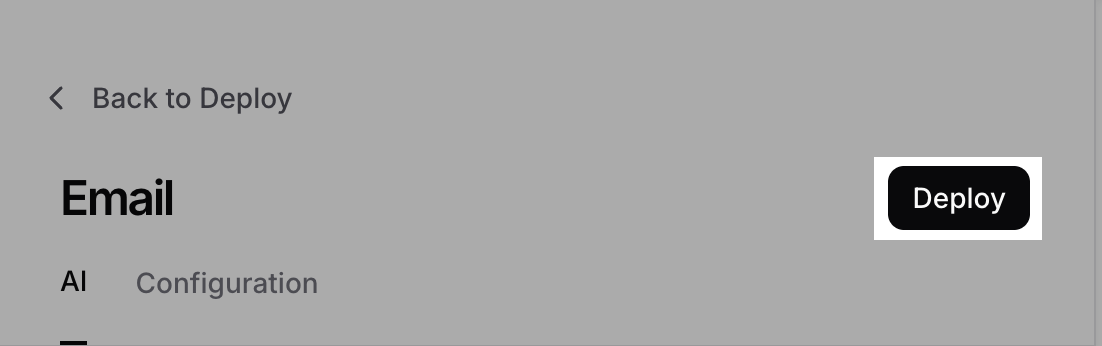
 3. Click **Deploy** and toggle the channel to **Enabled**
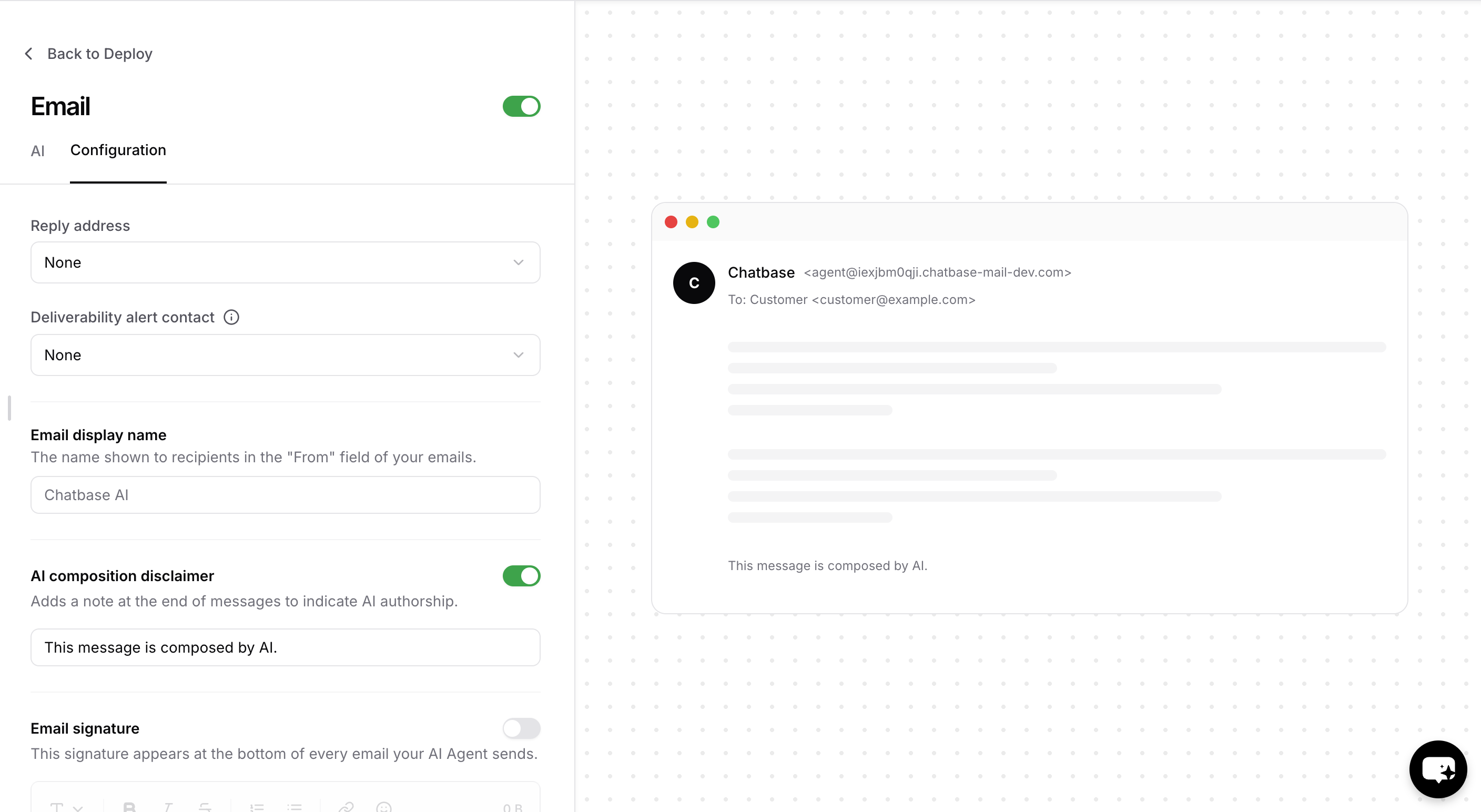
 Configure your AI agent's email behavior and appearance through **AI Settings** and **Email Configurations**.
 ## Email Configuration Options
Customize how your AI agent sends and formats emails to match your brand and communication standards.
### Reply Address
Select which configured email address will appear as the reply-to address for AI-generated emails.
Choose from your verified email addresses. Addresses with configuration issues (forwarding, DKIM, or SPF not enabled) will display warnings, and you will not be able to select them.
### Deliverability Alert Contact
Designate a team member to receive notifications about email delivery failures and issues.
Select from your account members or choose "None" to disable delivery alerts.
**Recommended**: Assign this to your technical or support team lead to ensure quick resolution of delivery issues.
### Email Display Name
Set the sender name that appears in recipients' inboxes when they receive emails from your AI agent.
This name appears in the "From" field and represents your brand identity in customer communications.
**Examples**:
* "CustomerSupport at \[Company Name]"
* "\[Company Name] AI Assistant"
* "Help Desk"
### AI Composition Disclaimer
Add transparency by including a disclaimer that identifies AI-generated content.
When enabled, adds a customizable disclaimer at the end of emails (default: "This message is composed by AI.")
**Use Cases**:
* Regulatory compliance requirements
* Company transparency policies
* Building customer trust
### Email Signature
Create a professional signature that appears at the bottom of all AI-generated emails.
Supports rich text formatting including multiple lines, links, styling, and contact information.
**Signature Elements**:
* Company contact information
* Social media links
* Legal disclaimers
* Unsubscribe options
Remove "**Powered by Chatbase**" branding from your emails by purchasing the white-label addon. See [Pricing](https://www.chatbase.co/pricing) for details.
## Common Use Cases
The Email Integration is ideal for:
* **Customer Support Automation**: Handle common inquiries and FAQs automatically
* **Employee Self-Service**: Answer HR, IT, or administrative questions instantly
* **Lead Qualification**: Screen and respond to sales inquiries with relevant information
* **Appointment Scheduling**: Assist with booking and calendar management
* **Order Status Updates**: Provide shipping and order information on demand
**Getting Started**: Begin with a focused use case like FAQ responses or status inquiries, then expand your agent's capabilities as you refine its performance.
## Email Configuration Options
Customize how your AI agent sends and formats emails to match your brand and communication standards.
### Reply Address
Select which configured email address will appear as the reply-to address for AI-generated emails.
Choose from your verified email addresses. Addresses with configuration issues (forwarding, DKIM, or SPF not enabled) will display warnings, and you will not be able to select them.
### Deliverability Alert Contact
Designate a team member to receive notifications about email delivery failures and issues.
Select from your account members or choose "None" to disable delivery alerts.
**Recommended**: Assign this to your technical or support team lead to ensure quick resolution of delivery issues.
### Email Display Name
Set the sender name that appears in recipients' inboxes when they receive emails from your AI agent.
This name appears in the "From" field and represents your brand identity in customer communications.
**Examples**:
* "CustomerSupport at \[Company Name]"
* "\[Company Name] AI Assistant"
* "Help Desk"
### AI Composition Disclaimer
Add transparency by including a disclaimer that identifies AI-generated content.
When enabled, adds a customizable disclaimer at the end of emails (default: "This message is composed by AI.")
**Use Cases**:
* Regulatory compliance requirements
* Company transparency policies
* Building customer trust
### Email Signature
Create a professional signature that appears at the bottom of all AI-generated emails.
Supports rich text formatting including multiple lines, links, styling, and contact information.
**Signature Elements**:
* Company contact information
* Social media links
* Legal disclaimers
* Unsubscribe options
Remove "**Powered by Chatbase**" branding from your emails by purchasing the white-label addon. See [Pricing](https://www.chatbase.co/pricing) for details.
## Common Use Cases
The Email Integration is ideal for:
* **Customer Support Automation**: Handle common inquiries and FAQs automatically
* **Employee Self-Service**: Answer HR, IT, or administrative questions instantly
* **Lead Qualification**: Screen and respond to sales inquiries with relevant information
* **Appointment Scheduling**: Assist with booking and calendar management
* **Order Status Updates**: Provide shipping and order information on demand
**Getting Started**: Begin with a focused use case like FAQ responses or status inquiries, then expand your agent's capabilities as you refine its performance.