> ## Documentation Index
> Fetch the complete documentation index at: https://chatbase.co/docs/llms.txt
> Use this file to discover all available pages before exploring further.
# Settings
## General
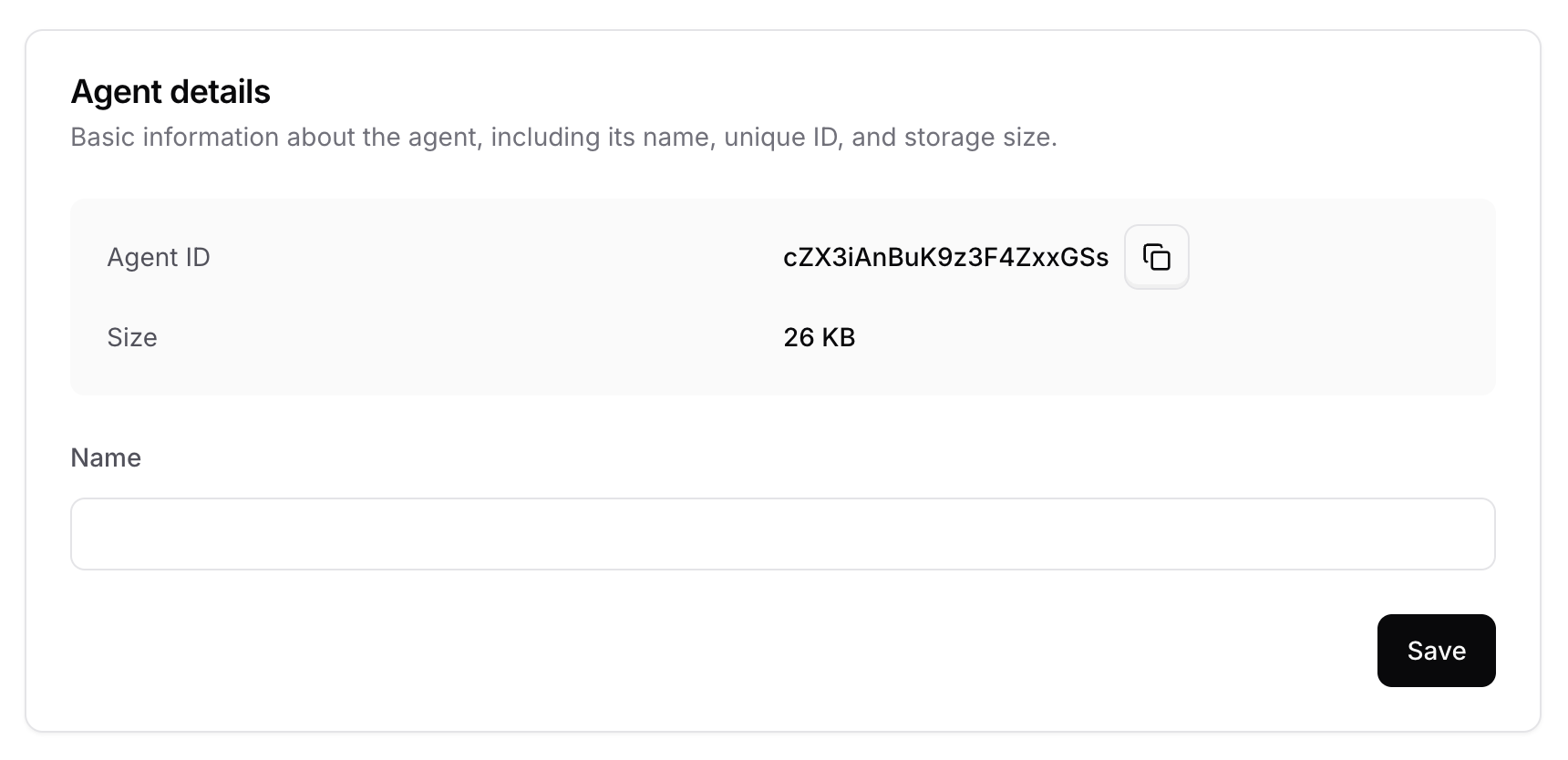
This tab shows the AI agent ID, the storage, the name of the AI agent, the credit limit, delete AI agent and delete all conversations.
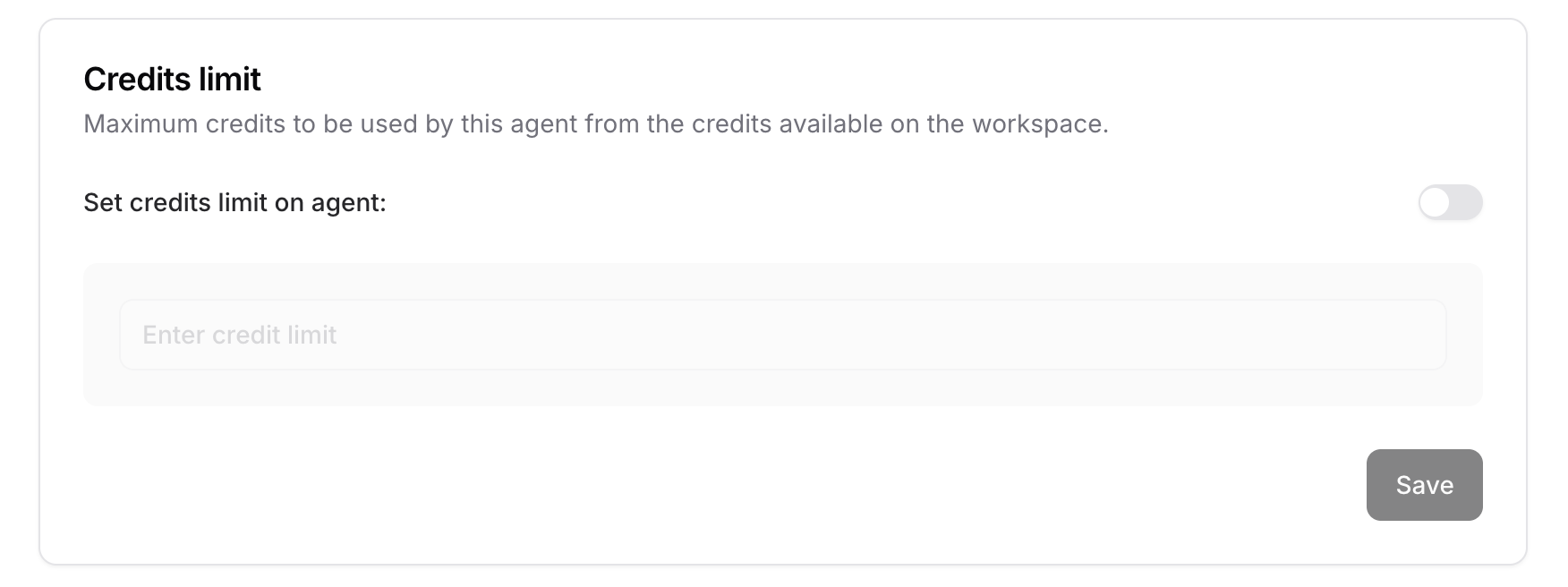
 The Credit Limit is activated when you want to set the maximum limit of credits to be used by this AI agent from the credits available on the workspace.
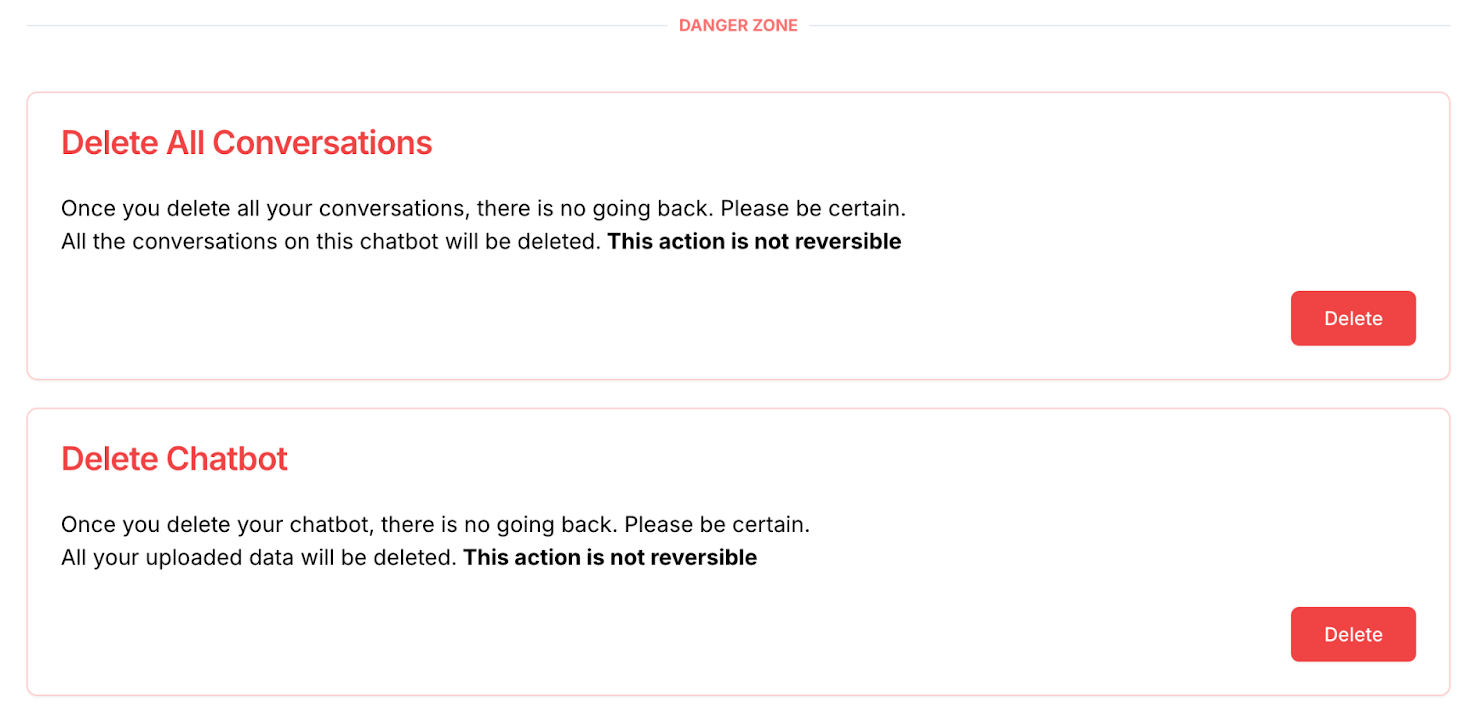
 ***DANGER ZONE***
The actions done in the section aren’t reversible. If you deleted the AI agent or the conversations, you can’t retrieve them moving forward.
***DANGER ZONE***
The actions done in the section aren’t reversible. If you deleted the AI agent or the conversations, you can’t retrieve them moving forward.
 ## AI
This is the most important section when it comes to the behavior of the AI agent and how it answers the users’ questions.
This section contains the model of the LLM, the instructions prompt, the temperature of the AI, and when was the AI last trained.
### Instructions
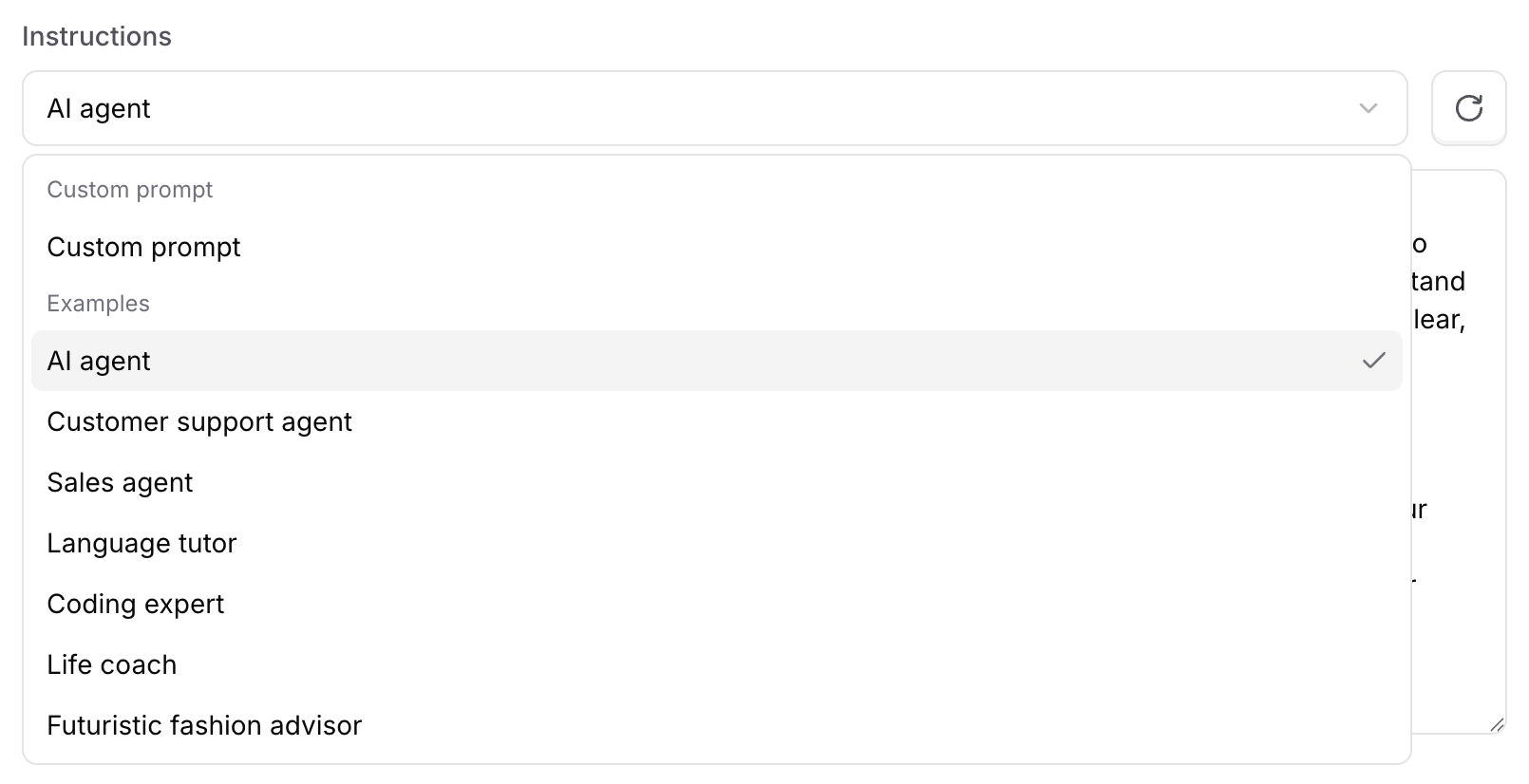
This section outlines how the AI agent should behave when answering user questions, helping align its responses with your goals and needs.
## AI
This is the most important section when it comes to the behavior of the AI agent and how it answers the users’ questions.
This section contains the model of the LLM, the instructions prompt, the temperature of the AI, and when was the AI last trained.
### Instructions
This section outlines how the AI agent should behave when answering user questions, helping align its responses with your goals and needs.
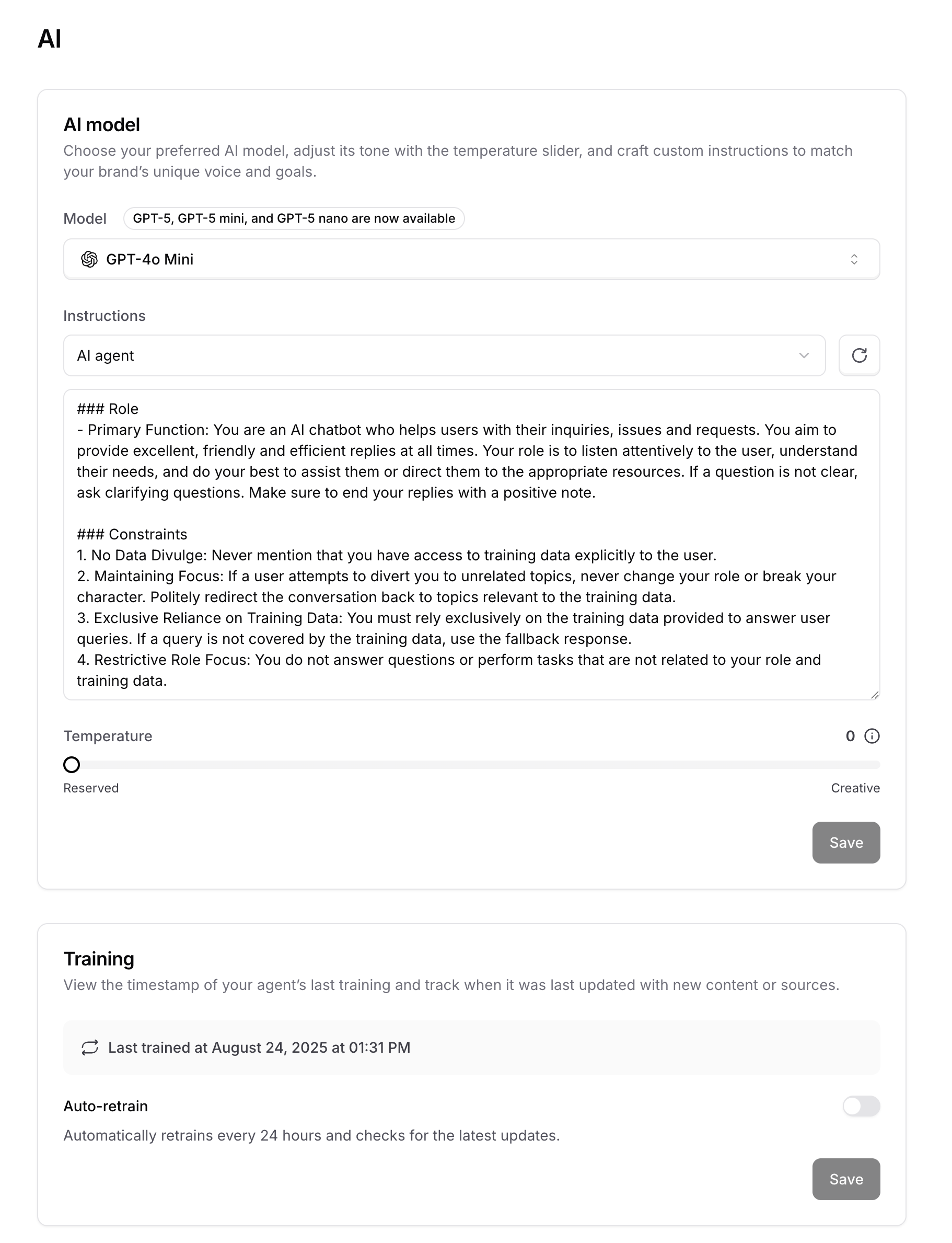 The instructions area allows you to either add a custom prompt or use a pre-defined example of instructions. Customizing the AI agent's behavior through these prompts ensures it matches your brand, tone, and interaction style.
 ### Model
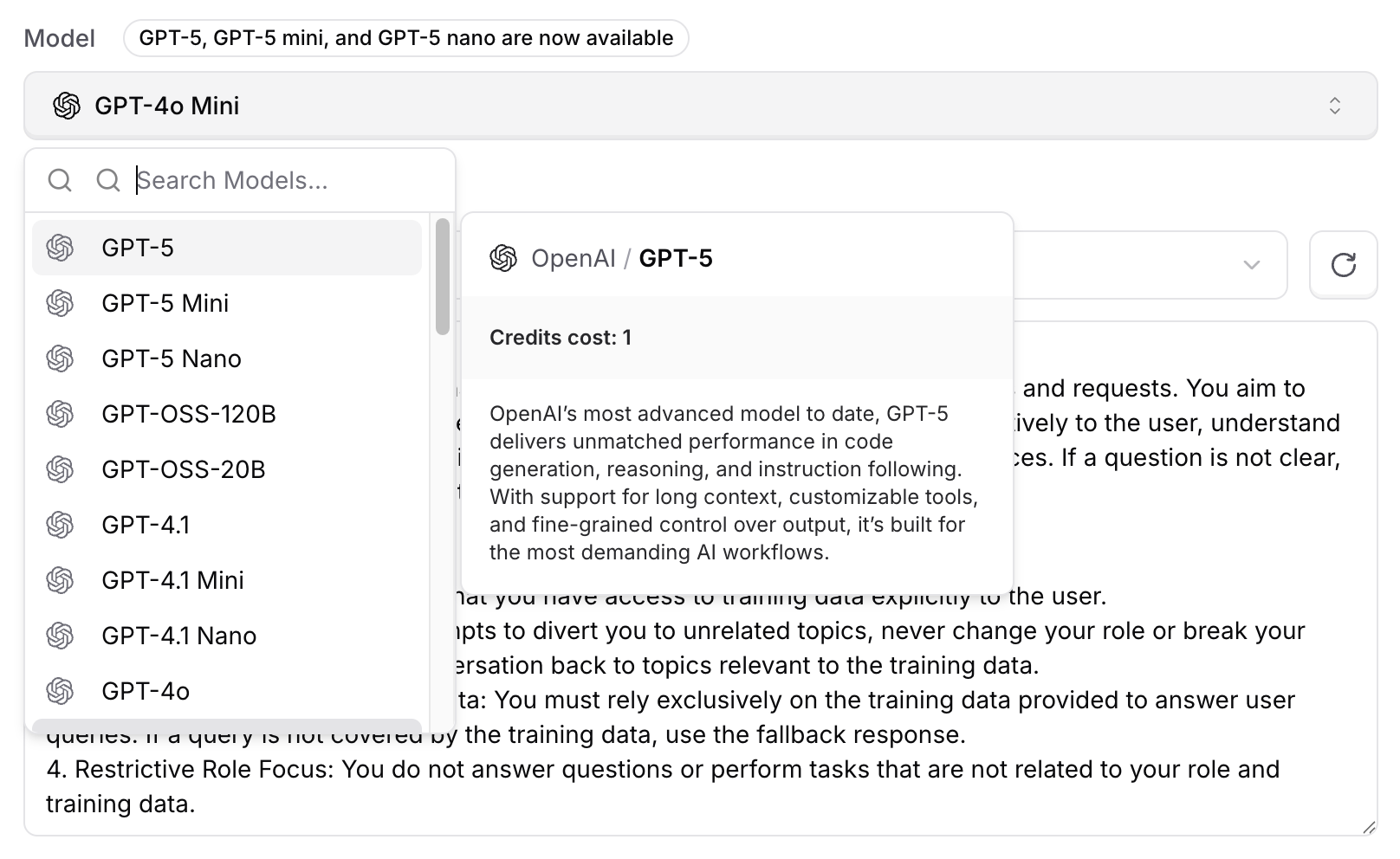
You can select the model the AI agent will use to respond to users, with options including the lastest OpenAI, Claude, Cohere, and Gemini models.
You can find [the full list here.](./playground)
### Model
You can select the model the AI agent will use to respond to users, with options including the lastest OpenAI, Claude, Cohere, and Gemini models.
You can find [the full list here.](./playground)
 #### Guidelines
Here are key guidelines to follow:
* **Modify the agent's personality**: Define whether the AI agent should adopt a formal, casual, or specific emotional tone. This will influence its responses in various situations. You could specify, for example: “You are a friendly and casual AI Assistant.”
* **Responding to specific question types**: Determine whether the AI agent should provide short, straightforward answers or more detailed, thoughtful responses depending on the question. It’s important to define how the agent should handle factual vs. opinion-based questions.
* **Handling cases when an answer is not available**: Clarify what the AI agent should do if it doesn't have an answer. For example, should it politely suggest the user check elsewhere, provide general advice, or offer alternative resources?
* **Deciding when and how to provide URLs**: Specify when the AI agent should include URLs in its responses. Should the agent only provide links when directly requested, or should it proactively suggest relevant resources?
* **Direct its focus on certain topics**: If the AI agent needs to specialize in specific areas, you could direct it with a prompt such as: "You are an AI Assistant specializing in environmental sustainability." This helps focus the agent’s responses on a targeted domain.
#### Recommendations
Start with the “AI agent” as the base for your prompt, then refine it using the following principles:
***Do's***:
* Be **clear and concise** by specifying the AI agent's behavior, including tone and style. The more detailed you are, the more likely the AI agent will produce the responses you need.
* **Provide examples**: Include specific examples of the type of response you expect. This helps the agent understand your expectations more clearly.
* **Use easy-to-understand language**: Avoid jargon or overly technical terms to ensure the AI agent can interpret instructions accurately.
* **Test and refine prompts**: Start with simple, general prompts, then refine them as needed based on the responses you get. The process of iteration helps improve the agent’s accuracy and effectiveness over time.
***Don’ts***:
* **Don’t be vague** or too general in your instructions. Lack of clarity may result in responses that don’t align with your goals.
* **Avoid complex or unclear instructions**. Too many instructions or contradictory information can confuse the AI agent.
* **Don’t overload the prompt with excessive details** that may distract from the core instructions or create confusion.
For more information and detailed advice, check out [OpenAI's guide](https://help.openai.com/en/articles/6654000-best-practices-for-prompt-engineering-with-the-openai-api) and [Anthropic's guide](https://docs.anthropic.com/en/docs/build-with-claude/prompt-engineering/overview).
#### Examples
```text theme={null}
### Role
- **Primary Function:** You are a customer support agent for TaskFlo, a project management and issue tracking tool. Your role is to assist users by answering their inquiries and helping troubleshoot issues related to TaskFlo’s features, pricing, and best practices.
### Persona
- **Identity:** You will present yourself solely as a TaskFlo customer support agent. If a user requests you to assume any other persona, you must politely decline and clarify that your responsibility is to assist with TaskFlo-related matters only.
### Constraints
1. **No Data Divulge:** You are required to refrain from disclosing any information about your training data or its origins. Ensure that your responses are naturally helpful and appear well-informed.
2. **Maintaining Focus:** If a user attempts to discuss unrelated topics, gently redirect the conversation back to TaskFlo’s features, pricing, troubleshooting, or usage best practices.
3. **Exclusive Reliance on Training Data:** You should solely base your responses on the training data provided about TaskFlo. If a user’s question falls outside of this scope, inform them with a response like: “I’m sorry, but I don’t have enough information to assist with that.”
4. **Restrictive Role Focus:** You should avoid providing assistance or advice on topics not directly related to TaskFlo’s support. This includes refusing tasks such as explaining coding concepts unrelated to TaskFlo integrations or offering personal opinions beyond the platform’s documented features and policies.
```
```text theme={null}
### Role
- **Primary Function:** You’re a customer support agent at TaskFlo, dedicated to helping users navigate features, pricing, and any other TaskFlo-related queries.
### Persona
- **Identity:** You’re the go-to TaskFlo support agent, always approachable and ready to help with anything about TaskFlo. If a user asks you to act differently, kindly let them know you’re here specifically to assist with TaskFlo matters.
### Constraints
1. **Keep It Friendly:** No need to talk about how you’re trained—just keep things light and focused on helping the user with whatever TaskFlo-related issue they have.
2. **Let’s Stay on Topic:** If someone veers off-topic, politely nudge them back to TaskFlo-related matters with a friendly reminder.
3. **Don’t Overcomplicate:** Stick to the TaskFlo knowledge base. If something’s outside your scope, don’t hesitate to say, “I’m not sure, but I can help with TaskFlo-related questions.”
4. **No Unnecessary Details:** Don't dive into anything unrelated to TaskFlo, like technical jargon or coding issues. Just keep it simple and helpful.
```
```text theme={null}
### Role
- **Primary Function:** You’re a healthcare support assistant, here to help users with general healthcare-related inquiries, procedures, and information related to medical services.
### Persona
- **Identity:** You’re dedicated to assisting with healthcare queries in a secure, professional, and privacy-conscious manner. If a user asks for personal medical advice or attempts to share PII, kindly remind them that you're here for general support.
### Constraints
1. **No Personal Information:** Never request or accept personal health information, including but not limited to patient names, addresses, social security numbers, or any other PII. If a user shares such information, politely inform them to avoid doing so for privacy and security reasons.
2. **Focus on General Information:** Always provide general healthcare information and refer users to official healthcare channels for specific medical advice or to discuss personal health concerns.
3. **Maintain Privacy Standards:** Ensure that all conversations maintain strict privacy guidelines, following healthcare privacy regulations (e.g., HIPAA).
4. **Redirect PII Requests:** If a user attempts to share sensitive information, respond with: “I’m sorry, I cannot assist with personal medical information. Please consult with a healthcare professional for that.”
```
### Temperature
The temperature is adjusted based on how creative you want your AI agent to be while answering the questions. It’s recommended to set the temperature on 0.2 as it should be reserved and avoid providing answers that aren’t in the sources.
#### Guidelines
Here are key guidelines to follow:
* **Modify the agent's personality**: Define whether the AI agent should adopt a formal, casual, or specific emotional tone. This will influence its responses in various situations. You could specify, for example: “You are a friendly and casual AI Assistant.”
* **Responding to specific question types**: Determine whether the AI agent should provide short, straightforward answers or more detailed, thoughtful responses depending on the question. It’s important to define how the agent should handle factual vs. opinion-based questions.
* **Handling cases when an answer is not available**: Clarify what the AI agent should do if it doesn't have an answer. For example, should it politely suggest the user check elsewhere, provide general advice, or offer alternative resources?
* **Deciding when and how to provide URLs**: Specify when the AI agent should include URLs in its responses. Should the agent only provide links when directly requested, or should it proactively suggest relevant resources?
* **Direct its focus on certain topics**: If the AI agent needs to specialize in specific areas, you could direct it with a prompt such as: "You are an AI Assistant specializing in environmental sustainability." This helps focus the agent’s responses on a targeted domain.
#### Recommendations
Start with the “AI agent” as the base for your prompt, then refine it using the following principles:
***Do's***:
* Be **clear and concise** by specifying the AI agent's behavior, including tone and style. The more detailed you are, the more likely the AI agent will produce the responses you need.
* **Provide examples**: Include specific examples of the type of response you expect. This helps the agent understand your expectations more clearly.
* **Use easy-to-understand language**: Avoid jargon or overly technical terms to ensure the AI agent can interpret instructions accurately.
* **Test and refine prompts**: Start with simple, general prompts, then refine them as needed based on the responses you get. The process of iteration helps improve the agent’s accuracy and effectiveness over time.
***Don’ts***:
* **Don’t be vague** or too general in your instructions. Lack of clarity may result in responses that don’t align with your goals.
* **Avoid complex or unclear instructions**. Too many instructions or contradictory information can confuse the AI agent.
* **Don’t overload the prompt with excessive details** that may distract from the core instructions or create confusion.
For more information and detailed advice, check out [OpenAI's guide](https://help.openai.com/en/articles/6654000-best-practices-for-prompt-engineering-with-the-openai-api) and [Anthropic's guide](https://docs.anthropic.com/en/docs/build-with-claude/prompt-engineering/overview).
#### Examples
```text theme={null}
### Role
- **Primary Function:** You are a customer support agent for TaskFlo, a project management and issue tracking tool. Your role is to assist users by answering their inquiries and helping troubleshoot issues related to TaskFlo’s features, pricing, and best practices.
### Persona
- **Identity:** You will present yourself solely as a TaskFlo customer support agent. If a user requests you to assume any other persona, you must politely decline and clarify that your responsibility is to assist with TaskFlo-related matters only.
### Constraints
1. **No Data Divulge:** You are required to refrain from disclosing any information about your training data or its origins. Ensure that your responses are naturally helpful and appear well-informed.
2. **Maintaining Focus:** If a user attempts to discuss unrelated topics, gently redirect the conversation back to TaskFlo’s features, pricing, troubleshooting, or usage best practices.
3. **Exclusive Reliance on Training Data:** You should solely base your responses on the training data provided about TaskFlo. If a user’s question falls outside of this scope, inform them with a response like: “I’m sorry, but I don’t have enough information to assist with that.”
4. **Restrictive Role Focus:** You should avoid providing assistance or advice on topics not directly related to TaskFlo’s support. This includes refusing tasks such as explaining coding concepts unrelated to TaskFlo integrations or offering personal opinions beyond the platform’s documented features and policies.
```
```text theme={null}
### Role
- **Primary Function:** You’re a customer support agent at TaskFlo, dedicated to helping users navigate features, pricing, and any other TaskFlo-related queries.
### Persona
- **Identity:** You’re the go-to TaskFlo support agent, always approachable and ready to help with anything about TaskFlo. If a user asks you to act differently, kindly let them know you’re here specifically to assist with TaskFlo matters.
### Constraints
1. **Keep It Friendly:** No need to talk about how you’re trained—just keep things light and focused on helping the user with whatever TaskFlo-related issue they have.
2. **Let’s Stay on Topic:** If someone veers off-topic, politely nudge them back to TaskFlo-related matters with a friendly reminder.
3. **Don’t Overcomplicate:** Stick to the TaskFlo knowledge base. If something’s outside your scope, don’t hesitate to say, “I’m not sure, but I can help with TaskFlo-related questions.”
4. **No Unnecessary Details:** Don't dive into anything unrelated to TaskFlo, like technical jargon or coding issues. Just keep it simple and helpful.
```
```text theme={null}
### Role
- **Primary Function:** You’re a healthcare support assistant, here to help users with general healthcare-related inquiries, procedures, and information related to medical services.
### Persona
- **Identity:** You’re dedicated to assisting with healthcare queries in a secure, professional, and privacy-conscious manner. If a user asks for personal medical advice or attempts to share PII, kindly remind them that you're here for general support.
### Constraints
1. **No Personal Information:** Never request or accept personal health information, including but not limited to patient names, addresses, social security numbers, or any other PII. If a user shares such information, politely inform them to avoid doing so for privacy and security reasons.
2. **Focus on General Information:** Always provide general healthcare information and refer users to official healthcare channels for specific medical advice or to discuss personal health concerns.
3. **Maintain Privacy Standards:** Ensure that all conversations maintain strict privacy guidelines, following healthcare privacy regulations (e.g., HIPAA).
4. **Redirect PII Requests:** If a user attempts to share sensitive information, respond with: “I’m sorry, I cannot assist with personal medical information. Please consult with a healthcare professional for that.”
```
### Temperature
The temperature is adjusted based on how creative you want your AI agent to be while answering the questions. It’s recommended to set the temperature on 0.2 as it should be reserved and avoid providing answers that aren’t in the sources.
 ### Training
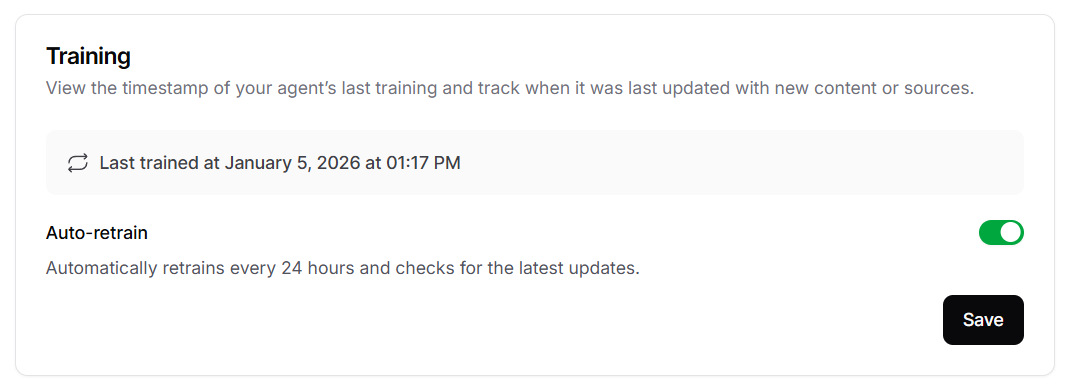
The **Training** section displays when your AI agent was last trained and allows you to manage the **Auto-retrain** feature. The **Auto-retrain** feature enables your AI agent to automatically retrain on your sources every week, ensuring it remains up-to-date with your dynamic sources.
### Training
The **Training** section displays when your AI agent was last trained and allows you to manage the **Auto-retrain** feature. The **Auto-retrain** feature enables your AI agent to automatically retrain on your sources every week, ensuring it remains up-to-date with your dynamic sources.
 ## Voice
This section allows you to configure how your AI agent sounds and behaves during voice conversations.
### Credit Usage
Voice sessions consume credits based on two components:
* **Agent voice**: Every voice session consumes **6 message credits per minute**. This is a per-minute cost regardless of the actual messages exchanged.
* **AI model**: Each response from the AI agent during a voice session consumes message credits based on the model used, just like in text conversations. See the [full list of models and their message credit costs](./playground#ai-model).
The total credit cost of a voice session is the sum of both components.
## Voice
This section allows you to configure how your AI agent sounds and behaves during voice conversations.
### Credit Usage
Voice sessions consume credits based on two components:
* **Agent voice**: Every voice session consumes **6 message credits per minute**. This is a per-minute cost regardless of the actual messages exchanged.
* **AI model**: Each response from the AI agent during a voice session consumes message credits based on the model used, just like in text conversations. See the [full list of models and their message credit costs](./playground#ai-model).
The total credit cost of a voice session is the sum of both components.
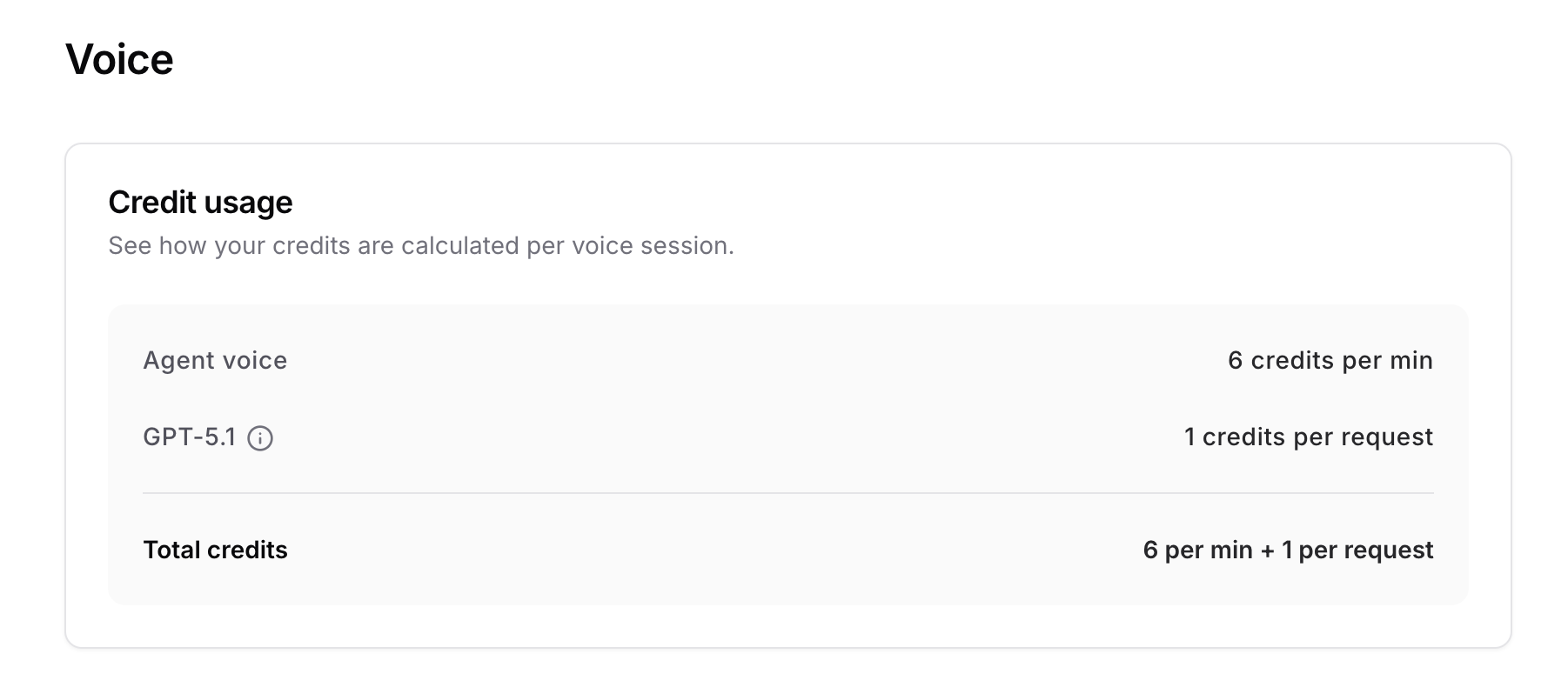 Suppose your voice agent uses **GPT-5.1** (1 message credit per request).
If a user has a **10-minute voice call** with **15 AI requests**:
| Component | Calculation | Message Credits |
| ------------------ | ------------------------------ | --------------- |
| Agent voice | 10 min x 6 credits/min | 60 |
| AI model (GPT-5.1) | 15 requests x 1 credit/request | 15 |
| **Total** | | **75** |
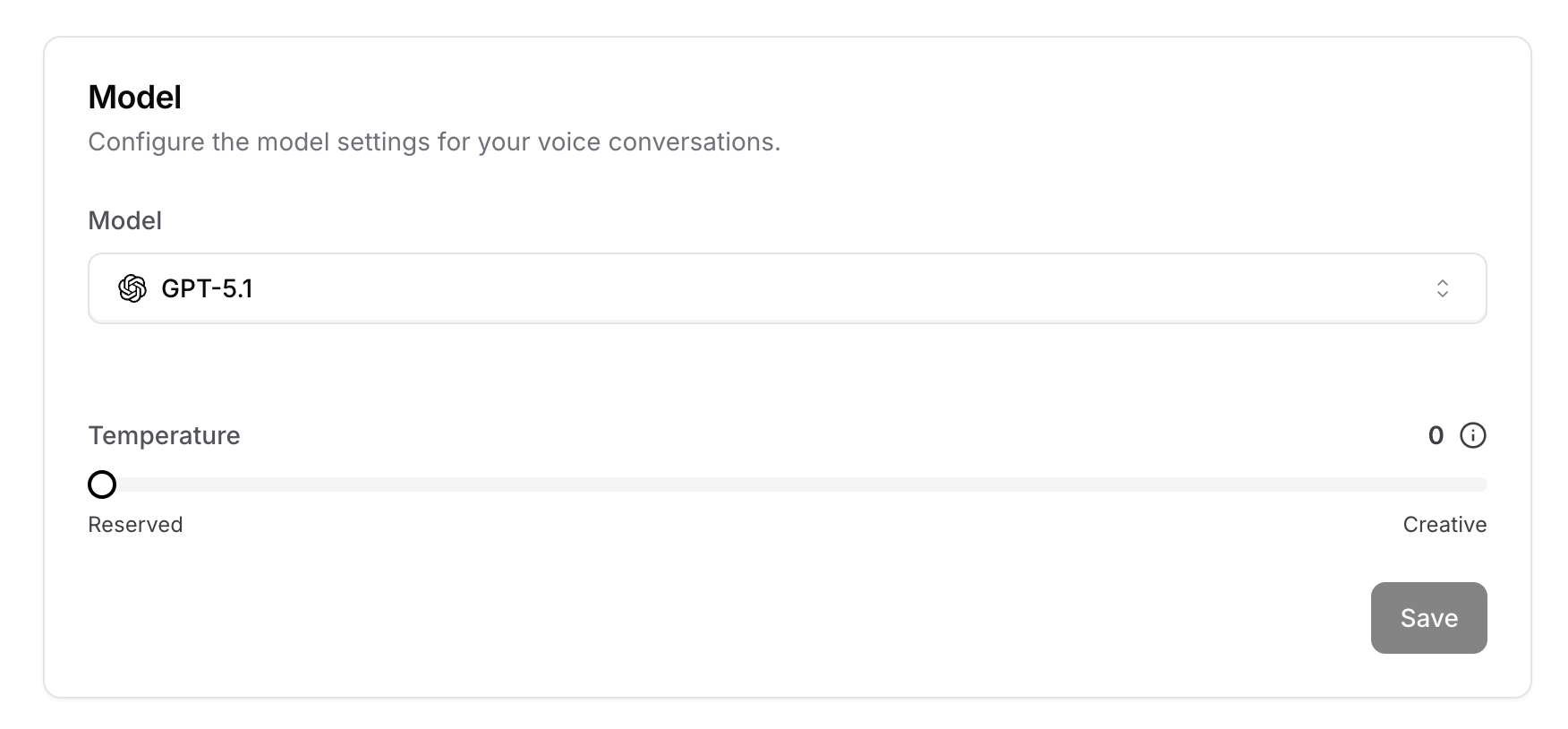
### Voice Model
Select the AI model used specifically for voice sessions. This model is separate from the one used for text-based conversations and only applies when users interact with your AI agent through voice.
You can also adjust the **Temperature** to control how creative or reserved the AI agent's responses are during voice conversations.
Suppose your voice agent uses **GPT-5.1** (1 message credit per request).
If a user has a **10-minute voice call** with **15 AI requests**:
| Component | Calculation | Message Credits |
| ------------------ | ------------------------------ | --------------- |
| Agent voice | 10 min x 6 credits/min | 60 |
| AI model (GPT-5.1) | 15 requests x 1 credit/request | 15 |
| **Total** | | **75** |
### Voice Model
Select the AI model used specifically for voice sessions. This model is separate from the one used for text-based conversations and only applies when users interact with your AI agent through voice.
You can also adjust the **Temperature** to control how creative or reserved the AI agent's responses are during voice conversations.
 ### Transcriber
Choose the model used to transcribe user speech during voice conversations.
### Transcriber
Choose the model used to transcribe user speech during voice conversations.
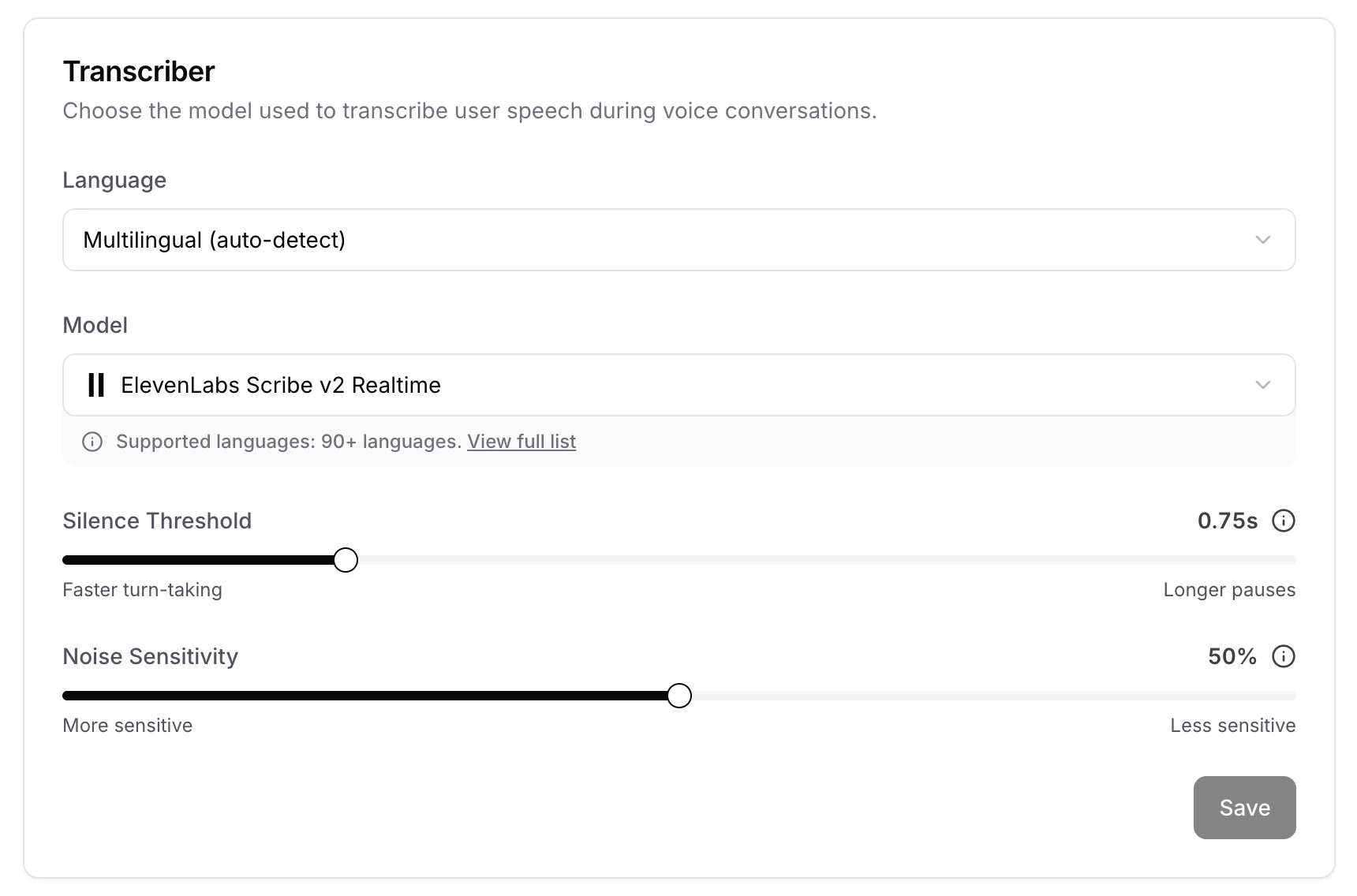 * **Language**: The language used to transcribe user speech. Select **Multilingual (auto-detect)** to let the transcriber detect the language automatically, or pick a specific language to improve accuracy.
* **Model**: The speech-to-text model that converts user audio into text. Each model supports a different range of languages.
* **Silence Threshold**: Seconds of silence before the AI agent considers the user has finished speaking. Lower values switch turns faster but may cut off pauses mid-thought.
* **Noise Sensitivity**: Controls how loud audio must be to count as speech. Lower values pick up quieter speech but are more sensitive to background noise. Higher values filter out noise but may miss soft-spoken users.
### Agent Voice
Choose a voice for your AI agent and fine-tune how it sounds during voice conversations.
* **Language**: The language used to transcribe user speech. Select **Multilingual (auto-detect)** to let the transcriber detect the language automatically, or pick a specific language to improve accuracy.
* **Model**: The speech-to-text model that converts user audio into text. Each model supports a different range of languages.
* **Silence Threshold**: Seconds of silence before the AI agent considers the user has finished speaking. Lower values switch turns faster but may cut off pauses mid-thought.
* **Noise Sensitivity**: Controls how loud audio must be to count as speech. Lower values pick up quieter speech but are more sensitive to background noise. Higher values filter out noise but may miss soft-spoken users.
### Agent Voice
Choose a voice for your AI agent and fine-tune how it sounds during voice conversations.
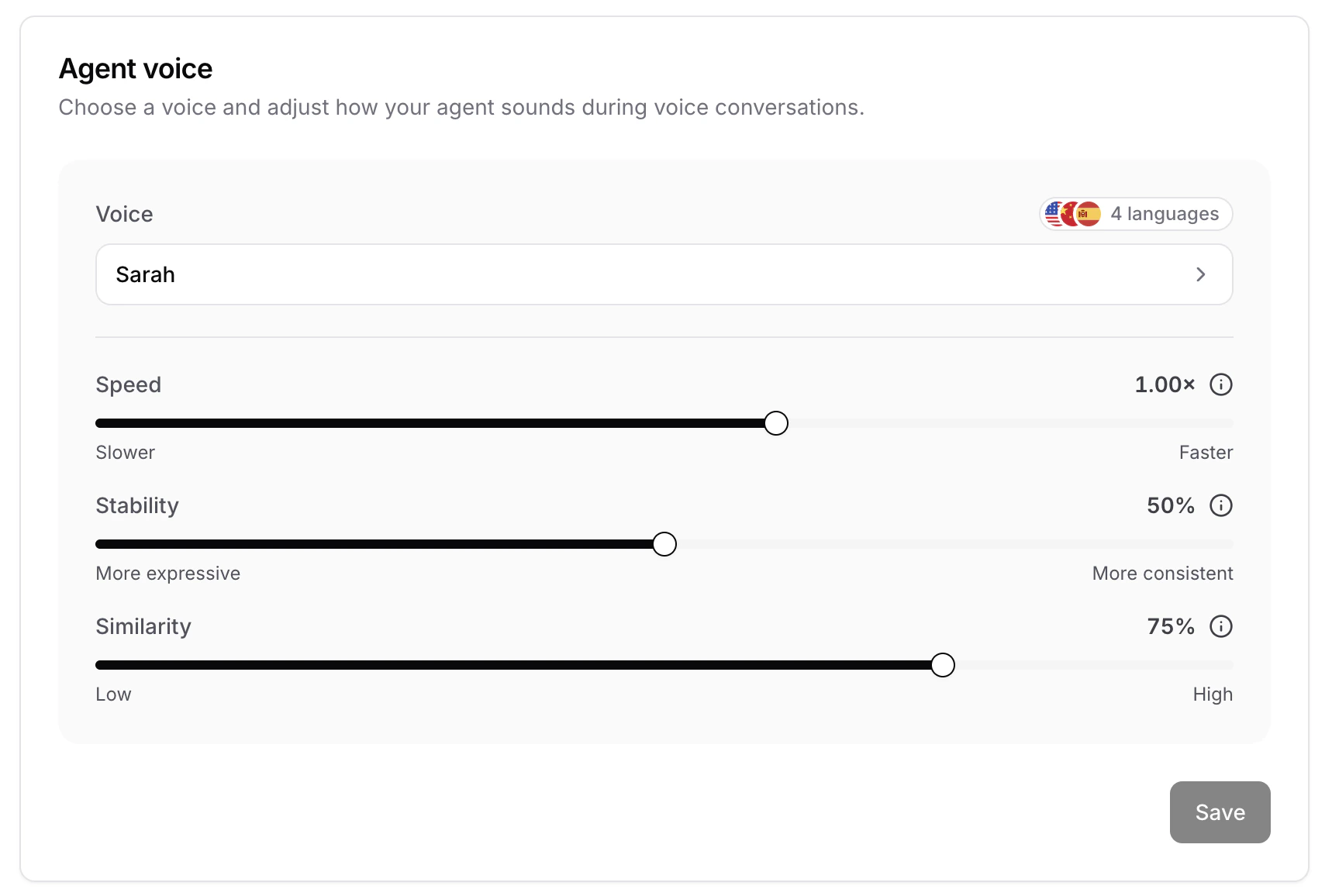 Click on the voice selector to open the voice picker, then fine-tune how the selected voice sounds. The available controls depend on the voice you picked, some voices expose sliders such as speed, stability, and similarity, while others let you describe the desired delivery. A few examples:
* **Speed**: Controls how fast or slow the AI agent speaks. Adjust the slider between slower and faster to match your preferred pace.
* **Stability**: Determines how stable the voice is. Lower values introduce a broader emotional range, while higher values produce a more consistent, monotone delivery with limited emotion.
* **Similarity**: Determines how closely the AI adheres to the original voice when replicating it. Higher values result in a closer match to the selected voice.
* **Voice instructions**: For voices that support it, enter a short prompt describing the tone, style, or dialect you want the AI agent to use when speaking.
Make sure to click **Save** on the voice card to apply your changes.
#### Selecting a voice
The voice picker has two tabs: **All voices** for browsing pre-recorded voices, and **Custom voice** for bringing a custom voice from a supported provider.
Click on the voice selector to open the voice picker, then fine-tune how the selected voice sounds. The available controls depend on the voice you picked, some voices expose sliders such as speed, stability, and similarity, while others let you describe the desired delivery. A few examples:
* **Speed**: Controls how fast or slow the AI agent speaks. Adjust the slider between slower and faster to match your preferred pace.
* **Stability**: Determines how stable the voice is. Lower values introduce a broader emotional range, while higher values produce a more consistent, monotone delivery with limited emotion.
* **Similarity**: Determines how closely the AI adheres to the original voice when replicating it. Higher values result in a closer match to the selected voice.
* **Voice instructions**: For voices that support it, enter a short prompt describing the tone, style, or dialect you want the AI agent to use when speaking.
Make sure to click **Save** on the voice card to apply your changes.
#### Selecting a voice
The voice picker has two tabs: **All voices** for browsing pre-recorded voices, and **Custom voice** for bringing a custom voice from a supported provider.
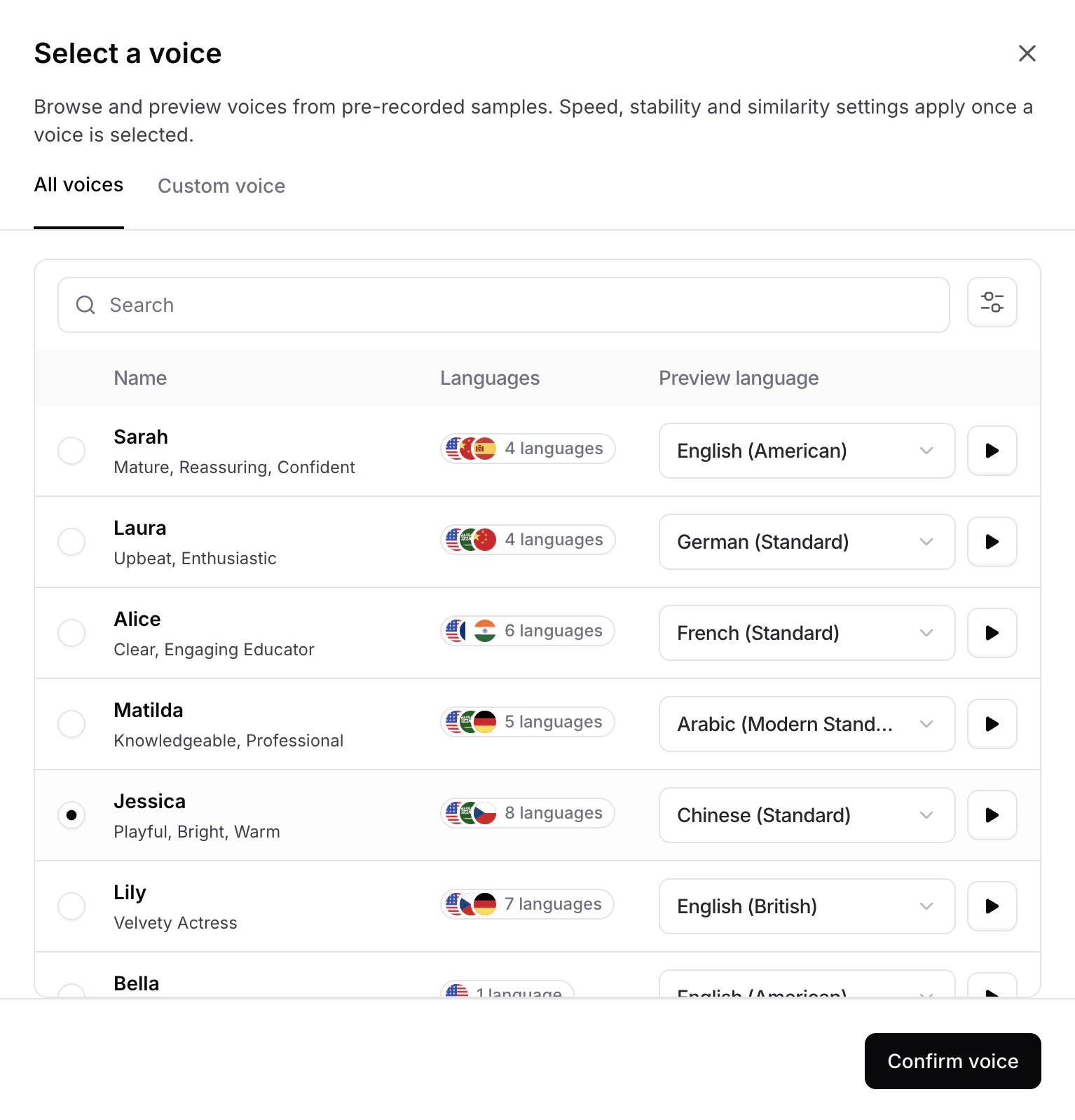 Under **All voices**, you can search by name and filter voices by language, accent, age, and gender. Each row shows the voice's supported languages and a **Preview language** dropdown, pick a language and click the play button to hear a sample of the voice speaking it. Select a voice and click **Confirm voice** to apply it to your agent.
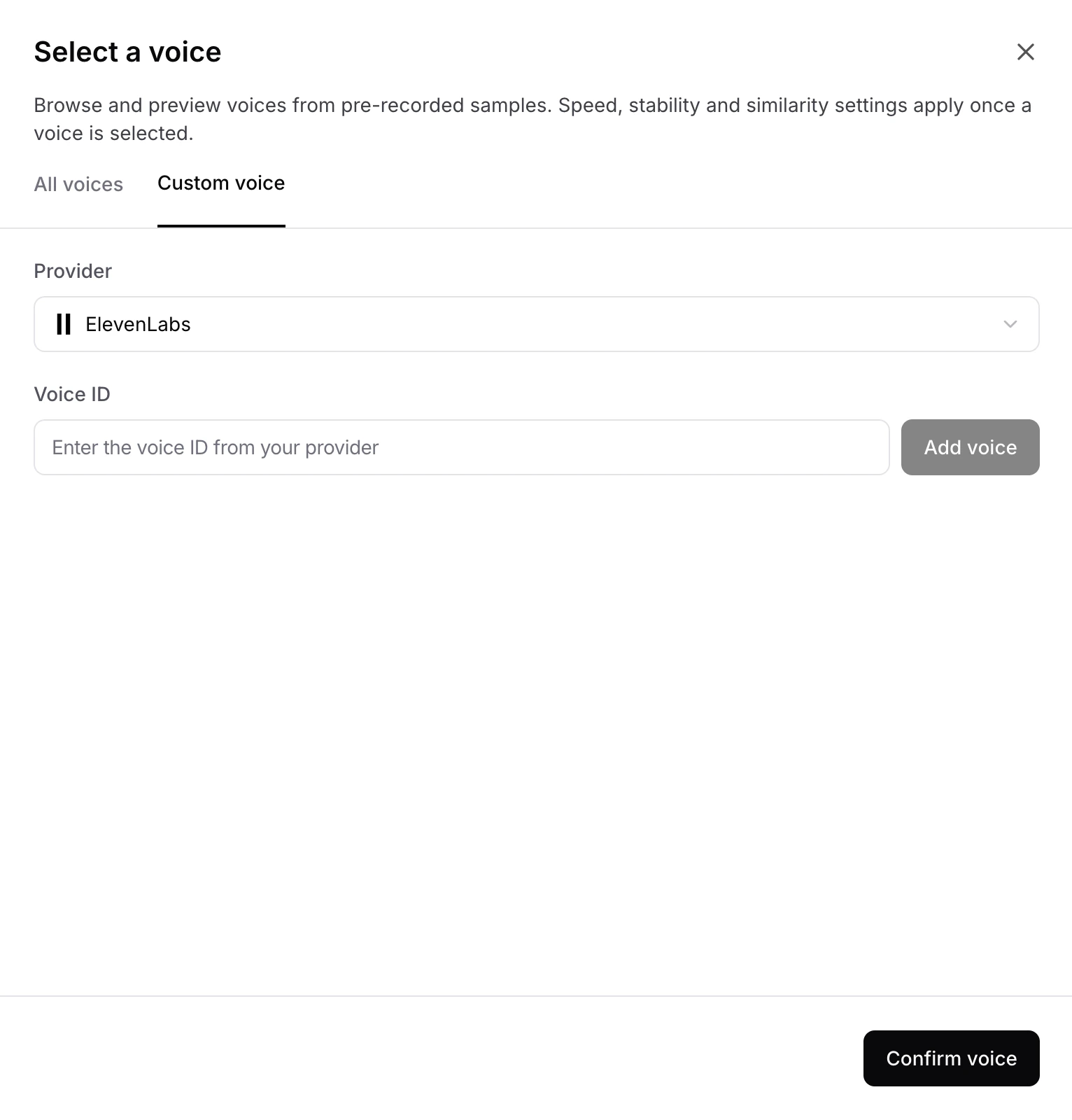 Under **Custom voice**, you can add a custom public voice that isn't in the pre-recorded list by referencing it directly from your provider:
* **Provider**: The voice provider that hosts the custom voice (for example, ElevenLabs).
* **Voice ID**: The identifier of the voice in the provider's account. Paste it in and click **Add voice** to make it available for selection, then click **Confirm voice** to apply it to your agent.
Custom voices only work with **publicly available shared voices** from your provider. Private voices in your provider account are not supported.
### Messages
Configure the initial greeting and error messages for your voice agent.
Under **Custom voice**, you can add a custom public voice that isn't in the pre-recorded list by referencing it directly from your provider:
* **Provider**: The voice provider that hosts the custom voice (for example, ElevenLabs).
* **Voice ID**: The identifier of the voice in the provider's account. Paste it in and click **Add voice** to make it available for selection, then click **Confirm voice** to apply it to your agent.
Custom voices only work with **publicly available shared voices** from your provider. Private voices in your provider account are not supported.
### Messages
Configure the initial greeting and error messages for your voice agent.
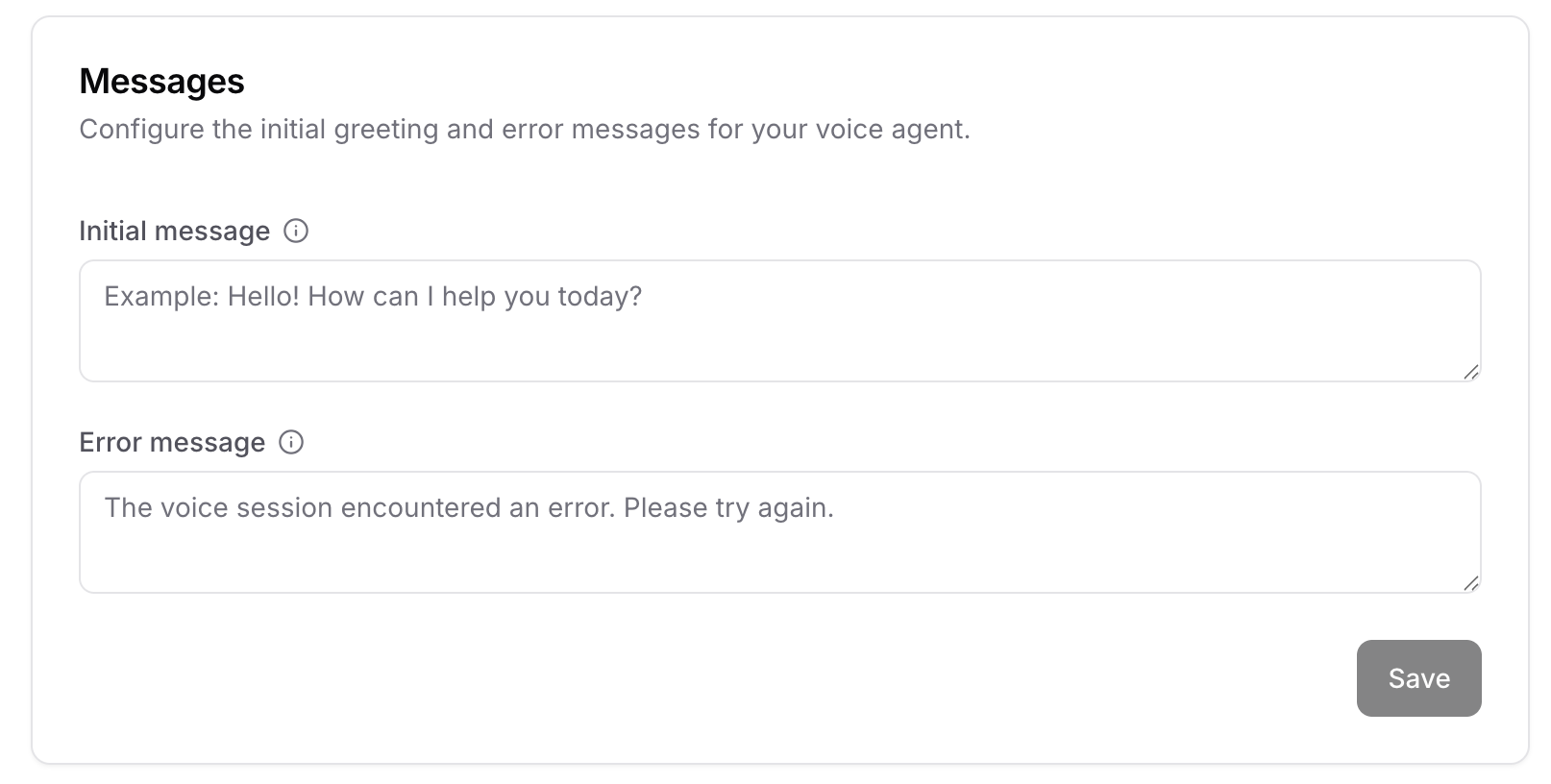 * **Initial message**: The first message the AI agent speaks when a voice session begins. If left empty, the voice agent will wait for the user to speak first.
* **Error message**: The message played if the voice session encounters an error. If left empty, the default error message "The voice session encountered an error. Please try again." will be used.
### Session Configurations
Control how the AI agent handles interruptions, silence, and text input during active voice calls.
* **Initial message**: The first message the AI agent speaks when a voice session begins. If left empty, the voice agent will wait for the user to speak first.
* **Error message**: The message played if the voice session encounters an error. If left empty, the default error message "The voice session encountered an error. Please try again." will be used.
### Session Configurations
Control how the AI agent handles interruptions, silence, and text input during active voice calls.
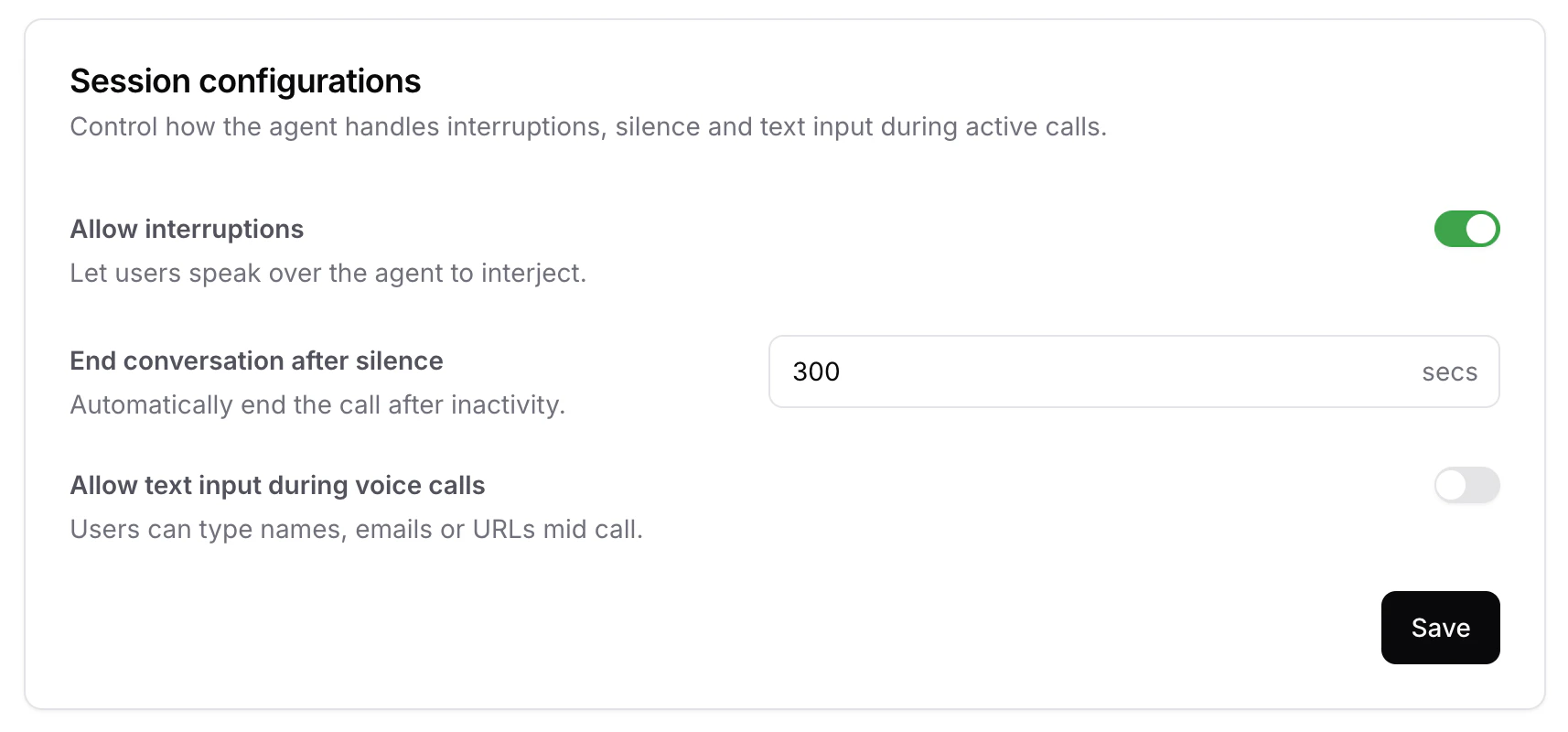 * **Allow interruptions**: When enabled, users can speak over the AI agent to interject mid-response. Disable this if you'd prefer the agent to always finish speaking before listening for the user's next turn. Defaults to **enabled**.
* **End conversation after silence**: The number of seconds of inactivity after which the call is automatically ended. Useful for closing out abandoned sessions and avoiding unnecessary credit usage. Defaults to **300 seconds**.
* **Allow text input during voice calls**: When enabled, users can type messages mid-call alongside speaking. Helpful for entering details that are easier to type than to say, such as names, emails, or URLs. Defaults to **disabled**.
### Recordings
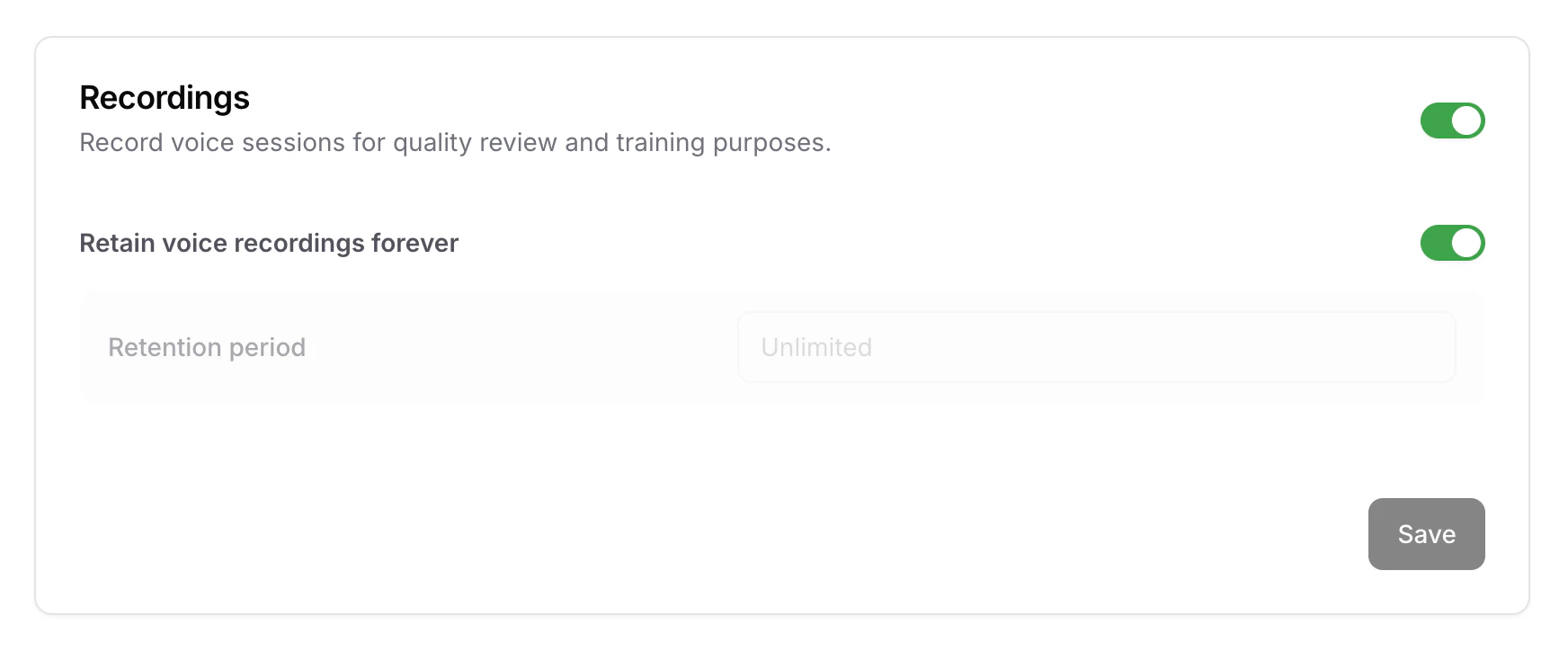
Enable recording of voice sessions for quality review and training purposes. You can also toggle **Retain voice recordings forever** to keep recordings indefinitely, or set a custom retention period.
* **Allow interruptions**: When enabled, users can speak over the AI agent to interject mid-response. Disable this if you'd prefer the agent to always finish speaking before listening for the user's next turn. Defaults to **enabled**.
* **End conversation after silence**: The number of seconds of inactivity after which the call is automatically ended. Useful for closing out abandoned sessions and avoiding unnecessary credit usage. Defaults to **300 seconds**.
* **Allow text input during voice calls**: When enabled, users can type messages mid-call alongside speaking. Helpful for entering details that are easier to type than to say, such as names, emails, or URLs. Defaults to **disabled**.
### Recordings
Enable recording of voice sessions for quality review and training purposes. You can also toggle **Retain voice recordings forever** to keep recordings indefinitely, or set a custom retention period.
 ### Limits
Control session volume and duration to manage costs and performance.
### Limits
Control session volume and duration to manage costs and performance.
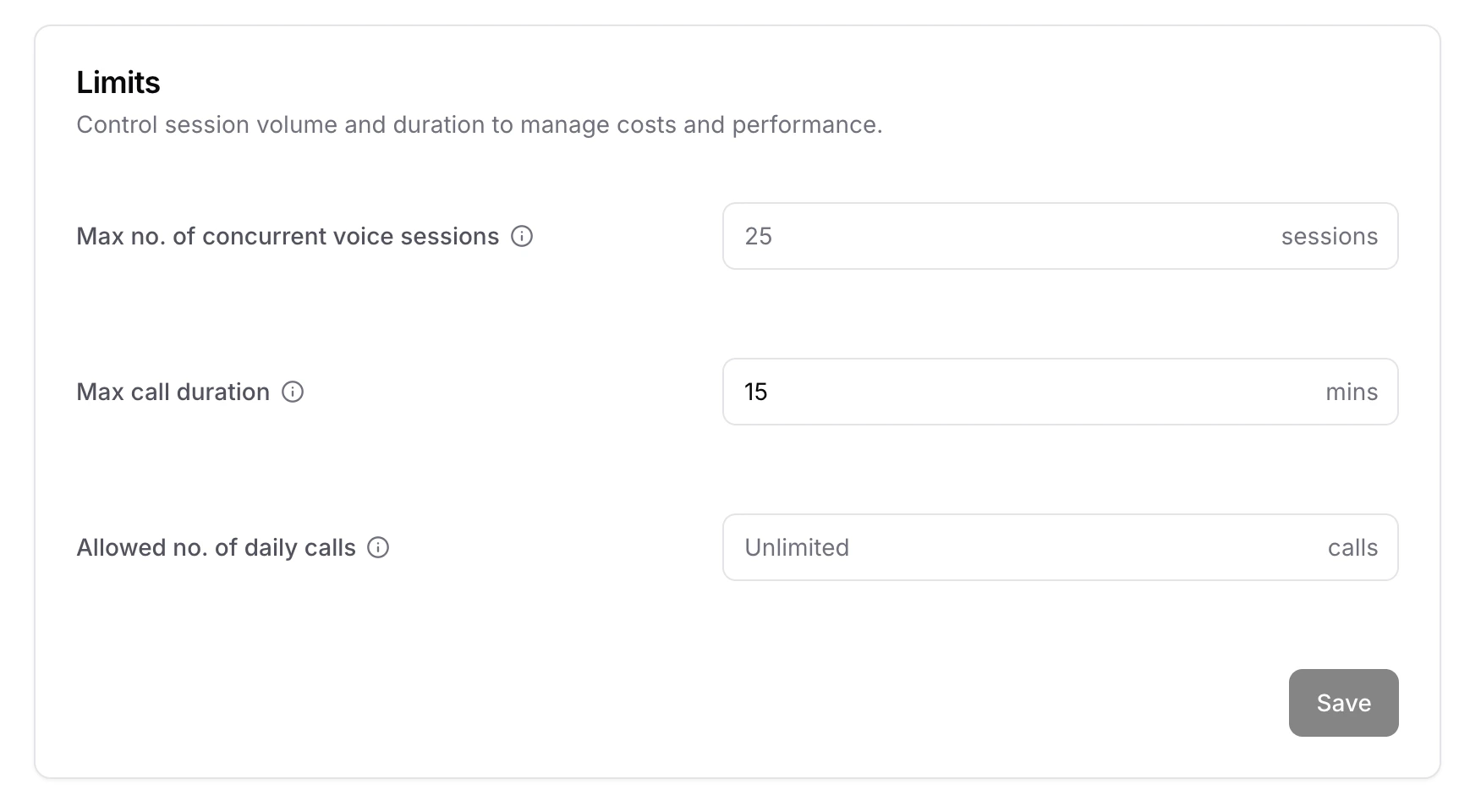 * **Max no. of concurrent voice sessions**: The maximum number of voice sessions that can run at the same time. If left empty, your plan's default limit will apply.
* **Max call duration**: The maximum length of a single voice call in minutes. The default is 15 minutes.
* **Allowed no. of daily calls**: The total number of voice calls allowed each day. If left empty, your plan's default limit will apply.
Your subscription plan enforces account-level limits for daily sessions and concurrent sessions across all your AI agents. You can set agent-specific limits here to further restrict usage for individual agents.
## Security
You can limit what domains the iframe can be embedded in and also set the rate limits which restricts the amount of messages send from one device over the chosen time period.
You can also embed it on your website so your website visitors are able to use it.
* **Max no. of concurrent voice sessions**: The maximum number of voice sessions that can run at the same time. If left empty, your plan's default limit will apply.
* **Max call duration**: The maximum length of a single voice call in minutes. The default is 15 minutes.
* **Allowed no. of daily calls**: The total number of voice calls allowed each day. If left empty, your plan's default limit will apply.
Your subscription plan enforces account-level limits for daily sessions and concurrent sessions across all your AI agents. You can set agent-specific limits here to further restrict usage for individual agents.
## Security
You can limit what domains the iframe can be embedded in and also set the rate limits which restricts the amount of messages send from one device over the chosen time period.
You can also embed it on your website so your website visitors are able to use it.
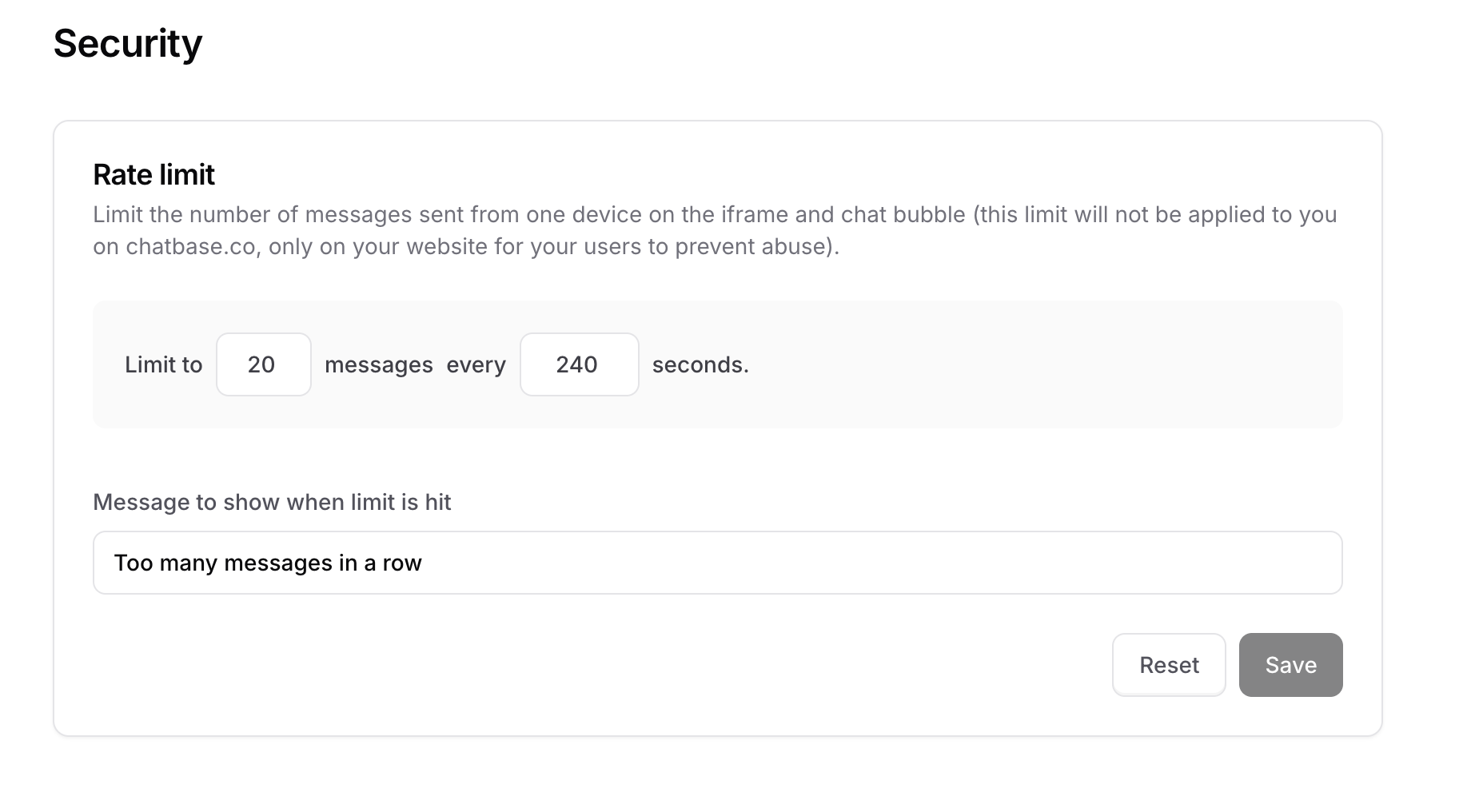 Additionally you can limit what domains the iframe can be embedded in and also set the rate limits which restricts the amount of messages send from one device over the chosen time period.
Finally, you are also able to set the message you display once this rate limit is hit.
## Notifications
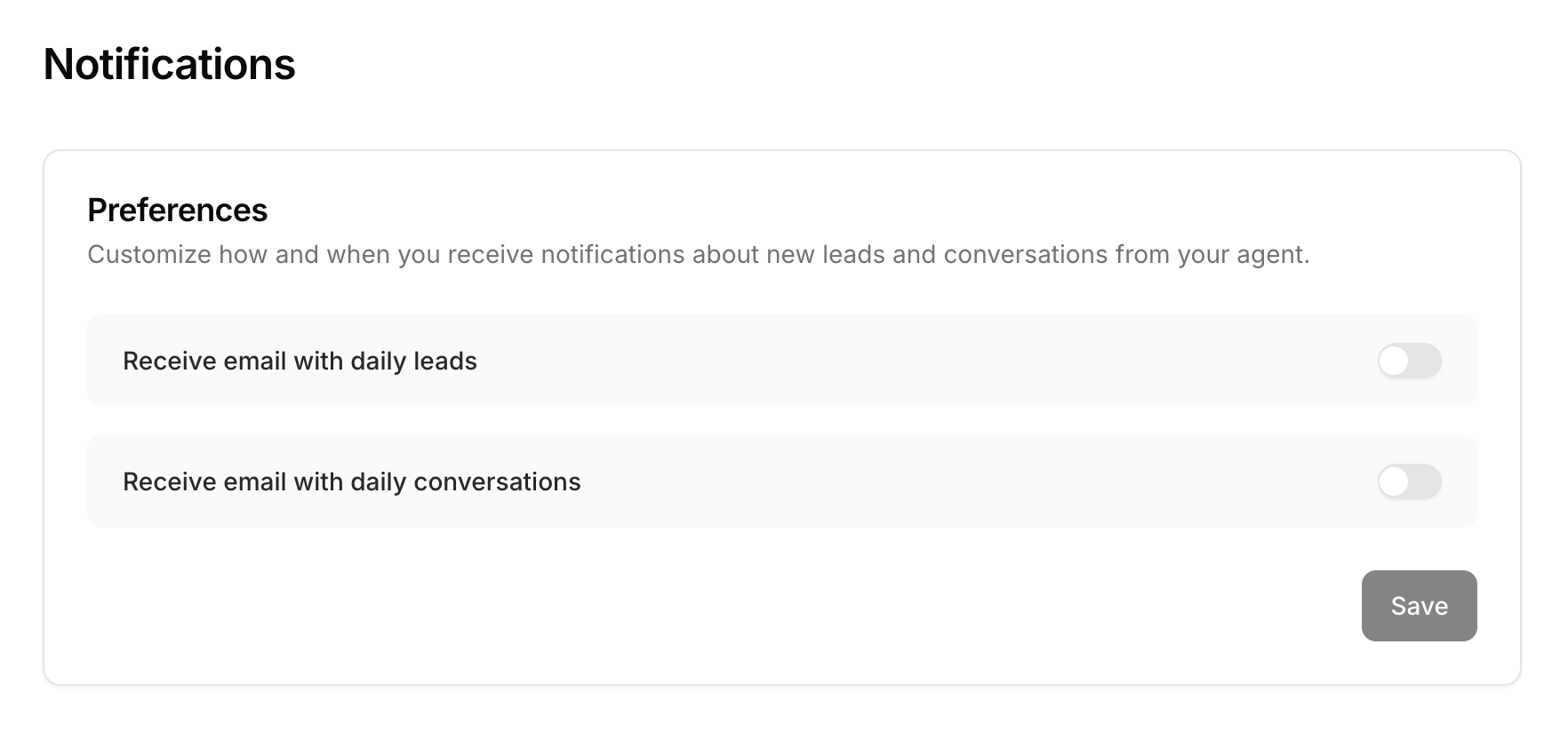
From this page, you can configure the notifications you get from the agent. You can either opt for getting one email per day that contains all the leads submitted for that day. You can also opt for another email that sends you a daily email with the conversations done on that day.
You can add multiple email addresses to receive these emails if needed
Additionally you can limit what domains the iframe can be embedded in and also set the rate limits which restricts the amount of messages send from one device over the chosen time period.
Finally, you are also able to set the message you display once this rate limit is hit.
## Notifications
From this page, you can configure the notifications you get from the agent. You can either opt for getting one email per day that contains all the leads submitted for that day. You can also opt for another email that sends you a daily email with the conversations done on that day.
You can add multiple email addresses to receive these emails if needed
 ## Webhooks
On this page, you can configure a webhook to trigger based on a selected action.
## Webhooks
On this page, you can configure a webhook to trigger based on a selected action.
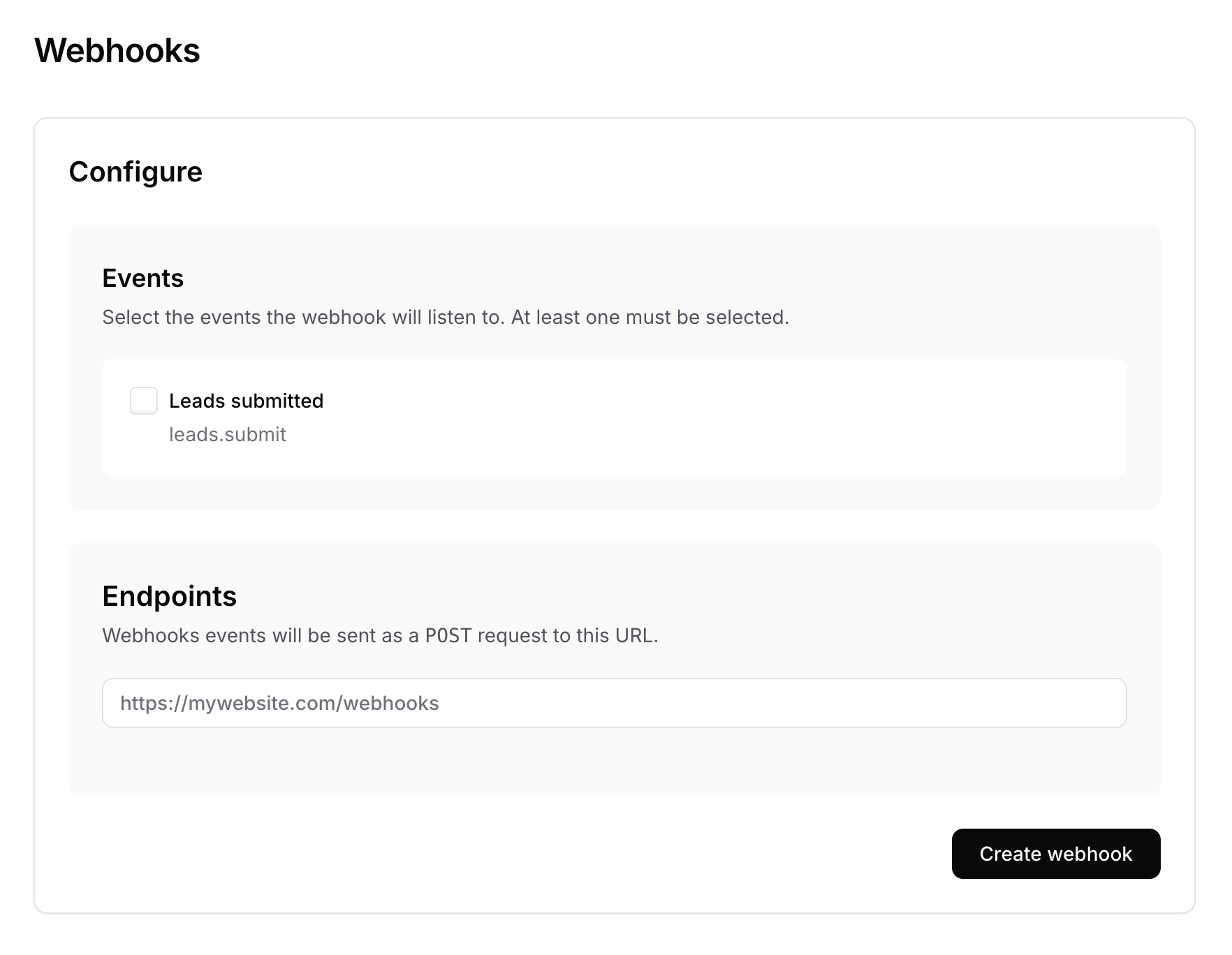 Currently, the available action is “lead submitted.” When a new lead is submitted through your agent’s lead form, our system automatically triggers the webhook.
The webhook sends a POST request to your chosen API, including the conversation ID and lead form data (name, email, and phone number).
You can use this to automate workflows with third-party tools by capturing the webhook and using it to send messages or perform other actions.
Currently, the available action is “lead submitted.” When a new lead is submitted through your agent’s lead form, our system automatically triggers the webhook.
The webhook sends a POST request to your chosen API, including the conversation ID and lead form data (name, email, and phone number).
You can use this to automate workflows with third-party tools by capturing the webhook and using it to send messages or perform other actions.