> ## Documentation Index
> Fetch the complete documentation index at: https://chatbase.co/docs/llms.txt
> Use this file to discover all available pages before exploring further.
# Deploy
> Deploy your Chatbase agent across web, messaging, phone, and productivity channels.
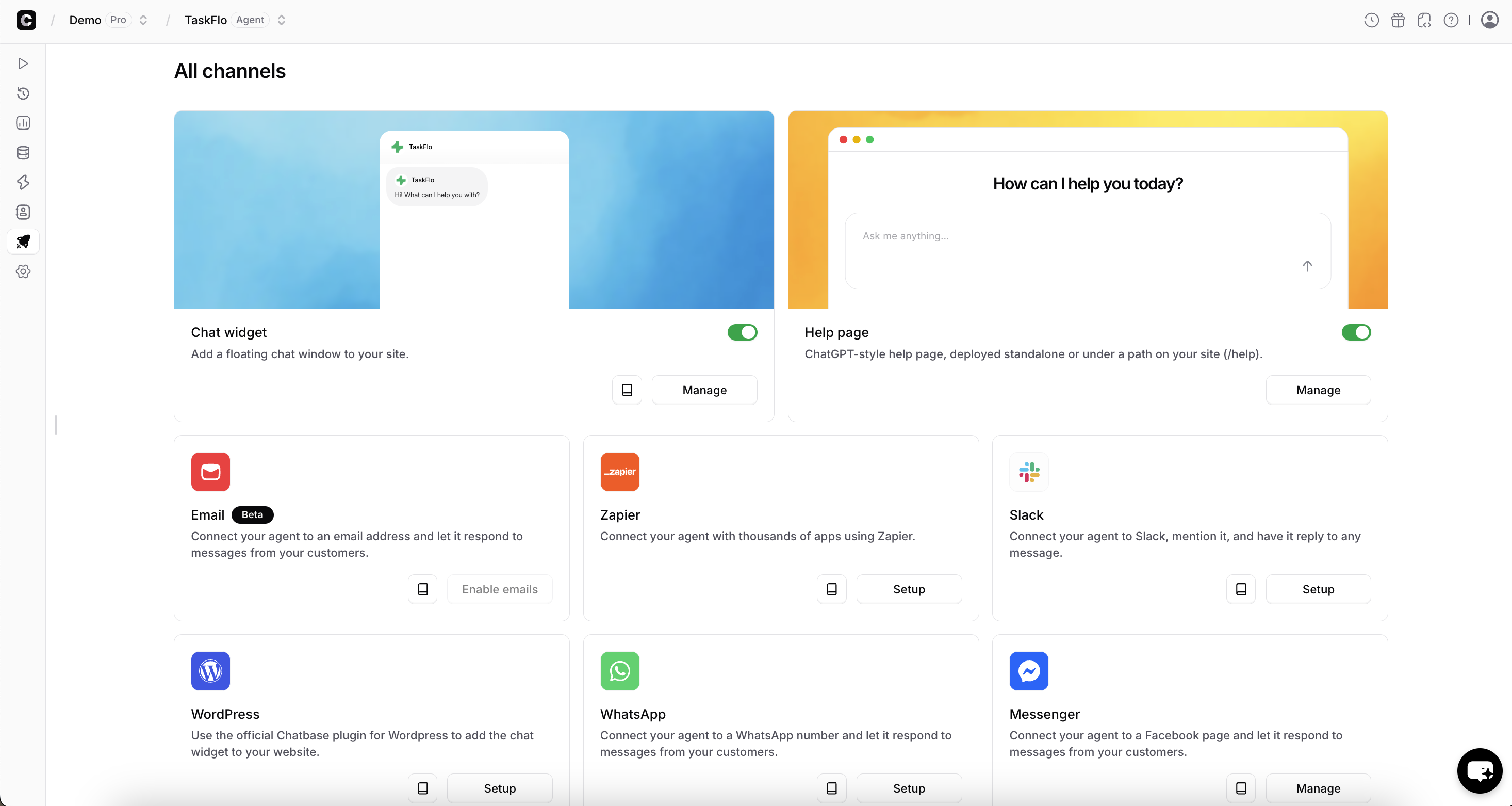
The **Deploy** tab lets you make your agent available to users across multiple channels, including your website, a standalone help page, and third-party platforms like Slack, Email, Meta Apps (Whatsapp, FB Messenger, Instagram), and Phone.
You can enable one or multiple deployment channels depending on how you want users to interact with your agent.
 ***
## All Channels Overview
The Deploy page shows all available channels for your agent. Each channel can be enabled, configured, and managed independently.
Available channels include:
* **Chat widget** — A floating chat widget embedded on your website
* **Help page** — A standalone help page hosted by Chatbase
* **Email** — Let your agent respond to emails
* **Phone** — Let your agent handle inbound phone calls via Twilio
* **Slack** — Use your agent inside Slack
* **Zapier** — Connect your agent to thousands of apps
* **WordPress** — Official WordPress plugin
* **WhatsApp** — Respond to WhatsApp messages
* **Messenger** — Connect your agent to Facebook Messenger
* **Instagram** — Let your agent respond to Instagram messages
* **Zendesk** — Respond to Zendesk support tickets
* **Salesforce** — Connect your agent to Salesforce to assist with CRM workflows
* **Shopify** — Connect your agent to your Shopify store
Use the toggle or **Manage** button on each channel to configure it.
***
## Chat Widget
The **Chat widget** allows you to embed a floating chat window on your website so visitors can interact with your agent directly.
### Enable the Chat Widget
1. Go to **Deploy → Chat widget**
2. Toggle **Enabled** on
Once enabled, you can customize its behavior, appearance, and embed settings.
***
### Content Settings
Under the **Content** tab, you can control what users see when the chat starts.
***
## All Channels Overview
The Deploy page shows all available channels for your agent. Each channel can be enabled, configured, and managed independently.
Available channels include:
* **Chat widget** — A floating chat widget embedded on your website
* **Help page** — A standalone help page hosted by Chatbase
* **Email** — Let your agent respond to emails
* **Phone** — Let your agent handle inbound phone calls via Twilio
* **Slack** — Use your agent inside Slack
* **Zapier** — Connect your agent to thousands of apps
* **WordPress** — Official WordPress plugin
* **WhatsApp** — Respond to WhatsApp messages
* **Messenger** — Connect your agent to Facebook Messenger
* **Instagram** — Let your agent respond to Instagram messages
* **Zendesk** — Respond to Zendesk support tickets
* **Salesforce** — Connect your agent to Salesforce to assist with CRM workflows
* **Shopify** — Connect your agent to your Shopify store
Use the toggle or **Manage** button on each channel to configure it.
***
## Chat Widget
The **Chat widget** allows you to embed a floating chat window on your website so visitors can interact with your agent directly.
### Enable the Chat Widget
1. Go to **Deploy → Chat widget**
2. Toggle **Enabled** on
Once enabled, you can customize its behavior, appearance, and embed settings.
***
### Content Settings
Under the **Content** tab, you can control what users see when the chat starts.
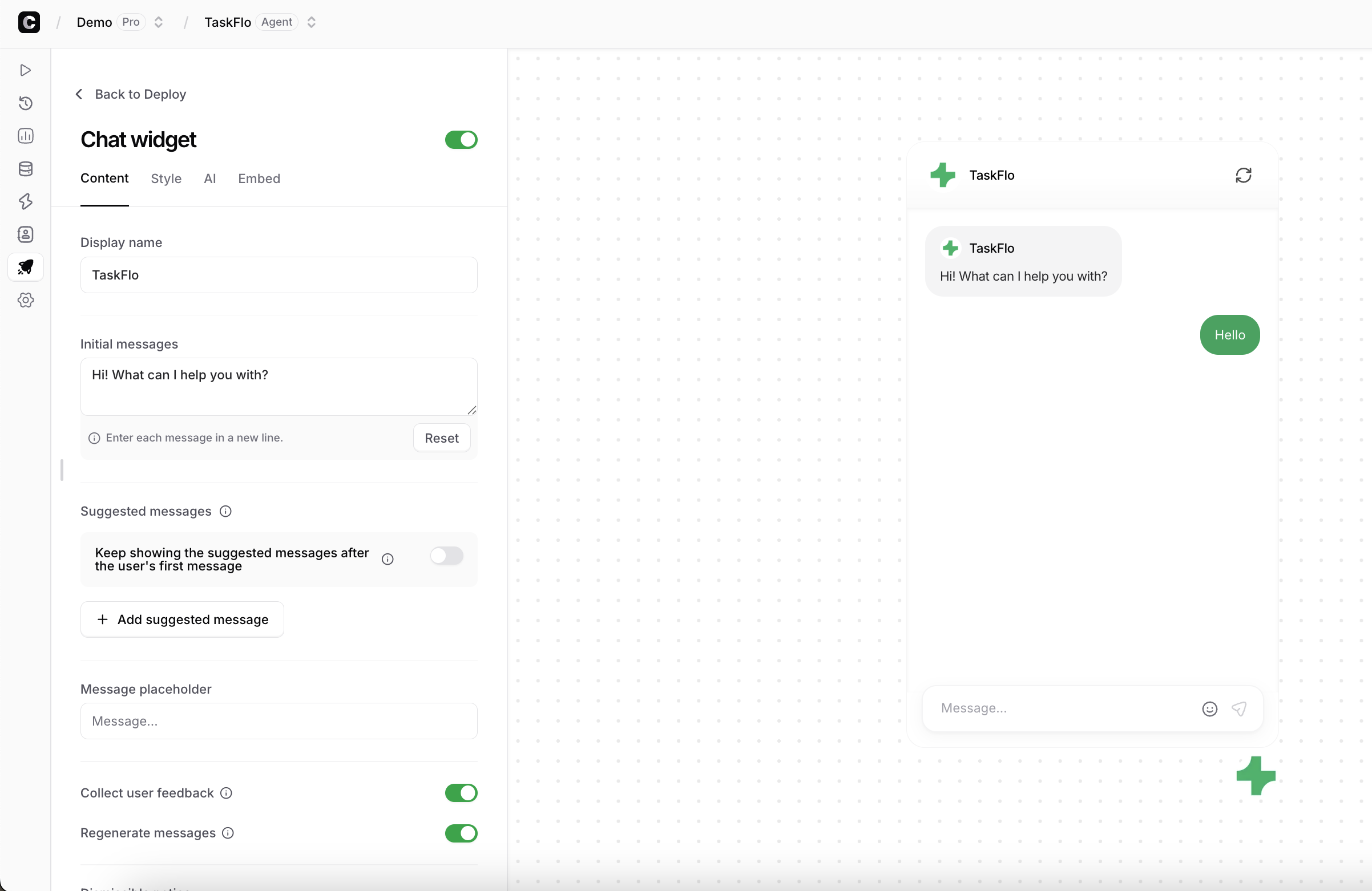 * Display name: The name shown at the top of the chat widget.
* Initial message: The message shown before the user opens the chat bubble, designed to grab attention and encourage interaction, also shown once the user opens the bubble. You can customize the initial message per user by following [this guide](/developer-guides/custom-initial-messages)
* Suggested messages: Predefined prompts shown when users open the chat to help them start the conversation quickly. These should reflect your most common questions or actions. You can also use the nested option to group related prompts under a main message, allowing users to select a category first and then choose from more specific follow-up options for a more guided experience.
* Message placeholder: The text shown in the field where the users write their questions.
* Collect feedback: When enabled, it allows the user to provide a feedback by displaying a thumbs up or down button on AI agent messages.
* Copy messages: When enabled, a copy button on agent messages is displayed to allow users to copy the response.
* Dismissable notice: A message shown above the text input area that disappears after the user sends a message.
* Footer: Text shown in the button of the chat. You can use this to add a disclaimer or a link to your privacy policy.
* Auto show initial messages pop-ups after: You can set it to negative to disable.
* Enable voice to text: When enabled, a microphone button is shown in the text input area that converts speech into text for users to review before sending.
* Enable attachments: Enable or disable sending attachments, allowing your agent to process attachments and respond based on their content.
If you include links in the footer or a dismissible notice, they must be full URLs starting with `http://` or `https://` \
\
(e.g., `https://www.example.com`), not just `www.example.com` or `example.com`
#### Localization
The Chat Widget supports localization, allowing you to translate action buttons and interface text into multiple languages.
The widget automatically displays in the visitor’s **browser language** if it matches one of the configured languages. If no match is found, the **default language** is used.
* Display name: The name shown at the top of the chat widget.
* Initial message: The message shown before the user opens the chat bubble, designed to grab attention and encourage interaction, also shown once the user opens the bubble. You can customize the initial message per user by following [this guide](/developer-guides/custom-initial-messages)
* Suggested messages: Predefined prompts shown when users open the chat to help them start the conversation quickly. These should reflect your most common questions or actions. You can also use the nested option to group related prompts under a main message, allowing users to select a category first and then choose from more specific follow-up options for a more guided experience.
* Message placeholder: The text shown in the field where the users write their questions.
* Collect feedback: When enabled, it allows the user to provide a feedback by displaying a thumbs up or down button on AI agent messages.
* Copy messages: When enabled, a copy button on agent messages is displayed to allow users to copy the response.
* Dismissable notice: A message shown above the text input area that disappears after the user sends a message.
* Footer: Text shown in the button of the chat. You can use this to add a disclaimer or a link to your privacy policy.
* Auto show initial messages pop-ups after: You can set it to negative to disable.
* Enable voice to text: When enabled, a microphone button is shown in the text input area that converts speech into text for users to review before sending.
* Enable attachments: Enable or disable sending attachments, allowing your agent to process attachments and respond based on their content.
If you include links in the footer or a dismissible notice, they must be full URLs starting with `http://` or `https://` \
\
(e.g., `https://www.example.com`), not just `www.example.com` or `example.com`
#### Localization
The Chat Widget supports localization, allowing you to translate action buttons and interface text into multiple languages.
The widget automatically displays in the visitor’s **browser language** if it matches one of the configured languages. If no match is found, the **default language** is used.
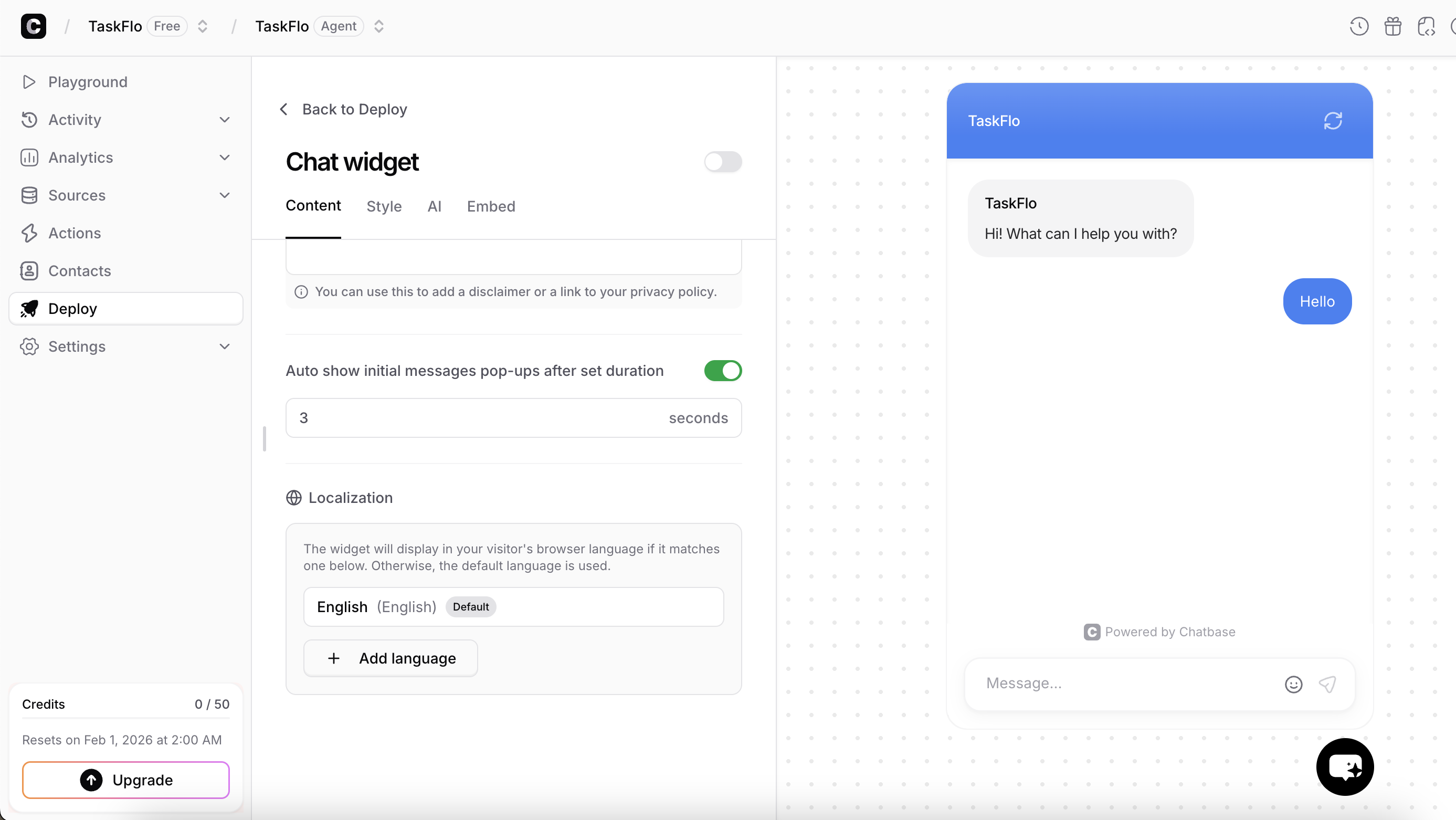 You can add multiple languages by clicking **Add language** and selecting from the available list, including right-to-left (RTL) languages.
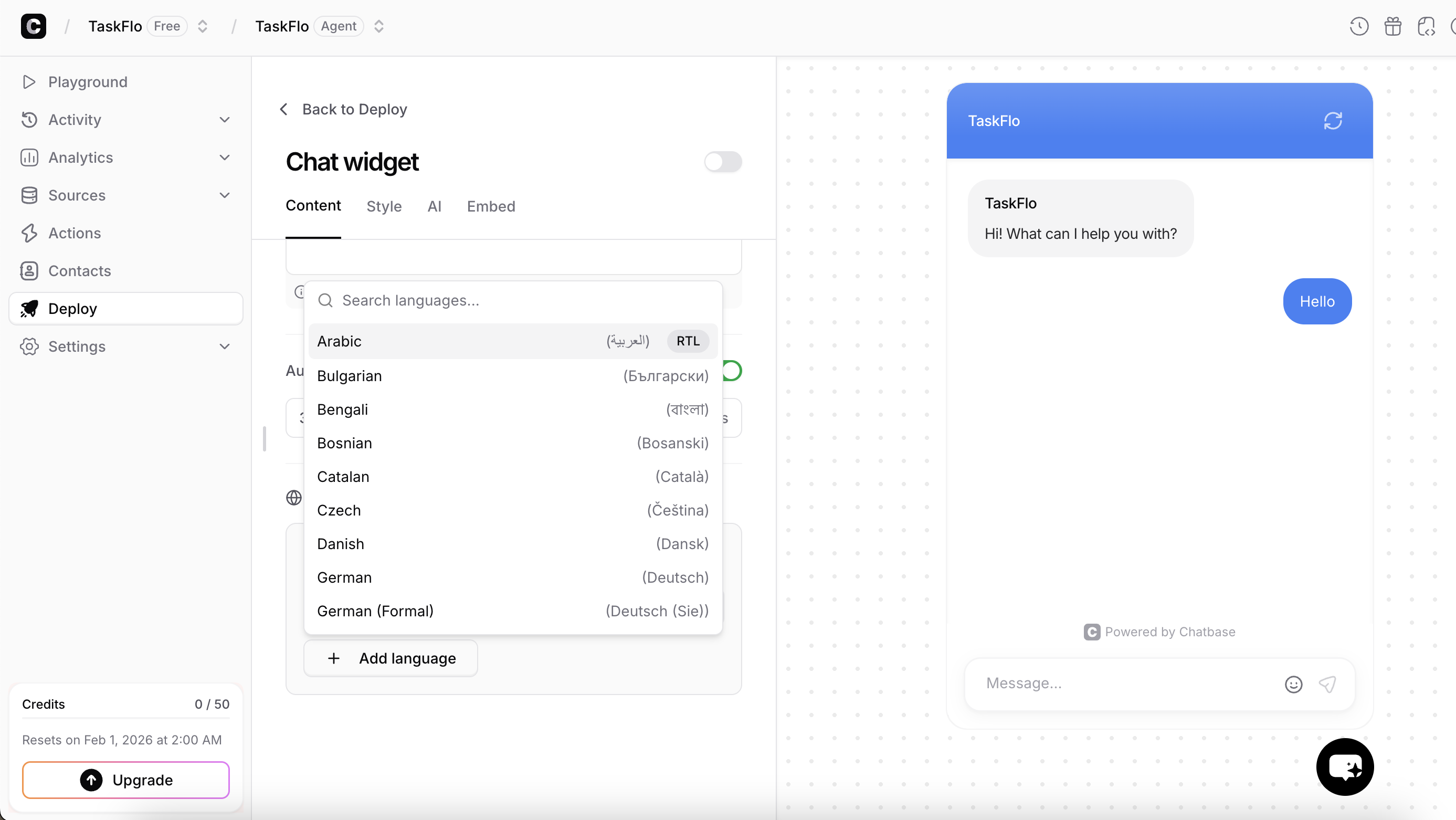 One language must be set as the **default**. This language is used when the browser language cannot be detected or is not supported.
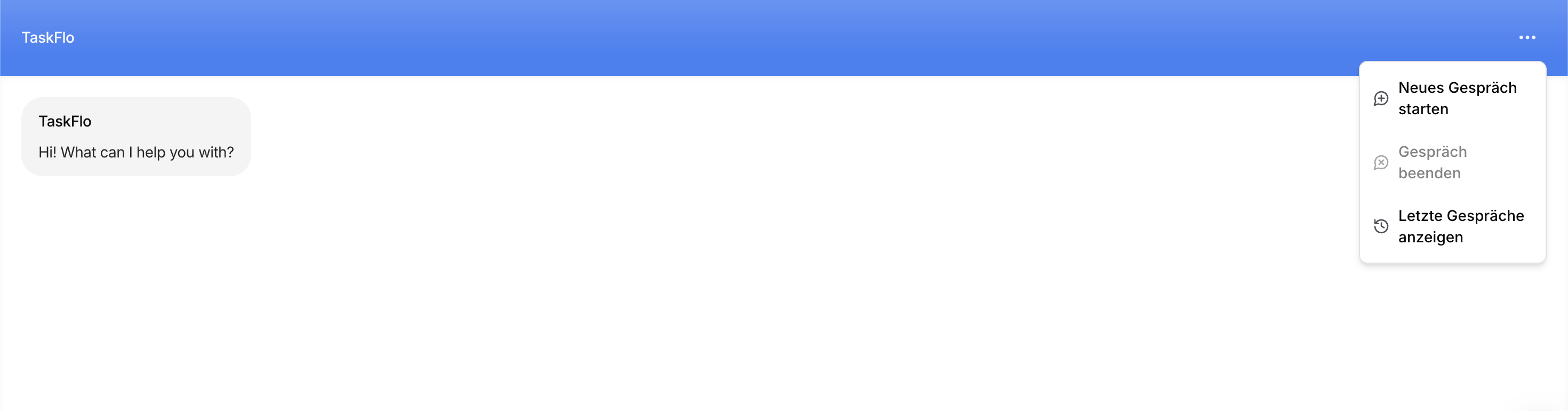
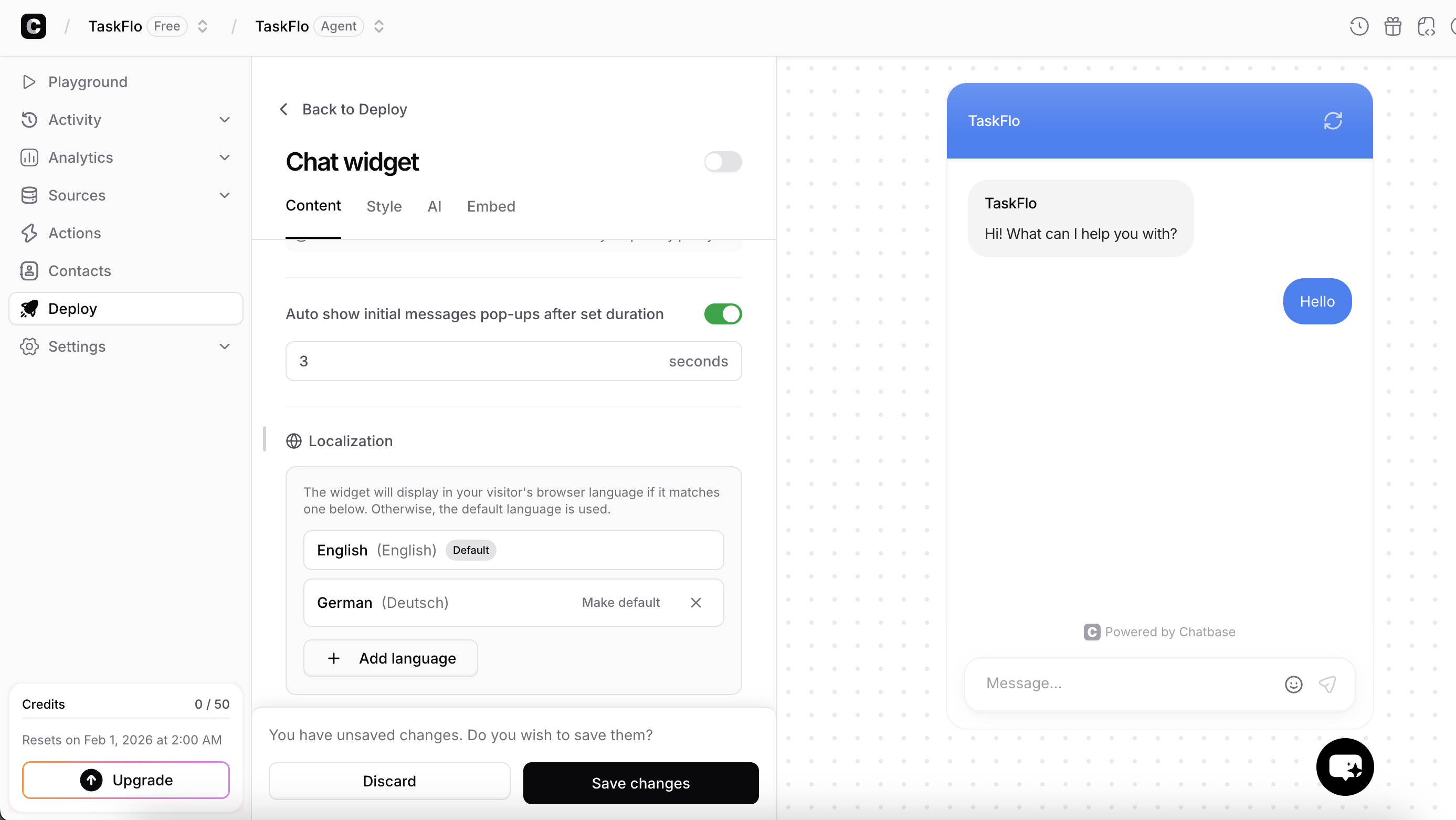 Once a language is enabled, action buttons and menu items in the chat widget are automatically translated, such as starting a new conversation, ending a conversation, and viewing previous conversations.
 #### Attachments
Chatbase allows your end-users to upload attachments during conversations. The AI agent can analyze supported files and generate responses based on their content.
**Supported Attachment Formats**
* Images: .png, .jpg, .jpeg
* Documents: .pdf
Some platforms (such as Instagram, Messenger, and WhatsApp) may allow users to upload additional file types (e.g., GIF). These formats are not supported. Any unsupported file types will be automatically discarded and not processed.
**Attachment Limits**
To maintain performance and reliability, the following limits apply (any ):
* Maximum attachments per message: 5 files
* Maximum file size: 5 MB per file
* Maximum PDF length: 5 pages per file
* Maximum characters per PDF page: 2,000 token (\~8,000 characters)
Any attachments that exceed these limits will be **ignored and not processed.**
**Billing**
When a message contains attachments, the total credits consumed include **both the text response and the attachments processed**.
Each AI model has separate pricing for:
* Text requests
* Image analysis
* PDF file analysis (per page)
So for every reply the agent generates:
* Credits are consumed for the **text response**
* Additional credits are consumed for **each attachment**
* **Images:** charged per image
* **PDFs:** charged per page
**Example (Model cost = 1 credit)**
| Message | Credit Calculation | Total |
| --------------------------------- | --------------------------------------------- | ----- |
| `Hi` | 1 (text) | **1** |
| `Hi + 1 image` | 1 (text) + 1 × 1 (image) | **2** |
| `Hi + 2 images` | 1 (text) + 2 × 1 (image) | **3** |
| `Hi + 1 PDF (3 pages)` | 1 (text) + 3 × 1 (PDF pages) | **4** |
| `Hi + 2 images + 1 PDF (3 pages)` | 1 (text) + 2 × 1 (images) + 3 × 1 (PDF pages) | **6** |
**Actions + Attachments**
If the message triggers an **action** (for example booking a meeting), the attachments are processed more than once.
They are charged once when the action is executed, and again when the agent generates a response.
**Example (Model cost = 1 credit)**
| Message | Credit Calculation | Total |
| --------------------------------- | -------------------------------------------- | ----- |
| `Hi + 1 image` (action triggered) | 1 (text) + 1 × 1 (image) (processing action) | **2** |
| `Agent response` (after action) | 1 (text) + 1 × 1 (image) (generating reply) | **2** |
| `Total for this message` | 2 + 2 | **4** |
In this case, the image is billed twice: once when processing the action, and again when generating the agent’s response.
**Other Supported Channels**
* Help Page
* E-mail
* Instagram
* Messenger
* WhatsApp
***
### Style Settings
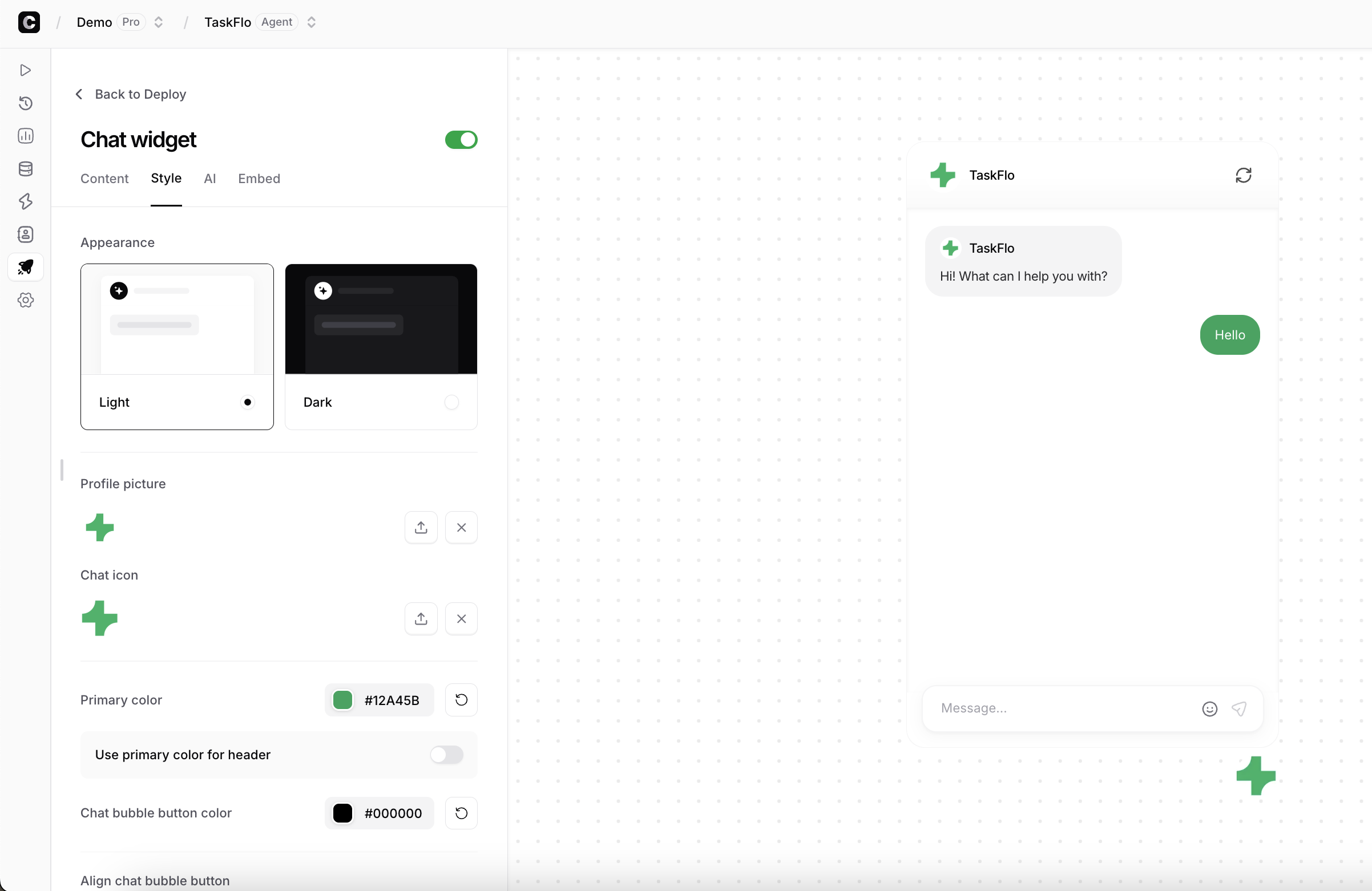
The **Style** tab lets you customize the visual appearance of the chat widget, including colors, theme, and layout.\
Changes are previewed in real time.
Use this section to match the widget to your brand.
* Theme: Light or Dark
* Profile picture: Picture of the AI agent when providing answers.
* Chat Icon: The icon appearing on the website to display the AI agent.
* Primary Color: The accent color used for the user’s message bubbles. You can optionally apply this color to the chat header.
* Chat Bubble Button Color
* Align Chat Bubble Button: Left or Right
#### Attachments
Chatbase allows your end-users to upload attachments during conversations. The AI agent can analyze supported files and generate responses based on their content.
**Supported Attachment Formats**
* Images: .png, .jpg, .jpeg
* Documents: .pdf
Some platforms (such as Instagram, Messenger, and WhatsApp) may allow users to upload additional file types (e.g., GIF). These formats are not supported. Any unsupported file types will be automatically discarded and not processed.
**Attachment Limits**
To maintain performance and reliability, the following limits apply (any ):
* Maximum attachments per message: 5 files
* Maximum file size: 5 MB per file
* Maximum PDF length: 5 pages per file
* Maximum characters per PDF page: 2,000 token (\~8,000 characters)
Any attachments that exceed these limits will be **ignored and not processed.**
**Billing**
When a message contains attachments, the total credits consumed include **both the text response and the attachments processed**.
Each AI model has separate pricing for:
* Text requests
* Image analysis
* PDF file analysis (per page)
So for every reply the agent generates:
* Credits are consumed for the **text response**
* Additional credits are consumed for **each attachment**
* **Images:** charged per image
* **PDFs:** charged per page
**Example (Model cost = 1 credit)**
| Message | Credit Calculation | Total |
| --------------------------------- | --------------------------------------------- | ----- |
| `Hi` | 1 (text) | **1** |
| `Hi + 1 image` | 1 (text) + 1 × 1 (image) | **2** |
| `Hi + 2 images` | 1 (text) + 2 × 1 (image) | **3** |
| `Hi + 1 PDF (3 pages)` | 1 (text) + 3 × 1 (PDF pages) | **4** |
| `Hi + 2 images + 1 PDF (3 pages)` | 1 (text) + 2 × 1 (images) + 3 × 1 (PDF pages) | **6** |
**Actions + Attachments**
If the message triggers an **action** (for example booking a meeting), the attachments are processed more than once.
They are charged once when the action is executed, and again when the agent generates a response.
**Example (Model cost = 1 credit)**
| Message | Credit Calculation | Total |
| --------------------------------- | -------------------------------------------- | ----- |
| `Hi + 1 image` (action triggered) | 1 (text) + 1 × 1 (image) (processing action) | **2** |
| `Agent response` (after action) | 1 (text) + 1 × 1 (image) (generating reply) | **2** |
| `Total for this message` | 2 + 2 | **4** |
In this case, the image is billed twice: once when processing the action, and again when generating the agent’s response.
**Other Supported Channels**
* Help Page
* E-mail
* Instagram
* Messenger
* WhatsApp
***
### Style Settings
The **Style** tab lets you customize the visual appearance of the chat widget, including colors, theme, and layout.\
Changes are previewed in real time.
Use this section to match the widget to your brand.
* Theme: Light or Dark
* Profile picture: Picture of the AI agent when providing answers.
* Chat Icon: The icon appearing on the website to display the AI agent.
* Primary Color: The accent color used for the user’s message bubbles. You can optionally apply this color to the chat header.
* Chat Bubble Button Color
* Align Chat Bubble Button: Left or Right
 ***
### AI Settings
The **AI** tab controls how the agent behaves inside the widget, including response behavior and AI-specific options.
#### Sync with Base Instructions
By default, your agent uses **Base instructions**, which define its core behavior across all channels.
When **Sync with base instructions** is enabled, the chat widget will use the same base instructions as the rest of your agent.
When this setting is disabled, you can define **channel-specific instructions** that apply only to the chat widget and override the base instructions for this channel.
***
### Embed
The **Embed** tab provides the code needed to add the chat widget to your website.
#### Allowed Domains
You can restrict where your agent is allowed to load by specifying approved domains.
When enabled, the agent will only work on the domains listed here.
#### Chat Widget (Recommended)
Embed a floating chat bubble on your website.
* Supports all advanced features of the agent
* Fully customizable using the Content, Style, and AI tabs
* Best option for most use cases
#### iFrame
Embed the chat interface directly using an iframe.
* Simple to integrate
* **Advanced features are not supported**
* Recommended only if iframe embedding is required by your setup
You can copy the embed script and paste it into your site’s HTML, typically before the closing `` tag.
***
## Help Page
The **Help page** is a standalone page hosted by Chatbase.\
It’s ideal for help centers, documentation portals, or internal tools.
### Enable the Help Page
1. Go to **Deploy → Help page**
2. Toggle **Enabled** on
***
### AI Settings
The **AI** tab controls how the agent behaves inside the widget, including response behavior and AI-specific options.
#### Sync with Base Instructions
By default, your agent uses **Base instructions**, which define its core behavior across all channels.
When **Sync with base instructions** is enabled, the chat widget will use the same base instructions as the rest of your agent.
When this setting is disabled, you can define **channel-specific instructions** that apply only to the chat widget and override the base instructions for this channel.
***
### Embed
The **Embed** tab provides the code needed to add the chat widget to your website.
#### Allowed Domains
You can restrict where your agent is allowed to load by specifying approved domains.
When enabled, the agent will only work on the domains listed here.
#### Chat Widget (Recommended)
Embed a floating chat bubble on your website.
* Supports all advanced features of the agent
* Fully customizable using the Content, Style, and AI tabs
* Best option for most use cases
#### iFrame
Embed the chat interface directly using an iframe.
* Simple to integrate
* **Advanced features are not supported**
* Recommended only if iframe embedding is required by your setup
You can copy the embed script and paste it into your site’s HTML, typically before the closing `` tag.
***
## Help Page
The **Help page** is a standalone page hosted by Chatbase.\
It’s ideal for help centers, documentation portals, or internal tools.
### Enable the Help Page
1. Go to **Deploy → Help page**
2. Toggle **Enabled** on
 ***
### Settings
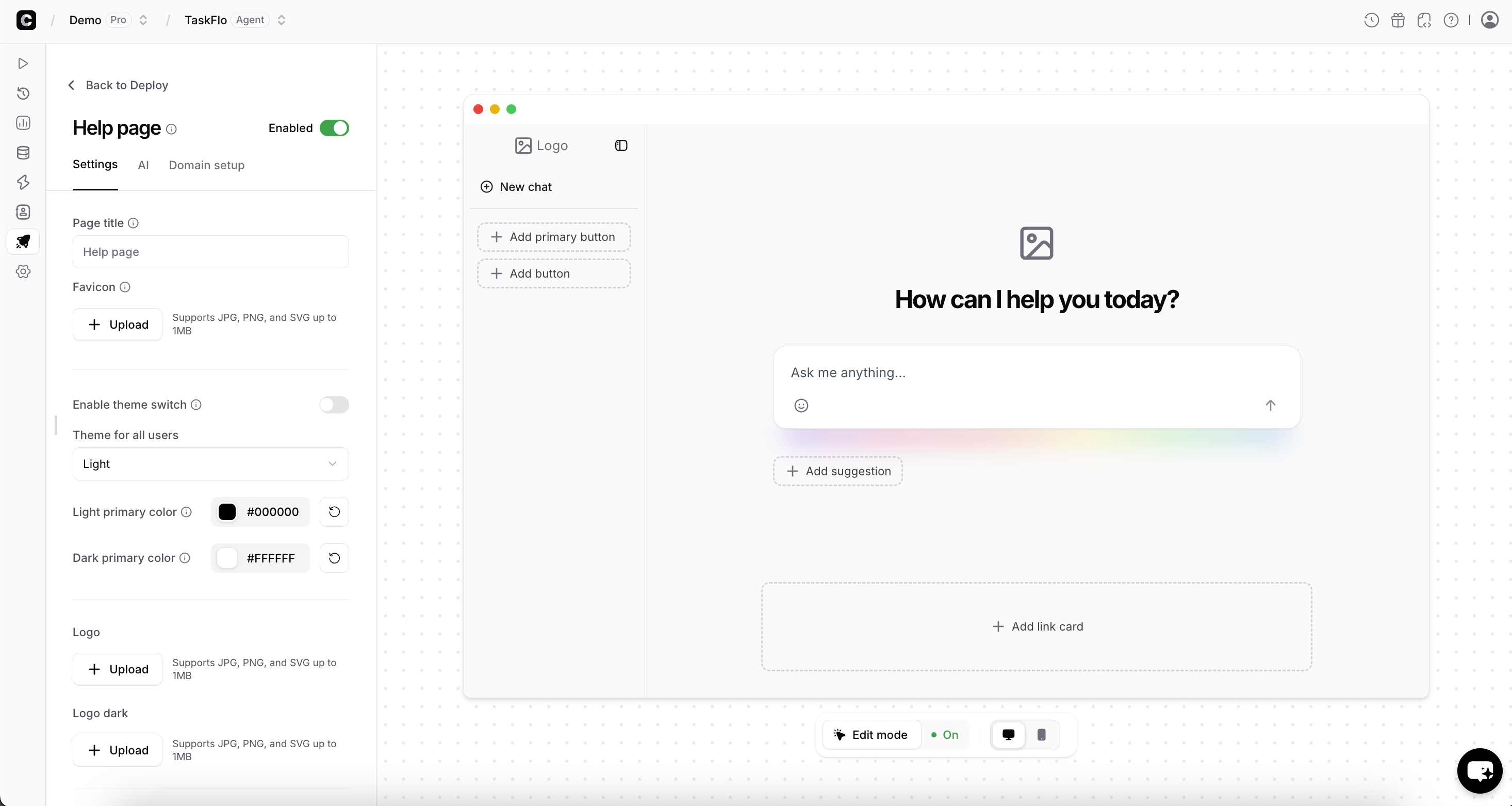
* Page title: The title shown in the browser tab.
* Favicon: Upload a custom favicon for the help page. Supports JPG, PNG, and SVG files up to 1MB.
* Theme settings: Enable or disable theme switching. Set a default theme for all users. Customize light and dark primary colors.
* Enable voice to text: When enabled, a microphone button is shown in the text input area that converts speech into text for users to review before sending.
* Enable attachments: Enable or disable sending attachments, allowing your agent to process attachments and respond based on their content.
* Logos: Upload a logo for light mode. Upload a separate logo for dark mode.
* Heros: Upload a hero for light mode. Upload a separate logo for dark mode.
***
### Domain setup
The **Domain setup** tab shows the default URL Chatbase generated for your help page, and lets you host it on your own website.
You can:
* Use the default **Chatbase domain**. Your help page is served at `www.chatbase.co/{id}/help`, where `{id}` is a unique identifier generated automatically by Chatbase.
* Deploy on your **own domain** (for example, `yourcompany.com/help`). Check out the [Help Page Proxy](/developer-guides/help-page-proxy) for detailed steps on how to do it.
***
## Third-Party Channels
### Email
Connect your agent to an email address and let it respond automatically to incoming messages. Detailed integration steps can be found on [this guide](/user-guides/integrations/email).
Use this for customer support or inbound inquiries.
***
### Slack
Connect your agent to Slack so it can respond to messages when mentioned or messaged directly. Detailed integration steps can be found on [this guide](/user-guides/integrations/slack).
Ideal for internal knowledge bases and team support.
***
### Phone
Let your AI agent handle inbound phone calls via Twilio. Callers are connected directly to your agent, which responds using its configured voice settings and knowledge base. Detailed integration steps can be found on [this guide](/user-guides/integrations/twilio).
***
### Zapier
Use Zapier to connect your agent with thousands of apps and automate workflows. Detailed integration steps can be found on [this guide](/user-guides/integrations/zapier).
***
### WordPress
Use the official Chatbase WordPress plugin to add the chat widget to your WordPress site without writing code. Detailed integration steps can be found on [this guide](/user-guides/integrations/wordpress).
***
### WhatsApp
Connect your agent to a WhatsApp number and let it respond to WhatsApp messages. Detailed integration steps can be found on [this guide](/user-guides/integrations/whatsapp).
***
### Messenger
Connect your agent to a Facebook Page and let it respond to Messenger conversations. Detailed integration steps can be found on [this guide](/user-guides/integrations/messenger).
***
### Instagram
Connect your agent to an Instagram account and let it respond to messages from your customers. Detailed integration steps can be found on [this guide](/user-guides/integrations/instagram).
***
### Zendesk
Connect your agent to Zendesk to create and respond to support tickets from your customers. Detailed integration steps can be found on [this guide](/user-guides/integrations/zendesk).
***
### Salesforce
Connect your agent to Salesforce and use it to assist with CRM workflows, such as answering questions about records, supporting agents, or automating responses inside your Salesforce environment. Detailed integration steps can be found on [this guide](/user-guides/integrations/salesforce).
***
### Shopify
Use the official Chatbase Shopify app to add the chat widget to your Shopify store without writing code. Detailed integration steps can be found on [this guide](/user-guides/integrations/shopify).
***
## Best Practices
* Start with one channel and expand as needed
* Customize prompts and suggested messages per channel
* Test each deployment before sharing it with users
* Use the Help page for structured support and the chat widget for quick assistance
***
***
### Settings
* Page title: The title shown in the browser tab.
* Favicon: Upload a custom favicon for the help page. Supports JPG, PNG, and SVG files up to 1MB.
* Theme settings: Enable or disable theme switching. Set a default theme for all users. Customize light and dark primary colors.
* Enable voice to text: When enabled, a microphone button is shown in the text input area that converts speech into text for users to review before sending.
* Enable attachments: Enable or disable sending attachments, allowing your agent to process attachments and respond based on their content.
* Logos: Upload a logo for light mode. Upload a separate logo for dark mode.
* Heros: Upload a hero for light mode. Upload a separate logo for dark mode.
***
### Domain setup
The **Domain setup** tab shows the default URL Chatbase generated for your help page, and lets you host it on your own website.
You can:
* Use the default **Chatbase domain**. Your help page is served at `www.chatbase.co/{id}/help`, where `{id}` is a unique identifier generated automatically by Chatbase.
* Deploy on your **own domain** (for example, `yourcompany.com/help`). Check out the [Help Page Proxy](/developer-guides/help-page-proxy) for detailed steps on how to do it.
***
## Third-Party Channels
### Email
Connect your agent to an email address and let it respond automatically to incoming messages. Detailed integration steps can be found on [this guide](/user-guides/integrations/email).
Use this for customer support or inbound inquiries.
***
### Slack
Connect your agent to Slack so it can respond to messages when mentioned or messaged directly. Detailed integration steps can be found on [this guide](/user-guides/integrations/slack).
Ideal for internal knowledge bases and team support.
***
### Phone
Let your AI agent handle inbound phone calls via Twilio. Callers are connected directly to your agent, which responds using its configured voice settings and knowledge base. Detailed integration steps can be found on [this guide](/user-guides/integrations/twilio).
***
### Zapier
Use Zapier to connect your agent with thousands of apps and automate workflows. Detailed integration steps can be found on [this guide](/user-guides/integrations/zapier).
***
### WordPress
Use the official Chatbase WordPress plugin to add the chat widget to your WordPress site without writing code. Detailed integration steps can be found on [this guide](/user-guides/integrations/wordpress).
***
### WhatsApp
Connect your agent to a WhatsApp number and let it respond to WhatsApp messages. Detailed integration steps can be found on [this guide](/user-guides/integrations/whatsapp).
***
### Messenger
Connect your agent to a Facebook Page and let it respond to Messenger conversations. Detailed integration steps can be found on [this guide](/user-guides/integrations/messenger).
***
### Instagram
Connect your agent to an Instagram account and let it respond to messages from your customers. Detailed integration steps can be found on [this guide](/user-guides/integrations/instagram).
***
### Zendesk
Connect your agent to Zendesk to create and respond to support tickets from your customers. Detailed integration steps can be found on [this guide](/user-guides/integrations/zendesk).
***
### Salesforce
Connect your agent to Salesforce and use it to assist with CRM workflows, such as answering questions about records, supporting agents, or automating responses inside your Salesforce environment. Detailed integration steps can be found on [this guide](/user-guides/integrations/salesforce).
***
### Shopify
Use the official Chatbase Shopify app to add the chat widget to your Shopify store without writing code. Detailed integration steps can be found on [this guide](/user-guides/integrations/shopify).
***
## Best Practices
* Start with one channel and expand as needed
* Customize prompts and suggested messages per channel
* Test each deployment before sharing it with users
* Use the Help page for structured support and the chat widget for quick assistance
***