> ## Documentation Index
> Fetch the complete documentation index at: https://chatbase.co/docs/llms.txt
> Use this file to discover all available pages before exploring further.
# Activity
> This section shows the chat logs of the conversations your users had with your AI agent and the Lead forms filled by your users.
## Chat Logs
The chat logs provides a detailed view of all user interactions with your AI agent. It allows you to review individual conversations and evaluate your agent's responses. Each log includes user messages, agent responses, and any triggered actions, helping you identify issues, optimize responses, and improve overall user experience.
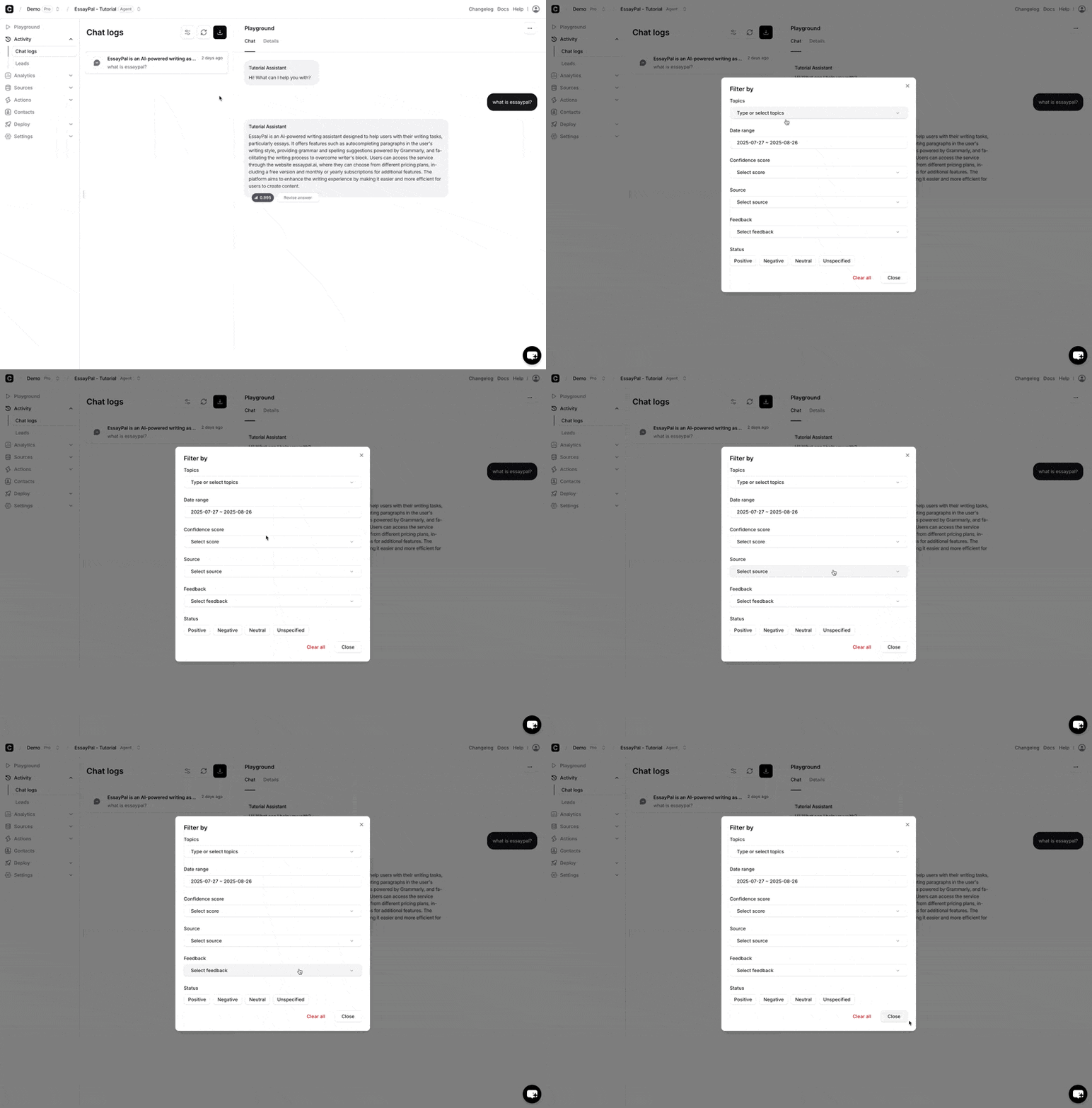
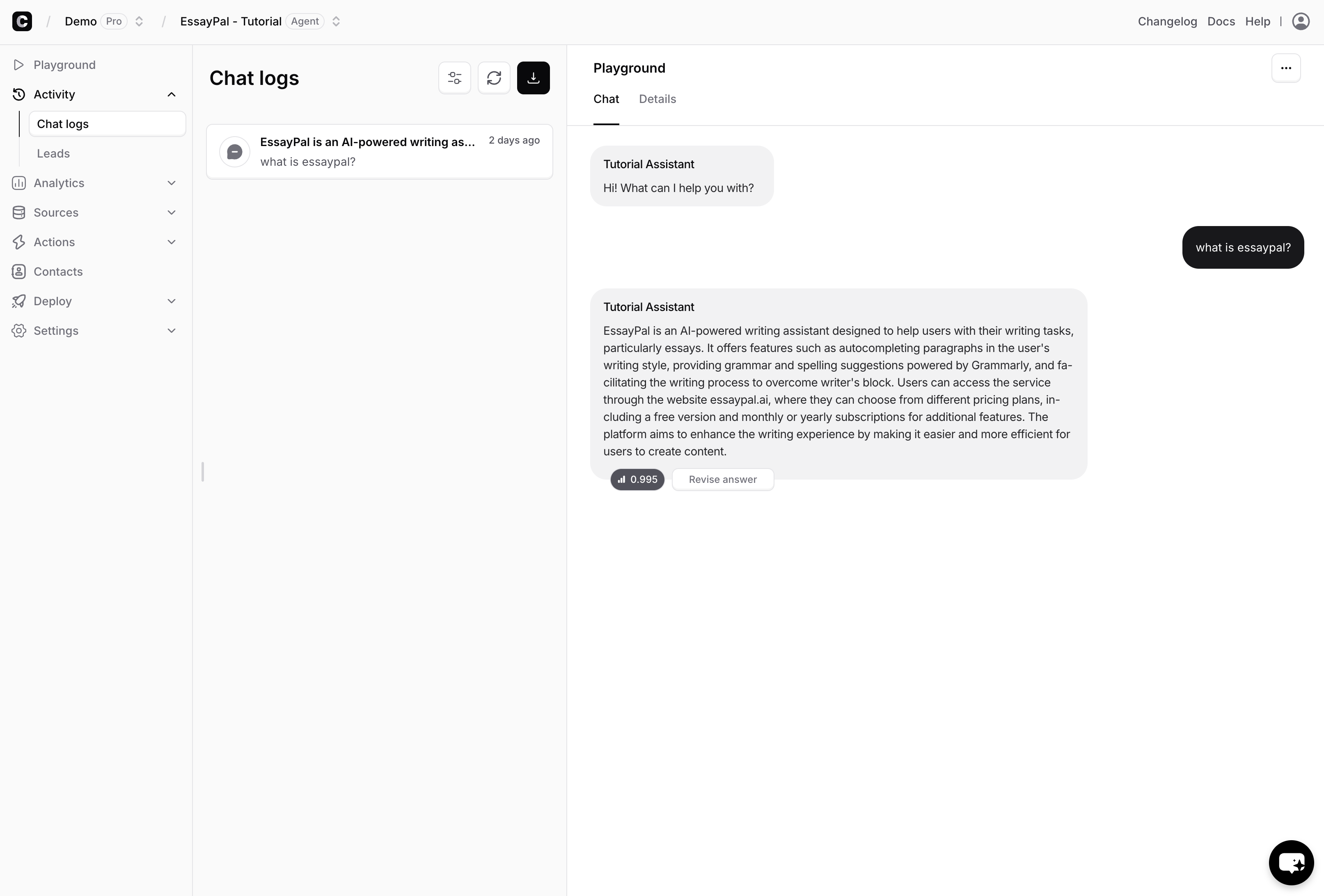 The chat logs can be filtered by the following:
* Date
* Confidence Score
* Source
* Feedback
* Sentiment
* Topic
The chat logs can be filtered by the following:
* Date
* Confidence Score
* Source
* Feedback
* Sentiment
* Topic
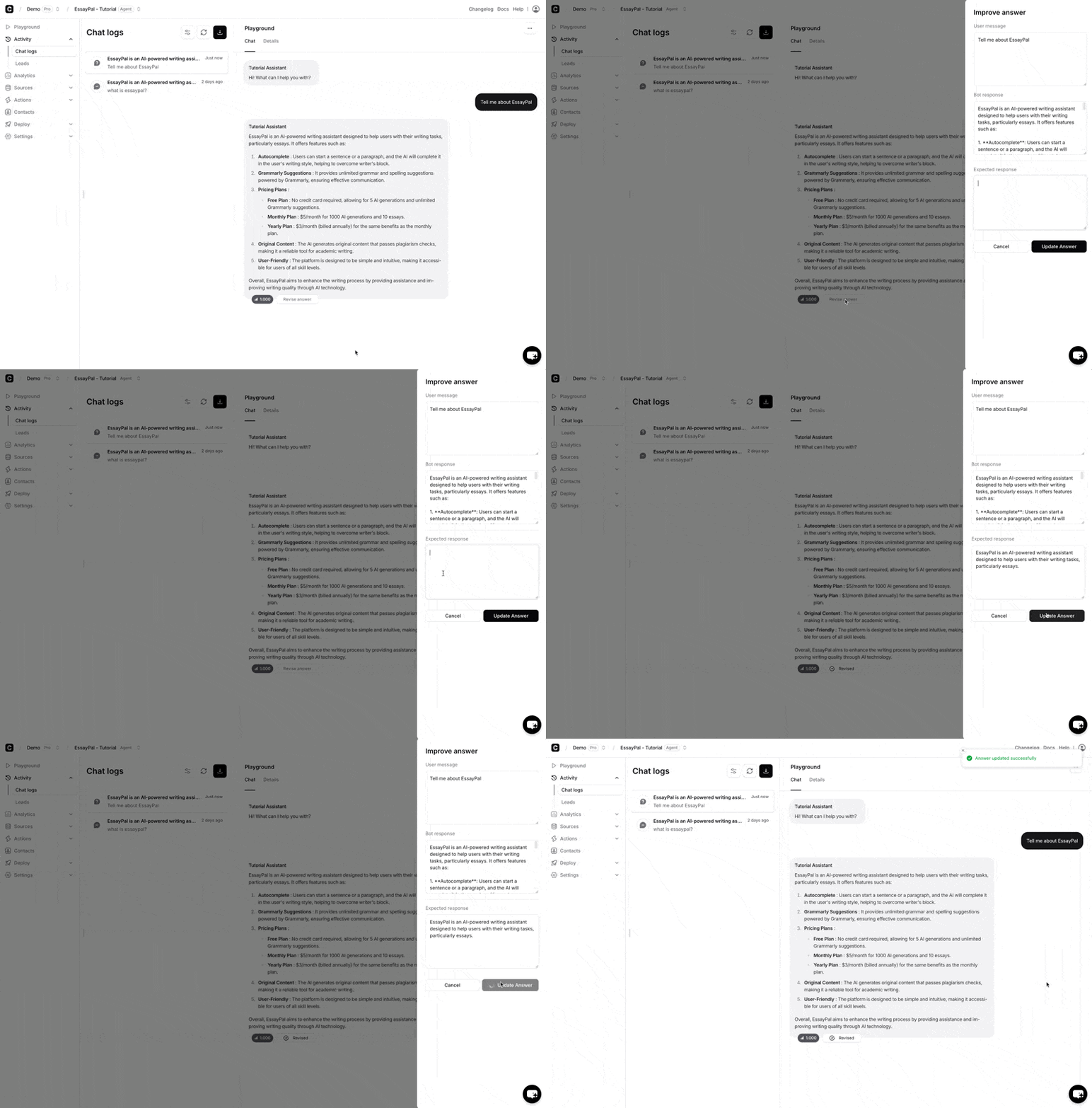
**Improve Answer**
This feature allows you adjust the AI Agent's response if it wasn't accurate or satisfactory.
When you click the Improve Answer button, a form appears showing the user's original question, the AI Agent's response, and a field where you can enter the expected answer.
Once the answer is updated, the question and answer are added automatically to the Q\&A section of your sources.
 ### Confidence Score
This indicates how confident the AI Agent is in its response based on the sources you've trained it on. You can review responses with low confidence scores and revise them to improve their accuracy.
### Exporting Conversations
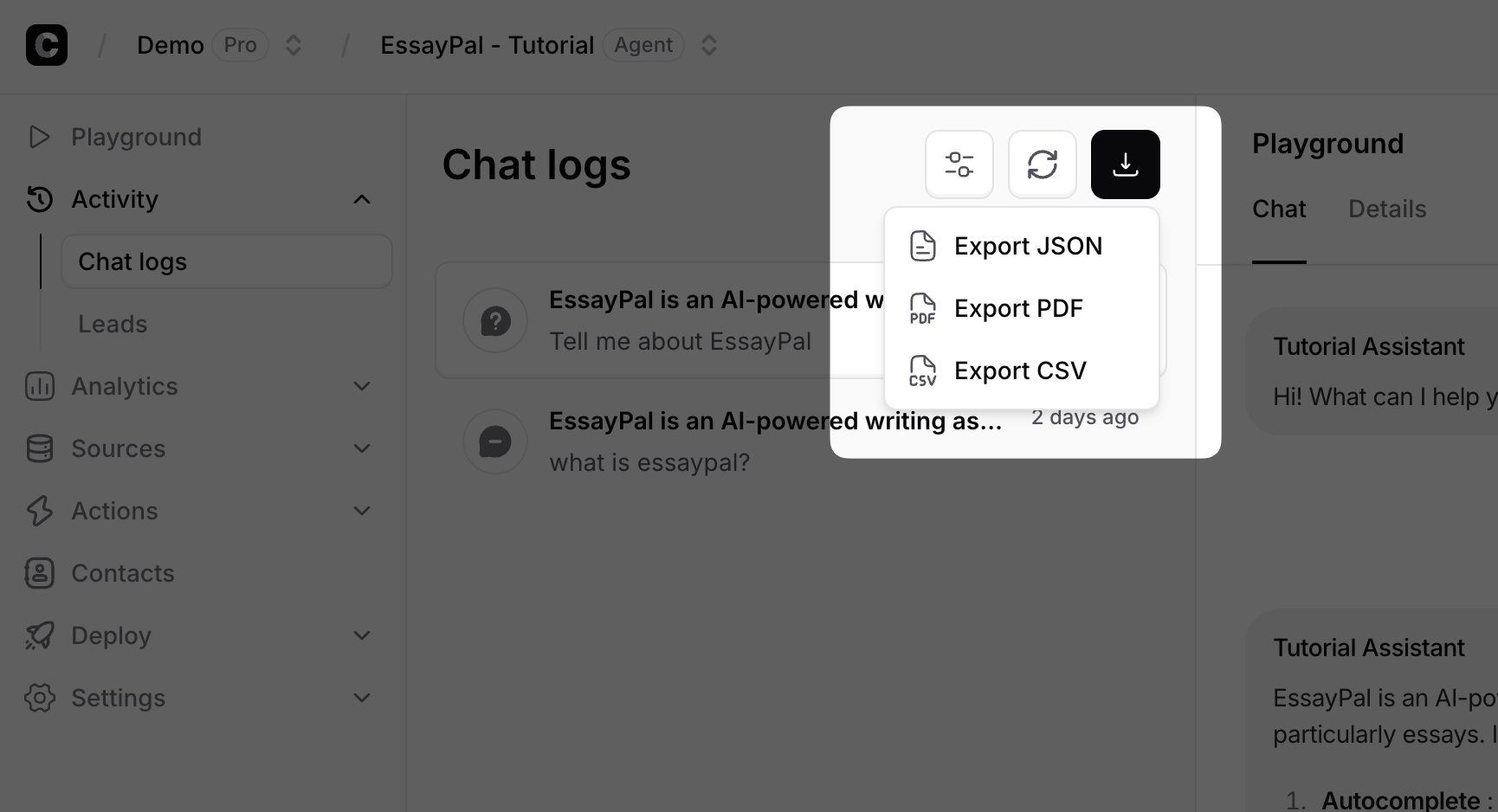
You can export the conversations in the chats log directly from the dashboard using the Export button. The export can be downloaded as JSON, PDF, and CSV.
### Confidence Score
This indicates how confident the AI Agent is in its response based on the sources you've trained it on. You can review responses with low confidence scores and revise them to improve their accuracy.
### Exporting Conversations
You can export the conversations in the chats log directly from the dashboard using the Export button. The export can be downloaded as JSON, PDF, and CSV.
 ## Leads
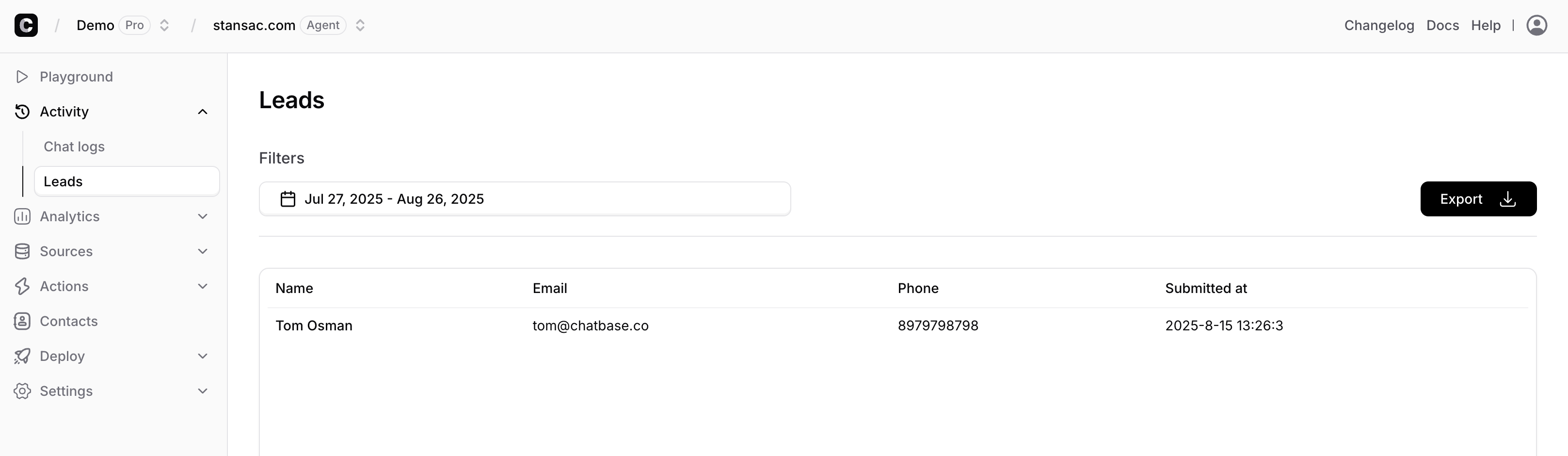
This section shows the submissions of the Leads form along with their submission date. You can filter them by date and export them as CSV or PDF.
## Leads
This section shows the submissions of the Leads form along with their submission date. You can filter them by date and export them as CSV or PDF.
 The leads form can be configured through the settings page of the AI agent or through [the Collect Leads action](./actions/collect-leads)