> ## Documentation Index
> Fetch the complete documentation index at: https://chatbase.co/docs/llms.txt
> Use this file to discover all available pages before exploring further.
# Stripe Actions
> Automate billing and subscription management with powerful Stripe actions
## Overview
Stripe Actions enable your AI agent to seamlessly handle customer billing inquiries, subscription management, and account updates directly within the chat interface. These actions provide secure, real-time access to customer payment information, streamlining support operations and enhancing customer experience.
**Prerequisites Required**: Before using Stripe Actions, you must:
1. [Set up Stripe integration](/user-guides/integrations/stripe) with your Chatbase account
2. Configure [identity verification](/developer-guides/identity-verification) for secure customer authentication
3. Set up [contacts](/user-guides/chatbot/contacts/contacts-overview) with valid `stripe_account` fields for each customer
## How Stripe Actions Work
Stripe Actions leverage Chatbase's identity verification system to securely access customer-specific data. Here's the workflow:
1. **User Authentication**: Customers must be identified using `window.chatbase("identify", {...})` with their unique user ID
2. **Contact Matching**: The system matches the authenticated user ID to a contact record containing their Stripe account id.
3. **Secure Data Access**: Actions retrieve only the data associated with the authenticated customer's Stripe account
4. **Real-time Responses**: AI agent provides immediate answers using live Stripe data
**Environment Limitations**: Stripe Actions will not function in:
* Chatbase Playground environment
* Action Preview mode
* Compare features
Testing this action should be done in your actual website environment. Embed the [JavaScript script](/developer-guides/javascript-embed) in your website and test the action.
## Available Stripe Actions
### 1. Get Subscription Information
Retrieve and display customer subscription details including current plan, status, billing cycle, and pricing information.
Answering questions about current subscription status, plan details, renewal dates, and subscription history.
**Common Use Cases:**
* "What's my current plan?"
* "When does my subscription renew?"
* "How much am I paying monthly?"
* "Is my subscription active?"
#### Setup Instructions
Navigate to **Actions** → **Create Action** and select **Stripe Get Subscription Info**.
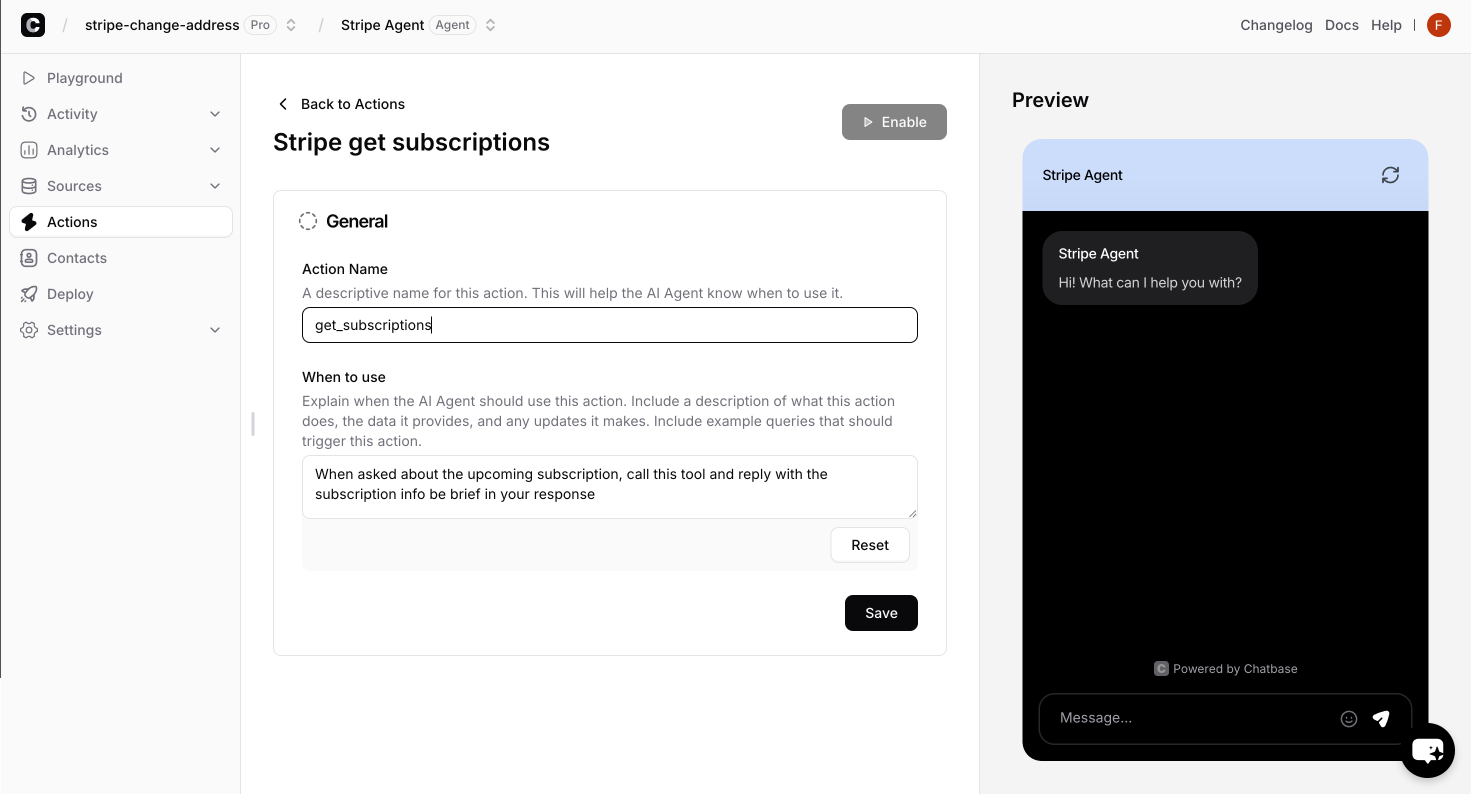 **Action Name:** Enter a unique name for the action.
**When to use:** Provide detailed instructions for when the AI should use this action.
Click **Save** and toggle the action to **Enabled** to make it available to your AI agent.
**Action Name:** Enter a unique name for the action.
**When to use:** Provide detailed instructions for when the AI should use this action.
Click **Save** and toggle the action to **Enabled** to make it available to your AI agent.
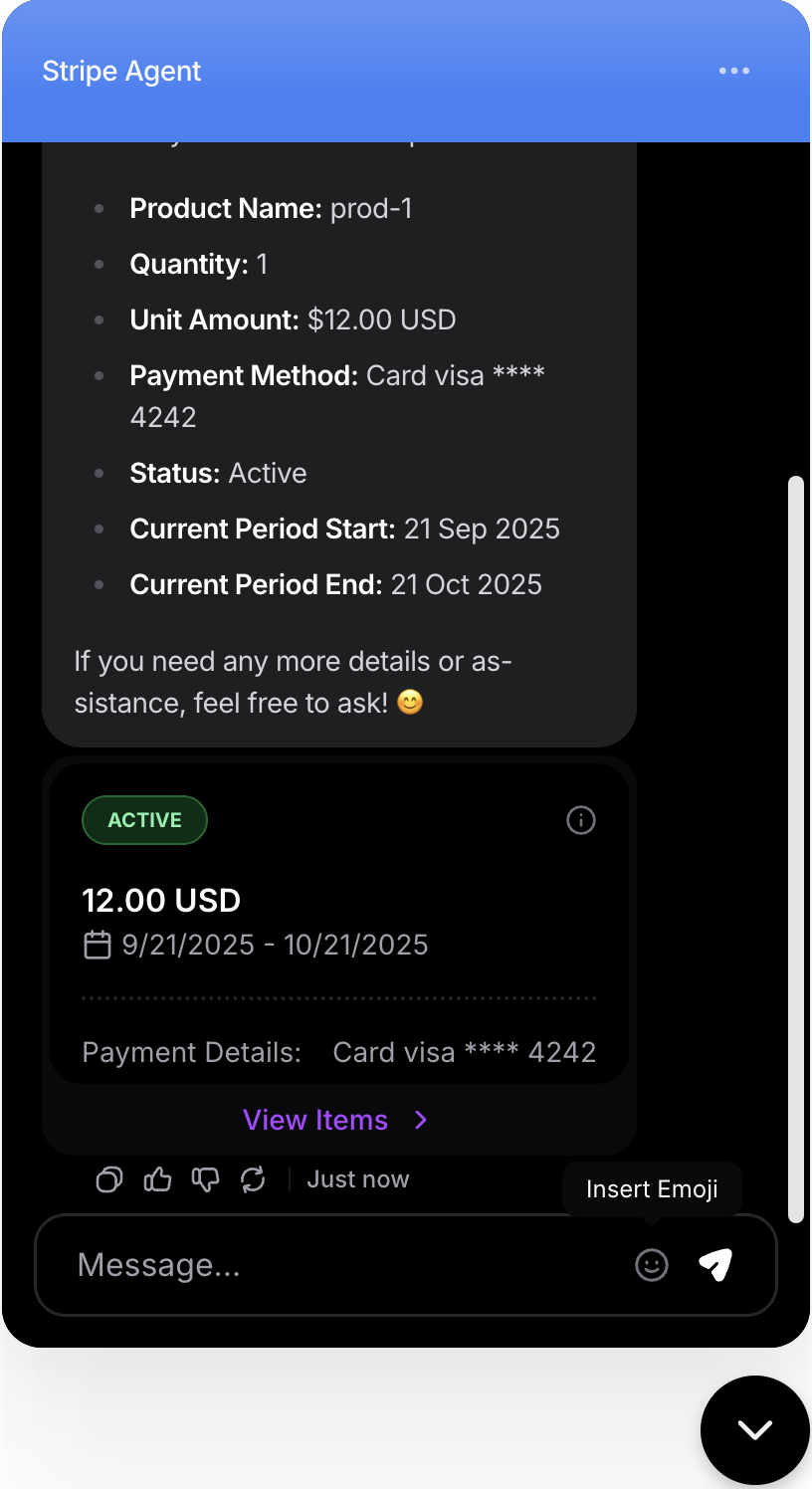 Test the action in the embedded widget to ensure it correctly retrieves subscription data for authenticated users.
### 2. Get Invoice History
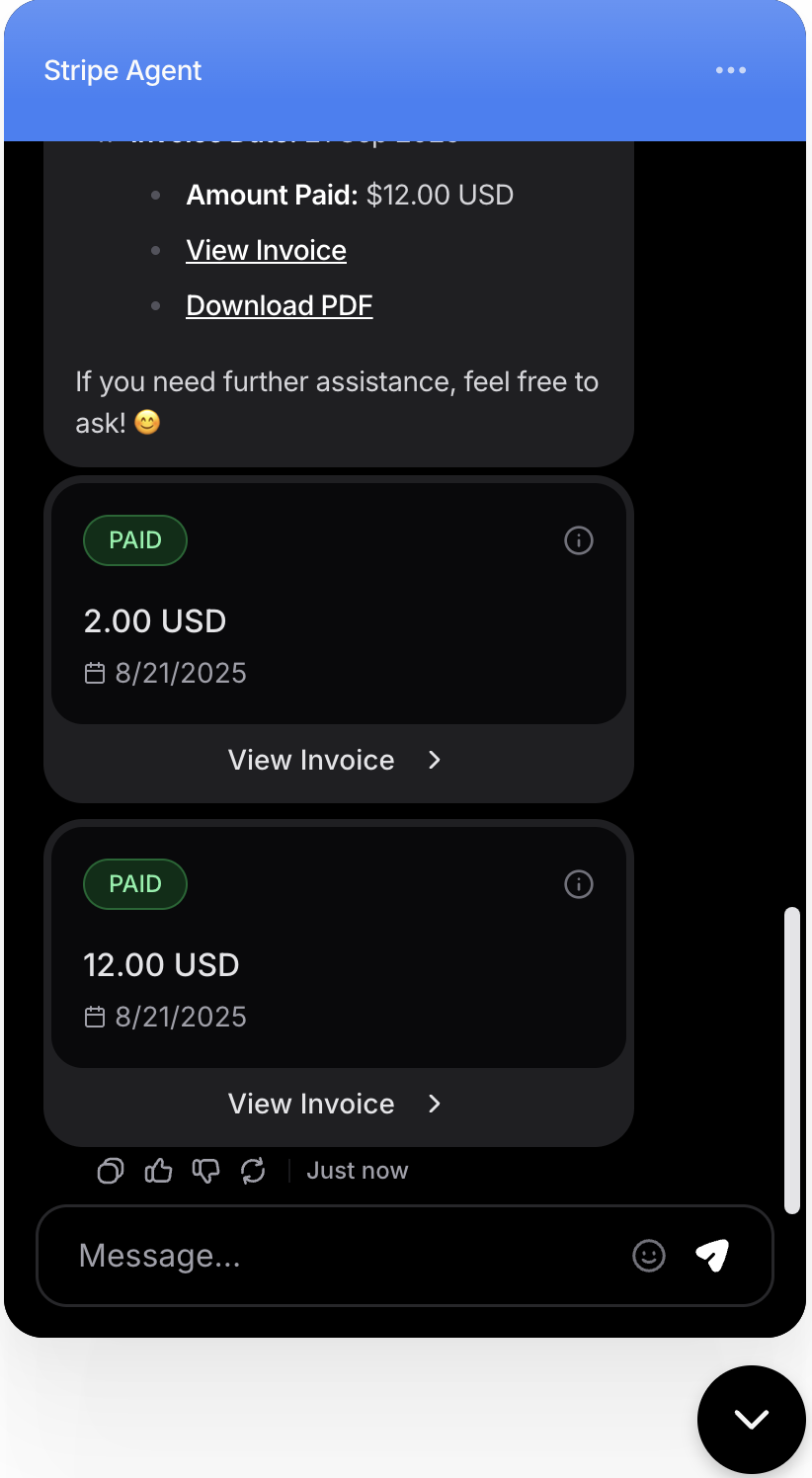
Retrieve and display customer invoice history, payment details, and billing records.
Providing access to billing history, payment confirmations, invoice downloads, and payment troubleshooting.
**Common Use Cases:**
* "Show me my recent invoices"
* "Was my payment processed?"
* "Can you provide my billing history?"
#### Setup Instructions
Select **Stripe Get Invoices** from the action creation dialog.
Test the action in the embedded widget to ensure it correctly retrieves subscription data for authenticated users.
### 2. Get Invoice History
Retrieve and display customer invoice history, payment details, and billing records.
Providing access to billing history, payment confirmations, invoice downloads, and payment troubleshooting.
**Common Use Cases:**
* "Show me my recent invoices"
* "Was my payment processed?"
* "Can you provide my billing history?"
#### Setup Instructions
Select **Stripe Get Invoices** from the action creation dialog.
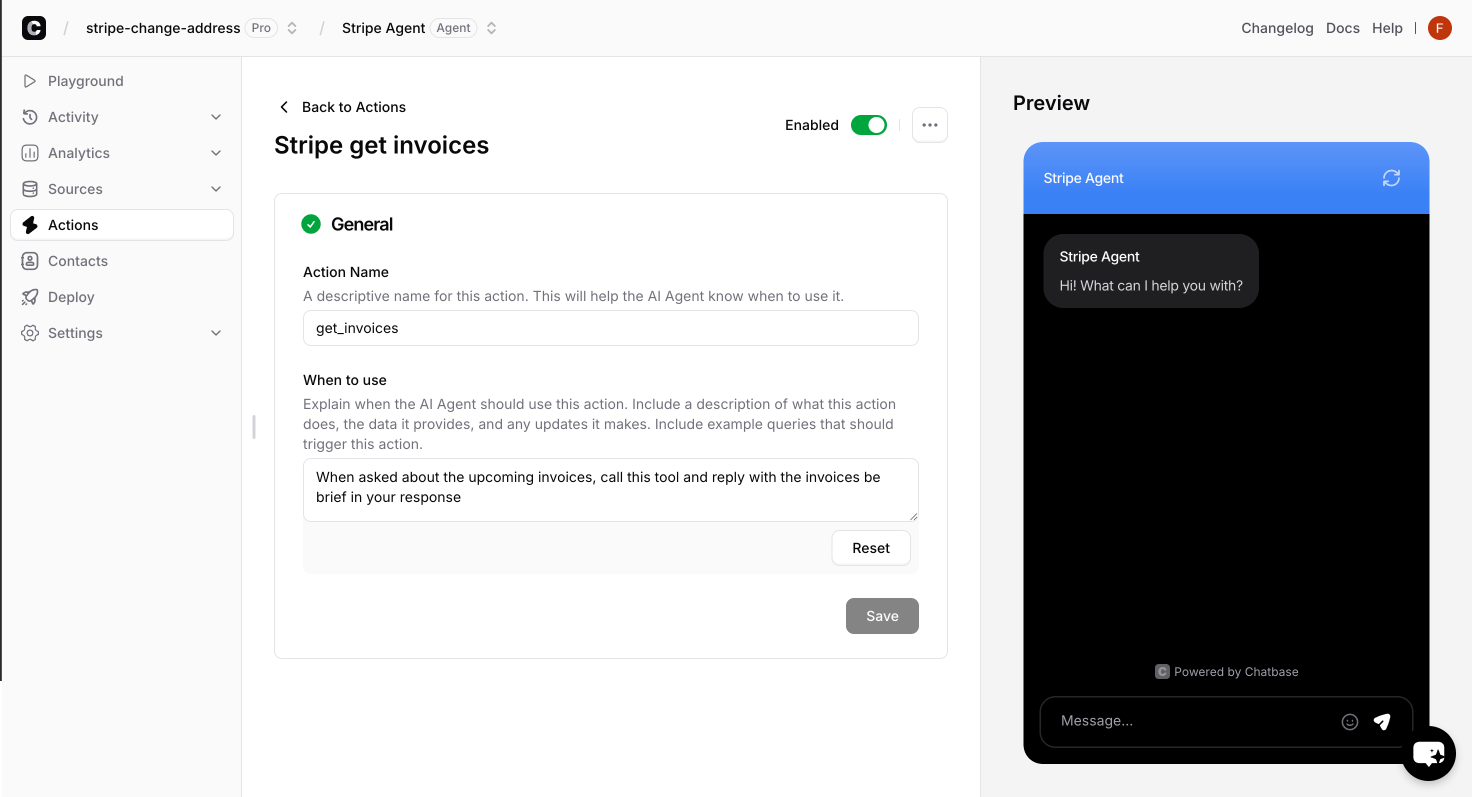 **Action Name:** Enter a unique name for the action.
**When to use:** Provide detailed instructions for when the AI should use this action.
Save the configuration and test with a sample customer request in the embedded widget.
**Action Name:** Enter a unique name for the action.
**When to use:** Provide detailed instructions for when the AI should use this action.
Save the configuration and test with a sample customer request in the embedded widget.
 ### 3. Manage Subscriptions
Comprehensive subscription management including plan changes, upgrades, downgrades, and cancellations.
Complete subscription lifecycle management, plan changes, adding payment methods and cancellation handling.
**Common Use Cases:**
* "I want to upgrade my plan"
* "Upgrade my plan to the pro"
* "I need to cancel my subscription"
* "What plans are available?"
#### Setup Instructions
Select **Stripe** → **Manage Subscriptions** from the Stripe action options.
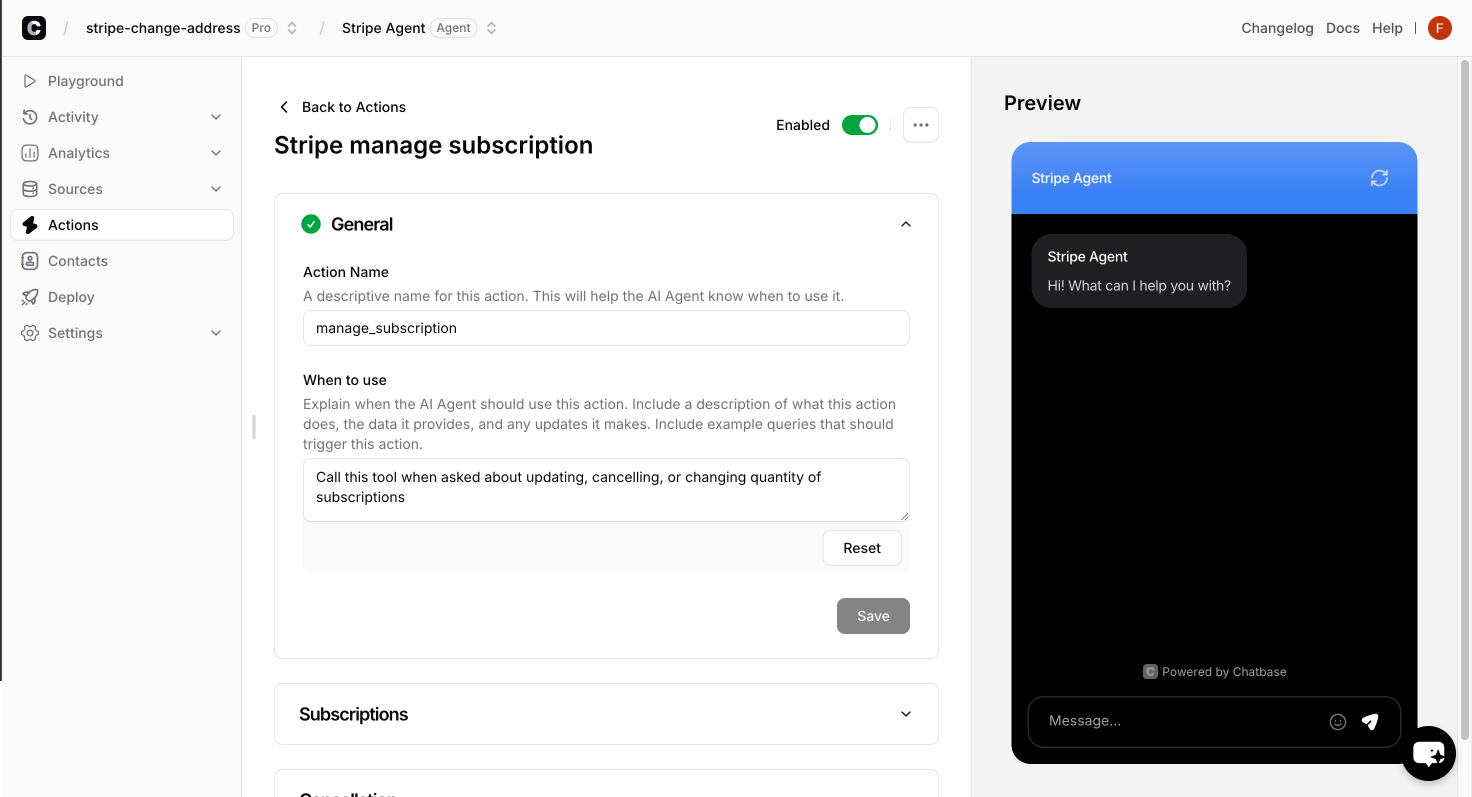
**Action Name:** Enter a unique name for the action.
**When to use:** Provide detailed instructions for when the AI should use this action.
### 3. Manage Subscriptions
Comprehensive subscription management including plan changes, upgrades, downgrades, and cancellations.
Complete subscription lifecycle management, plan changes, adding payment methods and cancellation handling.
**Common Use Cases:**
* "I want to upgrade my plan"
* "Upgrade my plan to the pro"
* "I need to cancel my subscription"
* "What plans are available?"
#### Setup Instructions
Select **Stripe** → **Manage Subscriptions** from the Stripe action options.
**Action Name:** Enter a unique name for the action.
**When to use:** Provide detailed instructions for when the AI should use this action.
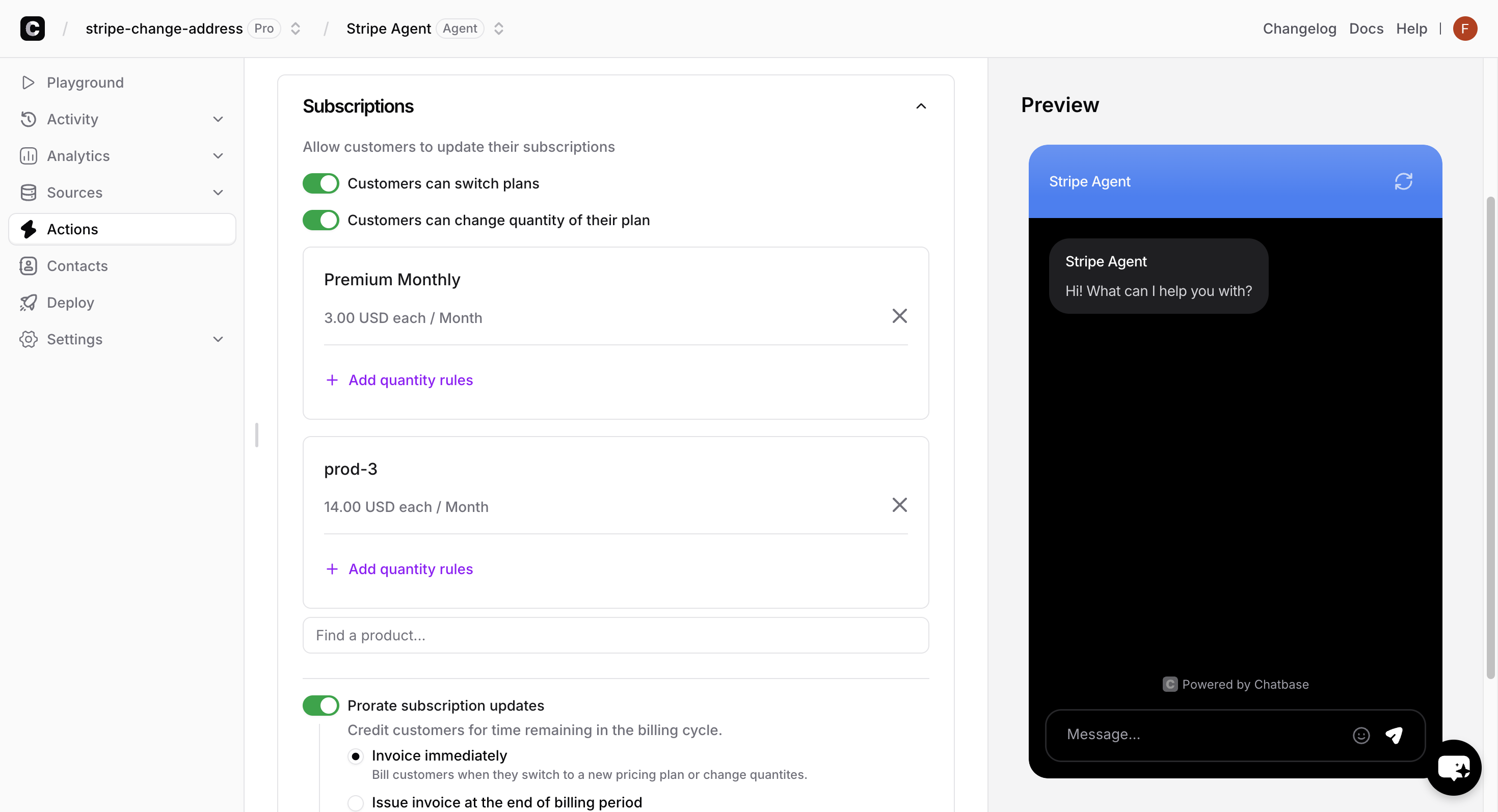
 Configure which subscription plans and options are available for customers to choose from:
Set up available plans with their behavior.
Configure which subscription plans and options are available for customers to choose from:
Set up available plans with their behavior.
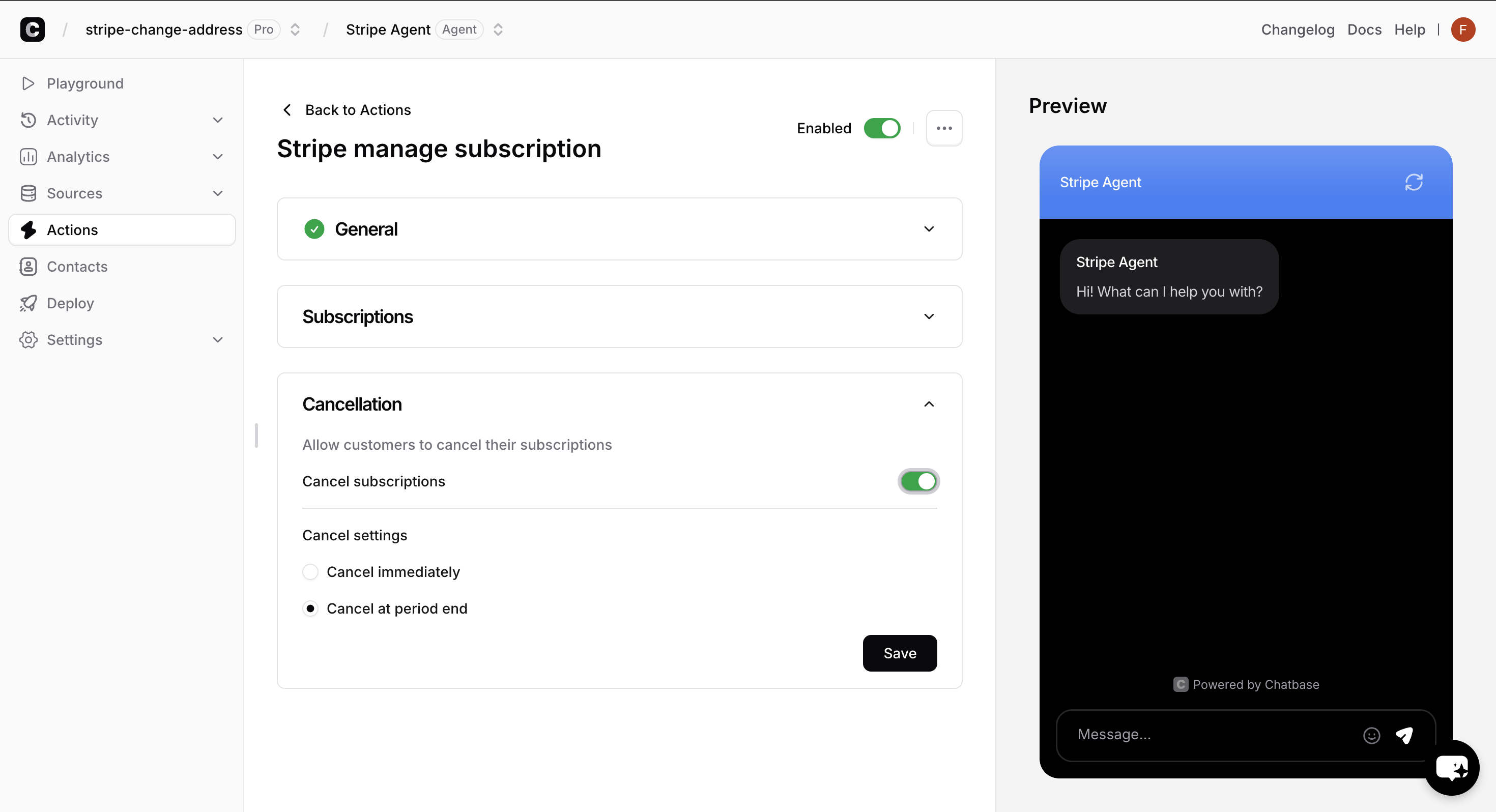
 Configure cancellation policies and refund handling.
 Thoroughly test various subscription management scenarios:
Test upgrading from basic to premium plans with proper proration calculations.
Verify downgrades work correctly with appropriate billing adjustments.
Test the complete cancellation process.
Thoroughly test various subscription management scenarios:
Test upgrading from basic to premium plans with proper proration calculations.
Verify downgrades work correctly with appropriate billing adjustments.
Test the complete cancellation process.
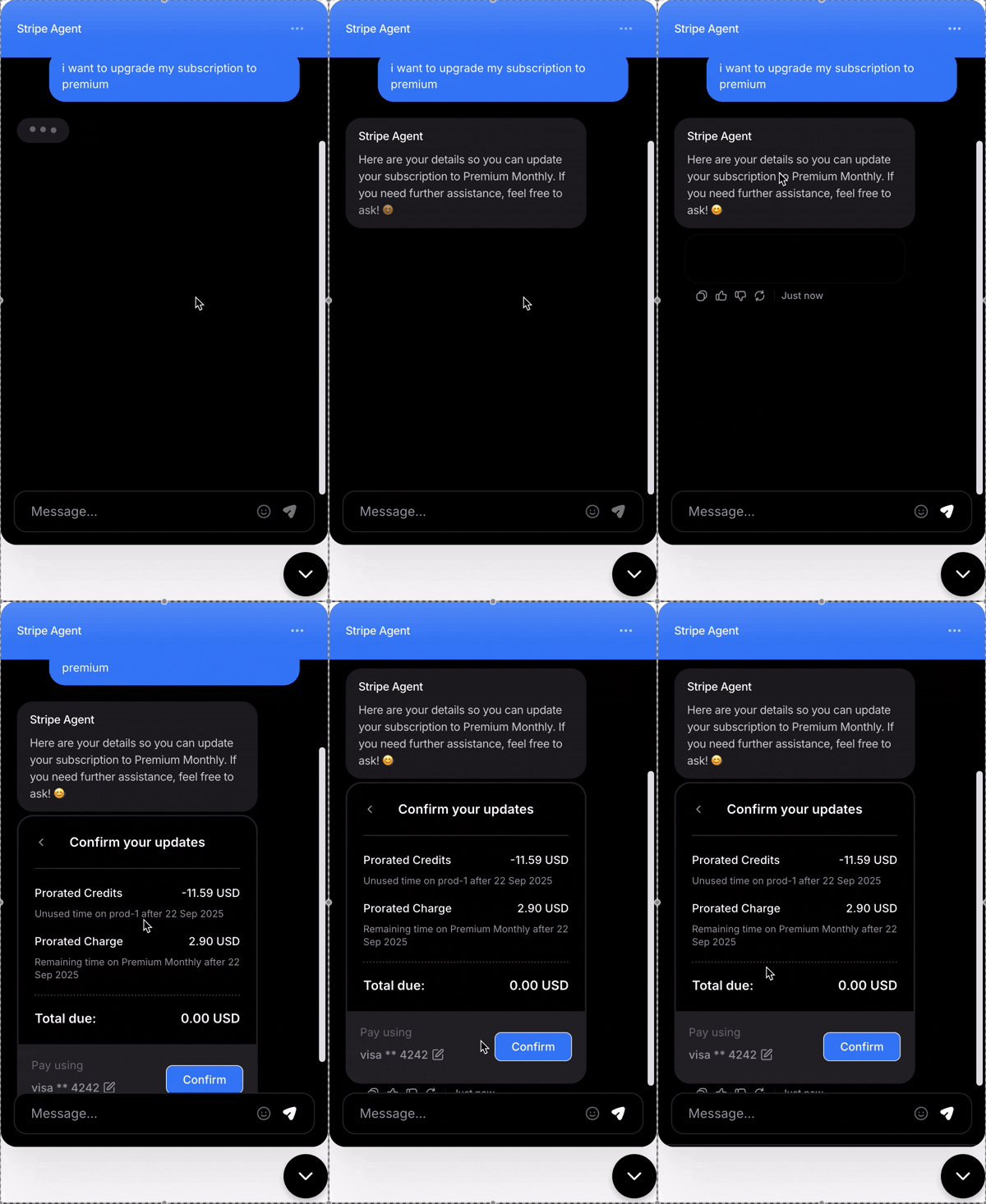 All subscription changes should be immediately reflected in both Stripe and the customer experience.
### 4. Change Billing Information
Allow customers to update their billing address and other account information.
Self-service billing updates, address changes and other account information updates.
**Common Use Cases:**
* "I need to update my billing address"
* "Update my billing email address"
* "Update my billing phone number"
#### Setup Instructions
Select **Stripe** → **Change customer information** from the available Stripe actions.
All subscription changes should be immediately reflected in both Stripe and the customer experience.
### 4. Change Billing Information
Allow customers to update their billing address and other account information.
Self-service billing updates, address changes and other account information updates.
**Common Use Cases:**
* "I need to update my billing address"
* "Update my billing email address"
* "Update my billing phone number"
#### Setup Instructions
Select **Stripe** → **Change customer information** from the available Stripe actions.
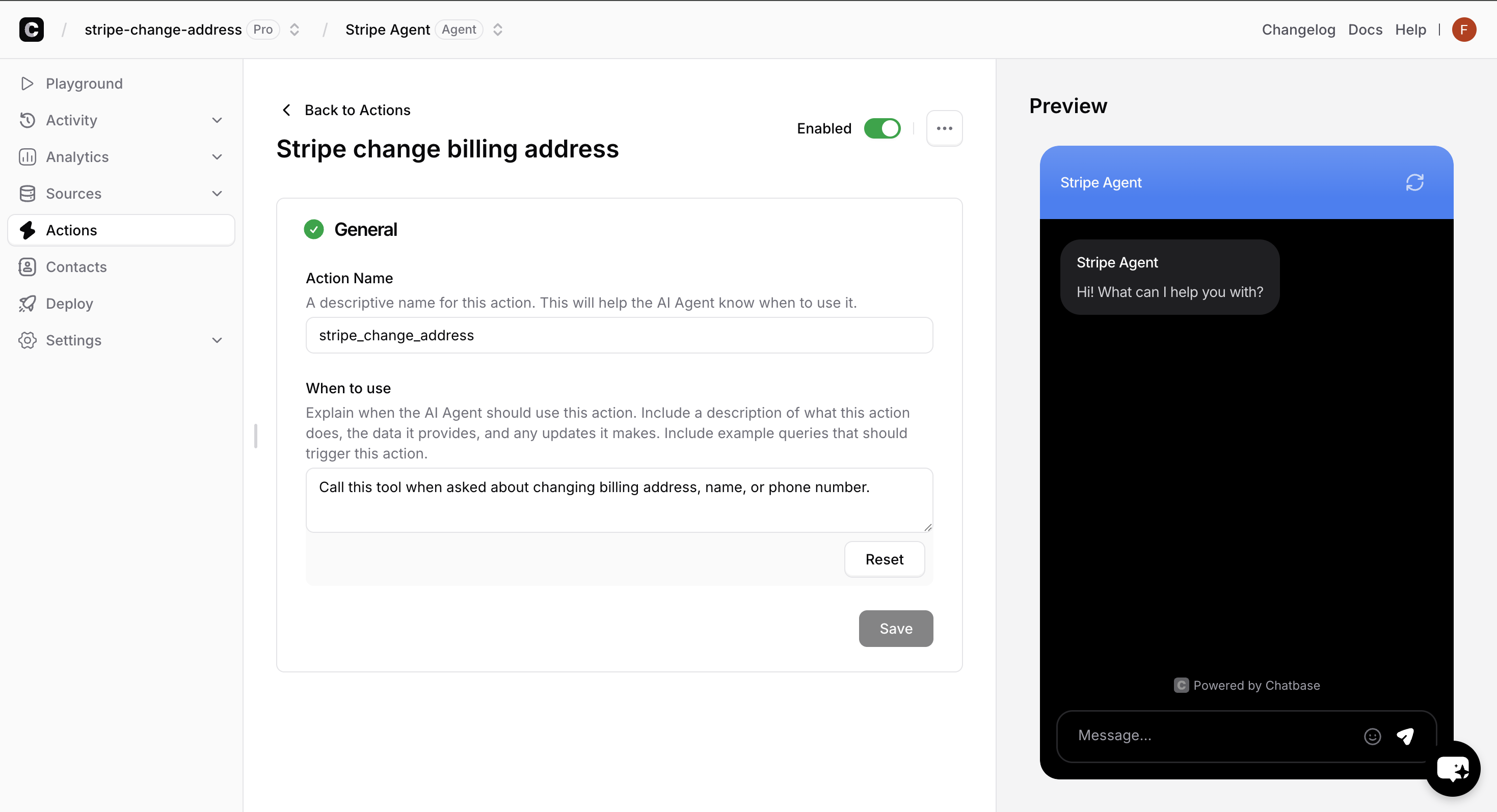 **Action Name:** Enter a unique name for the action.
**When to use:**
Provide detailed instructions for when the AI should use this action.
Test the action with various scenarios to ensure only authenticated users can make changes.
**Action Name:** Enter a unique name for the action.
**When to use:**
Provide detailed instructions for when the AI should use this action.
Test the action with various scenarios to ensure only authenticated users can make changes.
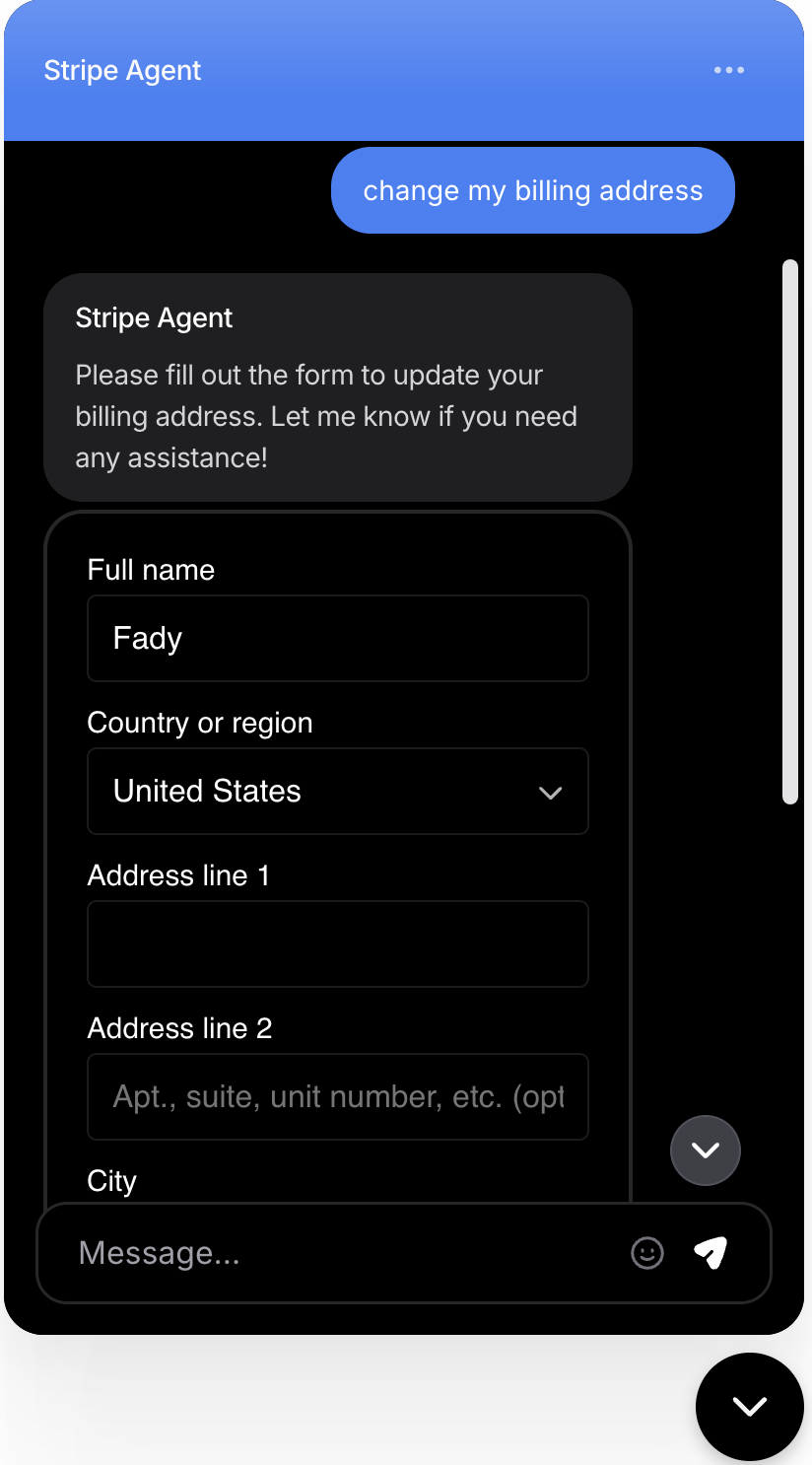 Verify that billing information updates are reflected in both Stripe and the customer's account.
## Troubleshooting
**Possible causes:**
* Action is disabled in the dashboard
* User is not properly authenticated
* Contact record missing or invalid `stripe_account`
* Insufficient "When to use" description
**Solutions:**
* Enable the action and verify configuration
* Check identity verification implementation
* Validate contact record has correct `stripe_account` field
* Enhance action description with more specific use cases
**Possible causes:**
* Invalid Stripe customer ID in contact record
* Stripe account has no subscription or invoice data
* Stripe API permissions insufficient
* Network connectivity issues
**Solutions:**
* Verify Stripe customer ID exists and is active
* Check Stripe account has relevant data
* Review Stripe integration permissions
* Test Stripe API connectivity directly
**Possible causes:**
* User hash validation failing
* `external_id` doesn't match `user_id`
* Contact record not found
* Identity verification not called
**Solutions:**
* Verify hash generation matches expected format
* Ensure `external_id` exactly matches authenticated `user_id`
* Create contact record for the user
* Implement proper identity verification flow
## Best Practices
Always validate user identity before processing any billing-related requests. Never allow unauthenticated access to financial data.
Thoroughly test all actions with various user scenarios, edge cases, and error conditions before going live.
Verify that billing information updates are reflected in both Stripe and the customer's account.
## Troubleshooting
**Possible causes:**
* Action is disabled in the dashboard
* User is not properly authenticated
* Contact record missing or invalid `stripe_account`
* Insufficient "When to use" description
**Solutions:**
* Enable the action and verify configuration
* Check identity verification implementation
* Validate contact record has correct `stripe_account` field
* Enhance action description with more specific use cases
**Possible causes:**
* Invalid Stripe customer ID in contact record
* Stripe account has no subscription or invoice data
* Stripe API permissions insufficient
* Network connectivity issues
**Solutions:**
* Verify Stripe customer ID exists and is active
* Check Stripe account has relevant data
* Review Stripe integration permissions
* Test Stripe API connectivity directly
**Possible causes:**
* User hash validation failing
* `external_id` doesn't match `user_id`
* Contact record not found
* Identity verification not called
**Solutions:**
* Verify hash generation matches expected format
* Ensure `external_id` exactly matches authenticated `user_id`
* Create contact record for the user
* Implement proper identity verification flow
## Best Practices
Always validate user identity before processing any billing-related requests. Never allow unauthenticated access to financial data.
Thoroughly test all actions with various user scenarios, edge cases, and error conditions before going live.