> ## Documentation Index
> Fetch the complete documentation index at: https://chatbase.co/docs/llms.txt
> Use this file to discover all available pages before exploring further.
# Cal.com
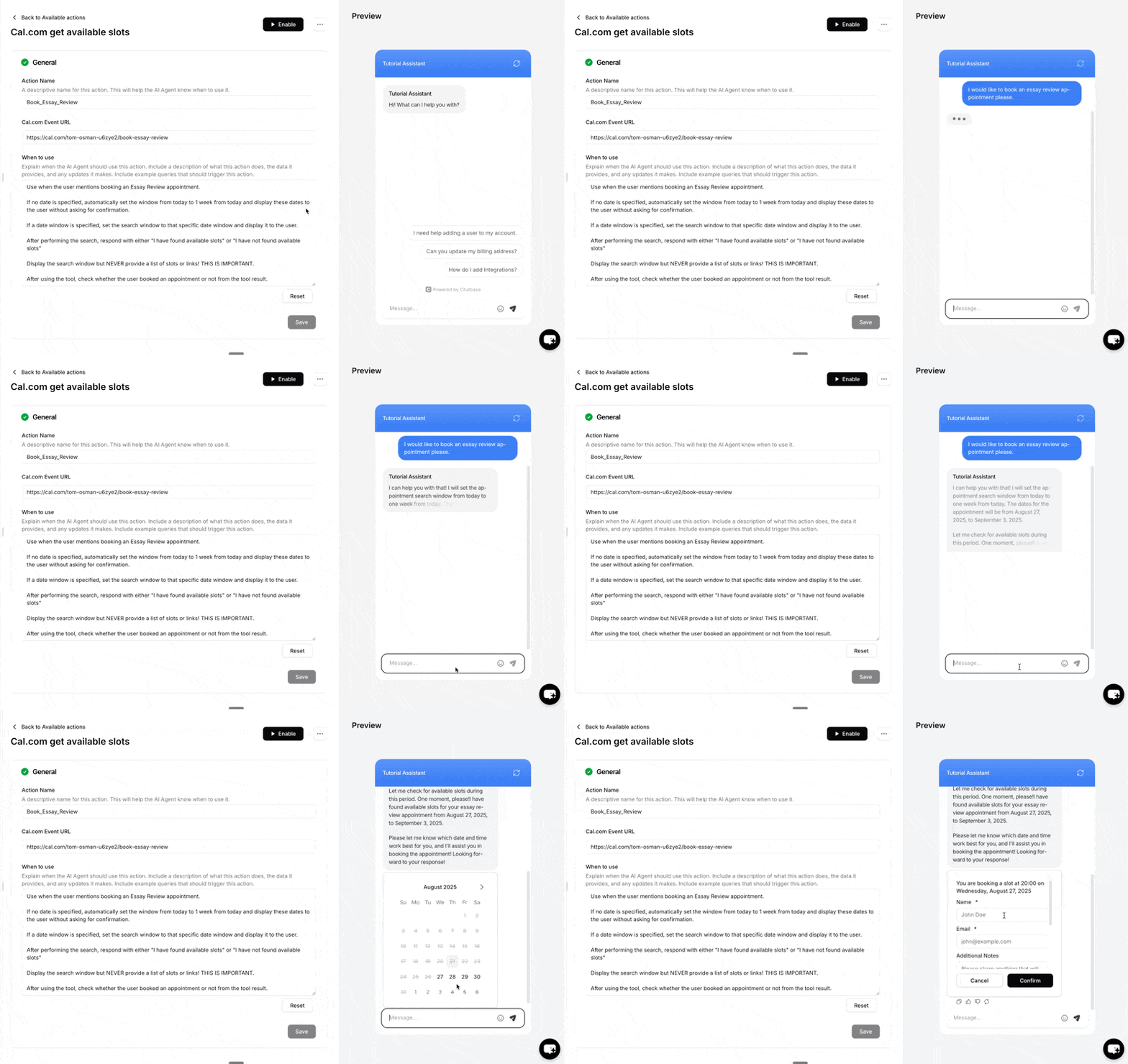
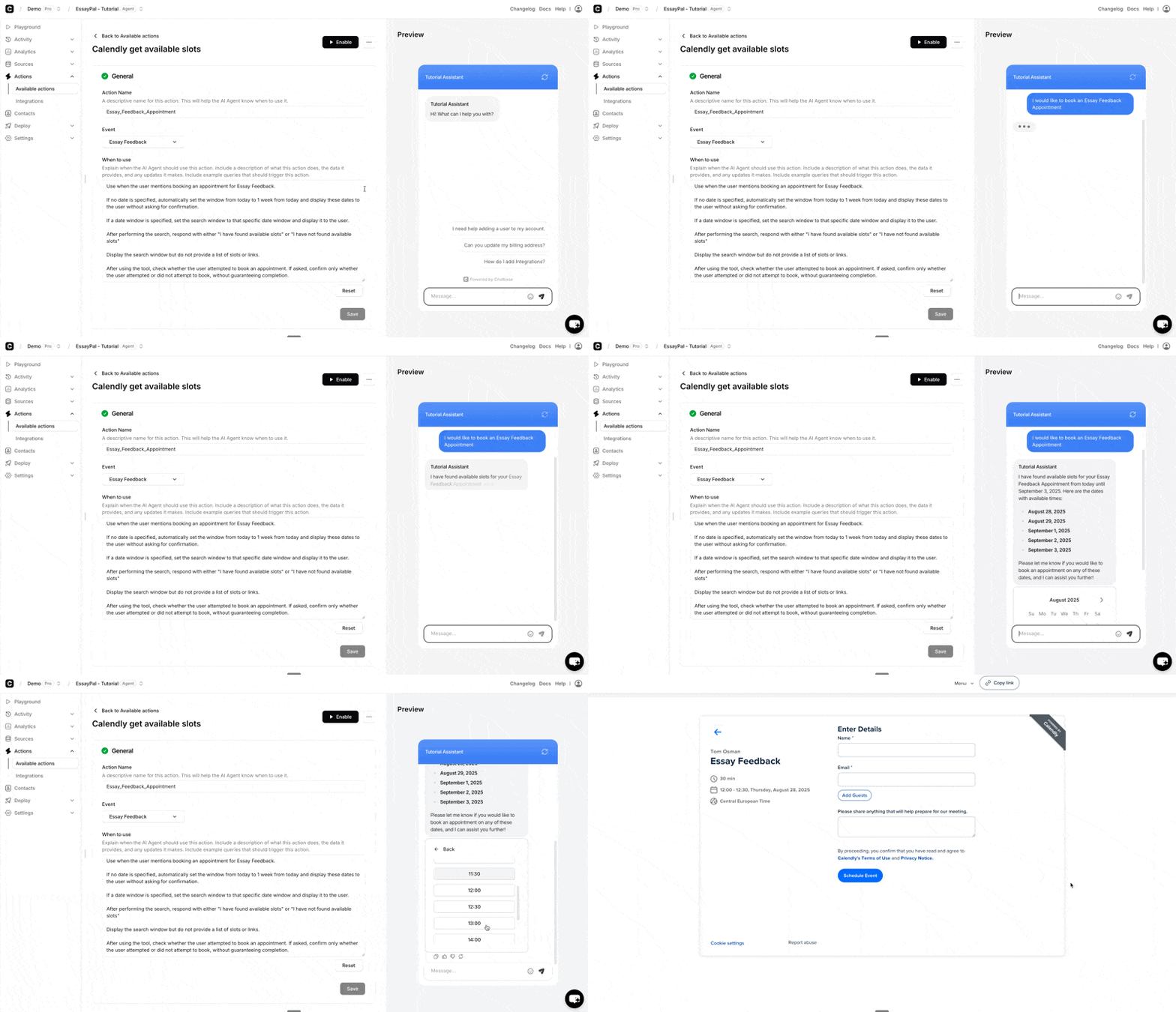
All you need to do to connect your Cal account is to add your Event URL under 'Cal.com Event URL'. You **do not** need an integration for Cal.com.
First of all go to Actions, then Select "Calcom Get Slots"
 **When to use**
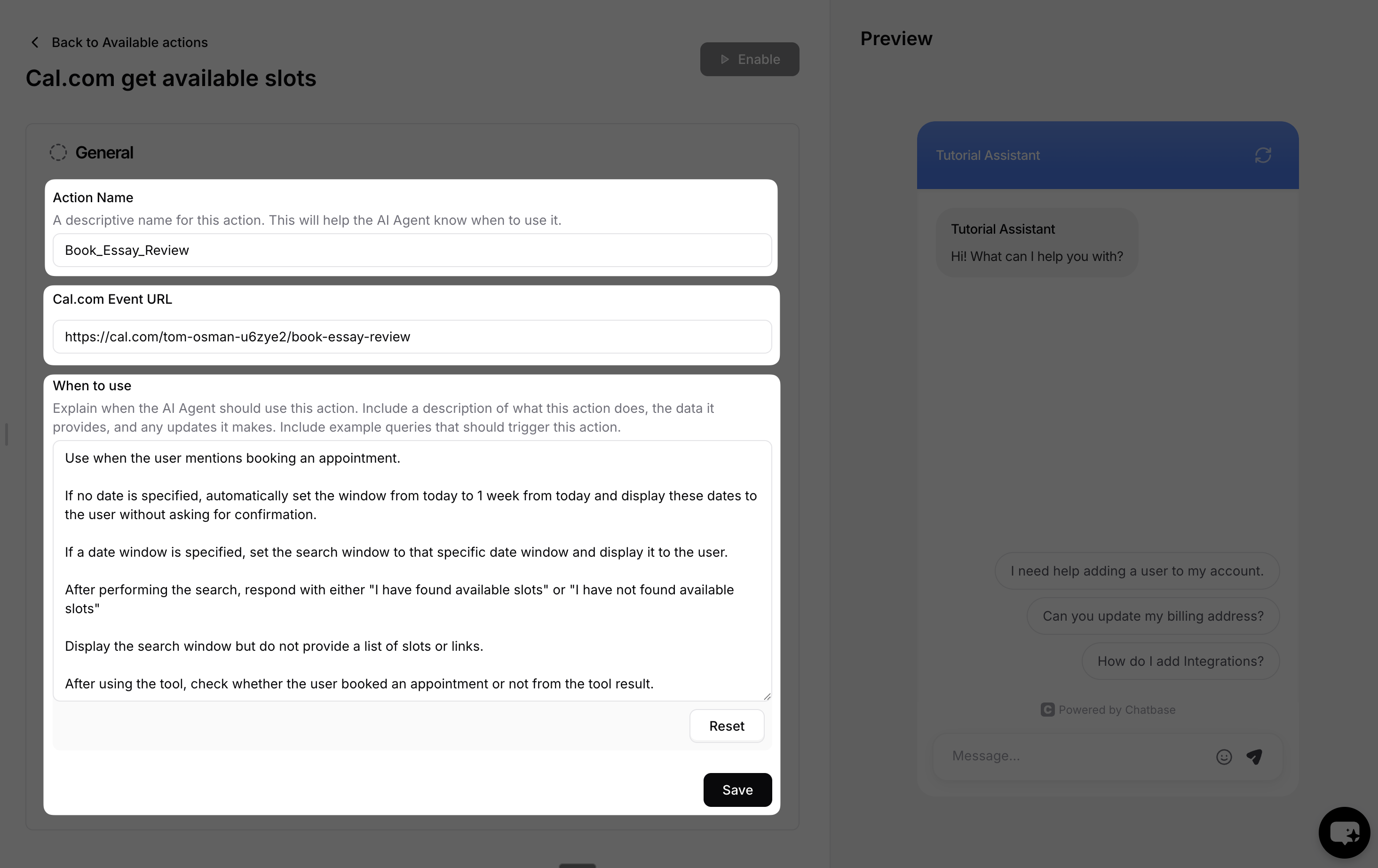
This is where you specify when exactly this action should be triggered or what type of customer queries would trigger it.
You also need to give your Action (make sure it's descriptive as this helps the AI understand when to use it).
Finally add your Cal Event URL into the correct field. This tells which Event to making bookings into.
**When to use**
This is where you specify when exactly this action should be triggered or what type of customer queries would trigger it.
You also need to give your Action (make sure it's descriptive as this helps the AI understand when to use it).
Finally add your Cal Event URL into the correct field. This tells which Event to making bookings into.
 ### Examples:
"Call this action when the user mentions that he/she wants to book an appointment."
"Check if the user booked an appointment or not from the tool result."
### Examples:
"Call this action when the user mentions that he/she wants to book an appointment."
"Check if the user booked an appointment or not from the tool result."