> ## Documentation Index
> Fetch the complete documentation index at: https://chatbase.co/docs/llms.txt
> Use this file to discover all available pages before exploring further.
# JavaScript Embed Script
> Complete guide to embedding Chatbase AI Agents in your web application with advanced customization options.
The JavaScript embed script is perfect for web applications that need rich chat functionality with minimal setup. Add a powerful AI chatbot to your website in minutes.
## What You Can Do
* **Simple embed** - Add a chat widget to your website in minutes
* **Identity verification** - Add advanced capabilities and customizations to your agent, by leveraging contacts and actions
* **Widget control** - Programmatically open/close the chat interface
* **Event listeners** - React to user messages and AI responses
* **Actions** - Create interactive forms and actions directly in the chat interface
* **Dynamic content** - Show personalized initial messages
## Quick Start Guide
1. Go to your [Chatbase Dashboard](https://www.chatbase.co/dashboard)
2. Select your AI Agent → **Deploy** → click on manage on **Chat widget** → select **Embed** tab
3. Copy the JavaScript embed script
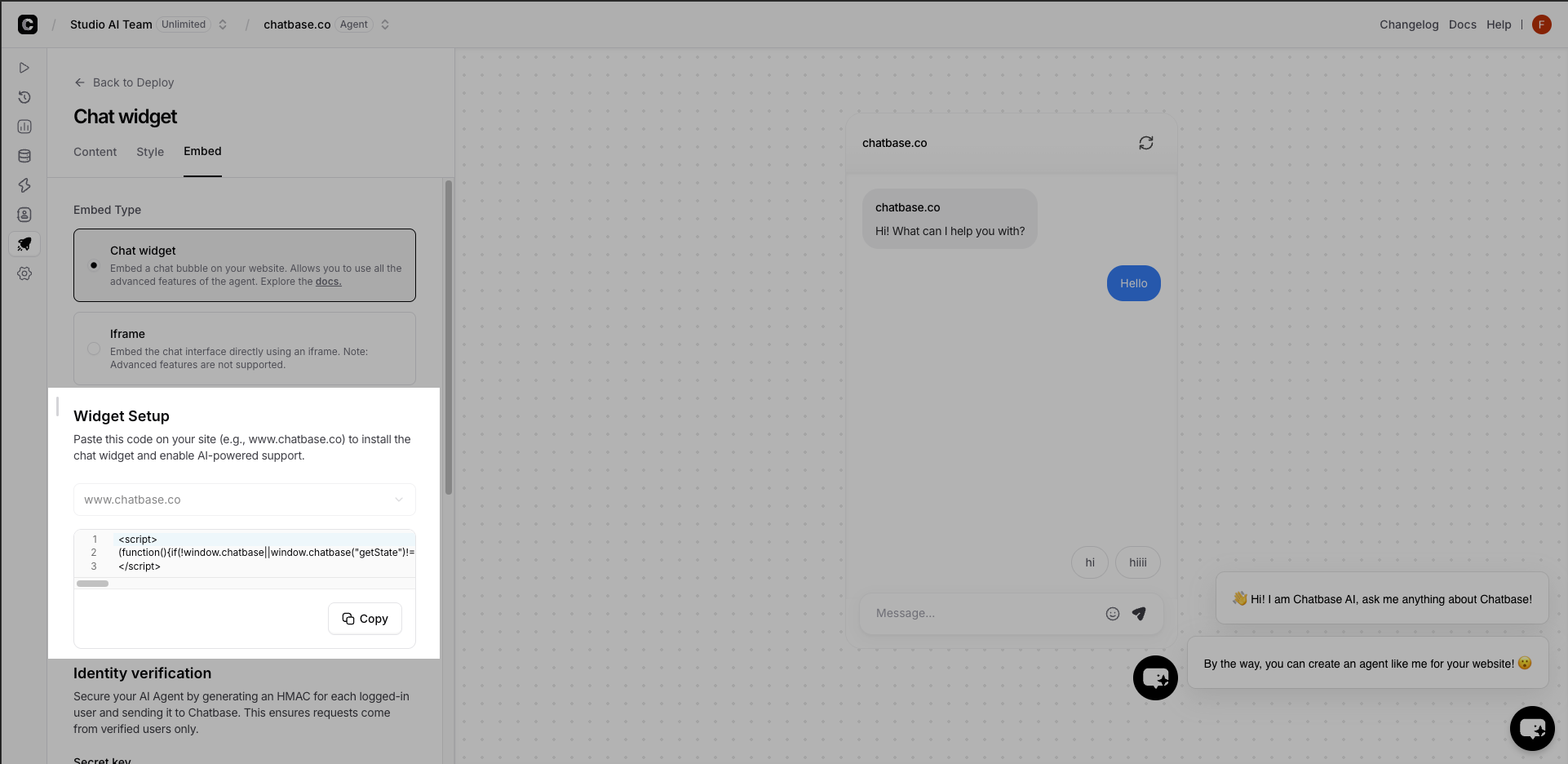 Paste the code in your website's `` section or before the closing `` tag.
Place in `` for faster loading, or before `` if you have loading performance concerns.
Visit your website and look for the chat bubble. Click it to test!
Your AI Agent should respond based on your training data.
Enhance your integration with identity verification, custom events, or styling.
```javascript theme={null}
// Example: Listen for user messages
window.chatbase.addEventListener("user-message", (event) => {
console.log("User said:", event.content);
// Your custom logic here
});
```
## JavaScript Embed Core Features
**Secure user sessions with verified identities**
Perfect for authenticated applications where you need to:
* Verify user identity for actions
* Pass user context (name, email, etc.) to AI Agent
* Use data stored in contacts to perform actions.
[Full Identity Verification Guide →](/developer-guides/identity-verification)
**React to chat events in real-time**
Listen for and respond to:
* User messages and AI responses
* Actions calls and results
[Event Listeners Documentation →](/developer-guides/chatbot-event-listeners)
**Programmatic control over chat interface**
Control your chat widget with JavaScript:
* Open/close programmatically
* Customize initial messages
* Show floating prompts over the chat bubble
[Widget Control Guide →](/developer-guides/control-widget)
**Create interactive experiences**
Build custom:
* Action buttons that trigger your backend
* Forms for lead capture
[Custom Actions Guide →](/developer-guides/client-side-custom-actions)
[Client-Side Custom Forms Guide →](/developer-guides/client-side-custom-forms)
## Best Practices
### Performance Optimization
**Load the embed script asynchronously** to avoid blocking your page load. The provided embed code already handles this automatically.
```html theme={null}
```
### User Experience
* Test the chat widget on various mobile devices
* Ensure the chat bubble doesn't interfere with mobile navigation
* Consider using smaller initial messages on mobile screens
* The widget includes ARIA labels and keyboard navigation
* Ensure sufficient color contrast in custom styling
* Test with screen readers for accessibility compliance
* Pass relevant page/user context to provide better responses
* Use identity verification for personalized experiences
* Clear chat context when users navigate to different sections
### Security Considerations
**Never expose sensitive data** through the embed script. Use [identity verification](/developer-guides/identity-verification) instead of passing raw user data.
## Troubleshooting
1. Check that your agent ID is correct in the embed script
2. Verify the script is placed correctly in your HTML
3. Check browser console for JavaScript errors
4. Ensure your website domain is allowed in agent settings
1. Ensure event listeners are added after the chatbase script loads
2. Check that event names are spelled correctly
3. Verify the chatbase object is properly initialized
4. Use browser dev tools to debug event flow
## What's Next?
Secure your chatbot for authenticated users
Integrate Chatbase with your existing backend
Call backend actions from the client side
Add interactive forms and data collection to your chat
Paste the code in your website's `` section or before the closing `` tag.
Place in `` for faster loading, or before `` if you have loading performance concerns.
Visit your website and look for the chat bubble. Click it to test!
Your AI Agent should respond based on your training data.
Enhance your integration with identity verification, custom events, or styling.
```javascript theme={null}
// Example: Listen for user messages
window.chatbase.addEventListener("user-message", (event) => {
console.log("User said:", event.content);
// Your custom logic here
});
```
## JavaScript Embed Core Features
**Secure user sessions with verified identities**
Perfect for authenticated applications where you need to:
* Verify user identity for actions
* Pass user context (name, email, etc.) to AI Agent
* Use data stored in contacts to perform actions.
[Full Identity Verification Guide →](/developer-guides/identity-verification)
**React to chat events in real-time**
Listen for and respond to:
* User messages and AI responses
* Actions calls and results
[Event Listeners Documentation →](/developer-guides/chatbot-event-listeners)
**Programmatic control over chat interface**
Control your chat widget with JavaScript:
* Open/close programmatically
* Customize initial messages
* Show floating prompts over the chat bubble
[Widget Control Guide →](/developer-guides/control-widget)
**Create interactive experiences**
Build custom:
* Action buttons that trigger your backend
* Forms for lead capture
[Custom Actions Guide →](/developer-guides/client-side-custom-actions)
[Client-Side Custom Forms Guide →](/developer-guides/client-side-custom-forms)
## Best Practices
### Performance Optimization
**Load the embed script asynchronously** to avoid blocking your page load. The provided embed code already handles this automatically.
```html theme={null}
```
### User Experience
* Test the chat widget on various mobile devices
* Ensure the chat bubble doesn't interfere with mobile navigation
* Consider using smaller initial messages on mobile screens
* The widget includes ARIA labels and keyboard navigation
* Ensure sufficient color contrast in custom styling
* Test with screen readers for accessibility compliance
* Pass relevant page/user context to provide better responses
* Use identity verification for personalized experiences
* Clear chat context when users navigate to different sections
### Security Considerations
**Never expose sensitive data** through the embed script. Use [identity verification](/developer-guides/identity-verification) instead of passing raw user data.
## Troubleshooting
1. Check that your agent ID is correct in the embed script
2. Verify the script is placed correctly in your HTML
3. Check browser console for JavaScript errors
4. Ensure your website domain is allowed in agent settings
1. Ensure event listeners are added after the chatbase script loads
2. Check that event names are spelled correctly
3. Verify the chatbase object is properly initialized
4. Use browser dev tools to debug event flow
## What's Next?
Secure your chatbot for authenticated users
Integrate Chatbase with your existing backend
Call backend actions from the client side
Add interactive forms and data collection to your chat