> ## Documentation Index
> Fetch the complete documentation index at: https://chatbase.co/docs/llms.txt
> Use this file to discover all available pages before exploring further.
# Identity Verification
> Authenticate users in your AI Agent widget just like they're authenticated on your website.
Identity verification allows you to securely authenticate your users in your AI Agent widget. When an end user is logged into your website, you can identify them to your AI Agent so the widget knows who they are and can provide personalized, authenticated experiences.
Chatbase agents can be configured to verify the identity of your users. This can be done with a JWT or by hashing the User ID. You
can also send additional metadata to the chatbot that can be used to personalize the chatbot experience.
## When to Use Identity Verification
Make your AI Agent recognize logged-in users so it can:
* Greet users by name instead of saying "Hello there"
* Access their account information and preferences
* Show content relevant to their subscription or role
* Provide support based on their history with your service
When you need actions that require specific user information from their contact record:
* Custom actions that need to access user details (name, email, subscription info, etc.)
* Stripe actions (billing, subscriptions, invoices) [Learn more about Stripe actions](/user-guides/chatbot/actions/stripe-action).
These actions work by matching the authenticated user's ID with a Contact record that contains their detailed information.
By sending user contact information in the JWT, you can always keep contact information up to date instead of sending contact information separately via the API.
## Implementation Guide
### Prerequisites
A website with the Chatbase embed script already installed and working.
New to Chatbase? Check out [Your First Agent](/user-guides/quick-start/your-first-agent) to get started with the embed script first.
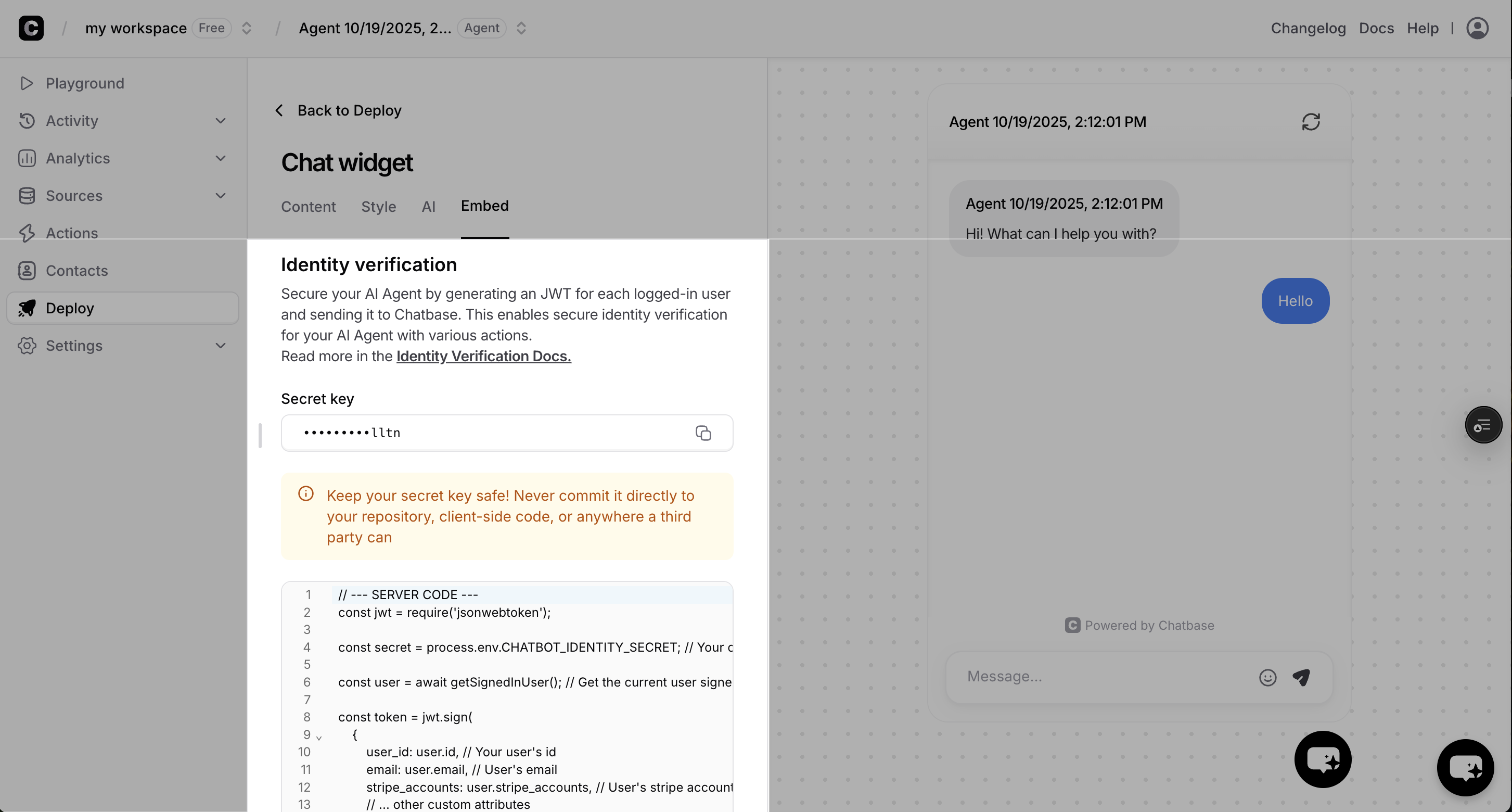
### Get Your Secret Key
Navigate to your Chatbase Dashboard to get your verification secret:
Go to [Chatbase Dashboard](https://www.chatbase.co/dashboard) and select your AI Agent.
Navigate to **Deploy** → click on Manage on **Chat widget** → **Embed** tab.
Copy the verification secret key shown in the embed code section.
 ## Method 1: JWT (Recommended)
#### JWT Overview
With a JSON Web Token (JWT), you can securely pass a contact's information to Chatbase. This process, known as identification, serves two purposes: it **identifies the user** to the chatbot and **updates the contact's information** in Chatbase.
#### Generating the JWT Payload
The payload of the JWT contains the sensitive information you want to pass. When you provide contact details like email, name, or Stripe information, Chatbase will use it to update or create the user's contact profile.
The only required field in the JWT payload is `user_id` or `sub`. All other fields are optional.
```javascript Node.js theme={null}
const jwt = require("jsonwebtoken");
// Secret key from the Chatbase dashboard
const secret = "•••••••••";
// The payload contains all the user information you want to pass.
const payload = {
user_id: "user_12345", // A unique identifier for the user (required)
email: "john.doe@example.com", // User's email address
name: "John Doe", // User's full name
phonenumber: "+15551234567", // User's phone number
custom_attributes: { "plan": "premium" }, // Custom attributes defined in your contacts schema
stripe_accounts: [{ "label": "Default Account", "stripe_id": "cus_12345" }], // Stripe information for integration
exp: Math.floor(Date.now() / 1000) + (60 * 60) // Token expiration time (e.g., 1 hour from now)
};
// Sign the token with the HS256 algorithm
const token = jwt.sign(payload, secret, { algorithm: 'HS256' });
```
```python Python theme={null}
import jwt
import time
# Secret key from the Chatbase dashboard
secret = "•••••••••"
# The payload contains all the user information you want to pass.
payload = {
"user_id": "user_12345", # A unique identifier for the user (required)
"email": "john.doe@example.com", # User's email address
"name": "John Doe", # User's full name
"phonenumber": "+15551234567", # User's phone number
"custom_attributes": {"plan": "premium"}, # Custom attributes defined in your contacts schema
"stripe_accounts": [{"label": "Default Account", "stripe_id": "cus_12345"}], # Stripe information for integration
"exp": int(time.time()) + (60 * 60) # Token expiration time (e.g., 1 hour from now)
}
# Sign the token with the HS256 algorithm
token = jwt.encode(payload, secret, algorithm='HS256')
```
```php PHP theme={null}
'user_12345', // A unique identifier for the user (required)
'email' => 'john.doe@example.com', // User's email address
'name' => 'John Doe', // User's full name
'phonenumber' => '+15551234567', // User's phone number
'custom_attributes' => ['plan' => 'premium'], // Custom attributes defined in your contacts schema
'stripe_accounts' => [['label' => 'Default Account', 'stripe_id' => 'cus_12345']], // Stripe information for integration
'exp' => time() + (60 * 60) // Token expiration time (e.g., 1 hour from now)
];
// Sign the token with the HS256 algorithm
$token = JWT::encode($payload, $secret, 'HS256');
?>
```
```ruby Ruby theme={null}
require 'jwt'
# Secret key from the Chatbase dashboard
secret = "•••••••••"
# The payload contains all the user information you want to pass.
payload = {
user_id: "user_12345", # A unique identifier for the user (required)
email: "john.doe@example.com", # User's email address
name: "John Doe", # User's full name
phonenumber: "+15551234567", # User's phone number
custom_attributes: { "plan" => "premium" }, # Custom attributes defined in your contacts schema
stripe_accounts: [{ "label" => "Default Account", "stripe_id" => "cus_12345" }], # Stripe information for integration
exp: Time.now.to_i + (60 * 60) # Token expiration time (e.g., 1 hour from now)
}
# Sign the token with the HS256 algorithm
token = JWT.encode(payload, secret, 'HS256')
```
#### Identifying the User
Once you have the signed JWT on your frontend, you can identify the user to your AI Agent in two ways:
**Dynamically identify end users**
Data in the token (such as stripe IDs or dates of birth) are not visible to the chatbot to maintain privacy. However, the chatbot can use them to perform actions with your configured integrations. They are passed securely to maintain privacy.
```javascript theme={null}
// Get the signed JWT from your server
const token = await getJWTFromBackend();
// After end user logs in or when you have their information
window.chatbase("identify", {
// The token contains sensitive data which is protected.
token: token,
// These public attributes ARE visible to the Chatbot context.
"name": user.firstName,
"age": user.age
});
```
This call identifies the user to the chatbot and syncs their contact information.
**Set end user identity before the Chatbase script loads**
```html theme={null}
```
Attributes passed outside of the JWT are visible to the chatbot. To protect user privacy, never include sensitive information outside of the token.
#### Logging out Users
When a user logs out, call the `resetUser` method to clear their identity from the chatbot session:
```javascript theme={null}
// When the user logs out
window.chatbase("resetUser");
```
#### How Contact Updates Work
* **Adding/Updating Fields:** New fields will be added, and existing ones will be updated.
```javascript theme={null}
// This payload will add or update the user's Stripe information.
const jwt_payload = {
user_id: 123,
stripe_accounts: [{ "label": "account1", "stripe_id": "cust123" }]
};
```
* **Ignoring Fields:** If you don't include a field in the payload, it will be ignored, and the existing value will be preserved.
```javascript theme={null}
// This payload will not change the user's existing Stripe information.
const jwt_payload = {
user_id: 123
};
```
* **Deleting Fields:** To delete a field, pass `null` as its value.
```javascript theme={null}
// This payload will delete the user's Stripe information.
const jwt_payload = {
user_id: 123,
stripe_accounts: null
};
```
## Complete JWT Implementation Flow
This example shows the complete JWT flow: generating JWT tokens with user data, then using identity verification to enable personalized AI responses and automatic contact updates.
### Step 1: Generate JWT Token on User Login
When users log in, generate a JWT token on your server with their contact information:
```javascript Node.js theme={null}
const jwt = require("jsonwebtoken");
// Login endpoint
app.post('/api/login', async (req, res) => {
const { email, password } = req.body;
// Authenticate user with your existing logic
const user = await authenticateUser(email, password);
if (!user) {
return res.status(401).json({ error: 'Invalid credentials' });
}
// Create JWT payload with user information
const payload = {
user_id: user.id, // Required: unique user identifier.
email: user.email, // User's email
name: user.name, // User's full name
phonenumber: user.phone, // User's phone number
stripe_accounts: [ // Stripe integration
{
"label": "Default Account",
"stripe_id": user.stripe_customer_id
}
],
custom_attributes: { // Custom user data
"signup_date": user.signup_date,
"support_tier": user.support_tier,
"company": user.company
},
exp: Math.floor(Date.now() / 1000) + (60 * 60) // 1 hour expiration
};
// Sign the JWT with your Chatbase secret
const token = jwt.sign(payload, process.env.CHATBASE_SECRET, { algorithm: 'HS256' });
res.json({
user: user,
token: token // Send JWT to frontend
});
});
```
```python Python theme={null}
import jwt
import time
from datetime import datetime, timedelta
# Login endpoint
@app.route('/api/login', methods=['POST'])
def login():
data = request.get_json()
email = data.get('email')
password = data.get('password')
# Authenticate user with your existing logic
user = authenticate_user(email, password)
if not user:
return jsonify({'error': 'Invalid credentials'}), 401
# Create JWT payload with user information
payload = {
'user_id': user.id, # Required: unique user identifier
'email': user.email, # User's email
'name': user.name, # User's full name
'phonenumber': user.phone, # User's phone number
'stripe_accounts': [ # Stripe integration
{
"label": "Default Account",
"stripe_id": user.stripe_customer_id
}
],
'custom_attributes': { # Custom user data
"signup_date": user.signup_date,
"support_tier": user.support_tier,
"company": user.company
},
'exp': int(time.time()) + (60 * 60) # 1 hour expiration
}
# Sign the JWT with your Chatbase secret
token = jwt.encode(payload, os.getenv('CHATBASE_SECRET'), algorithm='HS256')
return jsonify({
'user': user,
'token': token # Send JWT to frontend
})
```
```php PHP theme={null}
'Invalid credentials']);
exit;
}
// Create JWT payload with user information
$payload = [
'user_id' => $user['id'], // Required: unique user identifier
'email' => $user['email'], // User's email
'name' => $user['name'], // User's full name
'phonenumber' => $user['phone'], // User's phone number
'stripe_accounts' => [ // Stripe integration
[
"label" => "Default Account",
"stripe_id" => $user['stripe_customer_id']
]
],
'custom_attributes' => [ // Custom user data
"signup_date" => $user['signup_date'],
"support_tier" => $user['support_tier'],
"company" => $user['company']
],
'exp' => time() + (60 * 60) // 1 hour expiration
];
// Sign the JWT with your Chatbase secret
$token = JWT::encode($payload, $_ENV['CHATBASE_SECRET'], 'HS256');
echo json_encode([
'user' => $user,
'token' => $token // Send JWT to frontend
]);
}
?>
```
```ruby Ruby theme={null}
require 'jwt'
# Login endpoint
post '/api/login' do
data = JSON.parse(request.body.read)
email = data['email']
password = data['password']
# Authenticate user with your existing logic
user = authenticate_user(email, password)
if !user
status 401
return { error: 'Invalid credentials' }.to_json
end
# Create JWT payload with user information
payload = {
user_id: user.id, # Required: unique user identifier
email: user.email, # User's email
name: user.name, # User's full name
phonenumber: user.phone, # User's phone number
stripe_accounts: [ # Stripe integration
{
"label" => "Default Account",
"stripe_id" => user.stripe_customer_id
}
],
custom_attributes: { # Custom user data
"signup_date" => user.signup_date,
"support_tier" => user.support_tier,
"company" => user.company
},
exp: Time.now.to_i + (60 * 60) # 1 hour expiration
}
# Sign the JWT with your Chatbase secret
token = JWT.encode(payload, ENV['CHATBASE_SECRET'], 'HS256')
{
user: user,
token: token # Send JWT to frontend
}.to_json
end
```
### Step 2: Identify User in Frontend
Use the JWT token to identify the user to Chatbase widget:
```javascript Frontend JWT Identity Verification theme={null}
// After successful login
async function loginUser() {
const response = await fetch('/api/login', {
method: 'POST',
headers: { 'Content-Type': 'application/json' },
body: JSON.stringify({ email: 'user@example.com', password: 'password' })
});
const { user, token } = await response.json();
// Identify user to Chatbase and also update/insert this contact
window.chatbase("identify", {
token: token, // JWT contains all user data
name: user.name // public metadata sent to the chatbot
});
}
```
***
## Method 2: User Hash (deprecated)
Using user hash is not recommended as JWT offers better security and lessens the need to update contacts via API
### Generate End User Hash on Your Server
**Security Critical:** End user hashes must be generated on your server, never in client-side JavaScript, to keep your secret key secure.
```javascript Node.js theme={null}
const crypto = require('crypto');
const secret = '•••••••••'; // Your verification secret key
const userId = current_user.id // A string UUID to identify your user
const hash = crypto.createHmac('sha256', secret).update(userId).digest('hex');
```
```python Python theme={null}
import hmac
import hashlib
secret = '•••••••••' # Your verification secret key
user_id = current_user.id # A string UUID to identify your user. You can also use 'sub' instead of 'user_id'
hash = hmac.new(secret.encode('utf-8'), user_id.encode('utf-8'), hashlib.sha256).hexdigest()
```
```php PHP theme={null}
id; // A string UUID to identify your user
$hash = hash_hmac('sha256', $userId, $secret);
?>
```
```ruby Ruby theme={null}
require 'openssl'
secret = '•••••••••' # Your verification secret key
user_id = current_user.id # A string UUID to identify your user
hash = OpenSSL::HMAC.hexdigest('sha256', secret, user_id)
```
### Identify End Users to Your AI Agent + Update Contact
Once you've generated the end user hash on your server, you can identify the end user to your AI Agent in two ways:
**Dynamically identify end users**
```javascript theme={null}
// After end user logs in or when you have their information
window.chatbase("identify", {
user_id: "user-123",
user_hash: "generated-hash-from-server",
user_metadata: {
"name": "John Doe",
"email": "john@example.com",
"company": "Acme Inc"
}
});
```
**Set end user identity before the Chatbase script loads**
```html theme={null}
```
## Identity Parameters
Unique identifier for the user from your authentication system. This tells your AI Agent which end user is currently authenticated. You can use 'sub' instead of 'user\_id' and it will work identically.
**Format:** Any string (UUID recommended)\
**Example:** `"end-user-12345"`, `"550e8400-e29b-41d4-a716-446655440000"`
To enable personalized responses and actions, create a Contact record with `external_id` matching this `user_id` using the [Contacts API](/api-reference/contacts/create-contacts-for-a-chatbot).
HMAC-SHA256 hash of the user\_id using your Chatbase secret key. This proves to Chatbase that the end user is authentically logged in. Must be generated on your server for security.
**Format:** 64-character hexadecimal string\
**Example:** `"a1b2c3d4e5f6..."`
Additional session-specific information about the authenticated end user. This provides context to the AI Agent about the current session.
**Character limit:** 1000 characters total across all fields\
**Use for:** Session state, temporary preferences, current page context, authentication level
**Do not include confidential information** in user\_metadata such as passwords, social security numbers, credit card details, or other sensitive data. If your AI Agent needs access to confidential user information, store it securely in [Contacts](/user-guides/chatbot/contacts/contacts-overview) instead.
```javascript theme={null}
user_metadata: {
"current_session": "mobile_app",
"last_page_visited": "/dashboard",
"auth_level": "premium_user",
"session_preferences": { "theme": "dark" }
}
```
## Security & Best Practices
**Always generate end user hashes on your server**, never in client-side JavaScript:
✅ **Secure:** Generate hash in your backend API\
✅ **Secure:** Use environment variables for Chatbase secret keys\
❌ **Insecure:** Generate hash in browser JavaScript\
❌ **Insecure:** Include secret key in client-side code
**Use consistent, unique end user identifiers:**
✅ **Good:** UUIDs (`550e8400-e29b-41d4-a716-446655440000`)\
❌ **Avoid:** Emails or usernames that might change
**Keep end user metadata relevant and concise:**
✅ **Include:** Information that helps personalize AI responses\
✅ **Include:** Context that aids in customer support\
❌ **Avoid:** Sensitive data like passwords or SSNs\
❌ **Avoid:** Excessive data that exceeds 1000 character limit
**Secure JWT implementation and management:**
✅ **Secure:** Generate JWTs on your server with proper expiration times\
✅ **Secure:** Use strong, unique secret keys stored in environment variables\
✅ **Secure:** Include only necessary user data in JWT payload\
✅ **Secure:** Implement proper token refresh mechanisms\
❌ **Insecure:** Generate JWTs in client-side JavaScript\
❌ **Insecure:** Use excessively long expiration times (keep under 24 hours)
## Troubleshooting
**Symptoms:** End user identity not recognized, actions using Contact data fail
**Solutions:**
* Verify secret key matches the one from Chatbase Dashboard
* Ensure user\_id used for hashing exactly matches the one sent
* Check that hash is generated using HMAC-SHA256
* Confirm user\_id is a string, not a number
* Confirm user\_id is the same as the one used in the Contact record
```javascript theme={null}
// ❌ Wrong - user_id as number
const endUserId = 12345;
// ✅ Correct - user_id as string
const endUserId = "12345";
```
**Symptoms:** End user is verified but Contact data isn't accessible, actions using Contact info fail
**Solutions:**
* Verify a Contact exists with `external_id` matching the end user's `user_id`
* Check Contact was created using [Contacts API](/developer-guides/api/contacts/add-contacts-to-chatbase)
* Ensure `user_id` and Contact `external_id` match exactly (case-sensitive)
* Confirm Contact has required fields populated (e.g., Stripe accounts for payment actions)
**Symptoms:** End user identity lost between page loads, Contact data not maintained
**Solutions:**
* Use `chatbaseUserConfig` for page-load identification
* Call `identify()` early in your application lifecycle
* Ensure end user hash is available before calling identify
* Check browser console for JavaScript errors
**Symptoms:** Expected end user information not available to AI Agent
**Solutions:**
* Use Contact data for permanent end user information
* Use `user_metadata` only for session-specific context
* Reduce metadata size to under 1000 characters
* Store comprehensive end user data in [Contact custom attributes](/developer-guides/api/contacts/custom-attributes)
## Complete User Hash Implementation Flow
This example shows the complete flow: creating Contacts with custom attributes, then using identity verification to enable personalized AI responses.
### Step 1: Create Contact on User Registration/Updates
When users sign up or their data changes, create a Contact record in Chatbase with custom attributes and Stripe customer ID:
```javascript Contact Creation API Call theme={null}
const axios = require('axios');
// When user signs up or data changes
async function createChatbaseContact(userData) {
const contactData = {
"users": [
{
"external_id": userData.id, // Your user ID
"name": userData.name,
"email": userData.email,
"phonenumber": userData.phone,
"stripe_accounts": [
{
"label": "Default Account",
"stripe_id": userData.stripe_customer_id // Stripe customer ID
}
],
"custom_attributes": {
"signup_date": userData.signup_date,
"support_tier": userData.support_tier
}
}
]
};
// Create contact via Chatbase API
const response = await axios.post(
`https://www.chatbase.co/api/v1/chatbot/${process.env.AGENT_ID}/contact`,
contactData,
{
headers: {
'Authorization': `Bearer ${process.env.CHATBASE_API_KEY}`,
'Content-Type': 'application/json'
}
}
);
console.log('Contact created:', response.data);
return response.data;
}
```
### Step 2: Generate Hash on User Login
When users log in, generate the identity hash on your server:
```javascript Server-Side Hash Generation theme={null}
const crypto = require('crypto');
function generateUserHash(userId, secret) {
return crypto.createHmac('sha256', secret).update(userId).digest('hex');
}
// Login endpoint
app.post('/api/login', async (req, res) => {
const { email, password } = req.body;
// Authenticate user with your existing logic
const user = await authenticateUser(email, password);
if (!user) {
return res.status(401).json({ error: 'Invalid credentials' });
}
// Generate secure hash for identity verification
const userHash = generateUserHash(user.id, process.env.CHATBASE_SECRET);
res.json({
user: user,
userHash: userHash // Send to frontend for identify call
});
});
```
### Step 3: Identify User in Frontend
Use the hash to identify the user to Chatbase widget:
```javascript Frontend Identity Verification theme={null}
// After successful login
async function loginUser() {
const response = await fetch('/api/login', {
method: 'POST',
headers: { 'Content-Type': 'application/json' },
body: JSON.stringify({ email: 'user@example.com', password: 'password' })
});
const { user, userHash } = await response.json();
// Identify user to Chatbase - enables access to Contact data
window.chatbase("identify", {
user_id: user.id,
user_hash: userHash,
user_metadata: {
"name": user.name,
"email": user.email,
"current_page": "dashboard"
}
});
console.log('User identified - AI Agent can now access Contact data and perform Stripe actions');
}
```
### Step 4: Unlock Powerful Custom Actions with Contact Data 🚀
Note: The JWT method allows you to insert and update chatbot contacts without the need for seperate API calls
to the Contacts API.
Now that your AI Agent has access to rich contact data, it can perform incredibly sophisticated custom actions that were previously impossible!
Learn how to build powerful custom actions that leverage your contact data for personalized user experiences.
### Step 5: Unlock Stripe Actions 💳
Here's where the magic really happens! By adding `stripe_accounts` to your contacts, you've just unlocked the full power of our Stripe integration. Your AI Agent can now handle complex billing operations seamlessly without any additional coding on your part.
**Game Changer Alert**: Your customers can now say things like "Cancel my subscription", "Show me my last invoice", or "Update my payment method" and your AI Agent will handle these requests intelligently with full context about their account!
**What This Means for Your Business:**
* **Reduced Support Tickets**: Common billing questions are handled instantly
* **Improved Customer Experience**: No more "let me transfer you to billing"
* **Increased Efficiency**: One AI Agent handles both support AND billing operations
* **Personalized Service**: Every interaction is tailored to the customer's specific account details
Learn how to use Stripe actions to handle billing, subscriptions, and invoices.
## Next Steps
Learn how to create and manage Contact records that link to verified end users
Store additional end user data in Contact custom attributes for personalized experiences
Call backend actions from the client side
Add interactive forms and data collection to your chat
## Method 1: JWT (Recommended)
#### JWT Overview
With a JSON Web Token (JWT), you can securely pass a contact's information to Chatbase. This process, known as identification, serves two purposes: it **identifies the user** to the chatbot and **updates the contact's information** in Chatbase.
#### Generating the JWT Payload
The payload of the JWT contains the sensitive information you want to pass. When you provide contact details like email, name, or Stripe information, Chatbase will use it to update or create the user's contact profile.
The only required field in the JWT payload is `user_id` or `sub`. All other fields are optional.
```javascript Node.js theme={null}
const jwt = require("jsonwebtoken");
// Secret key from the Chatbase dashboard
const secret = "•••••••••";
// The payload contains all the user information you want to pass.
const payload = {
user_id: "user_12345", // A unique identifier for the user (required)
email: "john.doe@example.com", // User's email address
name: "John Doe", // User's full name
phonenumber: "+15551234567", // User's phone number
custom_attributes: { "plan": "premium" }, // Custom attributes defined in your contacts schema
stripe_accounts: [{ "label": "Default Account", "stripe_id": "cus_12345" }], // Stripe information for integration
exp: Math.floor(Date.now() / 1000) + (60 * 60) // Token expiration time (e.g., 1 hour from now)
};
// Sign the token with the HS256 algorithm
const token = jwt.sign(payload, secret, { algorithm: 'HS256' });
```
```python Python theme={null}
import jwt
import time
# Secret key from the Chatbase dashboard
secret = "•••••••••"
# The payload contains all the user information you want to pass.
payload = {
"user_id": "user_12345", # A unique identifier for the user (required)
"email": "john.doe@example.com", # User's email address
"name": "John Doe", # User's full name
"phonenumber": "+15551234567", # User's phone number
"custom_attributes": {"plan": "premium"}, # Custom attributes defined in your contacts schema
"stripe_accounts": [{"label": "Default Account", "stripe_id": "cus_12345"}], # Stripe information for integration
"exp": int(time.time()) + (60 * 60) # Token expiration time (e.g., 1 hour from now)
}
# Sign the token with the HS256 algorithm
token = jwt.encode(payload, secret, algorithm='HS256')
```
```php PHP theme={null}
'user_12345', // A unique identifier for the user (required)
'email' => 'john.doe@example.com', // User's email address
'name' => 'John Doe', // User's full name
'phonenumber' => '+15551234567', // User's phone number
'custom_attributes' => ['plan' => 'premium'], // Custom attributes defined in your contacts schema
'stripe_accounts' => [['label' => 'Default Account', 'stripe_id' => 'cus_12345']], // Stripe information for integration
'exp' => time() + (60 * 60) // Token expiration time (e.g., 1 hour from now)
];
// Sign the token with the HS256 algorithm
$token = JWT::encode($payload, $secret, 'HS256');
?>
```
```ruby Ruby theme={null}
require 'jwt'
# Secret key from the Chatbase dashboard
secret = "•••••••••"
# The payload contains all the user information you want to pass.
payload = {
user_id: "user_12345", # A unique identifier for the user (required)
email: "john.doe@example.com", # User's email address
name: "John Doe", # User's full name
phonenumber: "+15551234567", # User's phone number
custom_attributes: { "plan" => "premium" }, # Custom attributes defined in your contacts schema
stripe_accounts: [{ "label" => "Default Account", "stripe_id" => "cus_12345" }], # Stripe information for integration
exp: Time.now.to_i + (60 * 60) # Token expiration time (e.g., 1 hour from now)
}
# Sign the token with the HS256 algorithm
token = JWT.encode(payload, secret, 'HS256')
```
#### Identifying the User
Once you have the signed JWT on your frontend, you can identify the user to your AI Agent in two ways:
**Dynamically identify end users**
Data in the token (such as stripe IDs or dates of birth) are not visible to the chatbot to maintain privacy. However, the chatbot can use them to perform actions with your configured integrations. They are passed securely to maintain privacy.
```javascript theme={null}
// Get the signed JWT from your server
const token = await getJWTFromBackend();
// After end user logs in or when you have their information
window.chatbase("identify", {
// The token contains sensitive data which is protected.
token: token,
// These public attributes ARE visible to the Chatbot context.
"name": user.firstName,
"age": user.age
});
```
This call identifies the user to the chatbot and syncs their contact information.
**Set end user identity before the Chatbase script loads**
```html theme={null}
```
Attributes passed outside of the JWT are visible to the chatbot. To protect user privacy, never include sensitive information outside of the token.
#### Logging out Users
When a user logs out, call the `resetUser` method to clear their identity from the chatbot session:
```javascript theme={null}
// When the user logs out
window.chatbase("resetUser");
```
#### How Contact Updates Work
* **Adding/Updating Fields:** New fields will be added, and existing ones will be updated.
```javascript theme={null}
// This payload will add or update the user's Stripe information.
const jwt_payload = {
user_id: 123,
stripe_accounts: [{ "label": "account1", "stripe_id": "cust123" }]
};
```
* **Ignoring Fields:** If you don't include a field in the payload, it will be ignored, and the existing value will be preserved.
```javascript theme={null}
// This payload will not change the user's existing Stripe information.
const jwt_payload = {
user_id: 123
};
```
* **Deleting Fields:** To delete a field, pass `null` as its value.
```javascript theme={null}
// This payload will delete the user's Stripe information.
const jwt_payload = {
user_id: 123,
stripe_accounts: null
};
```
## Complete JWT Implementation Flow
This example shows the complete JWT flow: generating JWT tokens with user data, then using identity verification to enable personalized AI responses and automatic contact updates.
### Step 1: Generate JWT Token on User Login
When users log in, generate a JWT token on your server with their contact information:
```javascript Node.js theme={null}
const jwt = require("jsonwebtoken");
// Login endpoint
app.post('/api/login', async (req, res) => {
const { email, password } = req.body;
// Authenticate user with your existing logic
const user = await authenticateUser(email, password);
if (!user) {
return res.status(401).json({ error: 'Invalid credentials' });
}
// Create JWT payload with user information
const payload = {
user_id: user.id, // Required: unique user identifier.
email: user.email, // User's email
name: user.name, // User's full name
phonenumber: user.phone, // User's phone number
stripe_accounts: [ // Stripe integration
{
"label": "Default Account",
"stripe_id": user.stripe_customer_id
}
],
custom_attributes: { // Custom user data
"signup_date": user.signup_date,
"support_tier": user.support_tier,
"company": user.company
},
exp: Math.floor(Date.now() / 1000) + (60 * 60) // 1 hour expiration
};
// Sign the JWT with your Chatbase secret
const token = jwt.sign(payload, process.env.CHATBASE_SECRET, { algorithm: 'HS256' });
res.json({
user: user,
token: token // Send JWT to frontend
});
});
```
```python Python theme={null}
import jwt
import time
from datetime import datetime, timedelta
# Login endpoint
@app.route('/api/login', methods=['POST'])
def login():
data = request.get_json()
email = data.get('email')
password = data.get('password')
# Authenticate user with your existing logic
user = authenticate_user(email, password)
if not user:
return jsonify({'error': 'Invalid credentials'}), 401
# Create JWT payload with user information
payload = {
'user_id': user.id, # Required: unique user identifier
'email': user.email, # User's email
'name': user.name, # User's full name
'phonenumber': user.phone, # User's phone number
'stripe_accounts': [ # Stripe integration
{
"label": "Default Account",
"stripe_id": user.stripe_customer_id
}
],
'custom_attributes': { # Custom user data
"signup_date": user.signup_date,
"support_tier": user.support_tier,
"company": user.company
},
'exp': int(time.time()) + (60 * 60) # 1 hour expiration
}
# Sign the JWT with your Chatbase secret
token = jwt.encode(payload, os.getenv('CHATBASE_SECRET'), algorithm='HS256')
return jsonify({
'user': user,
'token': token # Send JWT to frontend
})
```
```php PHP theme={null}
'Invalid credentials']);
exit;
}
// Create JWT payload with user information
$payload = [
'user_id' => $user['id'], // Required: unique user identifier
'email' => $user['email'], // User's email
'name' => $user['name'], // User's full name
'phonenumber' => $user['phone'], // User's phone number
'stripe_accounts' => [ // Stripe integration
[
"label" => "Default Account",
"stripe_id" => $user['stripe_customer_id']
]
],
'custom_attributes' => [ // Custom user data
"signup_date" => $user['signup_date'],
"support_tier" => $user['support_tier'],
"company" => $user['company']
],
'exp' => time() + (60 * 60) // 1 hour expiration
];
// Sign the JWT with your Chatbase secret
$token = JWT::encode($payload, $_ENV['CHATBASE_SECRET'], 'HS256');
echo json_encode([
'user' => $user,
'token' => $token // Send JWT to frontend
]);
}
?>
```
```ruby Ruby theme={null}
require 'jwt'
# Login endpoint
post '/api/login' do
data = JSON.parse(request.body.read)
email = data['email']
password = data['password']
# Authenticate user with your existing logic
user = authenticate_user(email, password)
if !user
status 401
return { error: 'Invalid credentials' }.to_json
end
# Create JWT payload with user information
payload = {
user_id: user.id, # Required: unique user identifier
email: user.email, # User's email
name: user.name, # User's full name
phonenumber: user.phone, # User's phone number
stripe_accounts: [ # Stripe integration
{
"label" => "Default Account",
"stripe_id" => user.stripe_customer_id
}
],
custom_attributes: { # Custom user data
"signup_date" => user.signup_date,
"support_tier" => user.support_tier,
"company" => user.company
},
exp: Time.now.to_i + (60 * 60) # 1 hour expiration
}
# Sign the JWT with your Chatbase secret
token = JWT.encode(payload, ENV['CHATBASE_SECRET'], 'HS256')
{
user: user,
token: token # Send JWT to frontend
}.to_json
end
```
### Step 2: Identify User in Frontend
Use the JWT token to identify the user to Chatbase widget:
```javascript Frontend JWT Identity Verification theme={null}
// After successful login
async function loginUser() {
const response = await fetch('/api/login', {
method: 'POST',
headers: { 'Content-Type': 'application/json' },
body: JSON.stringify({ email: 'user@example.com', password: 'password' })
});
const { user, token } = await response.json();
// Identify user to Chatbase and also update/insert this contact
window.chatbase("identify", {
token: token, // JWT contains all user data
name: user.name // public metadata sent to the chatbot
});
}
```
***
## Method 2: User Hash (deprecated)
Using user hash is not recommended as JWT offers better security and lessens the need to update contacts via API
### Generate End User Hash on Your Server
**Security Critical:** End user hashes must be generated on your server, never in client-side JavaScript, to keep your secret key secure.
```javascript Node.js theme={null}
const crypto = require('crypto');
const secret = '•••••••••'; // Your verification secret key
const userId = current_user.id // A string UUID to identify your user
const hash = crypto.createHmac('sha256', secret).update(userId).digest('hex');
```
```python Python theme={null}
import hmac
import hashlib
secret = '•••••••••' # Your verification secret key
user_id = current_user.id # A string UUID to identify your user. You can also use 'sub' instead of 'user_id'
hash = hmac.new(secret.encode('utf-8'), user_id.encode('utf-8'), hashlib.sha256).hexdigest()
```
```php PHP theme={null}
id; // A string UUID to identify your user
$hash = hash_hmac('sha256', $userId, $secret);
?>
```
```ruby Ruby theme={null}
require 'openssl'
secret = '•••••••••' # Your verification secret key
user_id = current_user.id # A string UUID to identify your user
hash = OpenSSL::HMAC.hexdigest('sha256', secret, user_id)
```
### Identify End Users to Your AI Agent + Update Contact
Once you've generated the end user hash on your server, you can identify the end user to your AI Agent in two ways:
**Dynamically identify end users**
```javascript theme={null}
// After end user logs in or when you have their information
window.chatbase("identify", {
user_id: "user-123",
user_hash: "generated-hash-from-server",
user_metadata: {
"name": "John Doe",
"email": "john@example.com",
"company": "Acme Inc"
}
});
```
**Set end user identity before the Chatbase script loads**
```html theme={null}
```
## Identity Parameters
Unique identifier for the user from your authentication system. This tells your AI Agent which end user is currently authenticated. You can use 'sub' instead of 'user\_id' and it will work identically.
**Format:** Any string (UUID recommended)\
**Example:** `"end-user-12345"`, `"550e8400-e29b-41d4-a716-446655440000"`
To enable personalized responses and actions, create a Contact record with `external_id` matching this `user_id` using the [Contacts API](/api-reference/contacts/create-contacts-for-a-chatbot).
HMAC-SHA256 hash of the user\_id using your Chatbase secret key. This proves to Chatbase that the end user is authentically logged in. Must be generated on your server for security.
**Format:** 64-character hexadecimal string\
**Example:** `"a1b2c3d4e5f6..."`
Additional session-specific information about the authenticated end user. This provides context to the AI Agent about the current session.
**Character limit:** 1000 characters total across all fields\
**Use for:** Session state, temporary preferences, current page context, authentication level
**Do not include confidential information** in user\_metadata such as passwords, social security numbers, credit card details, or other sensitive data. If your AI Agent needs access to confidential user information, store it securely in [Contacts](/user-guides/chatbot/contacts/contacts-overview) instead.
```javascript theme={null}
user_metadata: {
"current_session": "mobile_app",
"last_page_visited": "/dashboard",
"auth_level": "premium_user",
"session_preferences": { "theme": "dark" }
}
```
## Security & Best Practices
**Always generate end user hashes on your server**, never in client-side JavaScript:
✅ **Secure:** Generate hash in your backend API\
✅ **Secure:** Use environment variables for Chatbase secret keys\
❌ **Insecure:** Generate hash in browser JavaScript\
❌ **Insecure:** Include secret key in client-side code
**Use consistent, unique end user identifiers:**
✅ **Good:** UUIDs (`550e8400-e29b-41d4-a716-446655440000`)\
❌ **Avoid:** Emails or usernames that might change
**Keep end user metadata relevant and concise:**
✅ **Include:** Information that helps personalize AI responses\
✅ **Include:** Context that aids in customer support\
❌ **Avoid:** Sensitive data like passwords or SSNs\
❌ **Avoid:** Excessive data that exceeds 1000 character limit
**Secure JWT implementation and management:**
✅ **Secure:** Generate JWTs on your server with proper expiration times\
✅ **Secure:** Use strong, unique secret keys stored in environment variables\
✅ **Secure:** Include only necessary user data in JWT payload\
✅ **Secure:** Implement proper token refresh mechanisms\
❌ **Insecure:** Generate JWTs in client-side JavaScript\
❌ **Insecure:** Use excessively long expiration times (keep under 24 hours)
## Troubleshooting
**Symptoms:** End user identity not recognized, actions using Contact data fail
**Solutions:**
* Verify secret key matches the one from Chatbase Dashboard
* Ensure user\_id used for hashing exactly matches the one sent
* Check that hash is generated using HMAC-SHA256
* Confirm user\_id is a string, not a number
* Confirm user\_id is the same as the one used in the Contact record
```javascript theme={null}
// ❌ Wrong - user_id as number
const endUserId = 12345;
// ✅ Correct - user_id as string
const endUserId = "12345";
```
**Symptoms:** End user is verified but Contact data isn't accessible, actions using Contact info fail
**Solutions:**
* Verify a Contact exists with `external_id` matching the end user's `user_id`
* Check Contact was created using [Contacts API](/developer-guides/api/contacts/add-contacts-to-chatbase)
* Ensure `user_id` and Contact `external_id` match exactly (case-sensitive)
* Confirm Contact has required fields populated (e.g., Stripe accounts for payment actions)
**Symptoms:** End user identity lost between page loads, Contact data not maintained
**Solutions:**
* Use `chatbaseUserConfig` for page-load identification
* Call `identify()` early in your application lifecycle
* Ensure end user hash is available before calling identify
* Check browser console for JavaScript errors
**Symptoms:** Expected end user information not available to AI Agent
**Solutions:**
* Use Contact data for permanent end user information
* Use `user_metadata` only for session-specific context
* Reduce metadata size to under 1000 characters
* Store comprehensive end user data in [Contact custom attributes](/developer-guides/api/contacts/custom-attributes)
## Complete User Hash Implementation Flow
This example shows the complete flow: creating Contacts with custom attributes, then using identity verification to enable personalized AI responses.
### Step 1: Create Contact on User Registration/Updates
When users sign up or their data changes, create a Contact record in Chatbase with custom attributes and Stripe customer ID:
```javascript Contact Creation API Call theme={null}
const axios = require('axios');
// When user signs up or data changes
async function createChatbaseContact(userData) {
const contactData = {
"users": [
{
"external_id": userData.id, // Your user ID
"name": userData.name,
"email": userData.email,
"phonenumber": userData.phone,
"stripe_accounts": [
{
"label": "Default Account",
"stripe_id": userData.stripe_customer_id // Stripe customer ID
}
],
"custom_attributes": {
"signup_date": userData.signup_date,
"support_tier": userData.support_tier
}
}
]
};
// Create contact via Chatbase API
const response = await axios.post(
`https://www.chatbase.co/api/v1/chatbot/${process.env.AGENT_ID}/contact`,
contactData,
{
headers: {
'Authorization': `Bearer ${process.env.CHATBASE_API_KEY}`,
'Content-Type': 'application/json'
}
}
);
console.log('Contact created:', response.data);
return response.data;
}
```
### Step 2: Generate Hash on User Login
When users log in, generate the identity hash on your server:
```javascript Server-Side Hash Generation theme={null}
const crypto = require('crypto');
function generateUserHash(userId, secret) {
return crypto.createHmac('sha256', secret).update(userId).digest('hex');
}
// Login endpoint
app.post('/api/login', async (req, res) => {
const { email, password } = req.body;
// Authenticate user with your existing logic
const user = await authenticateUser(email, password);
if (!user) {
return res.status(401).json({ error: 'Invalid credentials' });
}
// Generate secure hash for identity verification
const userHash = generateUserHash(user.id, process.env.CHATBASE_SECRET);
res.json({
user: user,
userHash: userHash // Send to frontend for identify call
});
});
```
### Step 3: Identify User in Frontend
Use the hash to identify the user to Chatbase widget:
```javascript Frontend Identity Verification theme={null}
// After successful login
async function loginUser() {
const response = await fetch('/api/login', {
method: 'POST',
headers: { 'Content-Type': 'application/json' },
body: JSON.stringify({ email: 'user@example.com', password: 'password' })
});
const { user, userHash } = await response.json();
// Identify user to Chatbase - enables access to Contact data
window.chatbase("identify", {
user_id: user.id,
user_hash: userHash,
user_metadata: {
"name": user.name,
"email": user.email,
"current_page": "dashboard"
}
});
console.log('User identified - AI Agent can now access Contact data and perform Stripe actions');
}
```
### Step 4: Unlock Powerful Custom Actions with Contact Data 🚀
Note: The JWT method allows you to insert and update chatbot contacts without the need for seperate API calls
to the Contacts API.
Now that your AI Agent has access to rich contact data, it can perform incredibly sophisticated custom actions that were previously impossible!
Learn how to build powerful custom actions that leverage your contact data for personalized user experiences.
### Step 5: Unlock Stripe Actions 💳
Here's where the magic really happens! By adding `stripe_accounts` to your contacts, you've just unlocked the full power of our Stripe integration. Your AI Agent can now handle complex billing operations seamlessly without any additional coding on your part.
**Game Changer Alert**: Your customers can now say things like "Cancel my subscription", "Show me my last invoice", or "Update my payment method" and your AI Agent will handle these requests intelligently with full context about their account!
**What This Means for Your Business:**
* **Reduced Support Tickets**: Common billing questions are handled instantly
* **Improved Customer Experience**: No more "let me transfer you to billing"
* **Increased Efficiency**: One AI Agent handles both support AND billing operations
* **Personalized Service**: Every interaction is tailored to the customer's specific account details
Learn how to use Stripe actions to handle billing, subscriptions, and invoices.
## Next Steps
Learn how to create and manage Contact records that link to verified end users
Store additional end user data in Contact custom attributes for personalized experiences
Call backend actions from the client side
Add interactive forms and data collection to your chat