> ## Documentation Index
> Fetch the complete documentation index at: https://chatbase.co/docs/llms.txt
> Use this file to discover all available pages before exploring further.
# Custom Domains
> On this page, you can configure your AI agent to integrate with your own domain. This allows you to hide the Chatbase branding, making it appear as if the AI agent is built entirely by your workspace rather than using a third-party tool.
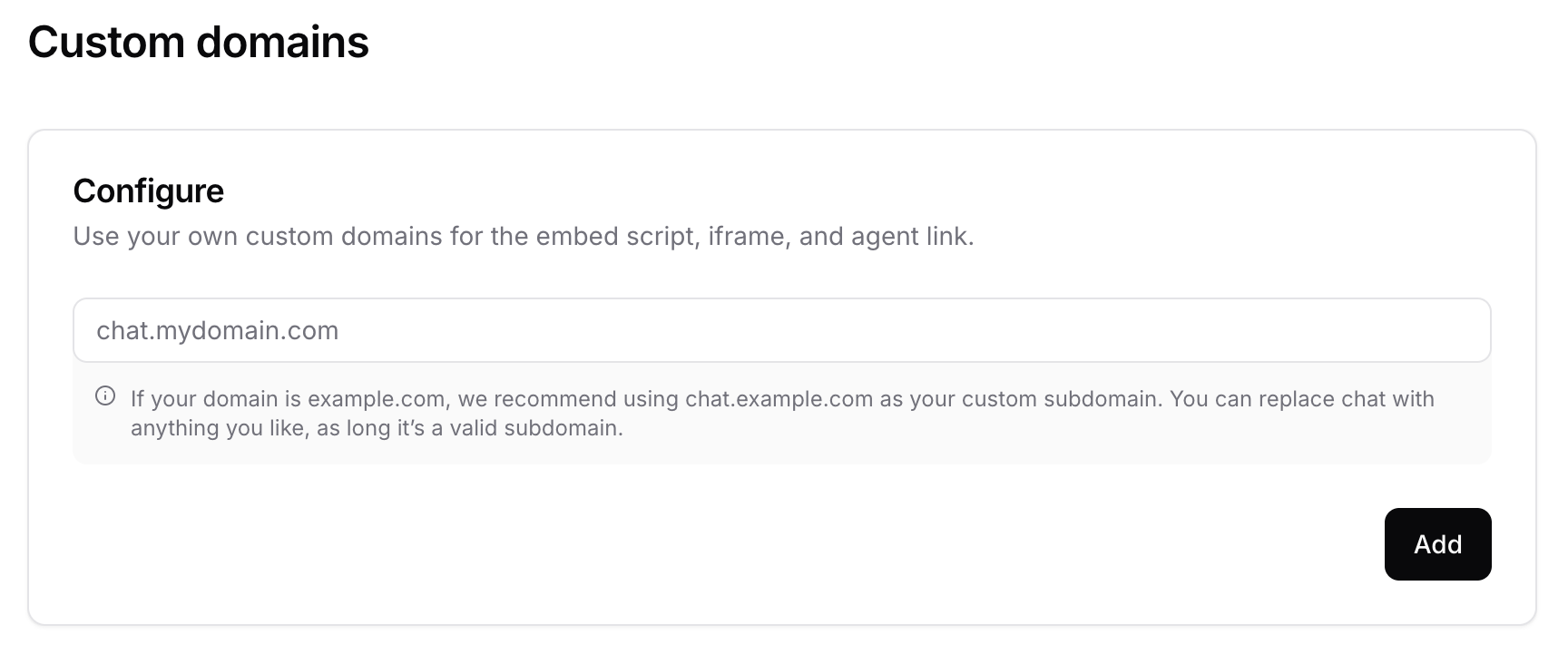 To set this up, enter the desired URL for your bot, and then configure a DNS record with your provider. Common DNS providers include Cloudflare, OpenDNS, and Quad9.
You will need to add a CNAME record with the specific values provided on the custom domain page in your dashboard. Please note that it may take up to 6 hours for the records to fully propagate and update.
### What "Custom Domain" Means on Chatbase?
When we say you can add a custom domain, it means you can host your AI agent on a subdomain that belongs to your company or brand, instead of Chatbase's default domain. For example, instead of your AI agent appearing on a URL like chatbase.co/yourbot, it could be hosted on yourbot.yourdomain.com.
This feature enhances your brand's professionalism and trustworthiness by keeping everything under your domain.
By adding a custom subdomain:
1. Your AI agent becomes an integrated part of your website.
2. Visitors' traffic requests won't be redirected to an external Chatbase URL.
3. It improves the user experience with consistent branding across your website and AI agent interactions.
### Step-by-Step Guide to Adding a Custom Subdomain to Your AI agent on Chatbase
1. **Log Into Your Chatbase Account**\
First, sign in to your Chatbase account using your credentials. If you don't have an account yet, you can easily create one by following the sign-up process on the website.
To set this up, enter the desired URL for your bot, and then configure a DNS record with your provider. Common DNS providers include Cloudflare, OpenDNS, and Quad9.
You will need to add a CNAME record with the specific values provided on the custom domain page in your dashboard. Please note that it may take up to 6 hours for the records to fully propagate and update.
### What "Custom Domain" Means on Chatbase?
When we say you can add a custom domain, it means you can host your AI agent on a subdomain that belongs to your company or brand, instead of Chatbase's default domain. For example, instead of your AI agent appearing on a URL like chatbase.co/yourbot, it could be hosted on yourbot.yourdomain.com.
This feature enhances your brand's professionalism and trustworthiness by keeping everything under your domain.
By adding a custom subdomain:
1. Your AI agent becomes an integrated part of your website.
2. Visitors' traffic requests won't be redirected to an external Chatbase URL.
3. It improves the user experience with consistent branding across your website and AI agent interactions.
### Step-by-Step Guide to Adding a Custom Subdomain to Your AI agent on Chatbase
1. **Log Into Your Chatbase Account**\
First, sign in to your Chatbase account using your credentials. If you don't have an account yet, you can easily create one by following the sign-up process on the website.
 2. **Navigate to Your AI agent Settings**\
Once you're logged in, locate the AI agent you want to associate with a custom subdomain. This could be a newly created bot or an existing one.
Open the settings tab for that specific AI agent. This is where you customize your bot's behavior, appearance, and technical configurations.
2. **Navigate to Your AI agent Settings**\
Once you're logged in, locate the AI agent you want to associate with a custom subdomain. This could be a newly created bot or an existing one.
Open the settings tab for that specific AI agent. This is where you customize your bot's behavior, appearance, and technical configurations.
 3. **Locate the Domain Customization Option**\
In the bottom left corner of the settings tab, look for "Custom Domain" and click on it.
3. **Locate the Domain Customization Option**\
In the bottom left corner of the settings tab, look for "Custom Domain" and click on it.
 4. **Enter Your Custom Subdomain**\
This is where you type in the subdomain (e.g., support.yourbusiness.com) that you own or have control over. Chatbase currently supports subdomains only, so you'll need to ensure you're using a subdomain on your website.
Adding a custom subdomain gives your AI agent a professional look by branding it with your website's URL instead of Chatbase's default domain.
5. **Configure DNS Settings**\
You might need to configure additional DNS settings like CNAME records. This step will link the custom subdomain to your AI agent, ensuring it works correctly when users visit the URL.
Chatbase will provide specific DNS instructions for setting this up, which usually includes pointing the subdomain to Chatbase's servers.
6. **Save and Test Your AI agent**\
Once you've successfully configured the domain settings and DNS records, save your changes.
It may take some time for the changes to propagate across the web (usually within a few minutes to 24 hours).
Test the custom subdomain by entering it into a browser to ensure your AI agent loads correctly.
4. **Enter Your Custom Subdomain**\
This is where you type in the subdomain (e.g., support.yourbusiness.com) that you own or have control over. Chatbase currently supports subdomains only, so you'll need to ensure you're using a subdomain on your website.
Adding a custom subdomain gives your AI agent a professional look by branding it with your website's URL instead of Chatbase's default domain.
5. **Configure DNS Settings**\
You might need to configure additional DNS settings like CNAME records. This step will link the custom subdomain to your AI agent, ensuring it works correctly when users visit the URL.
Chatbase will provide specific DNS instructions for setting this up, which usually includes pointing the subdomain to Chatbase's servers.
6. **Save and Test Your AI agent**\
Once you've successfully configured the domain settings and DNS records, save your changes.
It may take some time for the changes to propagate across the web (usually within a few minutes to 24 hours).
Test the custom subdomain by entering it into a browser to ensure your AI agent loads correctly.